How to Search for Apps on Samsung TV: A Complete Guide
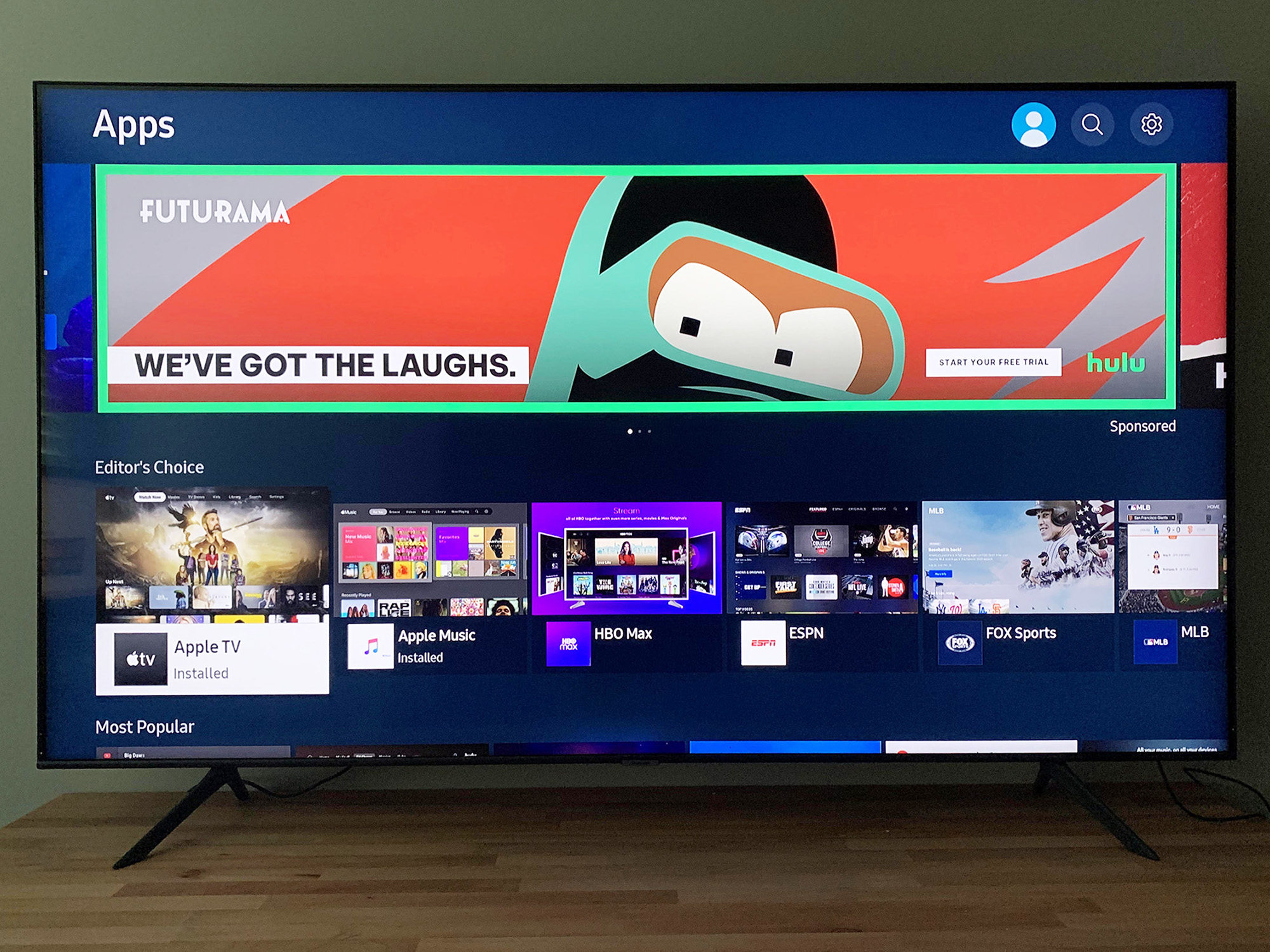
Searching for and installing applications on a Samsung Smart TV is a straightforward process managed through the Tizen-based Smart Hub interface. By accessing the Apps section within the Smart Hub, you can browse, search for specific streaming services, utility applications, or games, and add them directly to your television’s home screen for quick access, ensuring your entertainment setup remains organized and functional.
Understanding the Samsung Smart Hub Environment
The Samsung Smart Hub serves as the central command center for all your television’s connected features. Whether you are using a modern QLED, OLED, or a standard Crystal UHD model, the operating system—known as Tizen OS—is designed to prioritize content discovery and application management.
At its core, the Smart Hub is not just a menu; it is a personalized interface that learns your viewing habits over time. Before you can search for new applications, it is essential to ensure your television is connected to a stable internet connection. Without a network link, the Apps store will fail to populate, often resulting in a blank screen or a "Check Network Connection" error message. If you encounter issues, navigate to Settings, select General, and then Network to verify your status.
Prerequisites for App Installation
Before you can successfully search for and download applications, there are three primary requirements that must be met. Ignoring these prerequisites is the most common reason users fail to find the content they are looking for in the Samsung App Store.
- Samsung Account: You must be signed in to a Samsung Account on your television. While you can browse some parts of the interface without one, downloading apps requires a verified account to sync your preferences and maintain your license for the software.
- Network Stability: A high-speed internet connection is required. Streaming applications, in particular, require consistent bandwidth. If your connection is intermittent, the search function within the Apps store may time out or fail to return results.
- Regional Availability: The applications available in the Samsung Apps store are determined by your geographic location. If you are searching for a specific regional service (such as a local broadcast app or a country-specific streaming platform), it may not appear in your results if your TV’s service region is set incorrectly.
Step-by-Step: How to Search for Apps
The search function is integrated directly into the Apps menu. Follow these steps to locate your desired content:
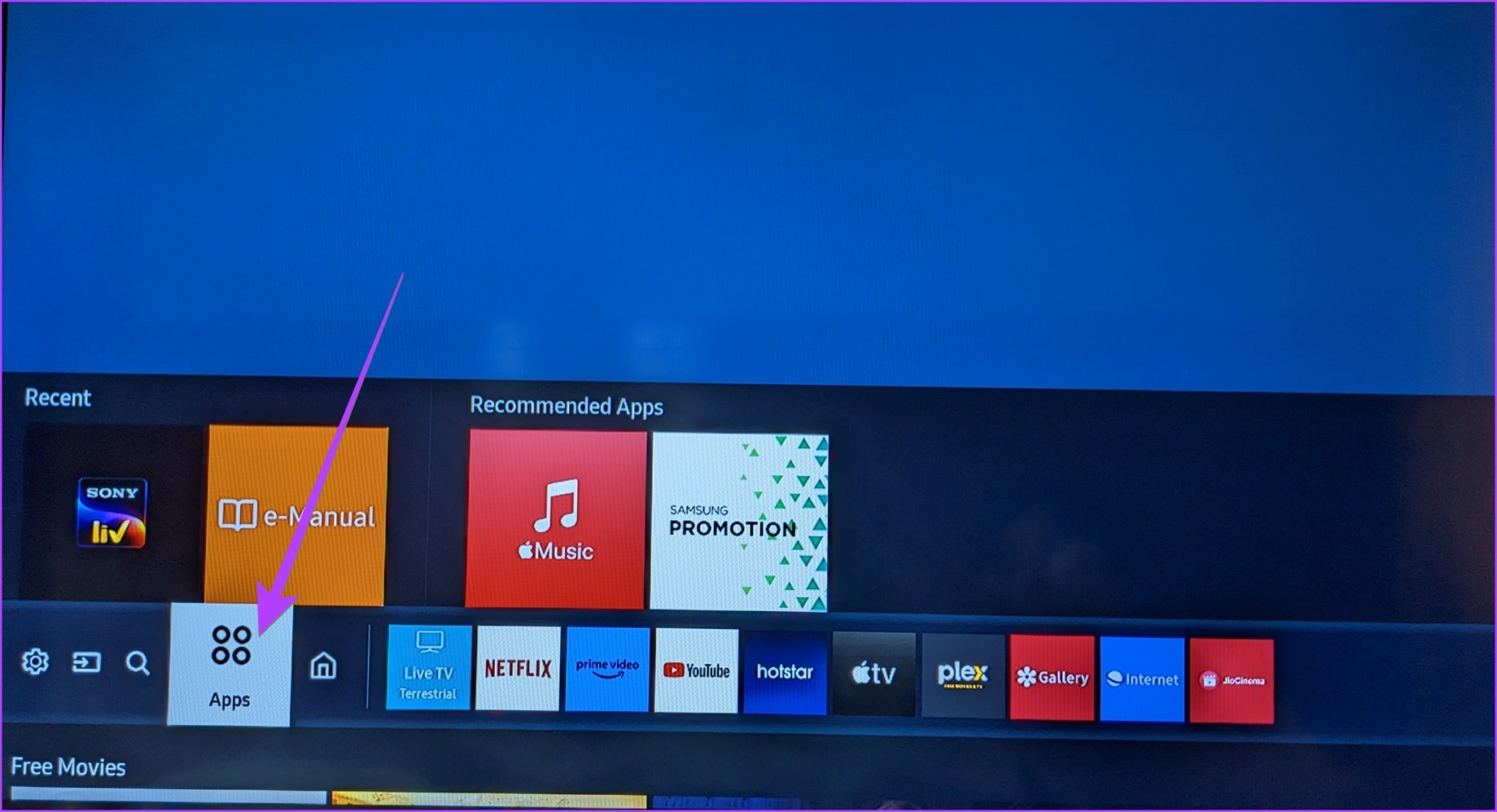
- Open the Smart Hub: Press the Home button on your Samsung remote control. This will bring up the main navigation bar, usually located at the bottom of the screen.
- Navigate to Apps: Use the directional pad on your remote to scroll through the menu until you highlight the Apps icon. Select it by pressing the center button (Select/Enter).
- Locate the Search Icon: Once inside the Apps interface, you will see a magnifying glass icon, typically positioned in the top-right corner of the screen.
- Enter Your Query: Select the search icon. An on-screen keyboard will appear. Type the name of the application you are looking for. As you type, the system will begin to display real-time suggestions below the input field.
- Select and Install: Once the desired app appears in the results, select it to view the app details page. From here, choose the Install button. After the download finishes, you can choose to "Add to Home" to place the app on your primary navigation bar.
Comparing App Management Across Samsung Generations
While the core functionality remains consistent, the user interface (UI) has evolved. Understanding these minor differences helps when navigating older or newer models.
| Feature | 2020–2022 Models | 2023–2026 Models |
|---|---|---|
| Search Access | Located within the App Store UI | Integrated search across home/apps |
| Navigation | Horizontal bottom bar | Full-screen immersive dashboard |
| Account Sync | Standard login | Multi-device profile support |
| Interface Speed | Moderate | High (optimized for newer processors) |
Managing Your App Collection
Once you have installed several applications, your Smart Hub can become cluttered. Effective app management is vital for maintaining a clean user experience. To move an app, navigate to the app in your home bar, press the Down button on your remote, and select "Move." You can then use the directional pad to shift the icon to your preferred location.
Additionally, you can remove apps that you no longer use to free up internal storage. Select the Settings icon (the gear icon) inside the Apps menu. This will display a list of all installed applications. From here, you can select an app and choose "Delete" or "Reinstall." Deleting unused apps is particularly helpful if you notice your television’s interface becoming sluggish, as it frees up system memory and internal storage.
Troubleshooting Common Issues
If you are unable to find an app despite following the steps above, consider these potential solutions:
- Check for Software Updates: Samsung frequently releases firmware updates that include security patches and compatibility improvements for the App Store. Navigate to Settings > Support > Software Update to check for pending installations.
- Clear the Cache: Sometimes the store interface holds onto old data. While there is no dedicated "Clear Cache" button for the store itself, performing a "Cold Boot" (holding the power button on the remote until the TV restarts) often resolves minor software glitches.
- Region Mismatch: If you recently moved to a new country or purchased a TV in a different region, the store will not display apps available in your current location. You may need to perform a factory reset of the Smart Hub settings to update the service region.
- App Discontinuation: Developers occasionally pull their apps from the Tizen platform. If an app previously available is no longer showing up, check the developer’s website to confirm whether they still support Samsung Smart TVs.
Frequently Asked Questions
Can I install Android apps on my Samsung TV?
No, Samsung TVs use Tizen OS, not Android TV or Google TV. You can only install applications available through the official Samsung Apps store. Sideloading Android APK files is not supported and can pose security risks to your television.
Why is the app I am looking for not appearing in the search?
This is typically due to regional restrictions or the app being incompatible with your specific TV model year. Check that your TV's location settings are correct and that your firmware is fully updated.
Will installing too many apps slow down my TV?
Yes, every installed app occupies internal storage space and requires system resources to manage. If you find your TV's interface is lagging, uninstalling apps you no longer use is a recommended first step to improve performance.
Can I hide apps I don't use but don't want to delete?
You cannot hide the core system apps, but you can move them to the end of your list in the Apps screen so they do not interfere with your primary navigation. Use the "Move" function to reorganize your App tray.
How do I update my apps?
By default, Samsung TVs are set to auto-update applications. You can verify this by going to the Apps settings menu and toggling "Auto Update" to "On." If you suspect an app is outdated, you can select the app in the settings menu and check for an update option manually.
Final Recommendation
To maintain an optimal experience, prioritize keeping your TV's firmware updated to the latest version available in 2026. If you find yourself frequently navigating through multiple menus to find your most-used services, take five minutes to reorganize your Home Screen by pinning your most frequent applications to the leftmost position. This simple habit drastically reduces the time spent searching for your content each time you power on your device.
Image Gallery
Select an image to open it in a new tab.


Lars Thomsen
Global Labor Markets and Economic Strategy Editor
