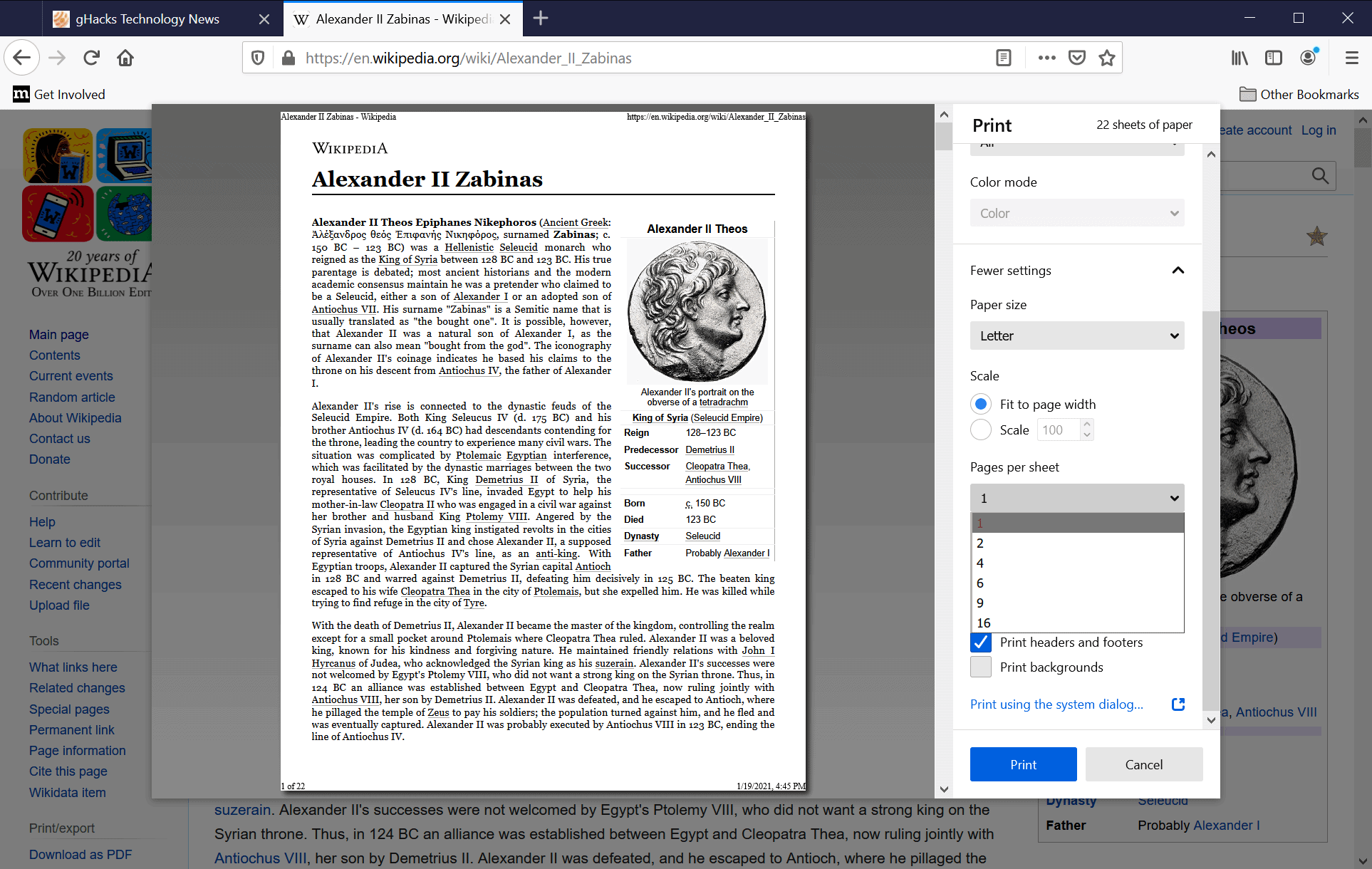
Printing multiple pages of a PDF document onto a single physical sheet of paper is an effective strategy for reducing paper consumption, saving toner, and creating compact reading materials or presentation handouts. However, configuring these layout options requires careful balancing between paper economy, text legibility, binding margins, and formatting integrity across different document types.
Foundations of N-Up PDF Printing
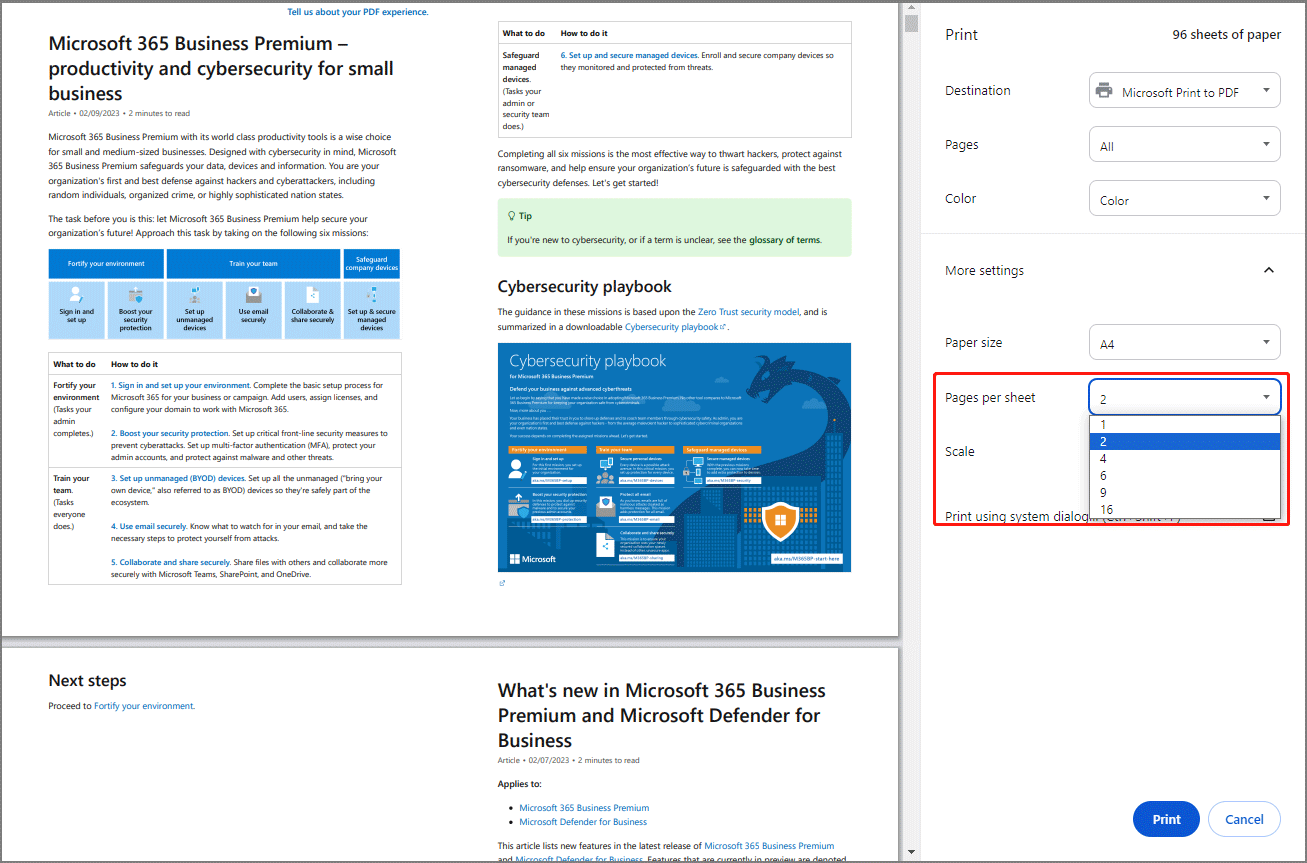
The concept of printing multiple pages per sheet is formally known in digital typography and print production as N-up printing, where "N" represents the integer number of logical document pages mapped onto a single physical side of paper. Common configurations include 2-up, 4-up, 6-up, 9-up, and 16-up layouts. When a user requests an N-up layout, the print driver or PDF reader processing engine rescales each logical page, calculates a geometric grid arrangement, and outputs them in a specific reading order—typically left-to-right, top-to-bottom for Western languages, or right-to-left for vertical scripts.
Understanding how vector and raster data behave during this transformation is essential. Unlike standard 1-up printing (one page per sheet), which outputs documents at 100% scale or fits them to native margins, N-up printing forces downsampling. Vector graphics and scalable fonts maintain their crisp geometric outlines down to surprisingly small sizes, but complex raster images, thin hairline borders, and dense footnotes can quickly cross the threshold of human legibility.
Furthermore, N-up printing interacts heavily with page orientation. If a source document is formatted in a standard vertical portrait layout (8.5 x 11 inches or A4), placing two pages side-by-side on a landscape-oriented physical sheet requires rotating the logical pages or scaling them down into asymmetric grid rectangles. Mastering these layout dynamics prevents common printing errors like clipped text, excessive white space, and inverted reading orders.
Common Configuration Options and Layout Choices
Selecting the right layout configuration depends entirely on the physical paper size, the initial document dimensions, and the final use case. Modern PDF viewers (such as Adobe Acrobat Reader, Foxit Reader, and open-source alternatives) and operating system print dialogues expose several critical controls.
Grid Arrangements and Page Scaling
The primary setting in any N-up dialogue is the grid matrix. Users can select predefined structures or custom configurations:
- 2-Up Landscape: Places two portrait pages side-by-side on a landscape sheet. This is the gold standard for reading text-heavy documents like academic papers or manuals, as it minimizes the vertical reduction scale.
- 4-Up Grid: Arranges four pages in a 2x2 grid. This format works well for slide decks, presentations, and draft reviews where images are prominent and font sizes were originally large.
- High-Density Grids (6-up, 9-up, 16-up): Typically utilized for archival proofs, contact sheets, or index creation. At these scales, textual content becomes extremely small and is generally suitable only for structural skimming rather than deep reading.
Page Ordering and Flow Direction
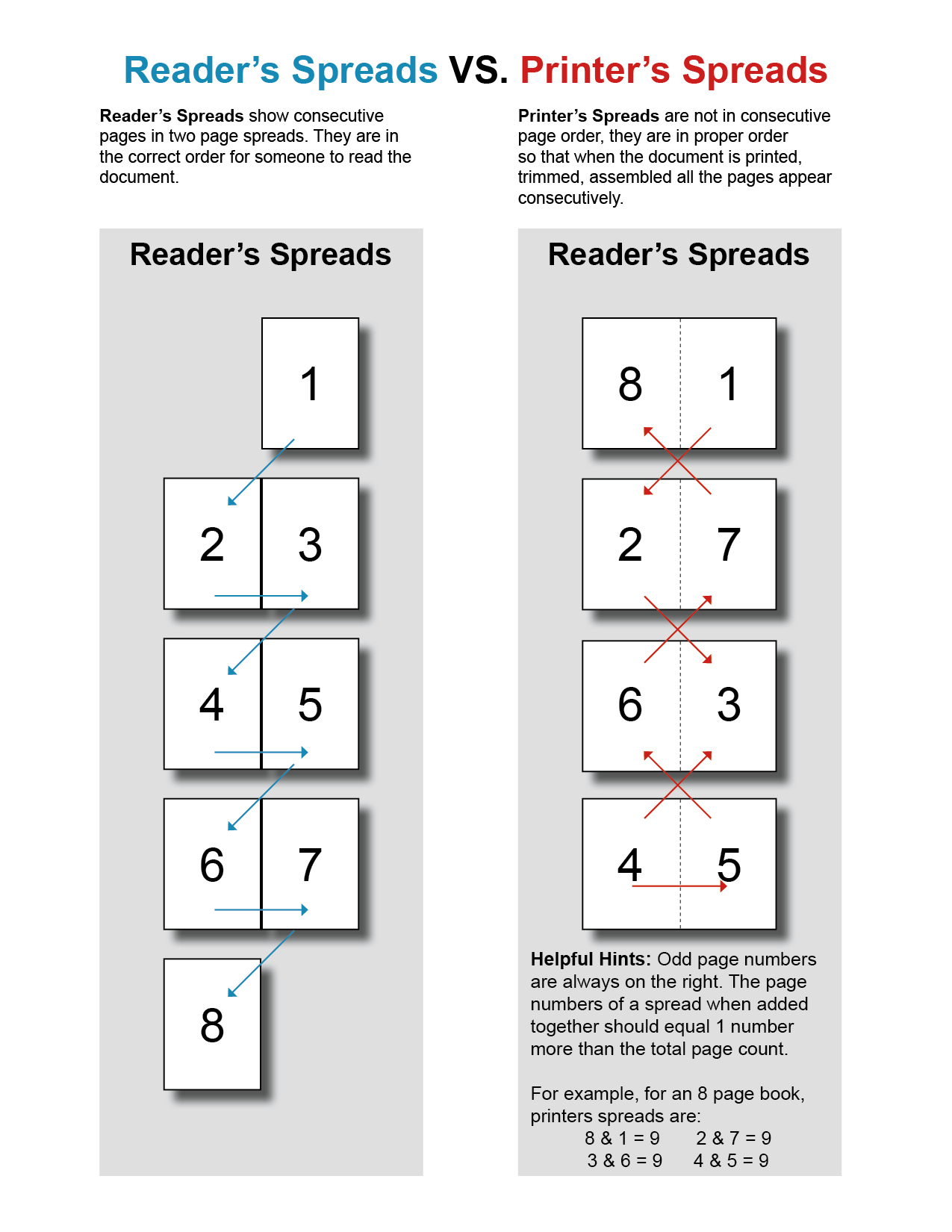
Print engines allow users to customize the reading sequence across the grid. The standard sequence flows horizontally across the page (Page 1 on the top-left, Page 2 on the top-right, Page 3 on the bottom-left, etc.). However, booklet-style workflows or specific column-based documents may require vertical flow configurations (Page 1 top-left, Page 2 bottom-left) or manual reverse ordering to facilitate post-print folding and saddle-stitch binding.
Borders, Margins, and Crop Marks
When multiple pages are squeezed onto a single sheet, distinguishing where one page ends and the next begins can be difficult if background colors or white margins blend together. Robust print drivers offer options to draw thin borders around each individual page or include crop marks. Adding page borders provides a clean visual separation, while margins ensure that the scaled pages do not run off the physical paper edge during printing.
Comprehensive Trade-Offs: Economy Versus Usability
Every N-up printing decision involves a direct compromise between resource conservation and document accessibility. Evaluating these trade-offs ensures that the final output meets the needs of the reader without causing eye strain or workflow bottlenecks.
| Metric / Feature | 1-Up (Standard) | 2-Up Layout | 4-Up Layout | 8-Up / 16-Up Layout |
|---|---|---|---|---|
| Paper Consumption | Baseline (100%) | 50% reduction | 75% reduction | 87.5% to 93.75% reduction |
| Toner / Ink Usage | Baseline | Moderate reduction | Substantial reduction | Maximum reduction |
| Text Legibility | High (Native size) | Good (Slight reduction) | Fair (Noticeable reduction) | Poor (Requires magnification) |
| Annotation Space | High (Wide margins) | Moderate (Side margins) | Minimal | None |
| Binding Compatibility | Standard (All types) | Excellent (Saddle-stitch/Binder) | Good (Hole-punch friendly) | Poor (Difficult to bind flat) |
| Primary Use Case | Final reading copies | Draft reviews, reading packets | Presentation slides, notes | Archival proofing, indexes |
The Legibility Threshold
The single most significant trade-off is text legibility. Standard body text in PDFs is commonly set between 10pt and 12pt fonts. When a document is scaled down to 4-up on standard Letter or A4 paper, an 11pt font effectively shrinks to approximately 5.5pt to 6pt. For readers with uncorrected vision impairments or in low-light environments, this size causes rapid eye fatigue and reading comprehension drop-offs. Footnotes, dense data tables, and legal disclaimers often become entirely illegible at 4-up or higher configurations.
Environmental and Financial Impact
From a sustainability and operational standpoint, multi-page printing offers undeniable advantages. Cutting paper consumption by 50% to 75% directly lowers stationery budgets in corporate and educational environments. Furthermore, reduced toner coverage per page extends cartridge life. However, these savings must be weighed against the productivity cost of unreadable documents; if a user must reprint a document in standard 1-up format because the 4-up version is illegible, the paper and energy savings are entirely negated.
Physical Handling and Annotation Constraints
Physical interaction with the printed output changes dramatically with N-up layouts. Standard 1-up documents leave ample white space in margins for handwritten notes, margin commentary, and highlighting. A 4-up layout drastically compresses internal margins, leaving almost no white space for annotations. If the printed pages are intended for active study sessions or editorial review, the lack of writing space can render the output frustrating to use.
Step-by-Step Execution Across Major Platforms
Configuring N-up printing varies slightly depending on the operating system environment and PDF reader software in use. Below are the verified procedures for standard platforms.
Adobe Acrobat Reader (Desktop)
- Open the target PDF document in Adobe Acrobat or Acrobat Reader.
- Navigate to the top menu and select File > Print, or use the keyboard shortcut
Ctrl+P(Windows) orCmd+P(macOS). - In the print dialogue box, locate the Page Sizing & Handling section.
- Click on the Multiple button.
- Set the Pages per sheet dropdown menu to your desired configuration (e.g., 2, 4, 6, 9, or 16).
- Adjust the Page order (Horizontal, Horizontal Reversed, Vertical, Vertical Reversed).
- Check the box for Print page border if you want clear demarcations between pages.
- Review the real-time preview panel on the right to ensure the orientation and scaling look correct, then click Print.
macOS Preview App
- Open the PDF file in Preview.
- Select File > Print from the top menu bar.
- If the print dialogue is showing minimal options, click Show Details at the bottom of the window.
- Locate the layout controls (usually found in the dropdown menu that defaults to the app name, such as "Preview"). Switch that dropdown to Layout.
- Find the Pages per Sheet field and select your desired integer.
- Configure the Layout Direction using the grid icons provided.
- Select a Border style if desired, verify the preview, and execute the print command.
Troubleshooting Common PDF Layout Issues
Even with correct settings, users frequently encounter rendering errors and unexpected output results when printing multiple pages per sheet. Addressing these issues saves time and prevents wasted paper.
1. Unexpected White Borders and Tiny Output
- The Symptom: The printed pages appear as tiny rectangles isolated in the center of the physical paper, surrounded by massive white margins.
- The Cause: A conflict between the print driver's auto-fit settings and the PDF reader's scaling engine. The software is trying to preserve the exact aspect ratio of the logical pages within a mismatched physical paper size.
- The Solution: Check both the PDF reader print dialogue and the printer properties/preferences. Ensure that scaling is set to "Fit to Printable Area" or "Default" rather than "Shrink oversized pages" when N-up is already handling the downscaling math.
2. Clipped Content and Missing Margins
- The Symptom: Edges of text or graphics are cut off at the borders of the physical page or where individual logical pages meet.
- The Cause: The physical printer cannot print to the absolute edge of the paper (hardware margin limitations), or the N-up grid calculation pushed content beyond the printable area.
- The Solution: Enable Auto-Rotate in the print dialogue so that landscape and portrait documents align naturally with the physical paper orientation. Additionally, ensure page borders are enabled to verify where the print driver places boundaries.
3. Inverted Reading Order in Booklets
- The Symptom: When printing multiple pages to fold into a booklet, the page sequence jumps erratically (e.g., jumping from page 1 to page 8).
- The Cause: Standard horizontal page flow does not account for signature imposition (the arrangement of pages so they read correctly after the paper is folded and bound).
- The Solution: Use dedicated booklet printing modes rather than standard N-up grids, or manually configure the page ranges and reverse page ordering to match your specific binding workflow.
Frequently Asked Questions
What is the best N-up setting for reading standard academic papers?
A 2-up landscape configuration on standard Letter or A4 paper provides the optimal balance. It reduces paper usage by 50% while keeping font scaling close to its original size, preserving legibility for dense academic text and footnotes.
Will printing multiple pages per sheet save printer toner?
Yes. Because the printer scales down the vector and raster elements, the total pixel area covered by ink or toner on the physical page decreases significantly. This reduces overall toner consumption per sheet of paper.
How do I add borders around individual pages in an N-up print?
Most PDF reader print dialogues (such as Adobe Acrobat) include a dedicated checkbox labeled Print page border under the multiple pages configuration menu. Checking this box draws a thin hairline border around the perimeter of each logical page, preventing them from blending together.
Can I print N-up layouts from mobile devices like smartphones or tablets?
Mobile printing support depends heavily on the specific operating system print service (AirPrint on iOS or Google/Android Print Service) and the companion app. While basic mobile PDF viewers allow simple scaling, advanced N-up grids with custom page orders often require a desktop environment for reliable execution.
Why does my text look blurry when printed in 4-up or 8-up?
Text blurring occurs because downsampling a PDF forces font vectors or rasterized text to render at a fraction of their original pixel resolution. When fonts drop below 6pt, printer dots struggle to resolve sharp character edges, resulting in a softened or pixelated appearance.
Conclusion and Recommendations
Optimizing PDF printing through multiple pages per sheet requires an understanding of your document's typography, the intended audience, and physical hardware limits. For draft reviews and slide decks, 2-up and 4-up configurations deliver substantial paper and toner savings without sacrificing core usability. For official reading copies, legal submissions, or dense technical manuals, stick to 1-up printing or careful 2-up layouts with verified legibility checks. Always inspect the print preview panel before sending jobs to the physical printer to catch alignment and scaling errors early.
Image Gallery
Select an image to open it in a new tab.

Akira Tanaka
International Academic Trends Correspondent
