
To put your iPhone into discovery mode so it can be detected by other Bluetooth devices, you simply need to open the Bluetooth settings menu within the Settings app. Once this specific screen is open and active, your iPhone enters a broadcast state, allowing nearby peripherals like speakers, headphones, or automotive systems to identify and pair with your device.
Understanding iPhone Bluetooth Discovery
It is a common point of confusion for new users: "discovery mode" on an iPhone does not function like it does on many legacy Bluetooth devices. On many wireless speakers or older headsets, you must press and hold a button to trigger a specific "pairing mode" where the device flashes a light. On an iPhone, however, you do not need to press a button to start broadcasting your presence. Instead, the device broadcasts its availability to connect exclusively while the Bluetooth settings screen is open.
When you navigate to the Bluetooth settings page, the iPhone’s iOS operating system temporarily changes the Bluetooth controller's state to "discoverable." This allows nearby devices that are searching for a connection to "see" your iPhone. Once you navigate away from this screen—or if you lock your phone and the display turns off—the iPhone stops actively broadcasting its identity to new, unpaired devices to preserve battery life and maintain security.
Step-by-Step: Enabling Discovery Mode
The process is straightforward but requires you to remain on a specific screen. Follow these steps to ensure your device is discoverable:
- Unlock your iPhone: Ensure your device is powered on and unlocked.
- Open Settings: Locate and tap the Settings icon (the gray gear symbol) on your Home Screen.
- Navigate to Bluetooth: Tap the Bluetooth menu item.
- Verify Bluetooth is Toggled On: Ensure the toggle switch at the top is green. If it is gray, tap it to enable Bluetooth.
- Stay on the Screen: Keep this specific "Bluetooth" page open. As long as you remain on this screen, your iPhone is actively broadcasting its presence to any device attempting to pair with it.
If you navigate back to the main Settings menu or return to your Home Screen, the "discoverable" window will close. If the device you are trying to pair with has not yet found your iPhone, you must return to the Bluetooth settings menu to trigger the broadcast again.
Why Discovery Mode is Restricted
Apple restricts constant discoverability as a core security and privacy feature. If an iPhone were always in discovery mode, it would be vulnerable to "Bluejacking" or unsolicited pairing attempts from unauthorized devices in public spaces like airports, cafes, or offices.
By tying discovery mode to the active Settings screen, Apple ensures that you are intentionally looking to connect a device. This "gated" approach minimizes the surface area for unauthorized connections. Furthermore, this design helps optimize battery performance. Continually scanning for and broadcasting to every nearby Bluetooth device consumes significant energy; by limiting discovery to moments when a user is actively interacting with the Bluetooth configuration menu, the system preserves power for essential tasks.
Preparing the Peripheral Device
It is important to remember that for a successful pairing, both ends of the connection must be ready. While the iPhone is now in discovery mode, the device you are trying to connect—whether it is a pair of wireless headphones, a smart watch, or a car infotainment system—must also be set to its own "pairing mode."
Often, users mistakenly assume that because the iPhone is discoverable, it will automatically find the peripheral. If the peripheral is not also in a state to "listen" or pair, the two will never establish a handshake. Refer to your accessory’s user manual to determine how to put that specific hardware into its own pairing mode, which often involves holding the power button or a dedicated Bluetooth button for several seconds until an LED indicator begins flashing.
Troubleshooting Connection Failures
If you are on the Bluetooth settings screen but your iPhone is not appearing on your other device, follow these diagnostic steps:
- Toggle Bluetooth: Tap the Bluetooth switch off, wait five seconds, and tap it back on while remaining on the screen.
- Restart the iPhone: A quick restart can clear temporary cache issues or stalled Bluetooth processes. Hold the side button and one volume button on modern iPhones (with Face ID) to power off, then restart.
- Check for Interference: Move away from high-density areas with many active Bluetooth signals, such as large smart-home hubs or crowded tech environments, which can sometimes cause signal congestion.
- Verify Software Updates: Ensure your iOS is up to date. Occasionally, Bluetooth connectivity improvements are bundled with iOS system updates to address compatibility with newer hardware standards.
- Toggle Airplane Mode: Turning Airplane Mode on for ten seconds and then off again acts as a "soft reset" for all wireless radios on your device, including Bluetooth and Wi-Fi.
Comparison of Bluetooth Discovery Methods
| Device Type | Discovery Mechanism | Duration |
|---|---|---|
| iPhone (iOS) | Active when Bluetooth settings menu is open. | Until user exits the menu. |
| Wireless Speakers | Dedicated pairing button or long-press. | Usually 60–120 seconds. |
| Bluetooth Headphones | Power button / Pairing mode gesture. | Until paired or timeout. |
| Car Systems | Settings menu > Add New Device. | Continuous while in menu. |
Frequently Asked Questions
How long does my iPhone stay in discovery mode? Your iPhone stays in discovery mode for as long as you have the Bluetooth settings screen open. There is no hard time limit provided you do not navigate away from that screen, lock the device, or let the screen go to sleep.
Do I need to be in discovery mode to connect to a previously paired device? No. Once a device has been paired with your iPhone, the two devices remember each other. You do not need to be on the Bluetooth settings screen to reconnect; simply turn on the peripheral device, and it should automatically attempt to handshake with your iPhone.
Why can't my computer find my iPhone via Bluetooth? Apple does not support standard Bluetooth file transfers or "discovery" for general computer pairing in the same way it handles audio accessories. You cannot typically "pair" an iPhone to a PC or Mac via the standard Bluetooth menu to send files; instead, you must use AirDrop (on Mac) or the Files app/iCloud.
Does "Discovery Mode" affect my battery life? Yes, but only minimally. Because the mode is restricted to the time you spend on the settings screen, it does not represent a significant drain on your battery. It is designed to be active only when you are explicitly performing a setup task.
What should I do if my iPhone shows "Not Connected" but I am on the settings screen? This usually indicates that the peripheral device is not in its own pairing mode or is currently connected to another device (such as your laptop or tablet). Ensure the peripheral has been "unpaired" from other nearby devices before attempting to pair it with your iPhone.
Final Recommendation
To successfully connect a new device, ensure your peripheral is in its dedicated pairing mode first, then navigate to Settings > Bluetooth on your iPhone. Once the device appears under the "Other Devices" list, tap its name immediately. If you frequently have trouble, ensure your iPhone software is updated to the latest version available for your specific model, as these updates often contain patches for Bluetooth handshake protocols with newer third-party hardware.
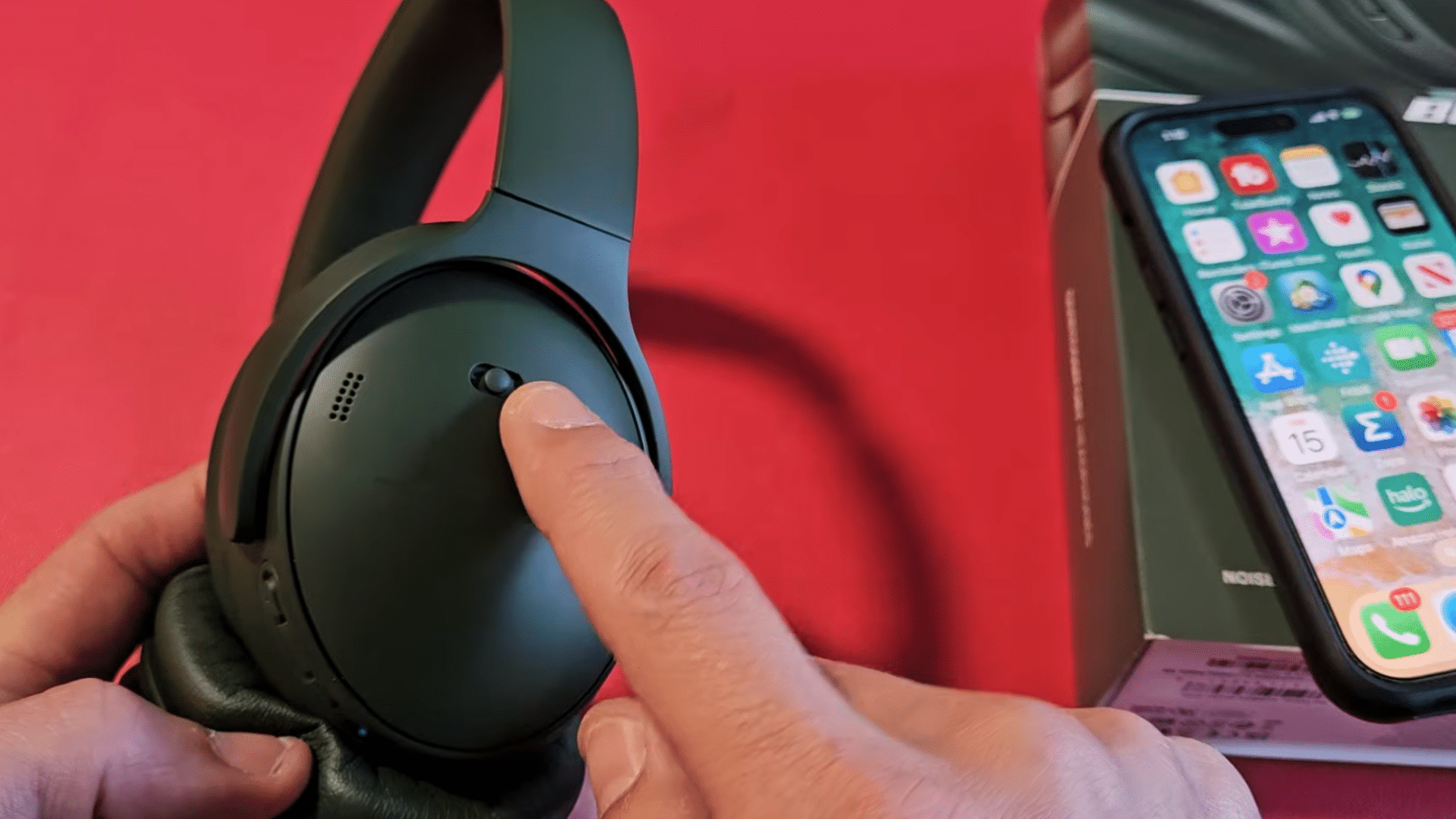
Image Gallery
Select an image to open it in a new tab.


Omar Farooq
EdTech Innovation and Virtual Pedagogy Journalist
