
To create a PayPal invoice for your small business, log in to your PayPal Business account, navigate to the Send and Request tab, and select Invoicing. Click Create Invoice, enter the recipient's email address, list the items or services provided with their prices, and click Send. Your customer will receive a secure payment link via email.
Small businesses frequently require a streamlined method for billing clients that is both professional and secure. PayPal Invoicing serves as a comprehensive tool designed to bridge the gap between service delivery and payment receipt. By using this feature, entrepreneurs can avoid the complexities of manual billing systems while providing customers with various payment options, including credit cards, debit cards, and PayPal balances.
Prerequisites for Using PayPal Invoicing
Before you can issue your first invoice, several administrative and technical requirements must be met to ensure compliance with financial regulations and to unlock the full suite of business features.
1. Upgrade to a PayPal Business Account
While personal accounts can send basic money requests, a PayPal Business account is essential for professional invoicing. Business accounts allow you to operate under a company name, provide detailed receipts, and access advanced reporting tools. If you currently have a personal account, you can upgrade it through the settings menu without creating a new login.
2. Identity and Bank Verification
To comply with "Know Your Customer" (KYC) and Anti-Money Laundering (AML) laws, PayPal requires users to verify their identity. This typically involves:
- Linking and confirming a valid business bank account.
- Confirming a primary email address.
- Providing a Tax Identification Number (TIN) or Social Security Number (SSN), depending on your jurisdiction and business structure.
3. Gathering Client Information
Professionalism starts with accuracy. Before opening the invoice editor, ensure you have the client's legal name, correct email address, and any specific billing references they require (such as a Purchase Order number).
Step-by-Step Guide: Creating Your First Invoice
The process of creating an invoice is designed to be intuitive, yet it offers deep customization for those who need it. Follow these steps to ensure your billing is accurate and professional.
Step 1: Access the Invoicing Dashboard
Log in to your PayPal Business account on a desktop browser. Click on the Pay & Get Paid menu (or "Send and Request" depending on your regional layout) and select Invoicing. This dashboard is your central hub for tracking sent, paid, and overdue invoices.
Step 2: Select a Template
PayPal provides several pre-designed templates tailored to different business models. You can choose from:
- Amount Only: Best for quick transactions without line items.
- Hours: Ideal for freelancers or consultants billing for time.
- Quantity: Designed for product-based businesses shipping physical goods.
Step 3: Enter Recipient Details
In the "Bill To" field, enter the customer's email address. If this is a repeat customer, PayPal will suggest their details from your saved contacts. You can also add "CC" recipients if you need to notify the customer's accounting department or a secondary stakeholder.
Step 4: Add Line Items and Descriptions
Detailed line items reduce the likelihood of payment disputes. For each item:
- Name: Provide a clear title for the product or service.
- Description: Briefly explain what was provided (e.g., "Web design services for Q1 rebranding").
- Quantity and Price: Enter the number of units and the price per unit.
- Tax: If applicable, select or create a tax rate. PayPal allows you to save these rates for future use.
Step 5: Customize the "Message to Customer" and Terms
Use the "Message to Customer" field to thank them for their business or provide specific instructions. The "Terms and Conditions" section is crucial for legal protection; use it to state your refund policy, late fee structure, or warranty information.
Step 6: Review and Send
Click the Preview button to see exactly what your customer will see. Check for typos, correct totals, and professional formatting. Once satisfied, click Send. You can also choose "Share link myself" if you prefer to send the invoice via a direct message on platforms like Slack or WhatsApp.

Advanced Customization for Professional Branding
Small businesses often compete on the quality of their presentation. PayPal allows you to move beyond generic forms and create invoices that reflect your brand identity.
Uploading a Business Logo
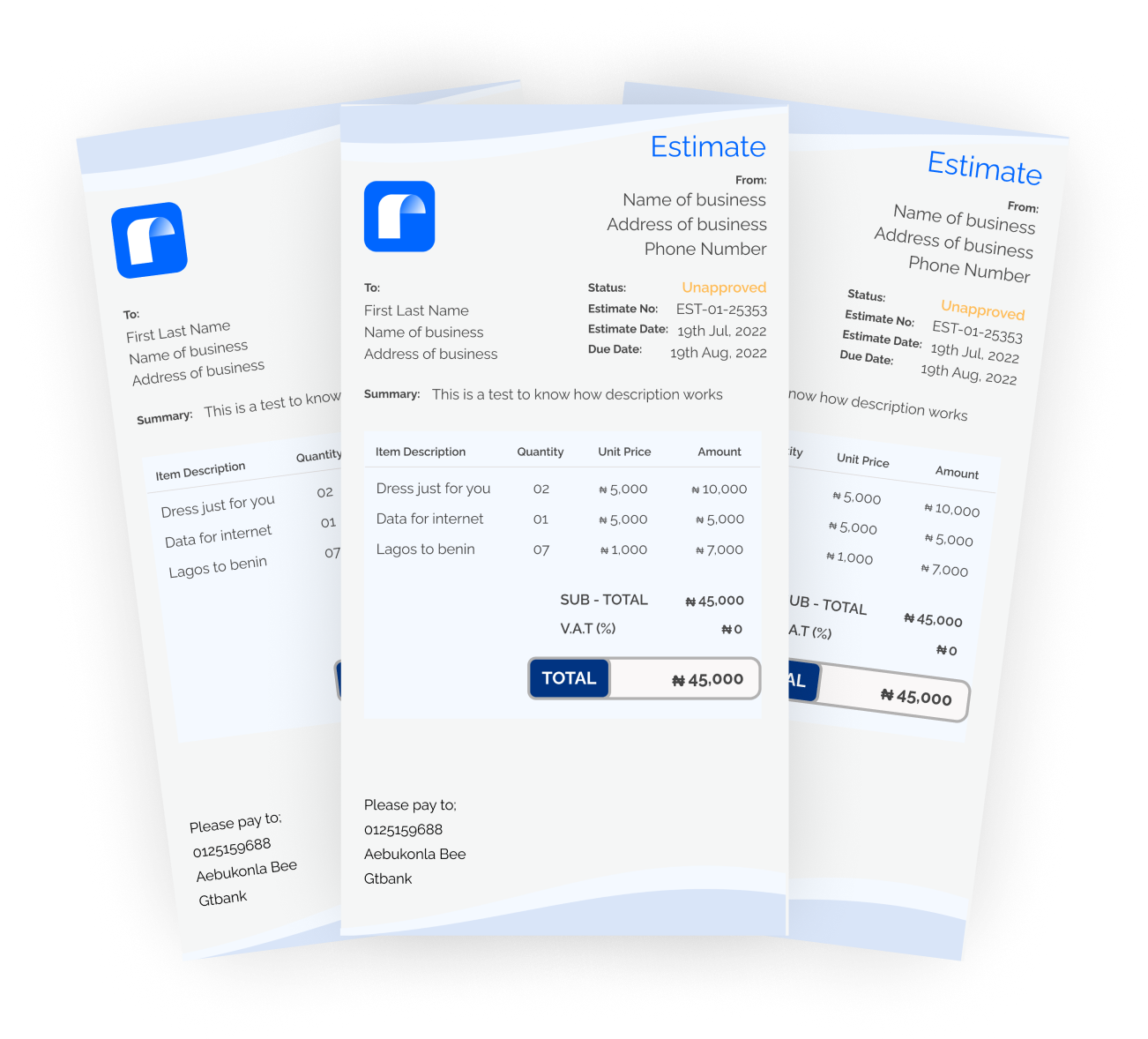
Adding a logo to your invoice header establishes immediate brand recognition. Use a high-quality PNG or JPEG file. Branding your invoices not only looks professional but also reassures the customer that the payment request is legitimate, reducing the risk of it being flagged as spam.
Creating Recurring Series
For businesses that operate on a subscription or retainer model, manual monthly invoicing is inefficient. PayPal’s Recurring Series feature allows you to automate this. You can set the frequency (weekly, monthly, yearly), the duration of the series, and whether the invoice should be sent automatically or saved as a draft for review.
Partial Payments and Deposits
If you are working on a large project that requires an upfront deposit, you can enable the Allow partial payment option. You can set a minimum amount due, which is particularly useful for service providers like contractors or event planners who need to cover initial costs before finishing a job.
Understanding Fees and Costs in 2026
While PayPal does not charge a monthly subscription fee for basic invoicing, it does collect a transaction fee on every paid invoice. It is vital for small businesses to factor these costs into their pricing models to protect their profit margins.
Standard Transaction Fees
The cost of receiving payment through a PayPal invoice generally depends on the customer's location and the payment method used.
| Payment Type | Estimated Fee (Standard) | Fixed Fee Component |
|---|---|---|
| Domestic Transactions | 2.99% | ~$0.49 |
| International Transactions | 4.49% | Varies by currency |
| Credit/Debit Card Payments | 2.99% | ~$0.49 |
| Alternative Payment Methods | Varies by region | Varies |
Note: These rates are reflective of standard 2026 business pricing and may vary based on your specific merchant volume or negotiated rates with PayPal.
Currency Conversion Fees
If you bill a client in a different currency than your primary account currency, PayPal applies a conversion spread. For example, if a UK-based business invoices a US client in USD, the funds will be converted to GBP at a rate that includes a markup (typically around 3% to 4% above the base exchange rate). To minimize these costs, some businesses prefer to maintain multiple currency balances within their PayPal account.
Managing and Tracking Invoices
The utility of PayPal Invoicing extends beyond the point of sale. Effective management of your receivables is the backbone of healthy cash flow.
Monitoring Payment Status
Your invoicing dashboard provides real-time status updates:
- Draft: Created but not yet sent.
- Sent: Out for payment but not yet viewed.
- Viewed: The customer has opened the email/link.
- Paid: Funds have been successfully transferred to your account.
- Overdue: The due date has passed without payment.
Automatic Reminders
Chasing late payments is one of the most time-consuming tasks for small business owners. PayPal allows you to set up automatic reminders. You can configure the system to send a follow-up email three days before the due date, on the due date, and at various intervals after the due date. This removes the "awkwardness" of manual follow-ups and ensures you remain a priority for your client’s accounts payable team.
Exporting Data for Accounting
Most small businesses use external accounting software like QuickBooks, Xero, or FreshBooks. PayPal allows you to export your invoicing history as a CSV or TAB file. This data can be imported into your accounting software to simplify tax preparation and financial reporting. Many modern accounting platforms also offer direct API integrations that sync PayPal transactions automatically.
Security and Dispute Protection
One of the primary reasons small businesses choose PayPal over manual bank transfers is the layer of security provided to both parties.
Seller Protection for Invoices
PayPal's Seller Protection program can safeguard your business against claims of "Unauthorized Transaction" or "Item Not Received." To qualify for protection on invoiced items, you must ensure the invoice contains a detailed description of the goods or services and maintain proof of delivery for physical items. Official PayPal Seller Protection guidelines provide the specific criteria required for coverage.
Preventing Fraud
Be wary of customers who ask to pay more than the invoice amount and request a partial refund via a different platform. This is a common "overpayment scam." Always stick to the PayPal invoicing ecosystem for the entire transaction to ensure your protection remains intact.
Frequently Asked Questions
Can I send a PayPal invoice to someone who doesn't have a PayPal account?
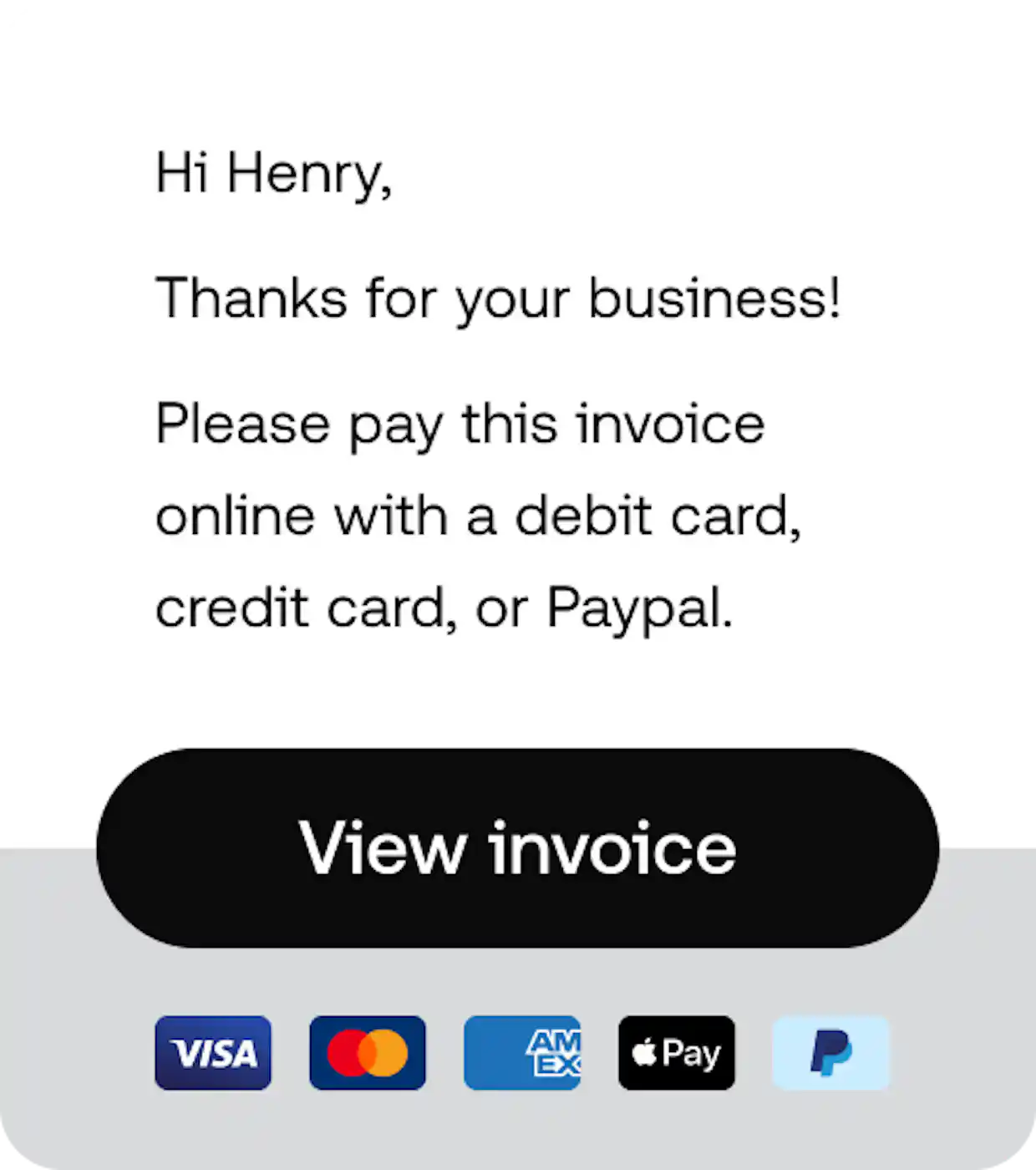
Yes. When you send an invoice, the recipient receives an email with a "Pay Now" button. They can choose to pay as a guest using their credit or debit card without needing to sign up for or log in to a PayPal account. This significantly reduces friction and speeds up the payment process.
What is the difference between a "Money Request" and an "Invoice"?
A money request is a simple notification asking for a specific dollar amount, usually used for personal transactions. An invoice is a legal business document that includes line items, tax details, shipping information, and professional branding. Invoices are generally required for business record-keeping and tax compliance.
How do I cancel an invoice that has already been sent?
Navigate to your Invoicing dashboard, find the specific invoice, and select Cancel from the actions menu. You will have the option to send a notification email to the customer explaining why the invoice was canceled. Once canceled, the payment link will no longer function.
Are there limits on the amount I can invoice?
PayPal does not have a strict "per-invoice" limit for verified business accounts, but very large transactions may be subject to review. If you are planning to invoice for a significant amount (e.g., over $10,000), ensure your account is fully verified and your bank limits are adjusted accordingly to avoid delays in withdrawing the funds.
Can I include a discount on my invoice?
Yes, the PayPal invoice editor includes a specific field for discounts. You can apply a discount as either a flat dollar amount or a percentage of the total. The discount will be clearly visible to the customer as a deduction from the subtotal.
Recommendations for Small Businesses
To maximize the efficiency of your billing process, consider these final best practices:
- Standardize Your Due Dates: Setting a consistent "Net 15" or "Net 30" payment term helps you predict monthly cash flow accurately.
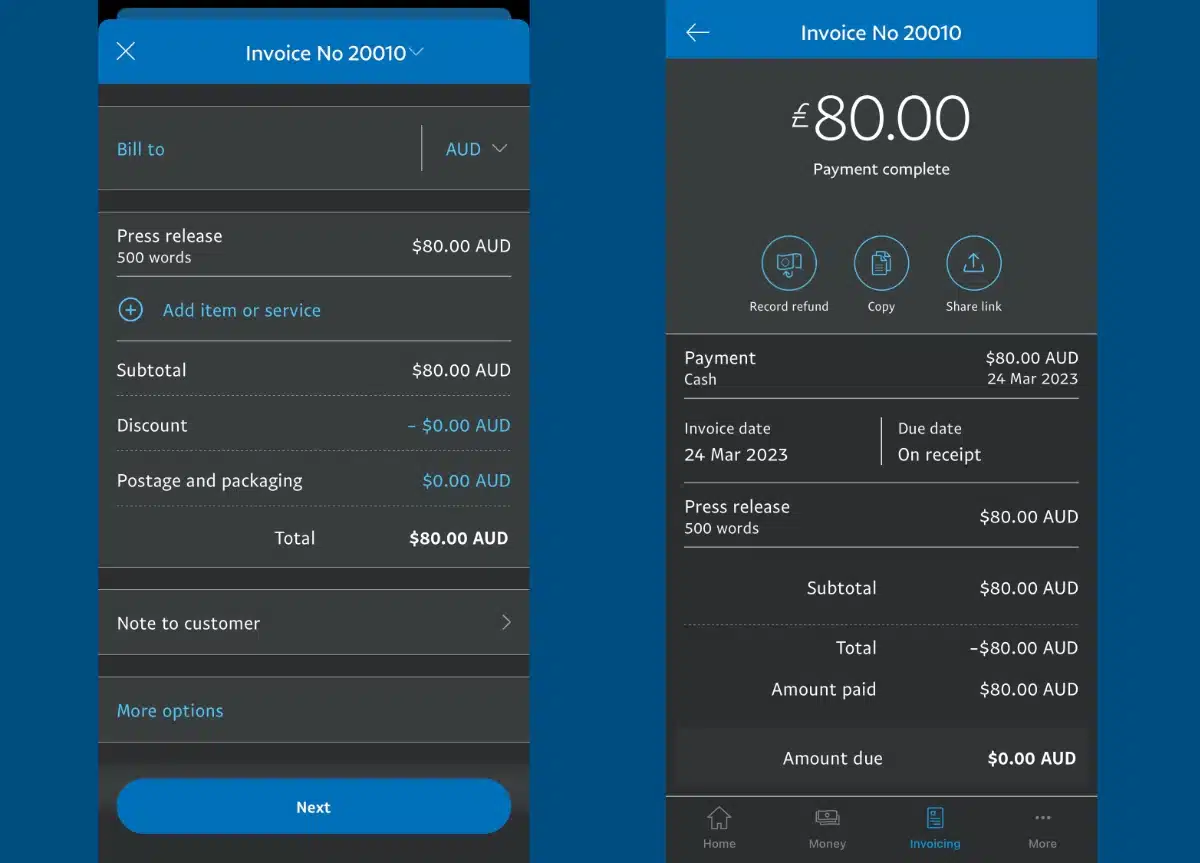
- Mobile Management: Use the PayPal Business App to send invoices and check payment statuses while on the go. This is particularly useful for service providers who want to invoice immediately after completing a job on-site.
- Encourage Instant Payments: Briefly mention in your message to the customer that they can pay via various methods, which often encourages faster settlement compared to traditional checks.
- Verify International Regulations: If you are invoicing customers in regions with specific tax requirements (like VAT in the EU or GST in Australia), ensure your invoice includes your local tax registration number to comply with international trade laws.
By integrating PayPal Invoicing into your daily operations, you transition from a manual, error-prone billing process to an automated, professional system that scales with your business growth.
Image Gallery
Select an image to open it in a new tab.


Ingrid Bjornson
Global Cyber Policy and Regulation Analyst
