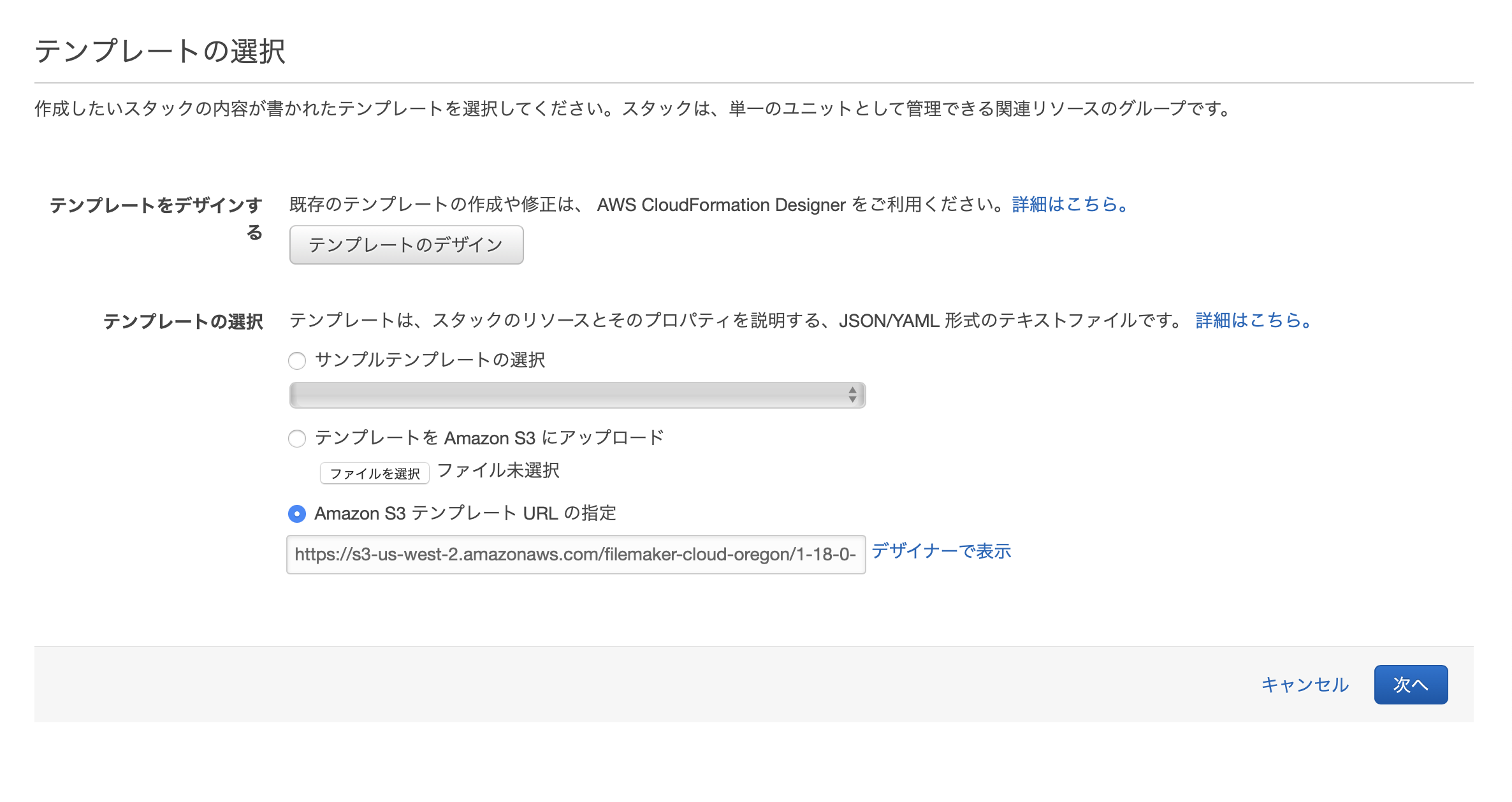
Modern teams often reach a point where local hosting or managed desktop solutions no longer support the scale, security, or remote accessibility required for enterprise-grade database management. Running FileMaker Cloud on Amazon Web Services (AWS) provides a robust architecture that leverages the maturity of AWS infrastructure with the seamless integration of Claris FileMaker. This approach enables teams to achieve high availability, granular security controls, and global accessibility while maintaining the familiar interface of the FileMaker platform.
Understanding the Architecture: FileMaker Cloud vs. Self-Hosting
When deploying FileMaker solutions, teams generally choose between Claris-managed cloud services or self-hosting on AWS using FileMaker Server. "FileMaker Cloud" typically refers to the service provided by Claris that automates much of the AWS configuration, though many teams choose to self-host FileMaker Server on an AWS EC2 instance to maintain full control over the operating system, plugins, and custom networking configurations.
For modern teams, the "AWS approach" implies utilizing the Elastic Compute Cloud (EC2) to run FileMaker Server. This offers significant advantages over physical, on-premises servers, most notably the ability to scale compute resources on demand. If your team experiences a sudden spike in data processing or concurrent user sessions, you can upgrade your AWS instance type with minimal downtime. Furthermore, running on AWS allows for integration with other cloud services, such as Amazon S3 for off-site backups and Amazon Route 53 for custom domain management, which streamlines the user login experience.
Prerequisites for Successful Deployment
Before migrating your database to AWS, you must establish a baseline infrastructure. A successful deployment requires more than simply uploading a file; it requires a thoughtfully configured Virtual Private Cloud (VPC).
- Instance Selection: Choose an EC2 instance that balances CPU and RAM. FileMaker Server relies heavily on single-thread performance. Instances in the 'c' (Compute Optimized) or 'm' (General Purpose) families are typically recommended for production environments in 2026.
- Operating System Compliance: Ensure you are running a version of Windows Server or Linux supported by the specific version of FileMaker Server you are deploying. Compatibility matrices provided by Claris change with each release; verify your specific build against current documentation.
- Storage Strategy: Utilize Elastic Block Store (EBS) volumes with Provisioned IOPS. FileMaker database performance is sensitive to disk latency. High-performance storage prevents the "stuttering" often experienced by remote users during complex reporting tasks.
- Security Groups: Configure AWS Security Groups to act as a virtual firewall. You must restrict access to ports 80, 443, 5003 (for FileMaker client access), and 16000 (for Admin Console access). Never leave these ports open to the entire internet (0.0.0.0/0); restrict traffic to your office IP addresses or use a Client VPN.
Managing Scalability and Performance
Modern teams operate in a distributed fashion, meaning latency is a primary enemy of the FileMaker experience. When you deploy on AWS, you have the advantage of choosing the region closest to your primary user base.
Latency issues often arise not from the server, but from the network round-trip time. By placing your AWS instance in a region near your employees, you drastically reduce the time it takes for a user to see a screen update after clicking a button. If your team is truly global, consider a hub-and-spoke model, though this requires careful data synchronization strategy, as FileMaker’s architecture is fundamentally centralized.
To optimize performance, monitor your AWS CloudWatch metrics. Look specifically for CPU utilization and Disk Read/Write IOPS. If your team notices slow performance during peak hours—typically the start of the workday—you can automate instance scaling or implement a scheduled script to clear server-side caches.
Security Best Practices in a Cloud Environment
Security is the primary concern for any organization migrating to the cloud. When running on AWS, you share the responsibility for security with the provider. AWS secures the physical hardware and the hypervisor, but you are responsible for the guest operating system and the FileMaker Server application.
- Identity and Access Management (IAM): Use IAM roles for any AWS services the server interacts with (e.g., uploading backups to S3). Avoid storing raw AWS access keys within your scripts.
- Data Encryption: Ensure that your EBS volumes are encrypted at rest using AWS Key Management Service (KMS). FileMaker also supports database file encryption; use this in tandem with disk-level encryption to meet compliance requirements such as HIPAA or GDPR.
- Patch Management: Create a recurring schedule to update both your AWS OS and your FileMaker Server installation. Many security vulnerabilities are remediated through minor version updates; falling behind on these updates is a significant operational risk.
Comparing Hosting Models
| Feature | Self-Managed AWS (EC2) | Claris-Managed Cloud | On-Premises Server |
|---|---|---|---|
| Control | Full (Root Access) | Limited | Full |
| Maintenance | User-Managed | Automated | User-Managed |
| Scalability | High (Vertical/Horizontal) | Moderate | Hardware-Limited |
| Custom Plugins | Fully Supported | Restricted | Fully Supported |
| Backup Control | Full (Snapshots/S3) | Automated | Manual |
Common Implementation Mistakes to Avoid
A frequent mistake is failing to configure the AWS VPC correctly. If the server is placed in a public subnet without a properly configured NAT gateway, it may become unreachable for essential updates or external API integrations. Additionally, many teams overlook the importance of an SSL/TLS certificate. FileMaker requires a valid SSL certificate to connect securely. While you can use the default certificate for testing, you must install a custom certificate from a recognized Certificate Authority (CA) for production environments to avoid trust warnings that discourage users and break web-direct functionality.
Another pitfall involves backup frequency. While AWS provides block-level snapshots, these are not a replacement for FileMaker Server’s own backup procedures. Relying solely on server snapshots can lead to "dirty" backups where the database is inconsistent if a snapshot occurs during a write operation. Always use the FileMaker Server Admin Console to schedule native backups to a secondary, non-system volume.
Troubleshooting Connectivity Issues
If your team cannot connect to the server, start by checking the AWS Security Group rules. It is surprisingly common to find that an update to the AWS networking rules has accidentally blocked port 5003. Second, verify that the FileMaker Server process is actually running on the instance. In a Windows environment, check the Service Manager; in Linux, use systemctl status.
If the server is running but performance is slow, check the bandwidth utilization on the network interface. If your instance is using a lower-tier network configuration, it may be throttled during periods of high data throughput. Upgrading the instance to a version with "EBS-Optimized" throughput often resolves bottlenecks related to large data exports or heavy report generation.
Next Actions for Your Team
To successfully transition your team to running FileMaker on AWS, follow these steps:
- Audit your current solution: Identify any plugins that require low-level system access to ensure they are compatible with the OS you plan to run on AWS.
- Pilot your VPC: Create a sandbox AWS environment to test latency and firewall configurations before migrating your production data.
- Establish a Backup Protocol: Script an automated process that moves your FileMaker backups from the server instance to an S3 bucket with "Object Lock" or versioning enabled. This provides a clean disaster recovery path that is independent of your compute instance.
- Formalize Security Policies: Implement Multi-Factor Authentication (MFA) for the AWS root account and limit access to the FileMaker Server Admin Console via a secure VPN or an IP-whitelisted bastion host.
Transitioning to an AWS-backed FileMaker environment represents a shift toward a professional, scalable infrastructure. By focusing on network security, disk I/O performance, and automated backups, you ensure that your team spends less time managing servers and more time building the business-critical tools that drive your operations.
Image Gallery
Select an image to open it in a new tab.
Akira Tanaka
International Academic Trends Correspondent
