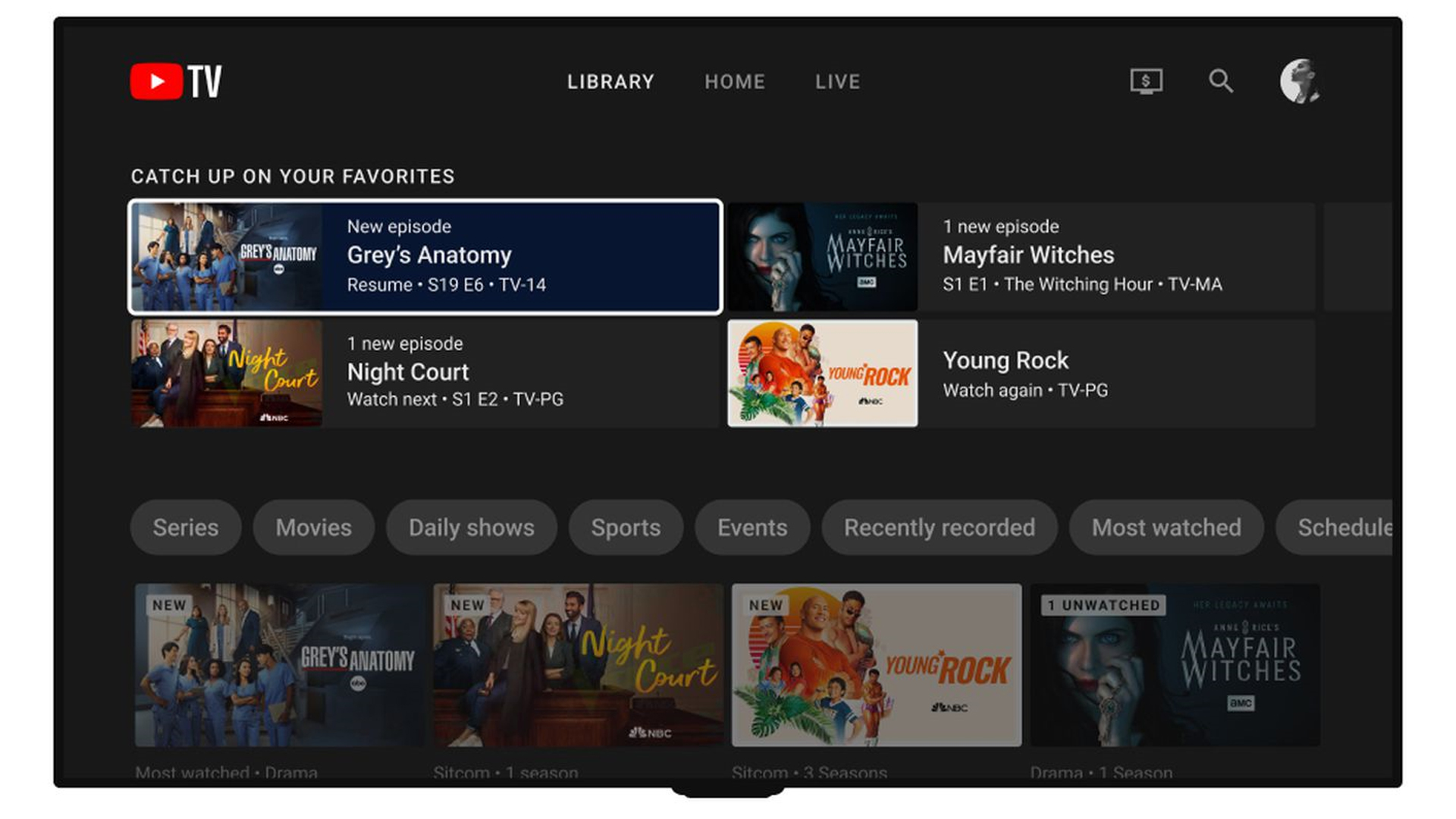
Locking the YouTube application on a Samsung TV is primarily achieved by utilizing the built-in "App Lock" feature found within the television’s security settings. By setting a 4-digit PIN, you can prevent unauthorized access to the application, ensuring that only those with the code can launch YouTube, which is an effective method for managing content exposure and screen time.
Understanding Samsung TV Security Features
Samsung Smart TVs, particularly those running the Tizen operating system from recent years, include a suite of security tools designed to help owners manage their device usage. The primary mechanism for restricting access to individual applications is the "App Lock" function. Unlike basic parental controls that might only filter content by age rating—which often relies on metadata provided by the streaming service itself—App Lock acts as a physical gatekeeper.
When you enable App Lock for a specific application like YouTube, the television triggers an authentication prompt every time a user attempts to open the app. This is a deliberate design choice by Samsung to allow for granular control over the television interface. It is important to note that this feature is specific to the local hardware of the TV. Locking the app on your Samsung television does not lock your Google or YouTube account globally; it merely creates a barrier on that specific device.
Prerequisites for Enabling App Lock
Before attempting to secure the YouTube application, ensure your television is updated to the latest firmware available for your model. Samsung frequently releases updates that optimize the Tizen OS interface. To check for updates, navigate to Settings, select Support, and then choose Software Update. If your firmware is outdated, the menu options described below may be placed in slightly different locations or may be missing entirely.
You must also have an existing understanding of your TV's PIN. By default, most Samsung TVs use "0000" as the factory-set personal identification number. If you have never changed this, it is highly recommended that you do so to prevent others from bypassing your security settings. If you have forgotten a custom PIN you previously set, you may need to perform a factory reset of your television, which will delete all saved app data and account information.
Step-by-Step: Enabling App Lock for YouTube
- Access the Smart Hub: Press the "Home" button on your Samsung remote control to bring up the main interface menu at the bottom of the screen.
- Navigate to Apps: Move the highlight to the "Apps" icon. Do not click on YouTube yet; instead, enter the full Apps menu.
- Open Settings: Look for the "Settings" icon (often represented by a gear symbol) located in the top-right corner of the Apps screen. Clicking this will reveal the management interface for your installed applications.
- Locate YouTube: Scroll through the list of your installed applications until you find the YouTube icon.
- Select Lock: Highlight the YouTube app. You will see a sub-menu or a series of options appear. Select "Lock/Unlock" from this list.
- Enter the PIN: You will be prompted to enter your 4-digit PIN. If you have not changed it from the factory default, try "0000".
- Confirmation: Once the correct PIN is entered, a padlock icon should appear next to the YouTube app logo, indicating that the application is now successfully locked.
Managing Content Restrictions via YouTube
While locking the app prevents access, some users may simply want to restrict the type of content visible within the app without blocking it entirely. YouTube has its own internal "Restricted Mode." While this does not prevent someone from opening the app, it filters out potentially mature content based on community guidelines and automated analysis.
To enable this within the YouTube app:
- Open YouTube on your Samsung TV.
- Navigate to the left-hand sidebar and scroll down to "Settings."
- Locate "Restricted Mode."
- Toggle the setting to "On."
This is a secondary layer of protection. If you use both the system-level App Lock and the in-app Restricted Mode, you create a robust environment that prevents unauthorized usage and limits the risk of exposure to inappropriate content.
Troubleshooting Common Issues
If you find that the "Lock" option is grayed out or missing, there are a few common reasons for this. First, some regional versions of the Tizen OS or specific model years (particularly those from before 2018) may have different limitations regarding App Lock. If your model does not show the option to lock individual apps, you may be restricted to using the television’s overall "Child Lock" settings, which are typically found under the "Broadcasting" or "General" sections of the main Settings menu.
If you encounter an "Incorrect PIN" error even when you believe the PIN is correct, consider if the PIN was set by someone else in the household. If the PIN is truly forgotten, the only standard path for recovery on most Samsung models is a factory reset. This is a drastic measure, as it will revert all picture settings, network configurations, and downloaded apps to their original out-of-the-box state.
Comparison of Security Options
| Feature | Primary Function | Scope of Control | Best For |
|---|---|---|---|
| App Lock | Blocks access to the app | Device-specific | Preventing unauthorized use |
| Restricted Mode | Filters mature content | Account/App level | Protecting younger viewers |
| TV PIN | Global security gate | System-wide settings | Preventing unauthorized changes |
| Guest/Multi-User | Profile-based limits | User-specific | Managing varied household needs |
Practical Guidance for Parents and Administrators
For those attempting to manage screen time for children, the App Lock feature is highly effective, but it is not a complete digital babysitting solution. Because modern Smart TVs are connected to high-speed internet, children may attempt to access YouTube through a web browser if the dedicated YouTube app is locked.
If your goal is total restriction, ensure that the browser application (often labeled "Internet" or "Web Browser" on your Samsung TV) is also locked using the same App Lock procedure. Furthermore, consider managing your home network at the router level. Many modern routers offer features that allow you to block specific domains or schedule internet downtime for specific devices, which provides a much broader level of control than the television's local settings alone.
FAQ
Can I set different PINs for different apps? No, Samsung TVs use a single, system-wide 4-digit PIN for all security features, including the App Lock function. If you change your PIN, it will apply to the entire television system, not just the YouTube application.
Does locking YouTube on my TV also lock it on my phone? No. The App Lock function is local to the Samsung TV hardware. It has no connection to your Google account or the YouTube application on mobile devices, tablets, or computers.
What happens if I forget my PIN? If you have forgotten the PIN, you must perform a factory reset of the TV. Navigate to Settings, Support, Self Diagnosis, and select "Reset." Be aware that this will erase all your personal data, saved logins, and customized settings.
Is there a way to hide the YouTube app entirely? On most Samsung TVs, you can remove the app from the home screen by navigating to the "Apps" menu, highlighting YouTube, and selecting "Remove." However, this does not uninstall the app; it only deletes the shortcut, and it can usually be re-added from the App Store quickly.
Does locking the app prevent it from updating? No. Locking an application is a security barrier for the user interface; it does not prevent the operating system from performing background updates or maintenance on the app's files.
Next Steps for Optimal Security
To ensure your Samsung television remains secure, perform a routine audit of your "App Lock" settings every few months. If you have children in the house, keep the PIN confidential and avoid using easily guessable numbers like "1234" or your birth year. If you find that local controls are insufficient for your family's needs, consider investing in a dedicated media streaming device, such as a Roku, Apple TV, or Amazon Fire TV stick, which often provide more advanced parental control suites and more intuitive management dashboards compared to native smart TV operating systems.

Image Gallery
Select an image to open it in a new tab.


Vivian Cho
Executive IT and Emerging Technologies Reporter
