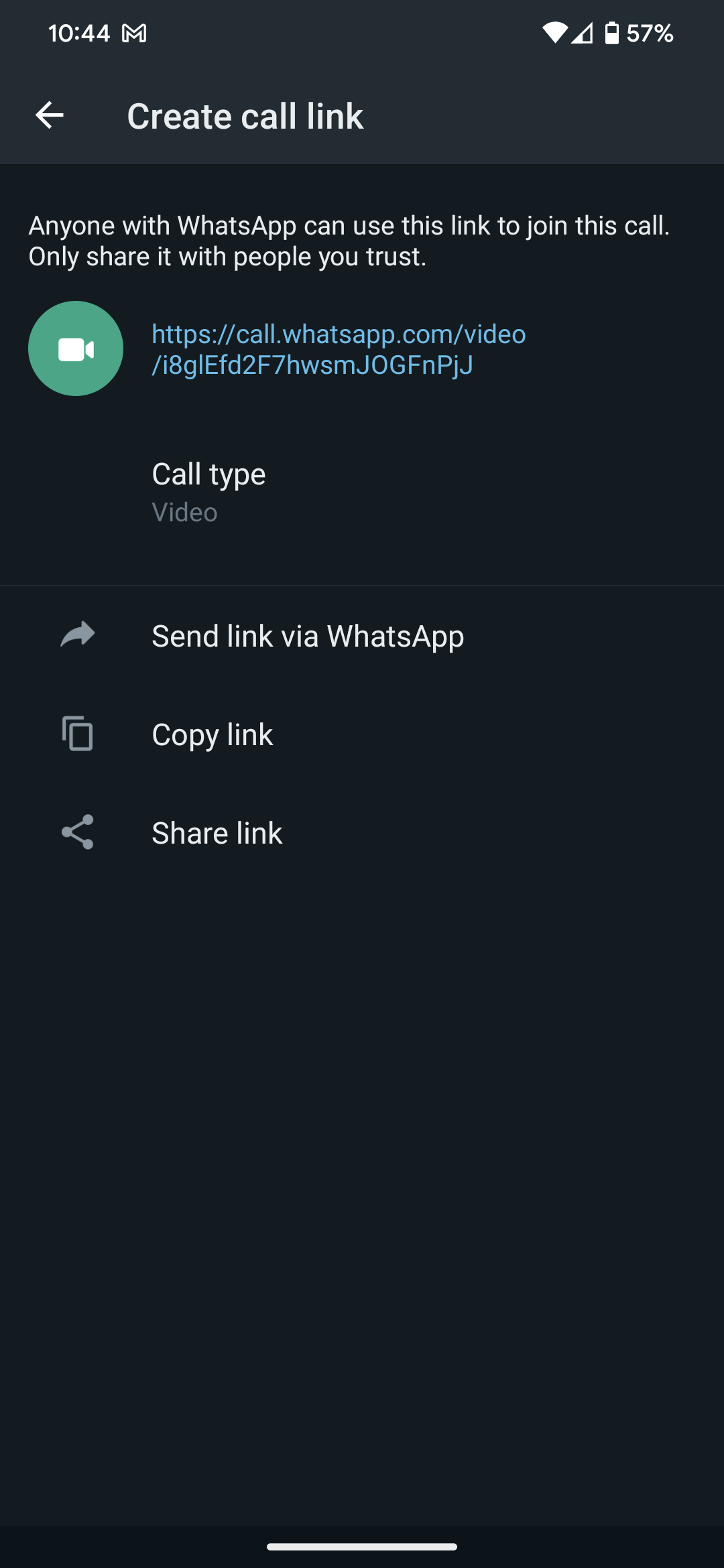
Sharing videos on WhatsApp is a straightforward process that allows users to send media files directly from their mobile device's gallery or local storage to individual chats, group conversations, or as temporary status updates. By navigating to the attachment icon within any conversation, selecting the desired video file, and confirming the send action, users can transmit high-quality clips across the platform’s end-to-end encrypted messaging infrastructure.
Understanding WhatsApp Video Sharing Architecture
At its core, WhatsApp utilizes a client-server architecture designed to facilitate the rapid exchange of media. When you share a video, the file is uploaded from your device to the WhatsApp servers, where it is temporarily stored and encrypted, before being delivered to the intended recipient's device.
For the end user, this process is abstracted through a user-friendly interface. However, successful video sharing depends on several technical prerequisites, including a stable internet connection—either via Wi-Fi or cellular data—and sufficient storage space on both the sending and receiving devices. WhatsApp automatically manages the compression of videos to ensure that large files can be sent within the constraints of mobile data networks, though this process may result in a reduction of the visual resolution of the original file depending on its length and size.
Step-by-Step Guide: Sharing Videos in Chats
To share a video with an individual or within a group, you must follow a standard procedure across both Android and iOS platforms.
- Open the Conversation: Launch the WhatsApp application and navigate to the specific chat or group thread where you intend to share the video.
- Access the Attachment Menu: Tap the plus (+) icon (on iOS) or the paperclip icon (on Android) located near the text input field.
- Select Media: Choose "Photo & Video Library" (iOS) or "Gallery" (Android). This will display your device's media folders.
- Choose the File: Locate and tap the video you wish to send.
- Editing and Customization: Before finalizing the send, WhatsApp provides an editing interface. You can trim the length of the video, add stickers, place text overlays, or draw on the screen.
- Send: Tap the blue arrow or "Send" button to initiate the transfer.
If the video file exceeds the size limit—currently set at 2GB for document-style transfers—WhatsApp may prompt you to share the video as a "Document" instead of a standard media file. Choosing this option allows you to bypass the typical media compression settings, preserving the original file quality.
Sharing Videos via WhatsApp Status
WhatsApp Status serves as a temporary, 24-hour feed where you can share video snippets with your contacts. Unlike standard chat messages, status updates are broadcast to your list of contacts (or a selected subset) simultaneously.
- Navigate to Status: Tap the "Updates" or "Status" tab in the main application menu.
- Create Update: Tap the camera icon or the pencil icon.
- Record or Select: You can record a new video by holding the shutter button, or swipe up to select an existing video from your device gallery.
- Duration Limits: WhatsApp enforces a duration limit for status videos. If your video is longer than the permitted threshold, the application will provide a slider tool allowing you to crop the video into multiple segments that fit the status duration requirements.
- Post: Once customized, press the send button to publish the video to your status.
Comparative Overview of Sharing Methods
Choosing the right method for sharing depends on your goal regarding file quality, privacy, and duration.
| Feature | Direct Chat | Document Sharing | Status Update |
|---|---|---|---|
| Max File Size | 16 MB (Standard) | 2 GB | Varies |
| Video Quality | Compressed | Original File | Compressed |
| Visibility | Recipients only | Recipients only | Selected Contacts |
| Duration | Unlimited | Unlimited | Segmented (Max 30s) |
| Persistence | Permanent | Permanent | 24 Hours |
Note: The 16MB limit for standard media uploads is a dynamic figure that may vary based on your device and network capacity; if you require high-fidelity transmission, the document sharing method is recommended.
Troubleshooting Common Sharing Issues
Even with a robust platform, users occasionally encounter obstacles when sharing media. Understanding these issues helps in resolving them without needing third-party technical support.
Network Constraints
The most common cause of failed video uploads is inconsistent network connectivity. If your signal strength fluctuates during the upload process, the transfer may time out. In such cases, switching from a cellular data connection to a stable Wi-Fi network often resolves the issue.
File Format Compatibility
WhatsApp supports most common video formats, including MP4, MKV, and AVI. However, if you are attempting to share an obscure or proprietary codec, the application may be unable to process or play the file. It is recommended to ensure your videos are saved in standard formats like H.264 or H.265.
Storage Limitations
WhatsApp requires sufficient local storage to process incoming and outgoing videos. If your device storage is nearly full, the app may be unable to cache the video file before transmission. Clearing cached data or deleting unused files on your device can restore normal functionality.
App Permissions
If you cannot access your gallery, it is likely that WhatsApp lacks the necessary permissions to access your device's storage. Check your phone's "Settings" menu under "Privacy" or "App Permissions" to ensure that WhatsApp has been granted read/write access to your media files.
Frequently Asked Questions
Why does the video quality look lower after I send it?
WhatsApp applies automatic compression to video files to ensure they consume less data and upload faster. This process lowers the bitrate and resolution. To maintain original quality, send the video as a "Document" file, which prevents the app from applying its compression algorithm.
Can I share videos longer than 2GB?
At present, the hard limit for file transfers on WhatsApp is 2GB. Videos exceeding this size must be compressed using external software or uploaded to a cloud storage service, with the shareable link provided within the WhatsApp chat instead of the file itself.
How do I stop videos from downloading automatically?
Navigate to "Settings," select "Storage and Data," and adjust the "Media Auto-Download" settings. You can choose to disable automatic downloads for videos on both mobile data and Wi-Fi to preserve data and storage space.
Can I share a video from another app directly to WhatsApp?
Yes. Most third-party applications have a "Share" icon that integrates with your phone's native sharing sheet. By tapping "Share" on a video in a browser or another app, you can select WhatsApp as the destination and choose the specific contact or group to send it to.
Is my video content private?
WhatsApp employs end-to-end encryption for all messages and media. This means that only you and the person receiving the video (or members of the group) can access the content. The service provider, Meta, does not have access to the unencrypted video files being transmitted.
Why can't I edit a video I just received?
WhatsApp’s built-in editing tools are designed for files you are about to send. Once a video is received, the editing interface is typically restricted to standard playback and forwarding. To edit a received video, you must first save it to your gallery and use an external third-party video editing application.
Best Practices and Security
When sharing videos, always be mindful of file privacy. Ensure that you are sharing media only with contacts you trust. If you are sharing sensitive information, consider using "Disappearing Messages" for that specific chat, which automatically deletes media after a set period. Always keep your application updated to the latest version available in your device’s app store to ensure you have the most recent security patches and feature improvements.
If you are dealing with professional or critical files, it is advisable to verify that the recipient has successfully received and opened the file by checking the delivery receipts (the two checkmarks). If a problem persists, re-sending the file after restarting the application is a reliable, standard troubleshooting step.
Image Gallery
Select an image to open it in a new tab.
Celine Dubois
Contemporary Living and Global Arts Columnist
