
A computer is slow to shut down primarily because the operating system is waiting for unresponsive background applications to close, saving cached system data to storage drives, or installing pending software updates. Slow shutdowns can also stem from corrupted system files, outdated device drivers, hardware degradation, or misconfigured fast startup settings that stall the kernel power-off sequence.
How the Computer Shutdown Process Works
Understanding why a computer takes an unusually long time to turn off requires looking at what happens beneath the interface when you click Shut Down. Powering off a modern computer is not an instantaneous hardware disconnect. Instead, it is a multi-tiered software and firmware negotiation designed to protect your file system from corruption and prevent data loss.
When you initiate a shutdown command, the operating system (such as Windows, macOS, or Linux) executes a structured sequence:
- Shutdown Command Initiated
- User Session Termination — Prompts user to save unsaved documents
- Background Application Close — Sends WM_QUERYENDSESSION signals to apps
- System Services Stopped — Halts background services in order of dependency
- Registry & Cache Flushed — Writes RAM contents & registry hives to disk
- Driver & Kernel Unload — ACPI sends final signal to motherboard to cut power
User Session vs. System Session Shutdown
The shutdown procedure is split into two primary phases: closing the user session and halting the system session.
During the user session phase, the operating system sends termination notifications to all active user-space software. If an application has unsaved work, it pauses the shutdown sequence to prompt you for confirmation. If an application hangs or fails to respond to the signal, the system waits for a predetermined timeout period before forcibly terminating the process.
Once the user session is clear, the system session phase begins. The operating system halts core system services, saves system registry changes, writes cached disk data to physical storage to prevent file system corruption, and unloads hardware drivers. Finally, the Advanced Configuration and Power Interface (ACPI) sends a hardware signal to the power supply unit (PSU) or battery controller to cut power to internal components. A bottleneck at any point along this chain results in a prolonged shutdown.
The Most Common Reasons Your Computer Takes Long to Shut Down
Diagnosing a sluggish power-down sequence involves identifying which layer of the shutdown chain is experiencing delay. Several software, firmware, and hardware factors commonly cause these stalls.
1. Unresponsive Background Applications and Hanging Services
The most frequent cause of delayed shutdowns is software that refuses to close gracefully. When you initiate power-off, the OS broadcasts a termination request (WM_QUERYENDSESSION in Windows) to every running process.
- Active Apps with Unsaved Files: Programs like Microsoft Word, Adobe Photoshop, or text editors delay shutdown if unsaved changes require user intervention.
- Background Processes: Applications running in the system tray—such as cloud storage sync clients (OneDrive, Google Drive, Dropbox), torrent utilities, game launchers, or communication tools—often continue writing log files or syncing data to remote servers when the shutdown signal is received.
- Stuck Windows Services: Background services that lack a graphical interface can crash or become trapped in infinite loops when trying to release system resources, holding up the entire power-off queue.
2. Fast Startup and Hibernation File Bottlenecks
Introduced in modern Windows operating systems, Fast Startup (also known as Hybrid Boot) is designed to decrease boot times by combining traditional shutdown with hibernation. Instead of completely closing the operating system kernel, Fast Startup logs off all user sessions and saves the current kernel state and loaded drivers to a system file called hiberfil.sys on your storage drive.
While Fast Startup accelerates power-on times, it adds substantial overhead to the power-off sequence:
- The system must write gigabytes of RAM contents to physical storage before turning off.
- If your storage drive is fragmented or operating slowly, writing
hiberfil.systakes significantly longer than a standard shutdown. - Driver incompatibilities with hibernation power states can cause the kernel to freeze while writing to the disk, resulting in a black screen with spinning dots that lasts for several minutes.
3. Pending Operating System Updates and Automated Maintenance
Both Windows and macOS utilize the shutdown phase to stage and commit critical operating system updates. When system components, security definitions, or kernel modules are updated, the OS cannot modify files that are currently loaded into memory.
Instead, the OS copies update packages into temporary staging directories. During shutdown, it moves these files into system directories after core processes have closed but before hardware power cut. If multiple updates are pending, or if an update package is damaged, the shutdown screen will display messages such as "Updating your computer" or freeze indefinitely while attempting to reconcile file hashes.
4. Corrupt System Files and Registry Bloat
The Windows Registry and macOS system preferences act as centralized databases for system settings, user profiles, and hardware configurations. Every time a computer shuts down, the operating system writes cached registry data back to physical storage.
If registry hives become excessively large, fragmented, or corrupted due to improper software uninstalls, malware infections, or abrupt power loss, the writing process stalls. Similarly, corrupted system binaries (such as damaged system DLLs or modified power management modules) prevent the OS kernel from executing the final ACPI power-down call cleanly.
5. Aging Storage Hardware and Drive Health Issues
Physical storage drives play a critical role in how quickly a machine powers down. Because shutdown requires writing cached data from fast system RAM to non-volatile storage, any degradation in drive performance directly translates to shutdown delays.
- Mechanical Hard Drives (HDDs): Traditional magnetic hard drives experience physical wear over time. High seek times, fragmented file structures, and developing bad sectors severely reduce write speeds, turning what should be a 10-second data flush into a multi-minute delay.
- Solid-State Drives (SSDs): Solid-state drives experience performance drops when they reach near-full capacity (typically over 85–90% full) or when drive health declines due to worn flash memory blocks. Additionally, if an SSD lacks proper controller garbage collection or TRIM support, write speeds degrade over time.
6. Security Software Interference and Active Malware
Antivirus and anti-malware utilities operate at a low system level with high privilege hooks into the kernel. Prior to shutdown, security software scans modified system memory and queued disk-write buffers to ensure malicious payload code is not written to disk.
If an antivirus utility conflicts with a recent driver update or gets locked while scanning a massive temporary file, it refuses to release its lock on system processes. Furthermore, active malware or spyware running stealthily in the background may actively resist system termination signals to maintain persistence, causing system shutdown routines to time out.

Diagnosing Shutdown Delay Bottlenecks
Before blindly changing settings, pinpointing the specific component delaying your system saves time and prevents unnecessary configuration changes.
Using Windows Event Viewer to Identify Slow Shutdown Causes
Windows maintains detailed performance logs for system startup and shutdown events. The Event Viewer provides exact time metrics and identifies specific drivers or services causing delays.
- Press Windows Key + R, type
eventvwr.msc, and press Enter. - In the left panel, navigate to:
Applications and Services Logs>Microsoft>Windows>Diagnostics-Performance>Operational. - Right-click Operational and select Filter Current Log....
- In the filter window, enter 200, 201, 202, 203 into the Event IDs field and click OK.
Event ID 200: Overall Shutdown Performance Degraded Event ID 201: Degradation caused by a background Application Event ID 202: Degradation caused by a System Service Event ID 203: Degradation caused by a Device Driver
Clicking on any logged event reveals the exact process name (e.g., acrotray.exe or nvcontainer.exe) along with the total delay time measured in milliseconds.
Analyzing Task Manager and Resource Monitor
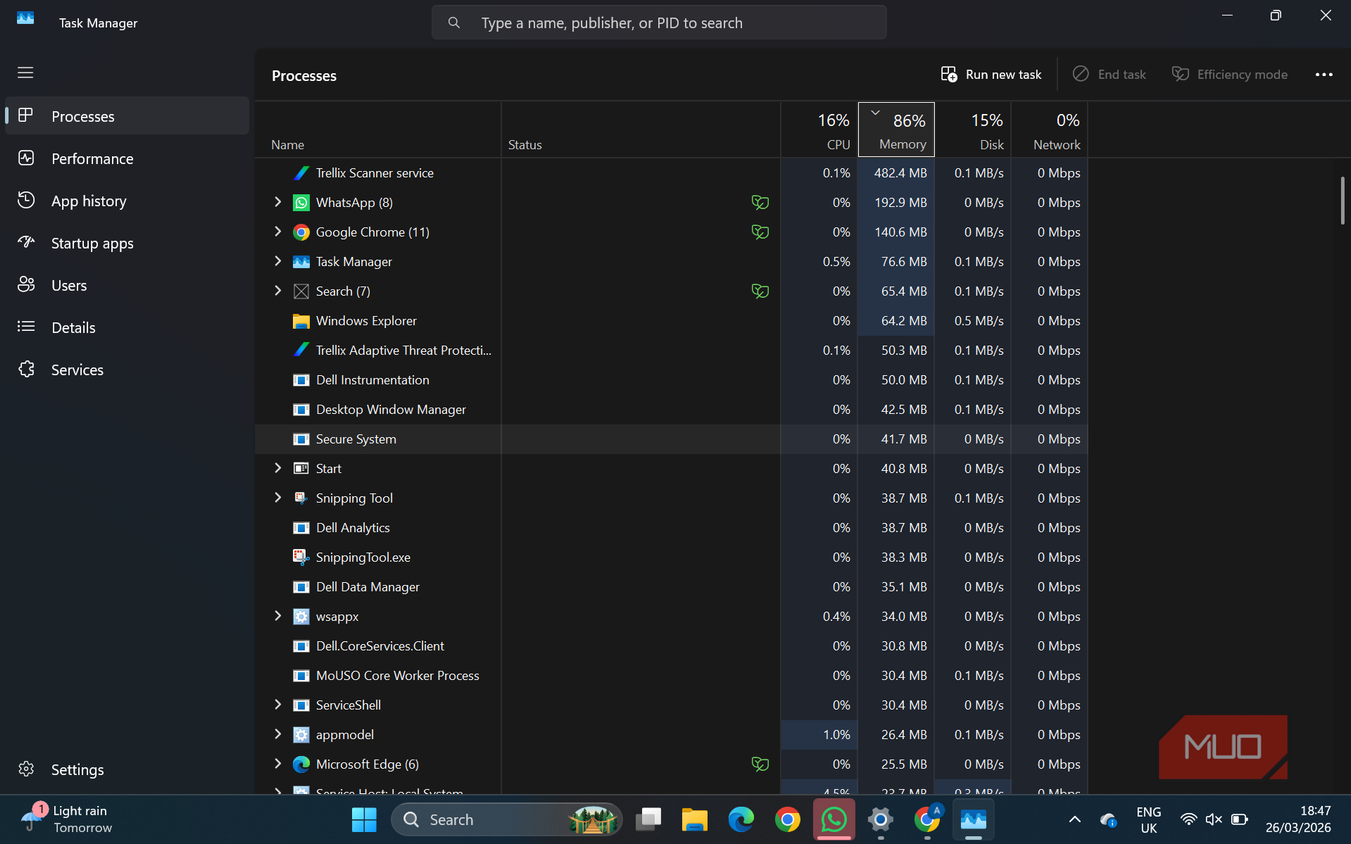
If your computer frequently hangs on the "Shutting down..." screen, open Task Manager (Ctrl + Shift + Esc) prior to turning off the PC.
Navigate to the Processes tab and sort by CPU and Disk utilization. Programs actively consuming high disk throughput or CPU cycles during idle states are primary candidates for causing shutdown delays.
Inspecting macOS Logs via Terminal
On Mac computers running macOS, system logs capture process termination events during power-off.
- Open Terminal from Applications > Utilities.
- Execute the following command to review recent shutdown log messages:
log show --predicate 'eventMessage contains "shutdown"' --last 24h - Look for recurring error entries or messages indicating that
launchdis waiting on specific application bundle identifiers to exit.
Step-by-Step Solutions to Fix Slow Shutdown Times
Once you have identified potential culprits, apply the following verified troubleshooting steps to restore rapid power-off performance.
Method 1: Adjust the Wait To Kill Service Timeout (Windows)
When Windows shuts down, it gives unresponsive services a specific grace period to close before forcibly terminating them. By default, this value is set to 5,000 milliseconds (5 seconds), but legacy configurations or software installers may have increased it to 20,000 milliseconds (20 seconds) or more.
Lowering this timeout reduces the time Windows waits for hanging services.
- Press Windows Key + R, type
regedit, and press Enter to open the Registry Editor. - Navigate to the following path:
HKEY_LOCAL_MACHINE\SYSTEM\CurrentControlSet\Control - In the right pane, locate the string value named WaitToKillServiceTimeout.
- Double-click WaitToKillServiceTimeout and change its value data to 2000 or 3000 (representing 2 or 3 seconds).
- Click OK and close the Registry Editor.
Caution: Do not set this value below 2,000 ms. Services require a brief moment to write critical state data to disk; cutting power too quickly can corrupt system logs.
Method 2: Reconfigure or Disable Windows Fast Startup
If Fast Startup is attempting to write corrupted kernel states to disk, disabling it forces Windows to perform a clean, standard shutdown without saving memory caches to hiberfil.sys.
- Press Windows Key + R, type
control powercfg.cpl, and press Enter. - In the Power Options window, click Choose what the power buttons do in the left sidebar.
- Click the link that reads Change settings that are currently unavailable (requires administrator permissions).
- Under the Shutdown settings section at the bottom, uncheck Turn on fast startup (recommended).
- Click Save changes.
Test your shutdown speed after disabling this feature. On modern systems equipped with NVMe SSDs, standard shutdown is nearly as fast as Fast Startup and significantly more stable.
Method 3: Repair Corrupted System Files (SFC and DISM)
System file corruption prevents core operating system components from executing power-off subroutines cleanly. Use the command-line servicing tools to scan and repair corrupted files.
- Press the Windows Key, type
cmd, right-click Command Prompt, and select Run as administrator. - Execute the System File Checker command:
sfc /scannow - Allow the verification process to reach 100%. If SFC reports that it found corrupt files and repaired them, restart your PC.
- If SFC fails to fix the issues, run the Deployment Image Servicing and Management (DISM) tool to repair the underlying system image:
DISM /Online /Cleanup-Image /RestoreHealth - Once complete, run
sfc /scannowonce more to ensure all binaries are restored to healthy states.
Method 4: Manage Background Startup Programs
Preventing non-essential applications from running automatically in the background ensures they do not hang during system power-off.
On Windows:
- Press Ctrl + Shift + Esc to open Task Manager.
- Click the Startup apps tab (or Startup on older Windows versions).
- Review the list of enabled programs. Select unnecessary third-party tools (such as software updaters, game launchers, or secondary chat tools) and click Disable.
On macOS:
- Open System Settings (or System Preferences).
- Navigate to General > Login Items.
- Under Open at Login, select unneeded applications and click the minus (-) icon to remove them from auto-start routines.
Method 5: Clear System Pagefile at Shutdown (If Enabled)
Windows can be configured via security policy to clear the Virtual Memory Pagefile (pagefile.sys) upon every shutdown. This security feature overwrites pagefile data with zeros to prevent sensitive information from remaining accessible on physical media.
However, clearing a multi-gigabyte pagefile at every turn-off adds minutes to the shutdown process. Ensure this setting is disabled unless required by high-security organizational compliance policies.
- Press Windows Key + R, type
secpol.msc, and press Enter (available on Windows Pro, Enterprise, and Education editions). - Navigate to Local Policies > Security Options.
- Locate Shutdown: Clear virtual memory pagefile in the right pane.
- Double-click the setting and verify it is set to Disabled.
- Click Apply and OK.
Comparison of Common Shutdown Bottlenecks and Solutions
The following table summarizes primary technical causes, their identifying symptoms, and the most effective resolution pathways:
| Issue / Cause | Primary Symptom | Diagnostic Tool | Recommended Solution |
|---|---|---|---|
| Hanging Background App | "Apps preventing shutdown" screen | Windows Task Manager / macOS Activity Monitor | Close apps manually before power-off; disable unnecessary startup programs. |
| Stuck System Service | Displays "Shutting down..." for 1–5+ minutes | Windows Event Viewer (Event ID 202) | Adjust WaitToKillServiceTimeout registry entry to 2000–3000 ms. |
| Fast Startup Corruption | Black screen with spinning dots; system fails to power down LED indicators | Windows Event Viewer (Kernel-Power logs) | Disable Fast Startup in Control Panel Power Options. |
| Corrupted System Binaries | Random power-off freezes; missing system DLL errors | Command Prompt (sfc /scannow) |
Run sfc /scannow and DISM /RestoreHealth command-line tools. |
| Pending Windows Updates | "Getting Windows ready / Don't turn off your computer" | Windows Update Settings menu | Allow updates to complete uninterrupted, or run the Windows Update Troubleshooter. |
| Drive Write Bottlenecks | Storage drive activity LED stays lit continuously during shutdown | Storage diagnostics / CrystalDiskInfo | Enable TRIM for SSDs; defragment HDDs; replace failing storage drives. |
Preventing Future Shutdown Delays: Best Practices
Maintaining rapid power-off performance requires periodic system maintenance and healthy software habits.
1. Close Applications Before Shutting Down
Rather than relying on the operating system to force-close active software, manually exit complex applications—especially web browsers with dozens of open tabs, media editing software, virtual machines, and database clients—before clicking Shut Down. This allows software to save state files, clear lockfiles, and unload memory cleanly.
2. Maintain Drive Storage Overhead
Solid-State Drives require free space to execute wear leveling, block erasure, and background garbage collection. Maintain at least 15% to 20% free space on your primary OS drive. If your primary boot drive is full, file-write buffers will stall during the registry flush phase of shutdown.
For SSD maintenance on Windows, ensure TRIM is scheduled to run automatically:
- Search for Defragment and Optimize Drives in the Windows Start Menu.
- Select your SSD drive and check that Scheduled optimization is turned On.
3. Keep Device Drivers Updated
Graphics card drivers (NVIDIA, AMD, Intel) and motherboard chipset drivers play direct roles in handling power management states (ACPI states S0 through S5). Outdated or corrupted power management drivers fail to process power-state transition calls from the OS kernel, leaving internal hardware components powered on indefinitely. Check hardware manufacturer websites periodically for updated WHQL (Windows Hardware Quality Labs) certified drivers.
Frequently Asked Questions
Why does my computer say an app is preventing shutdown?
This message appears when an active application has unsaved data or fails to respond to the operating system's shutdown signal within a set timeframe. Applications halt the power-off process to prevent data loss. You can choose to click Cancel to save your work manually, or select Shut down anyway to force the operating system to close the application immediately.
Is it safe to force shutdown a computer by holding the power button?
Holding down the physical power button performs a hard power cut, bypassing the operating system's shutdown sequence entirely. Doing this routinely is not recommended because it interrupts active disk-write operations, which can corrupt critical operating system files, corrupt registry hives, and cause unsaved user data loss. Force shutdown should only be used as a last resort when the computer is completely unresponsive or frozen for an extended period.
Will changing from a hard drive (HDD) to a solid-state drive (SSD) fix slow shutdown times?
Yes, upgrading from a traditional mechanical HDD to a modern SATA or NVMe SSD provides the single most dramatic improvement in shutdown speed. SSDs perform random write operations significantly faster than HDDs, allowing the operating system to flush RAM caches, save system registry hives, and process hibernation states in seconds rather than minutes.
Does turning off Fast Startup harm my computer?
No, disabling Fast Startup does not harm your computer. Fast Startup simply saves a snapshot of the Windows kernel state to your storage drive to speed up cold boots. Disabling it forces Windows to perform a traditional full shutdown and clean boot every time you power on. While initial boot times may be a few seconds slower on older systems, system stability, driver compatibility, and shutdown reliability are frequently improved.
Why does my computer screen turn off, but the power light and fans stay on?
This issue is typically caused by a hanging device driver (often management engine drivers like Intel Management Engine Interface or GPU drivers) or an improper ACPI power state transition. The operating system has successfully closed user sessions and turned off display output, but a underlying driver is refusing to send the final power-cut command to the motherboard. Updating motherboard chipset drivers and disabling Fast Startup usually resolves this condition.
Conclusion and Final Steps
A slow computer shutdown is almost always solvable through systematic software troubleshooting. Start by identifying hanging processes using diagnostic tools like Event Viewer, close heavy background apps before powering off, and repair any underlying system file corruption with command-line tools.
If software adjustments do not resolve the delay, evaluate your hardware health. Transitioning system boot partitions to a healthy Solid-State Drive and maintaining adequate free storage space will keep your computer switching off quickly and safely.
Image Gallery
Select an image to open it in a new tab.

Celine Dubois
Contemporary Living and Global Arts Columnist
