
To manage iCloud effectively, you must balance storage optimization with data accessibility across the Apple ecosystem. Start by auditing your storage via Settings, enabling "Optimize Storage" for Photos to save local space, and pruning legacy device backups. Utilizing iCloud+ features like Hide My Email and Advanced Data Protection further enhances security while streamlining your digital footprint.
iCloud is often misunderstood as a simple cloud storage locker similar to a digital hard drive. In reality, it functions primarily as a synchronization engine designed to keep your data consistent across iPhones, iPads, Macs, and even Windows PCs. Managing it effectively requires a shift in perspective: instead of just "storing" files, you are managing the flow of data between your hardware and Apple’s servers. As we move through 2026, the volume of data generated by high-resolution media and sophisticated apps makes a proactive management strategy essential for avoiding unnecessary monthly costs and "Storage Full" notifications.
Understanding the iCloud Storage Architecture
Before diving into optimization techniques, it is critical to understand how iCloud divides your data. Your account is essentially split into several silos: Photos, Backups, iCloud Drive, Mail, and App Data (such as Messages and WhatsApp).
Each of these silos behaves differently. For example, iCloud Photos is a mirroring service; if you delete a photo on your iPhone, it disappears from iCloud and all your other devices. Conversely, iCloud Backups are snapshots of your device's settings and local data, which are only used when restoring a device or setting up a new one. Understanding this distinction prevents accidental data loss and helps you identify which category is consuming the most space.
Auditing Your Current iCloud Status
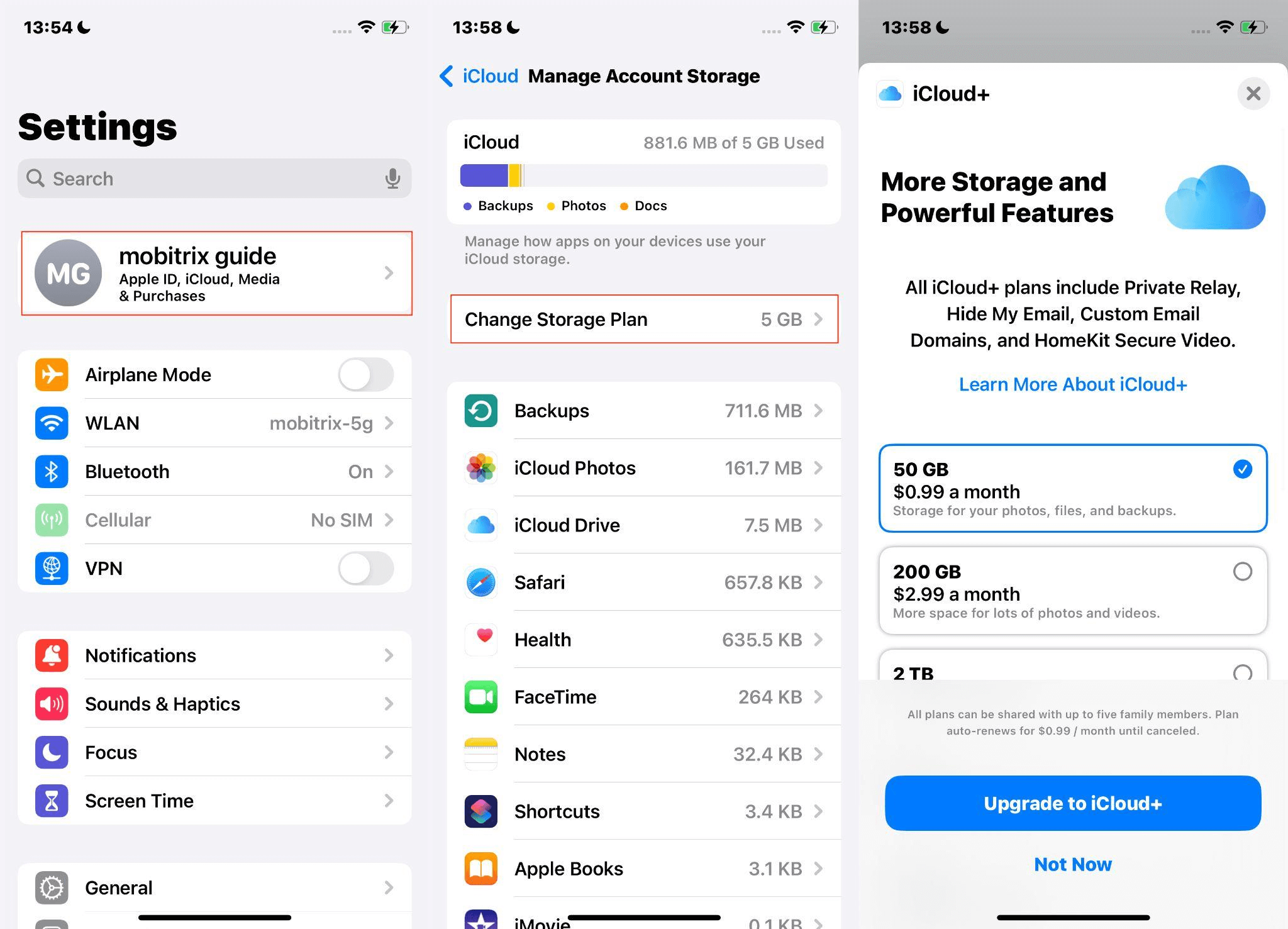
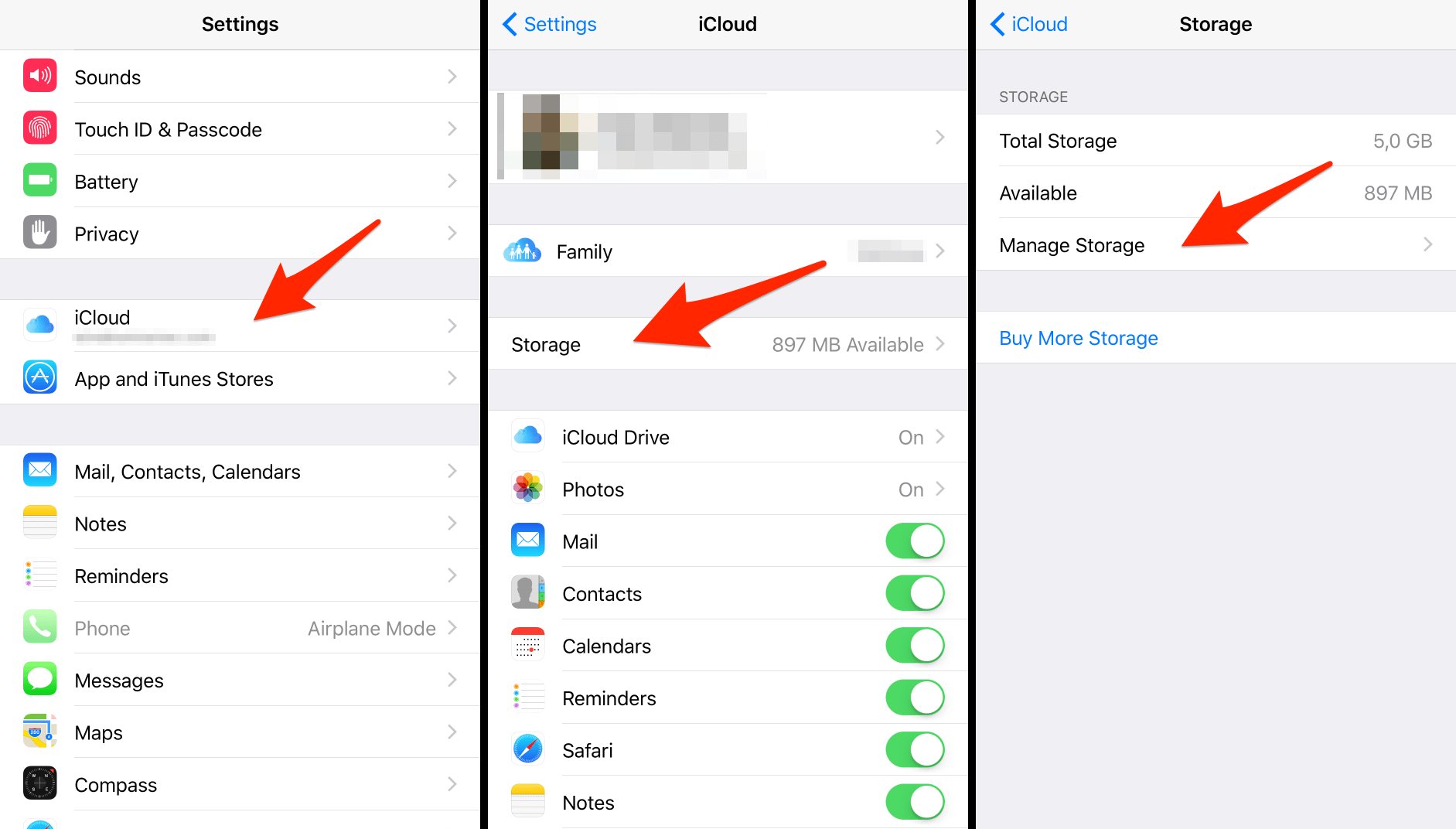
The first step in effective management is a comprehensive audit. On an iOS device, navigate to Settings > [Your Name] > iCloud > Manage Account Storage. On a Mac, go to System Settings > Apple ID > iCloud.
The color-coded bar chart provides an immediate visual representation of your usage. In 2026, most users find that Photos and Backups occupy the lion's share of their allocation.
- Identify the "Laggards": Look for apps you no longer use that are still syncing data.
- Check Family Usage: If you are part of a Family Sharing plan, see how much storage other members are consuming.
- Review Large Files: iCloud Drive now offers better sorting tools to find exceptionally large documents or old video projects that should be archived elsewhere.
Optimizing iCloud Photos
For the vast majority of users, photos and videos represent 70% or more of their total iCloud usage. Managing this effectively is the single most impactful action you can take.
Enable Optimize Storage
Instead of keeping full-resolution files on your device, enable Optimize iPhone Storage. This setting keeps the high-resolution originals in iCloud while maintaining smaller, space-saving versions on your device. When you want to view or edit a photo, the full version downloads instantly. This allows a device with 128GB of local storage to "house" a photo library that might be 500GB or larger in the cloud.
The Power of iCloud Shared Photo Library
Introduced several years ago and refined for 2026, the Shared Photo Library allows you to share photos with up to five other people seamlessly. Crucially, the storage for the shared library only counts against the storage quota of the person who created it. If you are the "organizer" of a family, moving family-centric photos to the Shared Library can help keep individual members' private iCloud storage tiers lower.
Cleaning Up Media
Regularly purge your "Screenshots" and "Screen Recordings" folders. These are often forgotten and accumulate over time. Use the "Duplicates" detection feature in the Photos app to merge identical images, which reclaims space without losing memories.
Streamlining Device Backups
iCloud Backups are often larger than they need to be because they default to backing up every app on your phone.
Pruning Old Backups
If you have upgraded your iPhone or iPad recently, the backup of your old device may still be sitting in iCloud, taking up several gigabytes. Navigate to Manage Account Storage > Backups and delete any entries for devices you no longer own.
Selective App Backup
You do not need to back up every app. For instance, apps that store data in their own clouds (like Spotify, Netflix, or Gmail) do not need to be included in your iCloud backup. Toggle off high-capacity apps that are redundant to save significant space.
Mastering iCloud Drive and Files
iCloud Drive has evolved into a robust file management system. To manage it effectively, you must treat it like a curated library rather than a junk drawer.
- Desktop and Documents Sync: On a Mac, you can sync your entire Desktop and Documents folders to iCloud. While convenient, this can quickly overwhelm a 50GB or 200GB plan. If you work with large video or CAD files, keep those in a local "Work" folder that is excluded from iCloud syncing.
- The Files App: Use the Files app on iOS to organize your iCloud Drive into folders. This makes it easier to find documents and prevents the root directory from becoming cluttered.
- Offloading Files: If you have large files in iCloud Drive that you don't need immediate access to, you can right-click them on a Mac and select "Remove Download." The file remains in the cloud (and visible in your folders) but takes up zero space on your local hard drive.
iCloud+ Features for Enhanced Privacy
Effective management isn't just about storage; it's about utilizing the premium features included in iCloud+ (the paid tiers).
| Feature | Primary Function | Management Benefit |
|---|---|---|
| Hide My Email | Creates unique, random email addresses. | Prevents your primary inbox from being flooded with spam and marketing. |
| iCloud Private Relay | Masks your IP address and DNS requests. | Enhances browsing privacy without the overhead of a traditional VPN. |
| Custom Email Domain | Allows use of a personal domain for iCloud Mail. | Consolidates professional and personal communication under one management umbrella. |
| HomeKit Secure Video | Stores encrypted footage from security cameras. | Provides security storage that does not count against your iCloud storage limit. |
Advanced Data Protection and Security
As of 2026, Apple’s Advanced Data Protection (ADP) is a standard recommendation for power users. ADP provides end-to-end encryption for the majority of your iCloud data, including Backups, Photos, and Notes.
To manage this effectively:
- Set Up a Recovery Contact: Since Apple does not have the keys to your encrypted data, you must designate a trusted friend or family member who can help you regain access if you forget your password.
- Generate a Recovery Key: Print this 28-character code and store it in a physical safe. This is your "nuclear option" for account recovery.
Managing iCloud on Windows
For users in a mixed ecosystem, the iCloud for Windows app is essential. In 2026, the integration is smoother than ever, utilizing the Windows 11/12 "Files On-Demand" technology. This allows you to see your iCloud files in File Explorer without downloading them until they are needed, mirroring the "Optimize Storage" functionality found on macOS.
Common Mistakes to Avoid
- Treating iCloud as a Backup-Only Service: Remember that iCloud is a sync service. If you delete a photo to "save space" on your phone without having "Optimize Storage" turned on, it is gone from the cloud too.
- Ignoring Messages Attachments: Years of sending videos and high-res photos via iMessage can consume tens of gigabytes. Go to Settings > General > iPhone Storage > Messages to review and delete large attachments.
- Neglecting Legacy Contacts: Effective management includes planning for the future. Set up a Legacy Contact in your account settings to ensure your loved ones can access your data in the event of your passing.
Frequently Asked Questions
Why is my iCloud storage still full after deleting photos?
When you delete photos, they move to the Recently Deleted album for 30 days. They still count against your storage quota during this period. To reclaim the space immediately, go to the Recently Deleted album and select "Delete All." Additionally, check your Messages and Mail attachments, as these are often the "hidden" culprits of storage bloat.
Does iCloud+ provide better sync speeds?
No, iCloud+ provides additional storage and privacy features, but it does not inherently increase the data transfer speed. Sync speed is determined by your internet connection and Apple’s server load. However, keeping your storage below 80% capacity can sometimes prevent indexing lag on your local devices.
Can I share my iCloud+ subscription with people outside my home?
Apple’s Family Sharing is designed for a single household of up to six people. While there are no GPS-based "home" restrictions like some streaming services, all members must have their Apple IDs set to the same country or region. Sharing with individuals in different countries is generally not supported.
Is it better to pay for more iCloud storage or use an external drive?
iCloud is superior for convenience, device integration, and automated backups. An external drive is better for a one-time cost and storing massive archives (like 4K video libraries) that you don't need to access on your phone. Most effective managers use a hybrid approach: iCloud for active files and an external drive for "cold" storage.
How do I stop my Mac Desktop from filling up my iCloud?
Navigate to System Settings > [Your Name] > iCloud > iCloud Drive. Click "Apps syncing to iCloud Drive" or "Options" and uncheck Desktop & Documents Folders. Be aware that when you turn this off, your files will disappear from your Desktop and stay in the iCloud Drive folder; you will need to manually move them back to your local Mac storage.
Practical Next Action
To take immediate control of your iCloud, perform a "Five-Minute Purge." Go to your iPhone’s Settings > [Name] > iCloud > Manage Account Storage > Backups. Select your current device and look at the "Choose Data to Back Up" list. Toggle off any apps that are larger than 500MB but don't hold critical data (like photo editors or games). This single action can often save 2–5GB instantly, delaying the need to upgrade to a more expensive storage tier.
For those requiring the highest level of security, your next step is to enable Advanced Data Protection after ensuring your Recovery Contact is properly configured. This ensures that your effectively managed data is also the most secure data in the cloud ecosystem.
Image Gallery
Select an image to open it in a new tab.
Declan O'Connor
Higher Education and Campus Culture Reporter
