How to Link a PDF in Canva: A Complete Guide to Interactive Documents
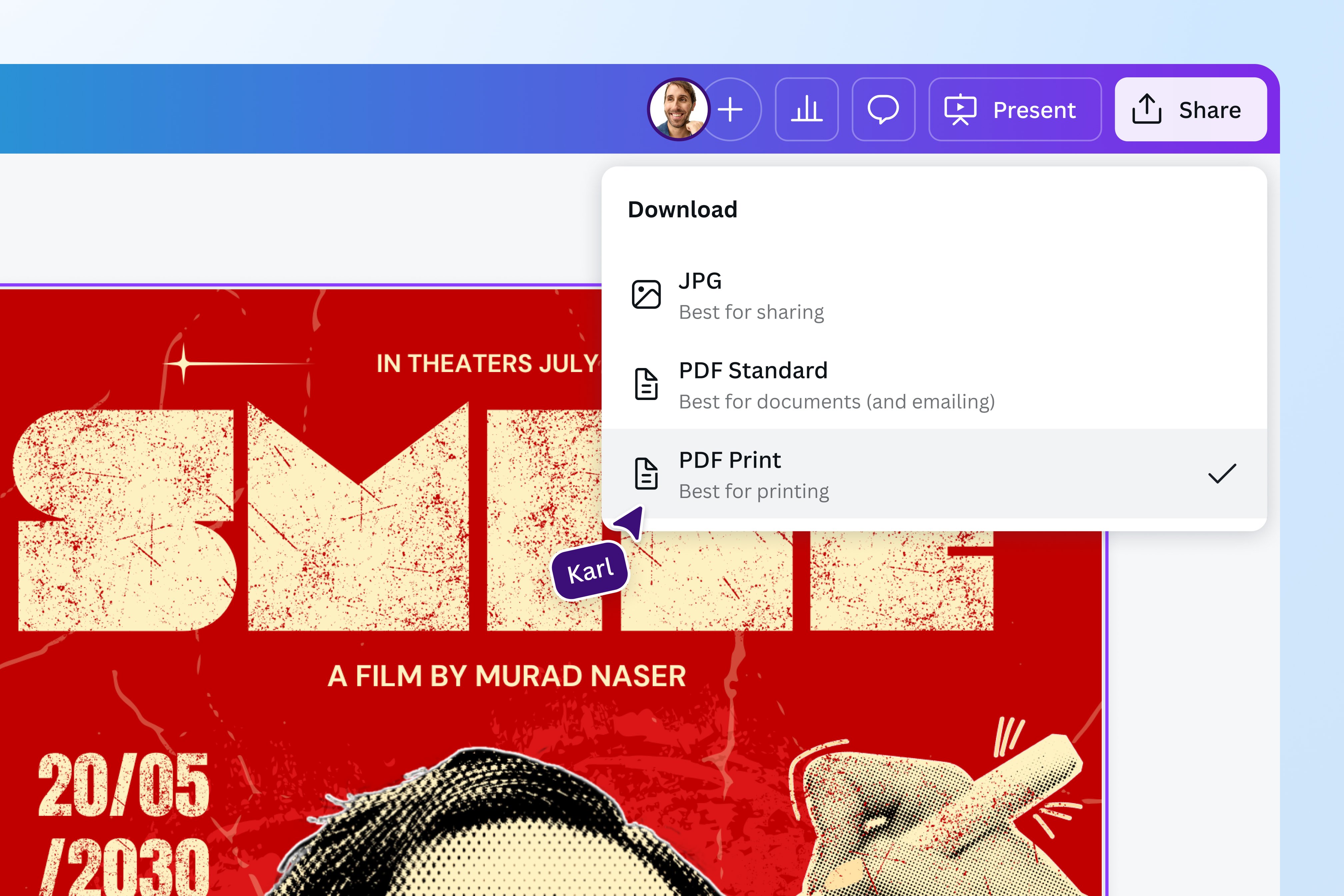
To link a PDF in Canva, select the text, image, or element you wish to make interactive and click the Link icon (represented by two interlocking chains) in the floating toolbar or the top menu. Type or paste your destination URL into the field and press enter. To ensure the link functions for your audience, you must export your design using the PDF Standard or PDF Print file type.
In 2026, creating interactive digital documents has become a standard requirement for businesses, educators, and creative professionals. Static documents are no longer sufficient for high-conversion lead magnets, digital resumes, or comprehensive project proposals. Canva has streamlined the process of embedding hyperlinks, making it accessible to users without any background in coding or advanced document architecture. This guide provides an exhaustive walkthrough of the linking process, technical requirements, and troubleshooting steps to ensure your interactive PDFs perform flawlessly across all devices.
Understanding the Fundamentals of Canva Hyperlinks
Before executing the technical steps, it is essential to understand how Canva handles links. Hyperlinks in Canva are metadata attached to specific coordinates within your design. When you export your file as a PDF, the software translates these coordinates into clickable regions.
Unlike a website where a link is part of the HTML code, a PDF link is an annotation layer. This distinction is vital because it determines how and where links will work. Links embedded in Canva only remain active if the final file format supports interactive layers. This is why formats like PNG, JPG, or SVG—which "flatten" the design into a single layer of pixels or vectors—will never support clickable links, regardless of how you set them up within the Canva editor.
Prerequisites for Linking
To successfully create a linked PDF, you need:
- A Canva Account: Both Free and Pro versions support hyperlinking.
- A Clear Destination: A valid URL (starting with https://) or a specific page number within your current Canva document.
- The Correct Export Setting: Access to the "Download" menu to select PDF formats.
Step-by-Step: How to Link Text in Canva
Text links are the most common form of interactivity. They are used for "Click Here" buttons, cited sources, and navigation menus.
1. Highlight the Specific Text
Open your project and navigate to the text box. Double-click to enter editing mode and highlight the specific word or phrase you want to link. You do not have to link the entire text box; Canva allows for granular linking within a single paragraph.
2. Access the Link Tool
Once the text is highlighted, a floating toolbar appears above the selection. Click the Link icon (chain link). Alternatively, you can use the keyboard shortcut Cmd + K (Mac) or Ctrl + K (Windows).
3. Enter the URL or Page Reference
A search bar will appear. You have three options here:
- External Link: Paste a full URL. Always include the
https://prefix to ensure the browser recognizes it as a remote destination. - Internal Link: Canva will display a list of "Pages in this document." Selecting one allows you to create a "Table of Contents" effect where clicking text jumps the reader to a different page.
- Recent Links: Canva stores recently used URLs to help you maintain consistency across multiple pages.
4. Verify the Visual Indicator
By default, Canva may underline linked text to indicate interactivity. You can toggle this underline off using the standard text formatting tools if it interferes with your aesthetic, though keeping it is often better for user experience (UX).

How to Link Images and Elements
Linking a graphic element—such as a button, a social media icon, or a headshot—follows a slightly different logic than text.
Linking Shapes and Icons
Select the element by clicking on it once. You will see the bounding box appear. Use the same Link icon in the top-right toolbar. When you link a shape, the entire area of that shape becomes a "hotspot." This is particularly useful for creating large, touch-friendly buttons for mobile users.
Linking Groups of Elements
If you have a complex button consisting of a shape, an icon, and a text label, it is best to Group them first (select all and press Ctrl + G). Once grouped, you can apply a single link to the entire group. This ensures that no matter where the user clicks within that cluster, the link triggers.
Linking Transparent Overlays
A professional design trick involves placing a transparent square over a section of your design and linking that square. This is useful when you want a specific part of a complex background image to be clickable without altering the image itself. To do this:
- Add a square shape from the "Elements" tab.
- Position it over the desired area.
- Apply your link to the square.
- Change the square's Transparency to 0.
Exporting Your PDF for Maximum Compatibility
The most common reason links "break" is incorrect exporting. As of 2026, Canva provides several PDF options, each optimized for different use cases.
| Export Format | Link Support | Best Use Case | File Size |
|---|---|---|---|
| PDF Standard | Yes | Emailing, website downloads, digital viewing. | Small/Medium |
| PDF Print | Yes | High-quality professional printing and digital portfolios. | Large |
| PNG/JPG | No | Social media posts and static website images. | Small |
| SVG | No | Scalable vector graphics for web development. | Very Small |
| Canva Live Link | Yes | Real-time presentations and viewing via browser. | N/A (Cloud-based) |
Choosing Between "PDF Standard" and "PDF Print"
For most digital documents, PDF Standard is the superior choice. It balances image quality with a smaller file size, making it easier to send via email without hitting attachment limits. Most importantly, it preserves all hyperlink data.
PDF Print is intended for physical production. While it does preserve links, the file size is significantly larger because it uses 300 DPI (dots per inch) resolution and CMYK color profiles. Only use this if you expect your audience to both print the document and use it digitally.
The "Flatten PDF" Trap
When exporting as a PDF, you may see an option to "Flatten PDF." DO NOT check this box if you want your links to work. Flattening merges all layers into a single image. While this is helpful for preventing printing errors or protecting your design from being edited, it permanently destroys the metadata layer where your hyperlinks live.
Advanced Linking: Emails, Phone Numbers, and Files
Canva’s link tool is more versatile than many users realize. You are not limited to standard www addresses.
Creating a "Mailto" Link
If you want a "Contact Us" button to automatically open the user's email client, enter mailto:example@email.com in the link field. When clicked, the reader’s default mail app (like Outlook or Gmail) will open a new message addressed to you.
Creating a Click-to-Call Link
For mobile-friendly PDFs, you can make a phone number clickable. Enter tel:+1234567890 (using your actual country code and number) in the link field. When a user taps this on a smartphone, their phone app will prompt them to dial the number.
Linking to Cloud Files
You can link your PDF to other files, such as a Google Drive folder or a Dropbox document. Ensure the sharing settings on the destination file are set to "Anyone with the link can view." Paste that sharing URL into Canva to create a seamless resource hub within your PDF.
Best Practices for Interactive PDFs
Creating the link is the technical half; ensuring users actually click it is the design half. As we look at design trends in 2026, "frictionless navigation" is the primary goal.
- Visual Affordance: Users need to know an item is clickable. Use hover effects (if using a Canva Live link), buttons with drop shadows, or a contrasting color for linked text.
- Descriptive Anchor Text: Instead of "Click Here," use "Download the 2026 Financial Report." This improves accessibility for screen readers and tells the user exactly what to expect.
- Testing Across Platforms: A link that works on a desktop Chrome browser might behave differently in the preview mode of an iPhone's Mail app. Always send a test PDF to yourself and check it on both mobile and desktop.
- Broken Link Checks: Before distributing a PDF to thousands of people, use a link checker or manually verify every destination. Unlike a website, you cannot "fix" a link in a PDF once it has been downloaded by a user; you would have to issue an entirely new version.
Troubleshooting Common Issues
Why is my link not clickable?
- Wrong Format: You likely exported as a PNG or JPG. Re-export as a PDF Standard.
- Overlapping Elements: Check if there is a transparent element or another layer sitting on top of your link. Canva links respond to the topmost layer. Use the Position tool to "Bring to front" your linked element.
- Flattening: Ensure "Flatten PDF" was unchecked during download.
- PDF Viewer Limitations: Some basic web-based PDF viewers (like those built into certain mobile browsers) struggle with interactive layers. Encourage users to open the file in Adobe Acrobat or a dedicated PDF reader for the best experience.
The link is pointing to the wrong page
This usually happens when pages are reordered after the link was created. Canva generally updates internal links automatically, but if you have a complex document, it is a good practice to re-verify "Link to Page" settings after any significant structural changes.
Frequently Asked Questions
Can I link a PDF to a specific section of another website?
Yes, provided the destination website uses "anchors" or "jump links." You would paste the URL followed by the anchor tag (e.g., https://example.com/page#section-name). When clicked, the PDF will open the browser and scroll directly to that section.
Will links work if I share the Canva "View Only" link?
Yes. If you share your design using Canva's "Public View Link," all hyperlinks will remain active within the browser interface. This is often a better alternative to sending a large PDF file if you know your audience has internet access.
Is there a limit to how many links I can add to a Canva PDF?
There is no hard limit imposed by Canva on the number of hyperlinks. However, excessive linking can sometimes bloat the file size or overwhelm the reader. Focus on high-value links that contribute to the document's purpose.
Can I track how many people click the links in my PDF?
Canva does not provide native "click analytics" for downloaded PDFs. To track clicks, you should use a URL shortener like Bitly or a marketing tool like HubSpot to create a tracked URL. You then paste that tracked URL into Canva. This allows you to see how many people engaged with your document after it was downloaded.
Can I link to a video inside a PDF?
You cannot embed a playable video player inside a standard PDF that works everywhere. Instead, the best practice is to take a screenshot of the video (with a play button icon overlaid) and link that image to a YouTube or Vimeo URL.
Summary and Next Actions
Mastering hyperlinks in Canva transforms your designs from static images into functional tools. By selecting your element, applying the link via the chain icon, and exporting specifically as a PDF Standard, you ensure your professional documents are interactive and accessible.
To further enhance your interactive PDFs, consider creating a dedicated "Navigation Bar" on your Master Page (if using Canva Pro) that links to every major section of your document. This improves the user experience for long-form content like ebooks or white papers. Once your design is complete, perform a final "Export Test" to verify that all external URLs and internal page jumps are functioning as intended.
Image Gallery
Select an image to open it in a new tab.

Omar Farooq
EdTech Innovation and Virtual Pedagogy Journalist
