To unfreeze an iPhone screen, the most effective solution is to perform a force restart. For most modern models, quickly press and release the Volume Up button, then the Volume Down button, and finally hold the Side button until the Apple logo appears. This hardware-level command interrupts the power cycle to clear system errors without deleting data.
An unresponsive iPhone screen can be a frustrating disruption, whether it occurs during a critical task or casual browsing. While Apple’s hardware and iOS software have become increasingly sophisticated by 2026, occasional system "hangs" or "kernel panics" still occur. Understanding the underlying causes—ranging from memory management failures to localized hardware issues—is essential for implementing the correct fix and preventing future occurrences. This guide provides a comprehensive breakdown of how to resolve a frozen screen, covering every generation from legacy devices to the latest iPhone 17 series.
Understanding Why iPhone Screens Freeze
Before diving into the mechanical steps of unfreezing a device, it is important to distinguish between a software freeze and a touchscreen failure. A software freeze occurs when the operating system (iOS) encounters an instruction it cannot process, leading to a total system lockup where neither the screen nor the buttons appear to function. A touchscreen failure, or "digitizer unresponsiveness," happens when the OS is running fine—notifications might still arrive or music might play—but the screen does not register your finger's input.
Several technical factors contribute to these states:
- Memory Pressure (RAM Exhaustion): Even with the high-capacity RAM found in modern A-series chips, intensive background processes or memory leaks in poorly optimized third-party apps can cause the UI (User Interface) thread to stall.
- Thermal Throttling: If an iPhone exceeds its safe operating temperature range, the system may intentionally slow down or "freeze" certain processes to prevent permanent hardware damage to the logic board.
- Kernel Panics: This is a low-level system error where the "core" of the operating system encounters a conflict it cannot recover from. In 2026, these are often linked to deep-system integrations or hardware-level handshakes with external peripherals.
- Storage Saturation: When an iPhone’s NVMe storage is nearly 100% full, the system lacks the "swap space" needed to move temporary files, frequently leading to intermittent or permanent freezing.
The Primary Solution: Performing a Force Restart
The force restart (sometimes called a hard reset) is a hardware-level override. It does not erase your content; rather, it mimics the action of pulling a battery out and putting it back in, forcing the processor to reboot from its base state.
For iPhone 8 through iPhone 17 (and all Face ID models)
This method applies to the vast majority of iPhones in use today, including the iPhone X, 11, 12, 13, 14, 15, 16, and the current 17 series, as well as the iPhone SE (2nd generation and later).
- Press and quickly release the Volume Up button.
- Press and quickly release the Volume Down button.
- Press and hold the Side button (the large button on the right side of the device).
- Keep holding the Side button even when the "Slide to Power Off" slider appears.
- Release the button only when the Apple logo appears on the screen.
The timing here is critical. If you press the buttons too slowly, the system may interpret the input as a volume adjustment rather than a reset command. You must perform the three-step sequence in a fluid motion.
For iPhone 7 and iPhone 7 Plus
These models were the first to move away from a mechanical Home button, requiring a different sequence because the Home button is software-controlled and won't work during a freeze.
- Press and hold both the Volume Down button and the Sleep/Wake (Side) button simultaneously.
- Continue holding both buttons for approximately 10 to 15 seconds.
- Release the buttons once the Apple logo is visible.
For iPhone 6s, iPhone SE (1st Gen), and Older
Legacy devices utilize a mechanical Home button that can be used to trigger a reset.
- Press and hold both the Home button and the Top (or Side) button at the same time.
- Keep holding the buttons until the screen goes black and the Apple logo reappears.
Troubleshooting Unresponsive Touch Screens
If the screen is frozen but the phone still seems "alive" (e.g., you can hear sounds or feel haptic vibrations), the issue might be environmental or related to the screen hardware itself.
Environmental Factors and Accessories
- Screen Protectors: A cracked or improperly seated tempered glass protector can trap static electricity or moisture, preventing the capacitive touch layer from detecting your finger. If the screen is unresponsive, try removing the protector.
- Gloves and Moisture: Even with "touch-compatible" gloves, extreme cold or high humidity can interfere with the electrical conductivity required for the screen to work. Ensure your hands and the screen are dry and clean.
- Third-Party Chargers: Low-quality charging cables and power bricks can sometimes introduce "electrical noise" into the device, which interferes with the touch digitizer. If your screen only freezes while charging, disconnect the cable immediately.
Software Calibration
Sometimes, the digitizer driver in iOS becomes desynced. After a force restart, check for any pending software updates. Apple frequently releases "point" updates (e.g., iOS 19.4.1) specifically to address touch-latency bugs or driver conflicts discovered in the field.
Advanced Recovery: Using a Computer
If your iPhone screen remains black or frozen on the Apple logo after a force restart, you must use a computer to "push" a fresh version of the operating system to the device.
Putting iPhone into Recovery Mode
- Connect your iPhone to a Mac (using Finder) or a PC (using the Apple Devices app or iTunes) via a certified USB-C or Lightning cable.
- Perform the Force Restart steps mentioned above for your specific model, but do not release the buttons when you see the Apple logo.
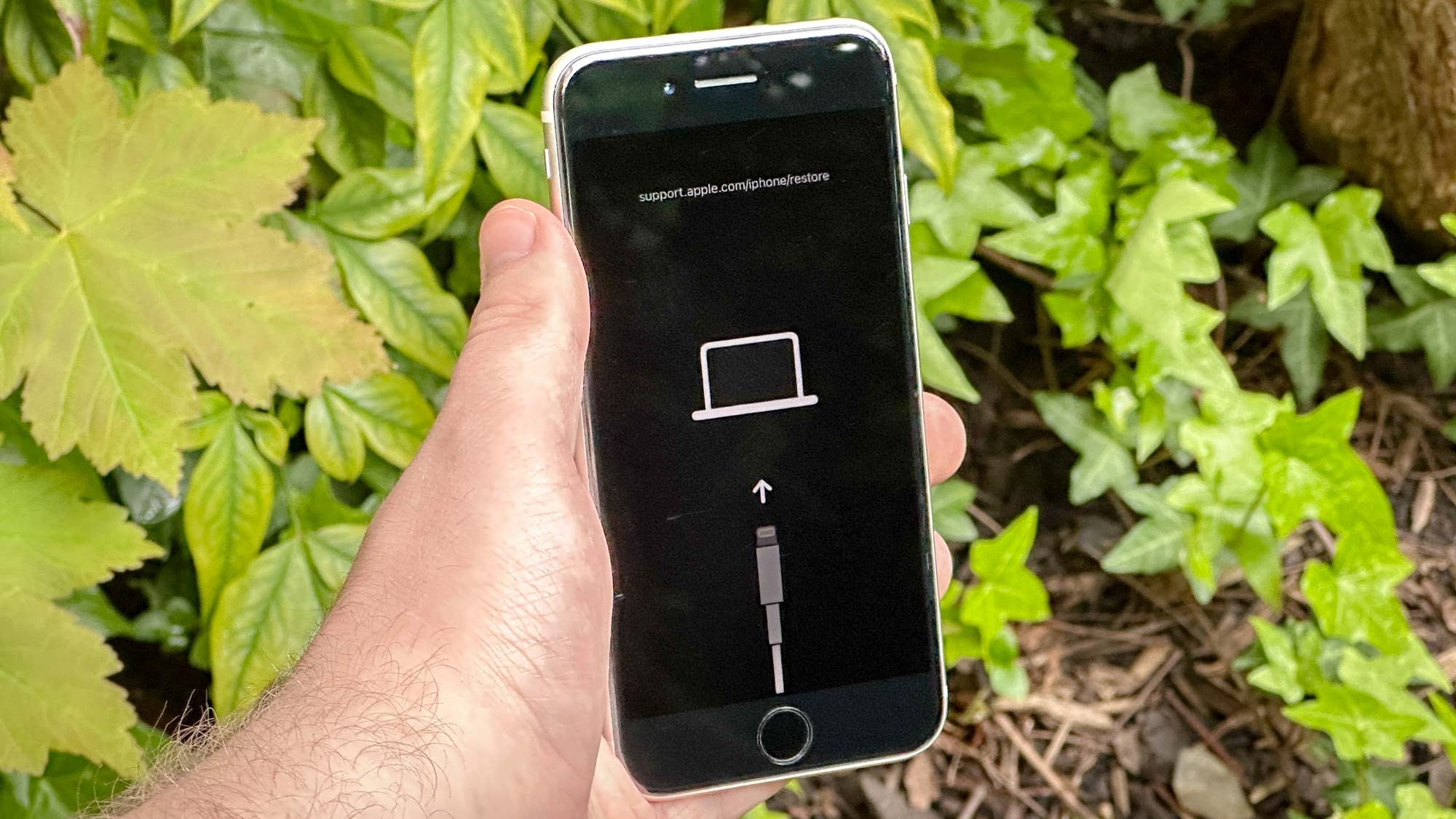
- Continue holding until you see the Recovery Mode screen, which typically shows a computer icon and a cable.
- On your computer, a window will appear with two options: Update or Restore.
- Select Update. This will attempt to reinstall iOS without erasing your data. If "Update" fails, you may be forced to select "Restore," which will wipe the device to factory settings.
DFU Mode: The Final Software Fix
DFU (Device Firmware Update) mode is the deepest level of recovery. It allows the iPhone to communicate with Finder or iTunes without loading the bootloader or iOS. Use this only if Recovery Mode fails, as it requires a complete wipe of the device. Entering DFU mode requires precise timing of button presses while connected to a computer; if the Apple logo appears, you have held the buttons too long and must start over.
Summary of Reset Methods by Model
| iPhone Model Generation | Primary Reset Method | Key Buttons Involved |
|---|---|---|
| iPhone 8 to iPhone 17 | Sequential Press/Hold | Vol Up, Vol Down, Side Button |
| iPhone 7 / 7 Plus | Simultaneous Hold | Vol Down + Side Button |
| iPhone 6s / SE (1st Gen) | Simultaneous Hold | Home + Side/Top Button |
| All Models (Deep Fix) | Recovery Mode | Computer + Model-specific Reset |
| All Models (Touch Issue) | External Inspection | Remove Case/Protector/Charger |
How to Prevent Future Screen Freezes
Regular maintenance can significantly reduce the likelihood of your iPhone screen freezing. As devices become more powerful, they also become more reliant on clean file systems and healthy hardware.
- Maintain Storage Buffer: Always keep at least 10–15% of your total storage capacity free. iOS uses this space for virtual memory and background "garbage collection" of system files.
- Monitor Battery Health: A chemically aged battery (below 80% maximum capacity) may struggle to provide peak power during intensive tasks, causing the processor to "brown out" and the screen to freeze. Check this in Settings > Battery > Battery Health & Charging.
- Update Apps Regularly: Many freezes are caused by a single third-party app with a memory leak. Ensure all apps are updated via the App Store to ensure compatibility with the current version of iOS.
- Avoid Beta Software: While tempting, developer and public betas are prone to kernel panics and UI hangs. If stability is your priority, stick to official public releases.
When to Seek Professional Repair
If your iPhone screen freezes frequently even after a factory restore, or if you see vertical lines or "ghosting" on the display, you are likely dealing with a hardware failure.
- Logic Board Failure: Damage to the AP (Application Processor) or the RAM chips soldered to the board can cause intermittent freezing.
- Dropped Damage: Even if the glass isn't cracked, a drop can loosen the internal display connector (FPC connector), leading to intermittent signal loss.
- Liquid Exposure: Corrosion from liquid ingress can short-circuit the touch-sensing lines, causing the device to think it is being touched constantly or not at all.
In these cases, visit an Apple Authorized Service Provider or an Apple Store. In 2026, many iPhone repairs are covered under standard warranties or AppleCare+ if there is no evidence of accidental damage.
Frequently Asked Questions
Does unfreezing my iPhone delete my photos?
A standard force restart does not delete any data. It simply restarts the operating system. However, if you are forced to use "Recovery Mode" and select the "Restore" option because the update failed, all data will be erased unless you have a recent backup in iCloud or on your computer.
What if my buttons are broken and I can't do a force restart?
If your physical buttons are non-functional, you cannot perform a hardware-level force restart. You must wait for the battery to drain completely until the device shuts down. Once it is off, plug it into a power source; it will automatically reboot as it charges, which may resolve the freeze.
Why does my iPhone screen freeze only when I open a specific app?
This indicates a software conflict rather than a system-wide hardware issue. The app likely has a "bug" that is hogging system resources. Delete the app, restart your iPhone, and reinstall the latest version from the App Store.
Can a virus cause my iPhone screen to freeze?
It is extremely rare for an iPhone to have a traditional virus due to the "sandboxing" nature of iOS. However, malicious websites can sometimes run scripts that overwhelm the Safari browser, making the screen appear frozen. Closing the browser tab or clearing Safari history in Settings usually fixes this.
My iPhone is frozen on a black screen but it vibrates. What does that mean?
This usually indicates that the phone is "awake" but the display assembly has failed or the backlight is broken. This is a hardware issue. You can verify this by toggling the Ring/Silent switch; if you feel a vibration, the phone is on, and the screen needs to be replaced.
Practical Next Action
If your iPhone is currently frozen, perform the Vol Up, Vol Down, Hold Side Button sequence immediately. Once the device reboots, navigate to Settings > General > Software Update to ensure you are running the latest version of iOS, as Apple frequently includes stability patches for system hangs in their monthly security responses.
Image Gallery
Select an image to open it in a new tab.



Akira Tanaka
International Academic Trends Correspondent
