The msconfig.exe file, also known as the System Configuration Utility, is a core Windows administrative tool used to manage the operating system's startup process, services, and boot parameters. It serves as a centralized interface for troubleshooting performance issues, performing "Clean Boots," and managing boot configurations without requiring manual Registry edits.
As of 2026, even with the continued evolution of the Windows Settings app and the integration of more features into Task Manager, msconfig.exe remains an indispensable tool for IT professionals and power users. Its primary purpose is to help users isolate and identify software conflicts by selectively disabling components that load during the Windows startup sequence. While casual users may rarely interact with it, understanding its functions is essential for maintaining a stable and efficient computing environment.
The Technical Anatomy of MSConfig.exe
The file msconfig.exe is a legitimate executable file developed by Microsoft. In a standard installation of Windows 10, Windows 11, or the latest 2026 iterations of the OS, the file is located exclusively in the C:\Windows\System32 directory.
Because it is a powerful system tool that can alter how the operating system loads, it requires administrative privileges to run. If you attempt to open it from a standard user account, Windows will prompt for an administrator password or User Account Control (UAC) confirmation.
Is MSConfig.exe a Virus?
In its legitimate form, no. However, malicious software sometimes adopts the names of system files to hide in plain sight. To verify the authenticity of the msconfig.exe file running on your system, you can check two primary indicators:
- File Location: Right-click the process in Task Manager and select "Open file location." If it leads anywhere other than
C:\Windows\System32, it is likely a malicious file or a "copycat" executable. - Digital Signature: Right-click the file, go to Properties, and check the Digital Signatures tab. It should be signed by "Microsoft Windows" or "Microsoft Corporation."
How to Open MSConfig in 2026
Accessing the System Configuration Utility has remained consistent across several generations of Windows. There are three primary ways to launch it:
- The Run Command: Press
Windows Key + Ron your keyboard, typemsconfig, and press Enter. This is the most common method used by technicians. - Windows Search: Click the Start button or press the Windows key, type "System Configuration," and select the application from the results.
- Command Prompt/PowerShell: You can launch the utility by simply typing
msconfiginto any elevated command-line interface.

Exploring the MSConfig Interface
The utility is divided into several tabs, each serving a specific diagnostic or configuration purpose. Understanding what each tab does is critical to avoid accidental system instability.
The General Tab: Startup Selection
The General tab is the first thing you see when you open the utility. It allows you to choose how Windows should start:
- Normal Startup: This is the default mode. Windows loads all device drivers and services, along with all third-party programs scheduled for startup.
- Diagnostic Startup: Windows loads only basic devices and services. This is similar to Safe Mode and is used to determine if a problem is caused by a core Windows file.
- Selective Startup: This is the most frequently used option for troubleshooting. It allows you to toggle "Load system services" and "Load startup items" independently.
The Boot Tab: Managing the Loading Process
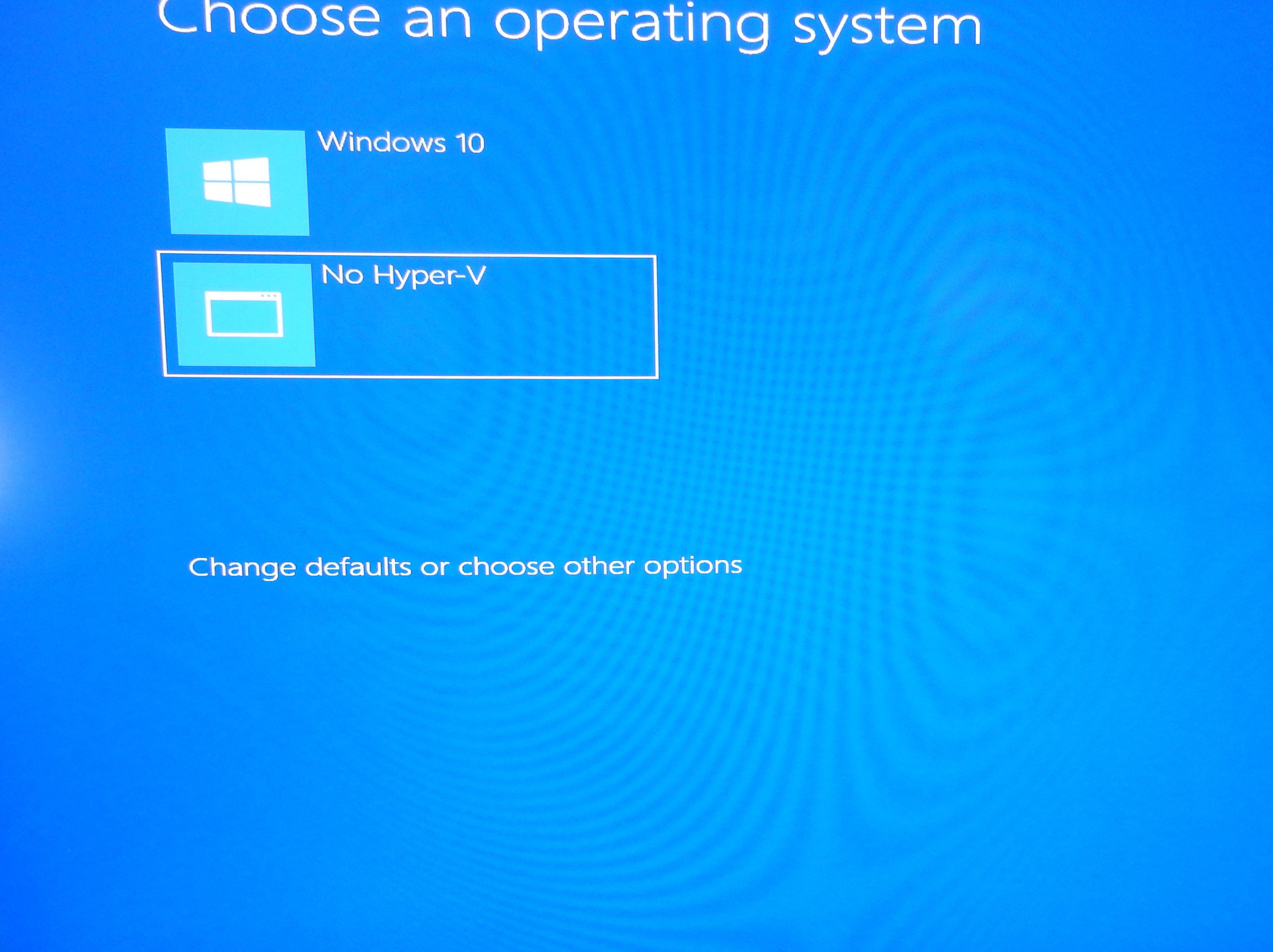
The Boot tab is perhaps the most powerful section of msconfig.exe. It displays the operating systems currently installed on the machine and provides advanced options for the boot sequence.
- Safe Boot: You can force Windows to boot into Safe Mode upon the next restart. You can further specify the type of Safe Mode: "Minimal" (standard Safe Mode), "Alternate shell" (Safe Mode with Command Prompt), or "Network" (Safe Mode with internet access).
- Timeout: This defines how long the boot menu stays on the screen if you have multiple operating systems installed.
- Advanced Options: Here, you can limit the number of processors or the amount of memory Windows uses. This is generally used by developers to simulate lower-end hardware environments for software testing.
The Services Tab: Isolating Software Conflicts
The Services tab lists all the background processes that start when Windows loads. These include essential Windows services (like the Print Spooler or Windows Update) and third-party services (like Google Update or Steam Client Service).
A vital feature here is the "Hide all Microsoft services" checkbox. By checking this box, you can safely disable all third-party services without accidentally disabling a critical Windows component. This is the cornerstone of performing a "Clean Boot" to find out which application is causing system crashes or slowdowns.
The Startup Tab: A Legacy Redirect
In older versions of Windows (Windows 7 and earlier), the Startup tab contained a list of programs that launched when a user logged in. In modern versions, including those used in 2026, this tab contains a link to the Task Manager. Microsoft moved startup management to the Task Manager to provide a more user-friendly interface that includes "Startup Impact" metrics, helping users see which programs are slowing down their boot time.
The Tools Tab: Administrative Shortcuts
The Tools tab provides a convenient list of other diagnostic tools. Instead of hunting through the Start menu or Control Panel, you can launch utilities like Event Viewer, Performance Monitor, Computer Management, and the Registry Editor directly from this list.
Comparison of System Management Tools
While msconfig.exe is powerful, it is often confused with other Windows utilities. The following table clarifies the differences between the most common system management tools available in 2026.
| Tool | Primary Purpose | Best Used For |
|---|---|---|
| MSConfig (msconfig.exe) | Troubleshooting boot and service conflicts. | Performing a Clean Boot or entering Safe Mode. |
| Task Manager (taskmgr.exe) | Monitoring real-time resource usage. | Killing unresponsive apps and managing login startup items. |
| Services.msc | Detailed management of Windows services. | Changing service start types (Automatic, Manual, Disabled). |
| Registry Editor (regedit.exe) | Direct editing of the OS database. | Advanced configuration and manual removal of software remnants. |
| Settings App | General user configuration. | Changing display, sound, and account settings. |
Practical Use Case: Performing a Clean Boot
One of the most common reasons to use msconfig.exe is to perform a "Clean Boot." This process starts Windows with a minimal set of drivers and startup programs, which helps determine if a background program is interfering with a game or application.
- Open msconfig.exe.
- On the Services tab, select Hide all Microsoft services.
- Click Disable all. This prevents third-party software from launching services.
- Go to the Startup tab and click Open Task Manager.
- In Task Manager, disable every item in the Startup tab.
- Close Task Manager and click OK in the System Configuration window.
- Restart your computer.
If the problem is gone after the restart, you know a third-party service or program was the cause. You can then re-enable items one by one to find the specific culprit.
Risks and Precautions
Because msconfig.exe controls how the operating system initializes, it should be used with caution. Changing settings in the Boot tab, such as "No GUI boot" or restricting "Maximum memory," can lead to unexpected behavior if you are not familiar with their functions.
Furthermore, disabling "System services" on the General tab can prevent Windows from loading essential features like your Wi-Fi drivers, Windows Hello biometrics, or even the login screen. Always ensure that the "Hide all Microsoft services" box is checked before clicking "Disable all" in the Services tab.
Troubleshooting MSConfig Issues
Sometimes, the System Configuration Utility itself may fail to open or function correctly. This is often a sign of deeper system corruption or a malware infection attempting to protect itself from being disabled.
- Access Denied: If you receive an "Access Denied" error, ensure you are logged in as an Administrator. You may also need to run the tool from a "Command Prompt (Admin)" window by typing
start msconfig. - Changes Not Saving: If your changes revert after a restart, a third-party security suite or a group policy might be overriding your settings. In some cases, malware may actively monitor the startup list and re-insert itself.
- Missing from System32: If the file is missing, you may need to run the System File Checker. Open PowerShell as an administrator and type
sfc /scannowto repair missing or corrupted system files.
FAQ: Frequently Asked Questions
Does MSConfig speed up my computer?
MSConfig is a troubleshooting tool, not a permanent optimization tool. While disabling startup items via the Task Manager link in MSConfig can reduce boot times, the primary use of MSConfig is to identify issues. Once a problem is identified, the offending software should be uninstalled or reconfigured through its own settings rather than permanently disabled via MSConfig.
Can I delete msconfig.exe to save space?
No. You should never delete msconfig.exe. It is a critical component of the Windows operating system and occupies a negligible amount of disk space (usually less than 1MB). Deleting it will prevent you from performing essential system repairs and may trigger Windows File Protection errors.
Is MSConfig the same as Safe Mode?
No, but MSConfig is a way to reach Safe Mode. MSConfig is a utility you run while Windows is already operating. Safe Mode is a specific "state" of the operating system. You can use the Boot tab in MSConfig to tell Windows to enter Safe Mode automatically the next time the computer restarts.
Why is the Startup tab empty in MSConfig?
In Windows 10, 11, and the current 2026 versions, the Startup tab in MSConfig is empty by design. It contains a redirect link to the Task Manager. This change was made to centralize startup management and provide users with "Startup Impact" data, which MSConfig was never designed to track.
What happens if I select "Diagnostic Startup"?
Selecting "Diagnostic Startup" will cause Windows to load only the most basic services and drivers. When you restart, your computer may look different (lower resolution), and features like internet access, printing, and specialized hardware (like gaming mice drivers) may not work. This is normal and is used to see if the core OS is functioning correctly.
Final Recommendation
For most users in 2026, msconfig.exe should be treated as a "read-only" tool unless you are actively troubleshooting a specific problem. If your computer is running slowly, your first step should be the Startup tab in Task Manager to disable unnecessary applications. However, if you are facing system crashes, "Blue Screen of Death" (BSOD) errors, or services that refuse to stop, msconfig.exe is the most effective tool for isolating the cause. Always remember to create a System Restore point before making significant changes to the Boot or Services tabs to ensure you have a fallback if the system becomes unstable.
Image Gallery
Select an image to open it in a new tab.

Zara El-Hashem
Sociocultural Dynamics and Academics Writer
