
In Excel, there is no single "sheet name" button or direct property accessible by a simple click; instead, users must use a specific formula string or VBA code to extract it. To display the current worksheet name in a cell, the most common formula used is =MID(CELL("filename",A1),FIND("]",CELL("filename",A1))+1,255). This formula works by identifying the full file path and isolating the text that appears after the closing bracket, which always precedes the sheet name.
The ability to dynamically reference a sheet name is a fundamental skill for advanced report building, dashboarding, and complex financial modeling. By the year 2026, despite many UI updates to Microsoft 365, the underlying logic of the CELL function remains the most reliable method for local installations of Excel. This guide will walk you through the various methods of extracting sheet names, why they work, and how to troubleshoot common issues.
Understanding the CELL Function
To understand the "sheet name code," one must first understand the CELL function. This is a diagnostic function that provides information about the formatting, location, or contents of a cell. When you use the "filename" argument within this function, Excel returns the full absolute path of the workbook, the name of the file (enclosed in square brackets), and the name of the active sheet.
For example, a typical output of =CELL("filename",A1) might look like this:
C:\Users\Admin\Documents\[Monthly_Report.xlsx]January_Data
The "sheet name code" is essentially a string manipulation exercise designed to strip away everything except the "January_Data" part of that string.
Why the A1 Reference is Crucial
You will notice that the formula includes A1 as a second argument. This is technically optional, but in practice, it is mandatory for accuracy. If you omit the cell reference, the formula will return the name of the sheet that was last changed. If you have a workbook with multiple sheets and you recalculate the workbook while on a different tab, the formulas on other tabs might accidentally display the wrong sheet name. Including A1 (or any cell on the current sheet) anchors the formula to that specific worksheet.
The Standard "Sheet Name Code" Formula
For most versions of Excel, including Excel 2019, 2021, and the 2026 iterations of Microsoft 365, the standard extraction formula is the one mentioned in the introduction. Let’s break it down piece by piece to understand why it is structured this way.
1. Finding the Separator
The formula uses FIND("]", CELL("filename", A1)). In Excel’s file path syntax, the workbook name always ends with a closing square bracket ], and the sheet name immediately follows it. By finding the position of this bracket, we know exactly where the sheet name begins.
2. The MID Function
The MID function extracts a specific number of characters from a string, starting at a specific position.
- The Text: The full file path provided by
CELL("filename", A1). - The Start Position: The position of the
]bracket plus one (to move past the bracket itself). - The Number of Characters: Usually set to
255. While Excel sheet names are limited to 31 characters, theMIDfunction requires a defined length to extract. Using 255 ensures that no matter how long the sheet name is (up to the limit), it will be fully captured.
3. Handling the Workbook Save Requirement
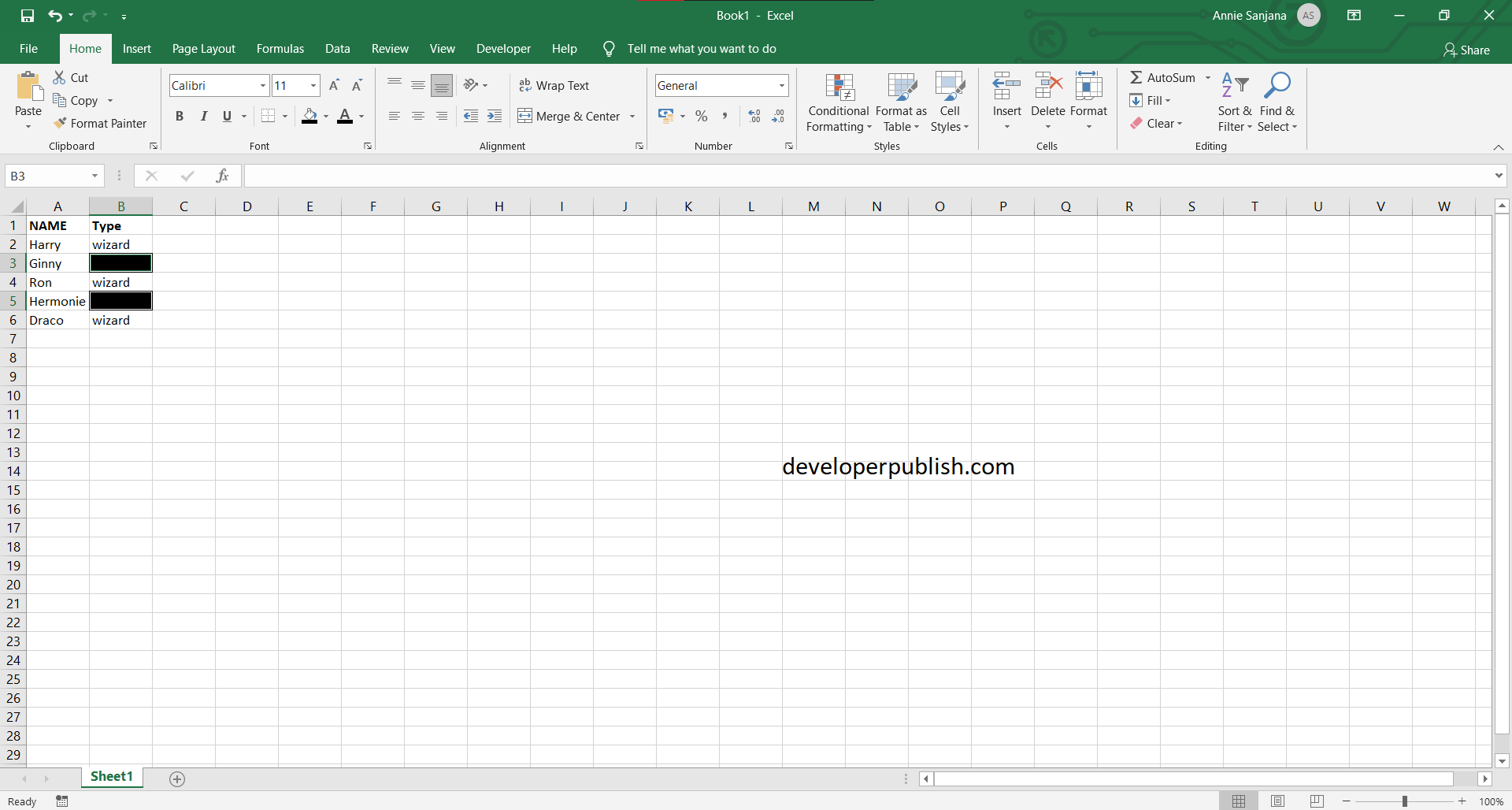
A critical prerequisite for this formula is that the workbook must be saved. If you open a brand-new "Book1" and haven't saved it to your hard drive or cloud storage yet, the CELL("filename") function will return an empty string or a #VALUE! error. This is because an unsaved file has no file path for Excel to reference.
Modern Alternatives: Using TEXTAFTER (Microsoft 365)
By 2026, the majority of professional environments have migrated to Microsoft 365, which introduced more intuitive text manipulation functions. If you are using a modern version of Excel, you can replace the clunky MID and FIND combination with the TEXTAFTER function.
The modern "sheet name code" is:
=TEXTAFTER(CELL("filename", A1), "]")
Advantages of TEXTAFTER
- Readability: It is much easier for a colleague to understand what this formula is doing compared to the legacy version.
- Maintenance: There is less room for error in parentheses or character counts.
- Efficiency: The function is optimized for the modern Excel calculation engine.
Using VBA to Get the Sheet Name
In some scenarios, you may need the sheet name for a macro or a more permanent User Defined Function (UDF). VBA (Visual Basic for Applications) handles sheet names much more directly than formulas do.
The Basic VBA Property
In the VBA environment, the sheet name is simply a property of the worksheet object.
Sub ShowSheetName() MsgBox ActiveSheet.Name End Sub
Creating a Custom Sheet Name Function
If you want a simple formula like =SheetName() to work anywhere in your workbook, you can create a custom function in a standard module:
Function GetSheetName() As String Application.Volatile GetSheetName = Application.Caller.Parent.Name End Function
Why use Application.Volatile?
This ensures that if you rename the worksheet tab, the function will recalculate and update the cell value immediately. Without it, the function might only update when the cell itself is edited.
Comparing Methods for Extracting Sheet Names
Depending on your specific needs—whether you are building a template for others or a personal dashboard—one method may be superior to the others.
| Method | Best For | Pros | Cons |
|---|---|---|---|
| Legacy Formula (MID/FIND) | Universal Compatibility | Works in all Excel versions (Excel 97–2026). | Long, complex syntax; easy to mistype. |
| Modern Formula (TEXTAFTER) | M365 Users | Short, readable, and intuitive. | Won't work for users on older Excel versions. |
| VBA / UDF | Automation & Tooling | Extremely clean in-cell formula (=GetSheetName()). |
Requires .xlsm file type; security warnings. |
| Power Query | Data Auditing | Can list ALL sheet names in a workbook at once. | Does not update in real-time; requires "Refresh." |
Extracting the Workbook Name vs. the Sheet Name
Often, when users search for the "sheet name code," they also need the workbook name. The logic remains the same, but the string manipulation changes slightly.
To get the Workbook Name:
=MID(CELL("filename",A1),FIND("[",CELL("filename",A1))+1,FIND("]",CELL("filename",A1))-FIND("[",CELL("filename",A1))-1)
This formula finds the text between the opening bracket [ and the closing bracket ]. In modern Excel, this is also simplified:
=TEXTBETWEEN(CELL("filename", A1), "[", "]")
Common Errors and Troubleshooting
When implementing these codes, you may encounter a few common roadblocks.
The #VALUE! Error
This is the most common error and almost always stems from the workbook not being saved. Ensure the file has a location on your local disk or OneDrive. If the file is saved and you still see this, check that the cell reference (e.g., A1) is valid.
The Formula Returns the Wrong Sheet Name
As mentioned earlier, if you use =CELL("filename") without the ,A1 reference, Excel looks at the last sheet that was "active" or "changed" globally. In a multi-sheet calculation, this can cause "Sheet1" to display "Sheet3" simply because you were looking at Sheet3 when the calculation triggered. Always use a local cell reference.
Issues with Excel Online (Web)
The CELL("filename") function behaves inconsistently in the web version of Excel. While Microsoft has improved support for it, certain browser security settings or cloud-only files might return a URL-style path that the standard MID/FIND formula isn't prepared to parse. If your users are primarily on Excel for the Web, consider using a Power Automate flow or a dedicated Script (Office Scripts) to handle metadata.
Practical Applications for Sheet Name Codes
Why go through the trouble of coding the sheet name into a cell? Here are three primary professional use cases:
- Dynamic Headers: If you have 12 sheets for 12 months, you can set a header like
="Report for " & MID(CELL("filename",A1),FIND("]",CELL("filename",A1))+1,255). When you duplicate the "January" sheet and rename it "February," the header updates automatically. - Indirect Referencing: You can use the sheet name code in combination with the
INDIRECTfunction to pull data from other sheets based on their names. This is helpful for summary tabs that aggregate data from multiple varying sources. - Data Validation Tracking: When printing or exporting to PDF, having the sheet name clearly visible in the grid ensures that physical copies can be traced back to the correct tab in the digital source file.
Expert Tip: Using "Define Name" for a Cleaner Workbook
If you hate seeing long formulas in your cells, you can hide the complexity using Excel’s "Name Manager."
- Go to the Formulas tab and click Define Name.
- In the Name box, type
SheetName. - In the "Refers to" box, paste:
=MID(CELL("filename",!$A$1),FIND("]",CELL("filename",!$A$1))+1,255)Note: The!before$A$1is a special notation that makes the name relative to whatever sheet it is called from. - Now, in any cell on any sheet, you can simply type
=SheetNameand the name of that specific tab will appear.
Frequently Asked Questions
Does the sheet name code update if I rename the tab?
Yes, but it may not happen the millisecond you press Enter on the new name. Because CELL is a volatile-like function, it will update the next time the worksheet calculates. You can force an update by pressing F9.
Is there a way to get a list of all sheet names without a macro?
In modern Excel (2026), you can use Power Query. Go to Data > Get Data > From File > From Excel Workbook, select the current workbook, and Power Query will generate a table that includes a column for all "Sheet Names." This is the best way to get a bulk list without writing code.
Why is there a 255 in the MID formula?
The MID function requires a "number of characters" to return. Since the maximum length of an Excel sheet name is 31 characters, any number over 31 would technically work. 255 is used by convention as it is the standard maximum string length for many older computer systems and ensures that you will never "cut off" a sheet name.
Can I use the sheet name code in a Header or Footer?
You don't actually need the code for Headers and Footers. In the Header/Footer design view, you can simply click the "Insert Sheet Name" button or type &[Tab]. The formulas discussed in this guide are specifically for displaying the name within the spreadsheet cells themselves.
Will this work in Google Sheets?
No. Google Sheets uses a different engine. In Google Sheets, you would need a small Apps Script or a specific SHEETNAME() custom function to achieve the same result. The CELL("filename") logic is unique to the Microsoft Excel environment.
Summary Recommendation
For the vast majority of users in 2026, the best approach is the Modern Formula using TEXTAFTER because of its simplicity and reduced risk of syntax errors. If you are building a spreadsheet that will be shared with clients who might be using older versions of Excel (like Excel 2016 or 2019), stick with the Legacy MID/FIND Formula. Only use VBA if you are already using macros for other tasks, as maintaining a .xlsm file can sometimes create unnecessary security hurdles for end-users.
Image Gallery
Select an image to open it in a new tab.

Vivian Cho
Executive IT and Emerging Technologies Reporter
