Kingston Cloning Software Overview: Features, Installation, and Disk Migration Guide
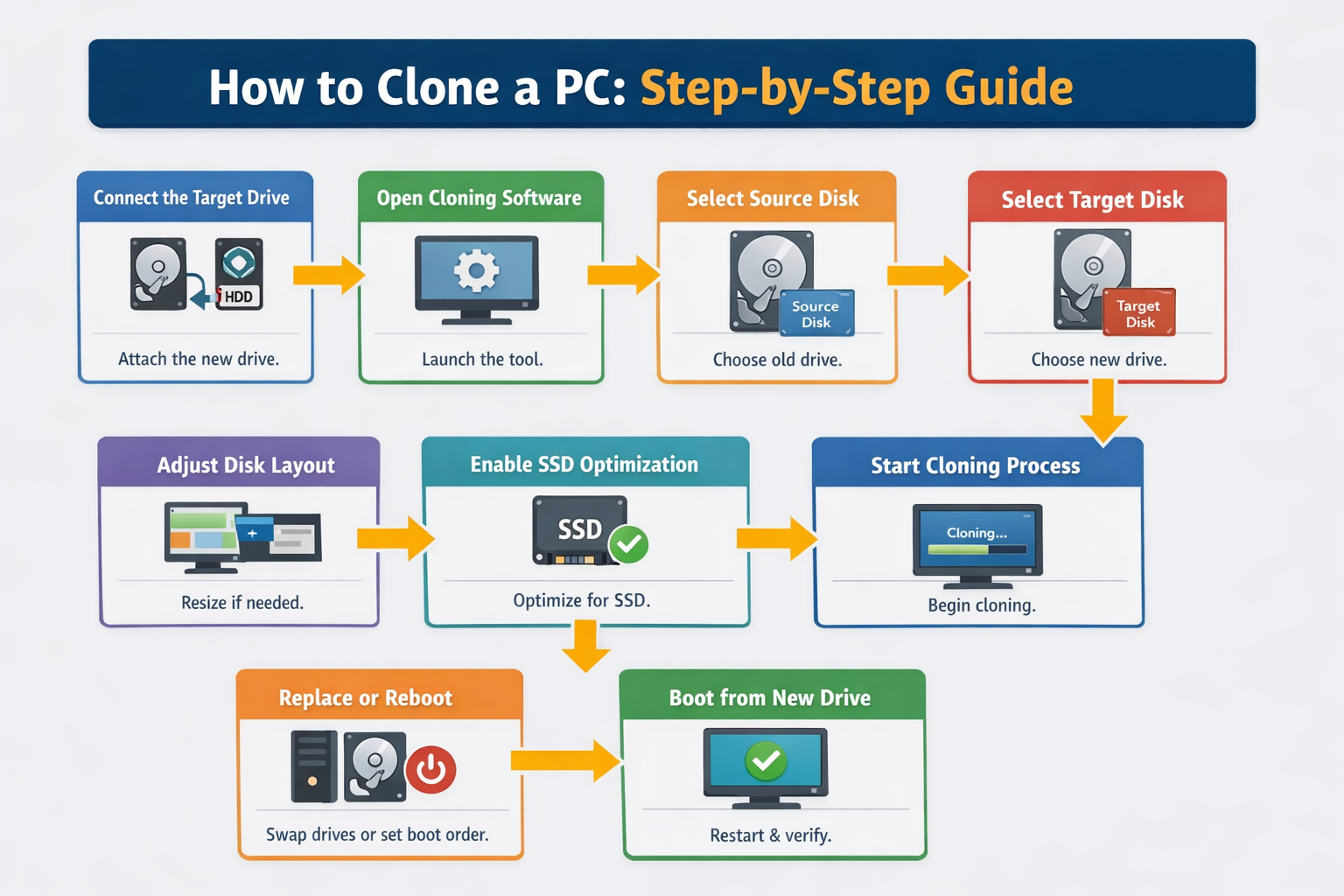
Kingston Technology does not develop proprietary disk cloning software. Instead, Kingston packages a custom OEM (Original Equipment Manufacturer) version of Acronis True Image (also known in updated releases as Acronis Cyber Protect Home Office OEM) with select Solid State Drives (SSDs) and upgrade kits. This software allows users to clone an entire system drive—including the operating system, partitions, user settings, and data—directly to a new Kingston SSD.
Upgrading a storage drive from a traditional mechanical hard disk drive (HDD) or a smaller solid-state drive (SSD) to a high-capacity Kingston drive often requires transferring the exact state of your operating system. Reinstalling Windows or Linux from scratch involves configuring system settings, reinstalling software applications, and manually transferring personal files. Disk cloning avoids this manual work by making a block-level or file-level sector copy of the original drive onto the target drive.
Because Kingston relies on a third-party OEM integration with Acronis, users frequently have questions about software availability, serial key activation, hardware eligibility, and operation steps. This overview provides a complete breakdown of Kingston’s OEM cloning software, system prerequisites, step-by-step disk migration instructions, troubleshooting solutions, and alternative cloning utility options.
Kingston OEM Software Bundle Explained
When you purchase eligible Kingston SSDs—such as select models in the KC series, industrial drives, or dedicated desktop/laptop SSD upgrade kits—Kingston includes a software activation key for Acronis True Image for Kingston.
- Original Source Drive
- EFI System
- Windows System Drive (C:)
- Recovery Partition
- Acronis OEM Disk Cloning Process
- Target Kingston SSD
- EFI System
- Windows System Drive (C:)
- Recovery Partition
Acronis OEM Software Scope and Limitations
The bundled software is not a full-featured standalone edition of commercial Acronis Cyber Protect Home Office. It is a specialized OEM build designed specifically for drive migration and system backup with strict hardware conditions:
- Hardware Verification Requirement: The software installer checks the host motherboard and storage interfaces upon launch. At least one qualifying, genuine Kingston SSD must be connected internally or via an external USB-to-SATA/NVMe adapter for the software to install and run.
- Feature Scope: The OEM build focuses primarily on disk cloning, partition management, system drive migration, and full-disk imaging. Advanced cloud backup services, multi-device management, and automated continuous cloud synchronization offered in premium Acronis tiers are generally omitted or require a paid upgrade.
- Activation Key Format: Eligible Kingston upgrade kits include a 64-character or 16-character software activation key printed on a insert card or included within the packaging documentation.
Hardware and System Prerequisites
Before initiating a drive clone using Kingston’s bundled Acronis software, specific hardware and software prerequisites must be met to avoid data corruption or cloning failures.
1. Drive Connection and Hardware Interface
The target Kingston SSD must be properly attached to the computer before running the installer.
- Desktop Computers: Install the target Kingston SSD into an available secondary SATA port or M.2 NVMe slot directly on the motherboard. Ensure both power and data cables are securely attached.
- Laptops: If your laptop has only one internal drive slot, connect the new Kingston SSD externally using a compatible USB-to-SATA adapter cable or an M.2 NVMe to USB external enclosure.
2. Capacity Considerations
The total used space on your source drive must be smaller than the available capacity of your new Kingston target SSD. While the target SSD does not need to equal the overall size of the old drive, its available capacity must exceed the actual size of the data being transferred. Acronis automatically scales partition sizes down proportionally during the cloning process, provided the data fits.
3. BitLocker and Encryption Disabling
If Windows BitLocker or third-party drive encryption (such as VeraCrypt) is active on the source drive, the cloning process can fail or produce an unbootable target drive. You must fully decrypt the source drive within Windows before starting the clone:
- Open Control Panel > BitLocker Drive Encryption.
- Select Turn Off BitLocker and allow the decryption process to finish completely.
4. Source Drive Health Verification
Attempting to clone a failing hard drive with unreadable bad sectors can cause Acronis to stall or throw an error. Run a file system check on the source drive prior to cloning. Open Command Prompt as Administrator and execute:
chkdsk C: /f /r
Restart the system if prompted to allow Windows to repair any disk sector anomalies.

How to Download, Activate, and Clone Using Kingston OEM Acronis
Follow this step-by-step process to download the correct software package, register your activation license, and clone your system drive.
Step 1: Download the Kingston OEM Installer
Do not download generic versions of Acronis from third-party software directories, as generic installers will not accept Kingston OEM software license keys.
- Visit the official Kingston SSD Support Page.
- Search for your specific SSD model or navigate directly to the Acronis Download tab.
- Download the official installer executable (typically labeled
Acronis True Image for KingstonorAcronis Cyber Protect Home Office OEM).
Step 2: Software Installation and License Activation
- Connect your target Kingston SSD to your system.
- Launch the downloaded installer executable and follow the on-screen prompt setup.
- When prompted, enter the license activation key included with your Kingston product packaging.
- If your product did not ship with a printed license key, the software will automatically query the hardware interface to verify the presence of a qualifying Kingston SSD to validate activation.
Step 3: Launch the Clone Disk Wizard
- Open the Acronis software application.
- In the left-hand navigation sidebar, click on Tools.
- Select Clone Disk from the main options list.
- Acronis True Image for Kingston
- Navigation Options:
- Dashboard
- Backup
- Tools
- Select Clone Mode:
- Automatic (Recommended)
- Manual
- Drive Configuration:
- Source: Disk 1 - HDD 500GB
- Target: Disk 2 - Kingston SSD 1TB
- Navigation Options:
Step 4: Choose the Cloning Mode
Acronis provides two operation modes:
- Automatic (Recommended): Automatically resizes target partitions proportionally to fit the new Kingston SSD. This is the optimal choice for standard users migrating an operating system drive.
- Manual: Provides complete control over partition layouts, drive geometry, partition sizing, and partition type conversions (MBR to GPT). Choose this mode only if you need custom partition sizes or want to exclude specific non-system partitions.
Step 5: Select Source and Target Drives
- Select Source Disk: Choose the original system drive containing your operating system and data files (usually marked as
Disk 1orC:). Click Next. - Select Destination Disk: Choose the newly attached Kingston SSD. Ensure you verify the model number and drive capacity carefully; all existing data on the destination drive will be permanently erased.
- Click Next to proceed.
Step 6: Perform the Clone Operation
- Review the summary screen showing the "Before" and "After" partition configurations on the target Kingston SSD.
- Click Proceed to start the operation.
- If you are cloning an active operating system drive (the drive currently running Windows), Acronis will notify you that a system reboot is required. Click Reboot to enter the pre-installation boot environment.
- The system will restart into an isolated Acronis executable environment. Allow the progress bar to complete without interrupting system power or unplugging drives.
Step 7: Post-Cloning Setup and Boot Configuration
Once the cloning process finishes, the computer will automatically shut down or restart. To ensure your system boots successfully from the new drive:
- Shut down the computer completely.
- For Laptops: Remove the old internal drive and install the cloned Kingston SSD into the internal drive bay.
- For Desktops: Either disconnect the old source drive temporarily, or enter your system's BIOS/UEFI setup menu immediately upon powering on (typically by pressing
F2,F12, orDel). - In the BIOS/UEFI setup menu, navigate to the Boot Priority or Boot Order settings.
- Set the new Kingston SSD (or Windows Boot Manager assigned to the Kingston drive) as the primary boot device (
Boot Option #1). - Save settings and exit BIOS (
F10). Verify that Windows boots normally from your new Kingston SSD.
Comparison: Kingston OEM Acronis vs. Standard Disk Cloning Tools
While Kingston relies on its custom Acronis OEM bundle, several other disk cloning software choices are available. The table below compares Kingston OEM Acronis with alternative free and commercial disk cloning tools.
| Software Feature / Spec | Kingston OEM Acronis | Macrium Reflect (Home/Trial) | Clonezilla | EaseUS Todo Backup |
|---|---|---|---|---|
| Licensing Model | Free (Bundled with Kingston SSDs) | Commercial / 30-day Trial | Open-Source / Free (GPL) | Freemium (Paid for cloning) |
| Hardware Requirement | Requires Kingston SSD connected | Any storage brand | Any storage brand | Any storage brand |
| User Interface | Graphical (GUI), beginner-friendly | Graphical (GUI), intermediate | Text-based (TUI), advanced | Graphical (GUI), beginner-friendly |
| Dynamic Partition Resizing | Yes (Automatic & Manual) | Yes | Manual / Command-line flags | Yes |
| Hot Cloning (Live Windows) | Yes (via Volume Shadow Copy / VSS) | Yes (via VSS) | No (Offline Boot Environment only) | Yes (via VSS) |
| Support for BitLocker Drives | Requires decryption first | Supports sector-by-sector copy | Requires sector-by-sector copy | Requires decryption first |
| Bootable Media Creator | Yes (Rescue Media Builder) | Yes (PE-based Rescue Media) | Native live USB distribution | Yes (WinPE creator) |
Common Issues and Troubleshooting
Disk cloning operations involve low-level disk structures, driver stacks, and system partition tables. Users running Kingston cloning software may occasionally encounter hardware detection issues or boot failures.
1. Error: "Acronis product activation requires a Kingston SSD"
This error occurs when the OEM installer fails to detect a compatible Kingston device connected to the system.
- Cause: The SSD is connected via an unsupported external USB bridge controller or an unpowered SATA enclosure that hides the drive's vendor identity (VID/PID).
- Solution: Connect the Kingston SSD directly to an internal motherboard slot (SATA or M.2 NVMe). If using an external USB enclosure, ensure it supports pass-through of ATA/NVMe identification commands (UASP compliant).
2. System Boots to a Black Screen or "No Boot Device Found"
If the cloning process completes successfully but the system fails to boot from the new Kingston SSD, the issue usually stems from partition style mismatches or incorrect bootloader references.
- UEFI vs. Legacy BIOS Mismatch: Modern computers running Windows 11 require GPT (GUID Partition Table) partition layouts with UEFI boot modes. Older installations might use MBR (Master Boot Record). If your source drive was MBR and your system BIOS is configured for UEFI-only boot, the cloned drive will not boot. Ensure your motherboard BIOS boot settings match the source system's mode (UEFI vs CS/Legacy Mode).
- Missing Bootloader Partitions: If you performed a custom manual clone and selected only the
C:partition while omitting the hidden 100MB-500MB EFI System Partition or System Reserved Partition, the system will lack the necessary boot files. Re-clone the drive using the Automatic cloning mode to ensure all essential hidden partitions are copied.
3. Clone Stalls at 99% or Returns "Failed to Read Sector"
- Cause: The source drive has corrupted system files or unreadable physical bad sectors.
- Solution: Run a CHKDSK scan on the source drive. Additionally, open Windows Command Prompt as Administrator and run the System File Checker utility:
If physical bad sectors prevent a standard file-based clone, you can use specialized tools like Clonezilla to force an unreadable sector-by-sector copy, though corrupted files may still require manual repair afterward.sfc /scannow
Top Alternative Disk Cloning Tools for Kingston Drives
If your Kingston drive did not come with an Acronis license key, or if you encounter software incompatibility issues with the OEM build, several alternatives can successfully clone your drive to a Kingston SSD.
1. Macrium Reflect
Macrium Reflect is widely considered one of the most reliable disk imaging and cloning utilities for Windows. While the vendor transitioned away from a permanent free edition, its trial and commercial Home versions offer robust drive cloning.
- Key Advantages: Highly dependable handling of Volume Shadow Copy Service (VSS), flexible manual partition layout tools, and an advanced boot-repair utility built into its WinPE media.
2. Clonezilla
Clonezilla is a free, open-source bare-metal data recovery, disk imaging, and cloning tool. It runs independently of your operating system from a bootable USB drive created with software like Rufus.
- Key Advantages: Platform independent (works with Windows, macOS, Linux, and ChromeOS), supports obscure file systems, completely free without hardware restrictions, and capable of sector-by-sector copying.
- Drawbacks: Features a text-only, terminal-style interface that requires careful user navigation to avoid accidentally overwriting data.
3. Rescuezilla
Rescuezilla is often described as the graphical user interface alternative to Clonezilla. It is an open-source, bootable USB linux distribution designed for offline disk cloning, backup, and restore operations.
- Key Advantages: Easy-to-use point-and-click GUI, no installation required on the host operating system, and fully compatible with Clonezilla image formats.
Frequently Asked Questions
Does every Kingston SSD include an Acronis cloning software license key?
No. Kingston bundles Acronis software activation keys primarily with specific retail upgrade kits, desktop/laptop kits, and select drive lines (such as the KC series). Value-tier or standalone OEM-packaged drives may not include a printed software license key. Always check the product packaging or retailer specifications before purchasing if the software bundle is required.
Can I clone a larger hard drive to a smaller Kingston SSD?
Yes, provided that the total volume of used data on the source hard drive is smaller than the total storage capacity of the target Kingston SSD. Acronis will automatically recalculate and shrink the size of the main data partition during the automatic cloning procedure to fit the smaller destination disk.
Should I initialize or format my new Kingston SSD before cloning?
No. The disk cloning process overwrites the target drive's partition structure, file system, and raw data sectors entirely. Formatting or initializing the new drive beforehand in Windows Disk Management is unnecessary, as the cloning software will repartition and format the target disk automatically.
Can I use the Kingston Acronis OEM software to clone non-Kingston drives?
The Kingston OEM version of Acronis requires at least one genuine Kingston SSD connected to the host system as either the source drive or the destination drive. You cannot use the software to clone a non-Kingston drive to another non-Kingston drive (for example, cloning a Western Digital drive directly to a Samsung drive).
What is the difference between disk cloning and system imaging?
Disk cloning creates an exact functional duplicate of a source drive directly onto a target drive, rendering the target drive immediately bootable. System imaging creates a single compressed archive file (e.g., a .tib or .vhdx file) containing the contents of a drive. System images are typically stored on external backup drives and require restoration software to unpack onto a target drive.
Summary and Next Actions
Kingston relies on its partnership with Acronis to provide a simplified, hardware-validated cloning utility for users upgrading to Kingston SSDs. The bundled OEM software handles operating system transfers, partition scaling, and system drive replacements smoothly when drive prerequisites are satisfied.
To ensure a successful drive migration:
- Verify that your Kingston SSD is properly connected and recognized by your system hardware.
- Fully decrypt any active BitLocker encryption on your source drive prior to cloning.
- Download the official Kingston OEM build of Acronis True Image directly from the official Kingston support portal.
- Run the cloning wizard using the Automatic mode for seamless partition scaling.
- Update your system BIOS/UEFI boot order to prioritize the newly cloned Kingston drive upon completion.
For systems that do not include an OEM Acronis software key, independent utilities such as Macrium Reflect or Clonezilla serve as effective, full-featured alternatives for migrating data to your Kingston solid-state drive.
Image Gallery
Select an image to open it in a new tab.

Akira Tanaka
International Academic Trends Correspondent
