Why Your iPhone Can’t Connect to Wi-Fi: A Comprehensive Troubleshooting Guide
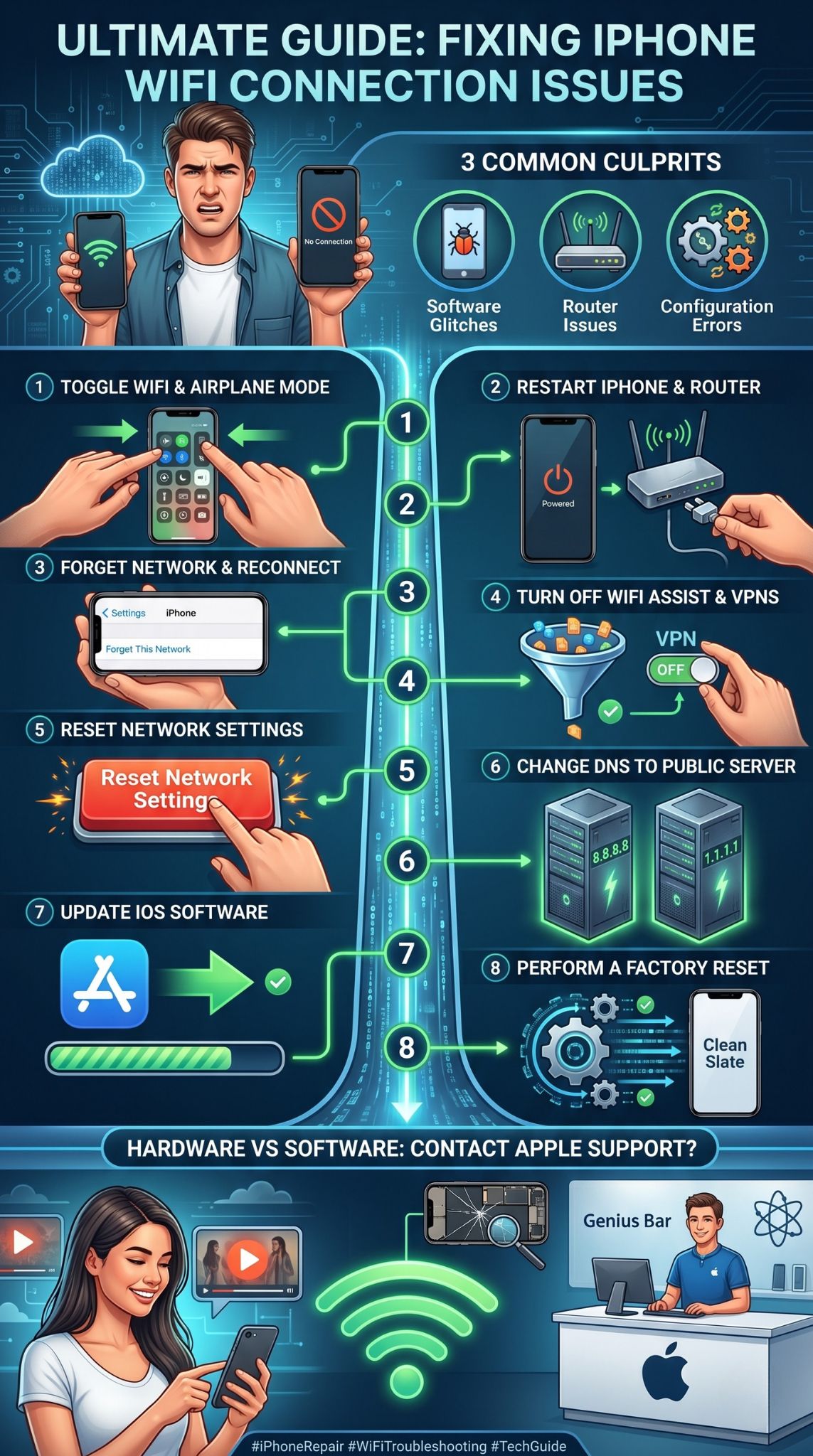
When your iPhone fails to connect to a Wi-Fi network, the issue usually stems from a localized software glitch, an incorrect network configuration, or a temporary handshake failure between your device and the router. Resolving this often requires a systematic approach, starting with basic toggles and progressing toward advanced network resets, ensuring that your device can effectively authenticate and maintain a stable wireless link.
Understanding the Connectivity Chain
To diagnose why your iPhone cannot connect to Wi-Fi, it is helpful to visualize the connection as a chain. At one end, your iPhone’s hardware manages the wireless radio and firmware. In the middle, the software layer—iOS—handles the authentication protocols and IP address assignment. At the other end, your router acts as the gateway to the internet, managing traffic and security handshakes. If any link in this chain breaks, your iPhone will either refuse to connect, fail to authenticate, or connect without providing actual internet access.
Connectivity issues are rarely catastrophic. Most often, the device is experiencing a "stuck" process where the radio is attempting to use an outdated security token or an incorrect IP address configuration that conflicts with the router's current state.
Phase 1: Immediate Toggles and Environmental Checks
Before diving into complex settings, address the most common points of failure. These steps resolve roughly 80% of transient connection problems.
- Toggle Airplane Mode: Access your Control Center by swiping down from the top-right corner of your screen. Tap the Airplane Mode icon, wait ten seconds, and tap it again. This forces the iPhone to power-cycle its internal wireless radios, effectively "refreshing" its search for available networks.
- Restart Your iPhone: A simple restart clears the volatile memory (RAM) where temporary cache files reside. If a background process has hung while negotiating a Wi-Fi connection, shutting down the device and restarting it forces all network services to reload from their primary state.
- Verify Wi-Fi Status: Ensure Wi-Fi is actually enabled in Settings > Wi-Fi. If the toggle is greyed out or unresponsive, this may indicate a hardware failure, though software corruption is a more frequent culprit.
- Proximity to the Router: Physical distance and structural interference (such as thick concrete walls or metal appliances) can degrade signal strength to the point where the iPhone drops the connection. Move closer to the router to rule out signal attenuation.
Phase 2: Analyzing Router-Specific Failures
If other devices in your home are connecting, the issue may be isolated to your iPhone’s specific relationship with your router.
- Reboot the Router: Your router is a small computer that can encounter memory leaks or firmware hangs. Unplug the router from its power source for 30 seconds, then plug it back in. Allow it to fully boot up—which may take two to five minutes—before attempting to reconnect your iPhone.
- Frequency Band Conflicts: Many modern routers use "band steering," which combines 2.4GHz and 5GHz bands under one SSID (network name). Sometimes, an iPhone may struggle to transition between these bands. If your router allows it, temporarily naming the 2.4GHz and 5GHz networks differently can help you identify if the device is struggling with one specific frequency.
- Security Protocols: Older routers might use WEP or WPA security, which are deprecated and often unsupported by newer versions of iOS for security reasons. Ensure your router is configured for WPA2 or WPA3.
Phase 3: Software and Configuration Troubleshooting
If the previous steps fail, you must address how your iPhone handles the network profile itself.
The "Forget This Network" Procedure
An iPhone stores security credentials and IP configurations for every network it joins. If the router’s settings have changed—or if the stored credentials have become corrupted—the connection will fail repeatedly.
- Go to Settings > Wi-Fi.
- Tap the "i" (info) icon next to the problematic network.
- Select Forget This Network and confirm.
- Go back to your Wi-Fi list, select the network, and re-enter the password. This forces the iPhone to perform a fresh handshake and request a new IP address.
Renewing the Lease
Sometimes the iPhone retains an "expired" lease from the router’s DHCP (Dynamic Host Configuration Protocol) server. To force a refresh:
- Tap the "i" icon next to the network.
- Ensure Auto-Join is enabled.
- Scroll down and tap Renew Lease. This sends a request to the router for a new IP address, clearing out potential conflicts.
Comparison of Troubleshooting Methods
| Method | Target Issue | Impact on Data | Technical Difficulty |
|---|---|---|---|
| Toggle Wi-Fi/Airplane | Transient radio hangs | None | Very Low |
| Reboot Device | OS process conflicts | None | Low |
| Forget Network | Corrupt cache/credentials | Network password required | Low |
| Renew Lease | IP address conflict | None | Medium |
| Reset Network Settings | Deep system configuration | Wipes all Wi-Fi/BT history | Medium |
Phase 4: Advanced Network Reset
If you still cannot connect, you may need to reset the network stack. This is a drastic step, as it deletes all saved Wi-Fi networks, Bluetooth pairings, and VPN configurations.
Navigate to Settings > General > Transfer or Reset iPhone > Reset > Reset Network Settings.
Your iPhone will restart. Once it powers back on, all network-related databases will be returned to their factory defaults. This effectively "cleans" any underlying corruption in the system files that govern how your iPhone communicates with wireless hardware. Note: You will need to re-enter all your Wi-Fi passwords and re-pair your Bluetooth devices after this process.
Common Misconceptions and Technical Realities
Users often assume that if their iPhone isn't connecting, the internet is down. However, "Wi-Fi" and "Internet" are distinct. You can be connected to a Wi-Fi network (a local area network) without having an active internet connection (the wide area network). If you see a checkmark next to your Wi-Fi name but cannot load a webpage, the issue lies with your Internet Service Provider (ISP) or the router's connection to the modem, not your iPhone itself.
Additionally, ensure your Date & Time settings are set to Set Automatically. If your iPhone's internal clock is significantly out of sync with the router's server, SSL/TLS handshake failures will prevent the device from establishing a secure connection to the internet, as security certificates require precise time synchronization to be considered valid.
When to Seek Professional Support
If you have performed a factory network reset and checked all router settings, yet the iPhone still refuses to engage with any Wi-Fi network, you may be facing a hardware defect.
Specifically, the Wi-Fi antenna or the wireless chip on the logic board may have suffered physical damage or environmental degradation. In 2026, Apple provides diagnostic tools via the Apple Support app that can identify internal hardware faults. If a diagnostic scan confirms a hardware failure, you should schedule an appointment at an Apple Authorized Service Provider. Attempting to repair internal radio components yourself is not recommended, as these parts are highly sensitive and require specialized calibration.
Frequently Asked Questions
Why does my iPhone say "No Internet Connection" even when Wi-Fi is on? This usually means your phone is successfully talking to the router, but the router is not receiving data from your ISP. Check the indicator lights on your modem/router. If they are flashing red or amber, contact your internet service provider.
Does a VPN affect my ability to connect to Wi-Fi? Yes. A misconfigured VPN profile can block local network traffic or interfere with the authentication handshake. Try disabling your VPN in Settings > General > VPN & Device Management to see if the connection stabilizes.
Can a software update fix my connection issues? Frequently, yes. Apple periodically releases updates to carrier settings and wireless firmware. Ensure your iPhone is updated to the latest version of iOS by checking Settings > General > Software Update.
Is it possible that my router is blocking my iPhone? It is possible if you use MAC address filtering. If you have enabled "MAC Filtering" on your router's administrative dashboard, your router will block any device not explicitly on a whitelist. Check your router's security settings to ensure your iPhone’s Wi-Fi address has not been inadvertently blocked.
Next Action: The Systematic Audit
Start your troubleshooting by verifying that other devices are connecting to the same router. If they are, focus entirely on your iPhone’s network settings by "forgetting" the network and refreshing the IP lease. If no devices can connect, your focus must shift immediately to the router and the ISP's modem. Always document the steps you have taken, as this will expedite the support process if you eventually need to contact an Apple representative or your internet provider.
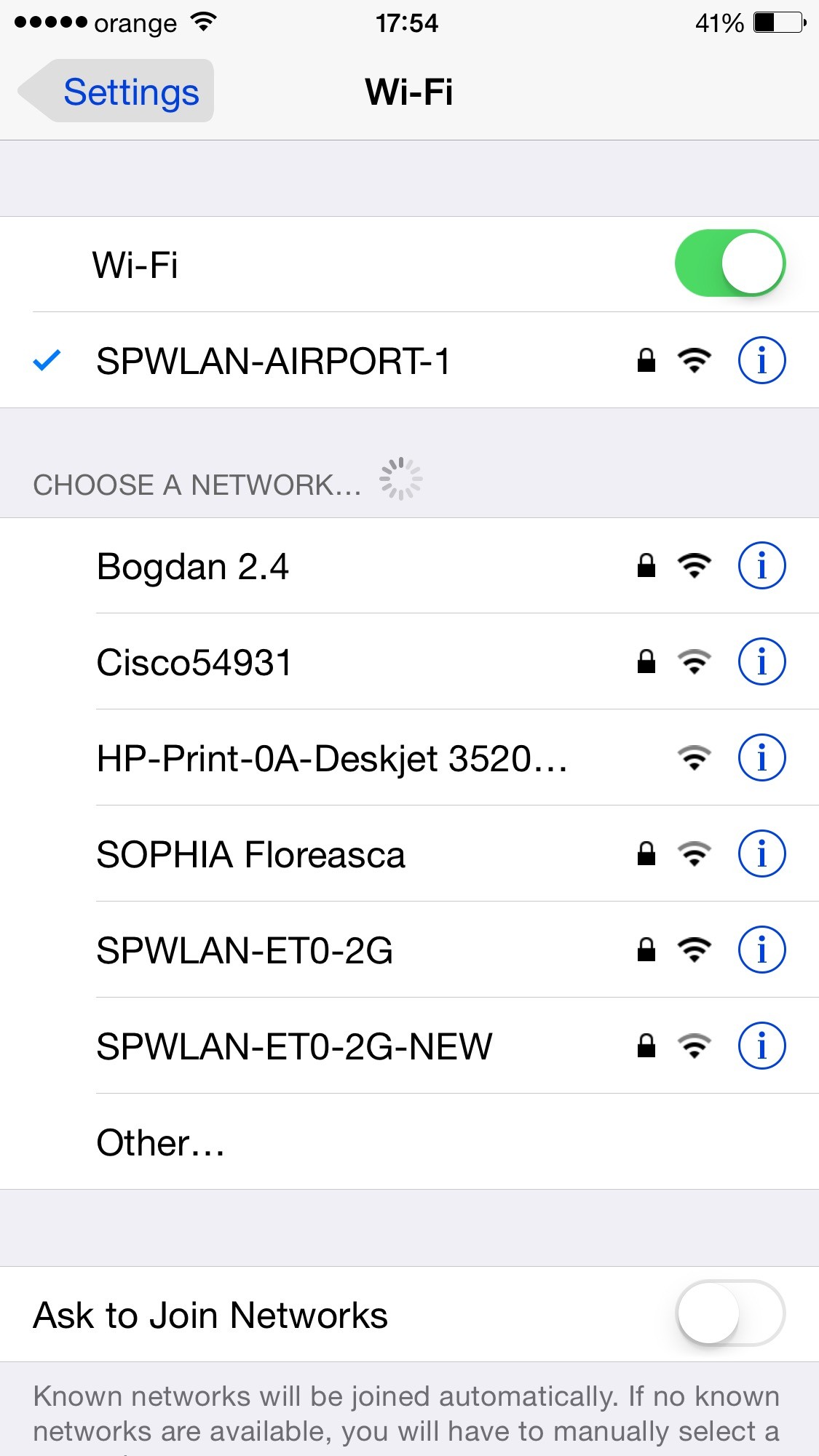
Image Gallery
Select an image to open it in a new tab.
Akira Tanaka
International Academic Trends Correspondent
