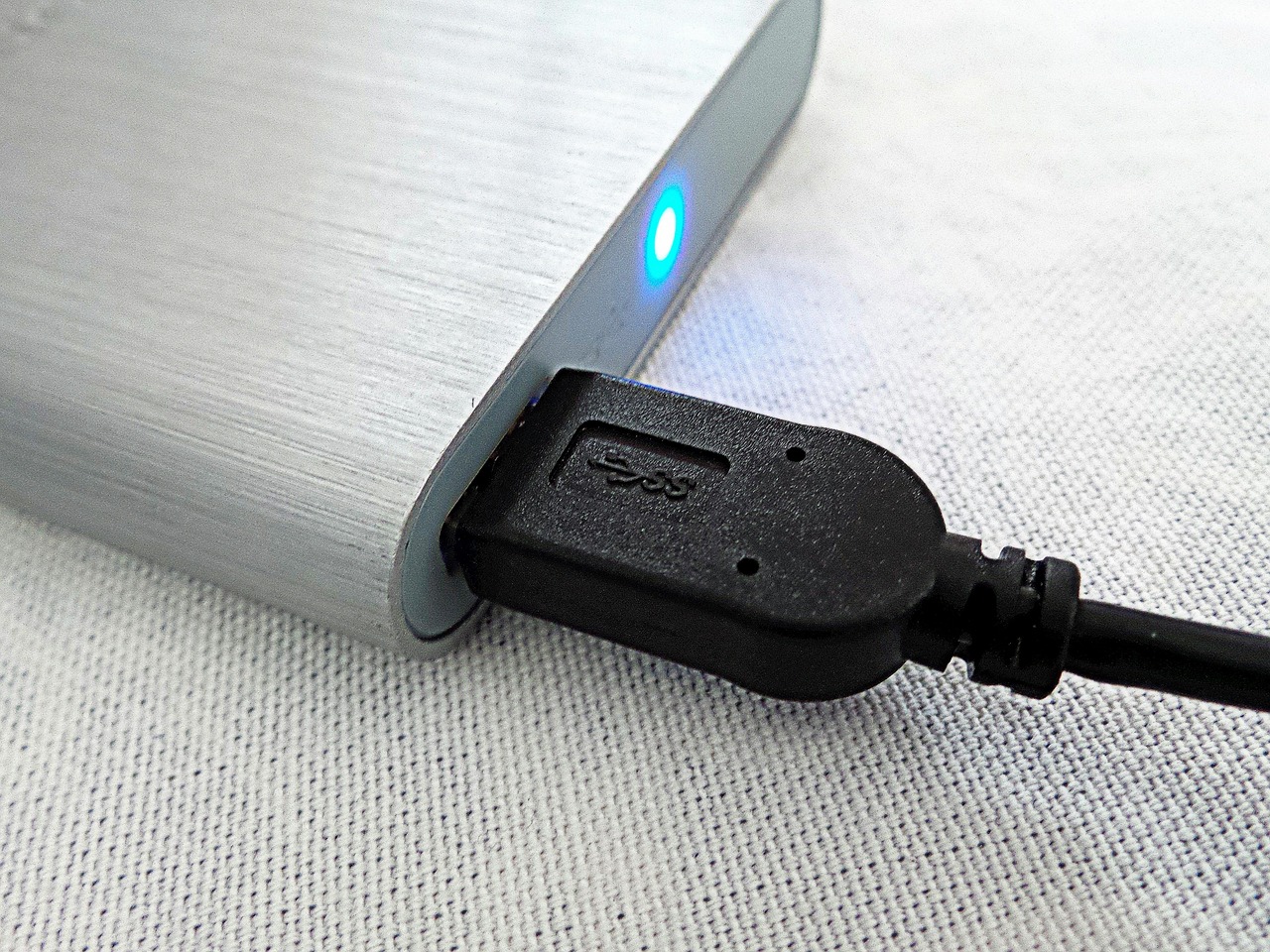
If your laptop has started making a repetitive clicking, rhythmic tapping, or grinding sound, you are likely hearing the mechanical failure of a traditional Hard Disk Drive (HDD). Upgrading to a Solid State Drive (SSD) eliminates these noises permanently because SSDs contain no moving parts, while simultaneously providing a massive boost in system responsiveness, boot speeds, and physical durability.
Understanding the "Click of Death" in Hard Disk Drives
To understand why a laptop clicks, one must first understand the internal architecture of a Hard Disk Drive. For decades, HDDs were the primary storage medium for portable computers. Inside these drives are glass or aluminum platters coated with a magnetic material. These platters spin at high speeds—typically 5,400 or 7,200 Revolutions Per Minute (RPM).
Hovering just nanometers above these spinning platters is the actuator arm, which holds the read/write heads. This arm moves back and forth across the surface of the disk to access data. When you hear a distinct, repetitive "click," it is usually the sound of the actuator arm hitting a physical stop or "limiter" as it tries to reset itself. This happens when the drive's firmware cannot find the "servo" information on the disk that tells the head where it is.
In the tech industry, this is colloquially known as the Click of Death. It signifies that the drive is struggling to calibrate, often due to a damaged read/write head, a scratched platter, or a failing motor. As of 2026, while mechanical drives have largely been phased out of premium consumer laptops, many older devices and high-capacity budget models still rely on this aging technology, making the "clicking" problem a frequent issue for users looking to extend the life of their hardware.
Why an SSD is the Ultimate Solution for a Noisy Laptop
The most effective way to silence a clicking laptop and prevent imminent data loss is to replace the failing HDD with a Solid State Drive. Unlike the mechanical complexity of an HDD, an SSD is composed entirely of flash memory chips (NAND flash) and a controller.
The Silence of NAND Flash
Because there are no spinning platters, no motors, and no moving actuator arms, an SSD is physically incapable of clicking, whirring, or grinding. This silence is not just a luxury; it is a byproduct of a technology that is fundamentally more efficient. In an SSD, data is accessed electronically by sending electrical signals through a grid of transistors. This lack of movement means that even under heavy workloads—such as rendering video or scanning for viruses—the storage drive remains perfectly silent.
Physical Durability and Portability
Laptops are meant to be moved. However, moving a laptop while a traditional HDD is spinning is inherently risky. A sudden jar or drop can cause the read/write head to crash into the spinning platter, leading to physical damage and the aforementioned clicking sounds.
SSDs are remarkably resilient to physical shock. In 2026, most consumer-grade SSDs are rated to withstand significant G-forces that would instantly destroy a mechanical drive. For a laptop user, this means you can close your lid and toss your machine into a backpack without waiting for a disk to "park" its heads, and you don't have to worry about a bumpy car ride causing a hardware failure.
Technical Performance: SSD vs. HDD in 2026
The difference in performance between an aging HDD and a modern SSD is the single most noticeable upgrade a user can perform on a computer. It is often the difference between a laptop that feels "obsolete" and one that feels brand new.
| Feature | Hard Disk Drive (HDD) | Solid State Drive (SSD - SATA) | NVMe M.2 SSD (PCIe 4.0/5.0) |
|---|---|---|---|
| Noise Level | Audible (Whirring/Clicking) | Silent | Silent |
| Read/Write Speed | 80 - 160 MB/s | 500 - 560 MB/s | 3,500 - 10,000+ MB/s |
| Access Latency | 10 - 20 milliseconds | < 0.1 milliseconds | < 0.02 milliseconds |
| Shock Resistance | Low (Moving Parts) | High (Non-mechanical) | High (Non-mechanical) |
| Power Consumption | 6 - 15 Watts | 2 - 5 Watts | 3 - 8 Watts |
| Typical Lifespan | 3-5 years (Mechanical wear) | 5-10+ years (Write endurance) | 5-10+ years (Write endurance) |
IOPS and Latency
Beyond raw transfer speeds (megabytes per second), the real secret to SSD superiority lies in Input/Output Operations Per Second (IOPS) and Latency. An HDD must wait for the physical platter to rotate to the correct position before it can read a piece of data. This "rotational latency" makes the system feel sluggish.
An SSD has near-zero latency. When you click an icon, the OS finds the data almost instantaneously. In practical terms, this translates to Windows or macOS booting in under 10 seconds, applications launching the moment you click them, and a complete end to the "freezing" that often accompanies a 100% disk usage spike on a failing HDD.
The Financial Argument for Upgrading in 2026
By 2026, the price-per-gigabyte for SSDs has reached a point where mechanical drives are rarely justifiable for internal laptop storage. While HDDs still hold a slight edge in massive-scale archival storage (18TB+ drives), the 500GB to 4TB range—which covers 99% of laptop users—is dominated by SSDs.
Repairing a clicking HDD is almost never cost-effective. Data recovery from a mechanically failed drive can cost thousands of dollars, as it requires a "clean room" environment and donor parts. Conversely, a high-quality 1TB SSD in 2026 is an affordable investment that not only solves the noise problem but adds several years of viable life to the laptop. Instead of purchasing a new $1,000 machine because your current one is "slow and noisy," a $60-$100 SSD upgrade provides a comparable user experience for a fraction of the cost.
How to Perform the SSD Upgrade
If your laptop is currently clicking, time is of the essence. Mechanical clicking usually precedes total drive failure. Follow these steps to transition to an SSD.
1. Immediate Data Backup
Before doing anything else, back up your critical files. Use a cloud service or an external flash drive. Avoid running heavy stress tests on a clicking drive; every click could be the head scratching the magnetic surface, making data recovery impossible.
2. Identify the Interface
Most laptops that originally came with a clicking HDD use a 2.5-inch SATA interface. However, some "transitional" laptops from the early 2020s have an empty M.2 slot on the motherboard.
- SATA SSDs: These are direct replacements for 2.5-inch hard drives. They look like small bricks and use the same power and data cables.
- NVMe M.2 SSDs: These look like sticks of gum. If your laptop supports NVMe, this is the preferred choice as it is significantly faster than SATA.
3. Choose Between Cloning and Fresh Installation
- Cloning: You can use software (like Macrium Reflect or Acronis) to create an exact bit-for-bit copy of your HDD onto your new SSD. This preserves your files, settings, and programs. You will need a USB-to-SATA adapter to connect the new drive to the laptop during the cloning process.
- Fresh Install: This is often the better choice for a clicking drive. It involves installing a clean version of the operating system onto the new SSD. This removes years of software bloat and ensures the system runs at peak efficiency.
4. Physical Installation
- Power down the laptop and remove the battery (if possible).
- Unscrew the bottom panel or the dedicated hard drive bay cover.
- Touch a metal object to ground yourself and prevent static discharge.
- Remove the mounting screws holding the clicking HDD in place.
- Slide the HDD out of its connector and remove any mounting brackets (caddy).
- Attach the caddy to the new SSD and slide it into the connector.
- Reassemble the laptop and prepare to install the OS or boot from the cloned drive.
Addressing Other Possible Clicking Noises
While a clicking sound in a laptop is a hallmark sign of a failing HDD, there are two other components that can occasionally produce similar noises. It is important to verify the source before assuming it is the storage drive.
- The Cooling Fan: If a fan bearing is failing or if a piece of debris (like a small hair or dust clump) is hitting the blades, it can create a rapid clicking or ticking sound. You can usually differentiate this by listening to see if the sound changes speed when the laptop gets hot and the fans rev up.
- Coil Whine: This is a high-pitched electronic buzzing or clicking caused by electromagnetic interference in power delivery components (inductors). It is usually much quieter than an HDD click and does not indicate hardware failure.
If the clicking persists after you have removed the HDD, or if your laptop already uses an SSD and is clicking, the cooling fan is the primary suspect.
Summary of SSD Benefits
Upgrading to an SSD is more than just a noise-reduction strategy; it is a holistic improvement to the computing experience. By 2026 standards, an HDD is a bottleneck that prevents modern software from functioning correctly.
- Total Silence: Eliminates mechanical noise and vibration.
- Speed: Up to 50x faster data access than a 5,400 RPM HDD.
- Battery Life: SSDs consume less power, often adding 30-60 minutes of runtime to a laptop.
- Weight: SSDs are significantly lighter than their mechanical counterparts.
- Cooling: With no motor spinning at 7,000 RPM, the internal temperature of the laptop stays lower.
Frequently Asked Questions
Is it worth upgrading an old laptop to an SSD in 2026?
Yes. Even a laptop from 2018 or 2020 can feel significantly faster than a modern budget laptop if it is equipped with a high-quality SSD. The storage drive is usually the most significant bottleneck in older systems. Replacing a clicking HDD with an SSD is the most cost-effective way to avoid buying a new computer.
Will an SSD fix the clicking sound if it's coming from the speakers?
No. If the clicking sound is coming from your speakers, it is likely an audio driver issue or interference in the sound card. However, HDD clicking is a physical, mechanical sound that can be felt through the laptop chassis. If you feel a slight vibration synchronized with the click, it is definitely the hard drive.
Can I recover data from my clicking HDD after I install the SSD?
Yes, provided the drive hasn't completely failed. You can put your old clicking HDD into an external USB enclosure and plug it into your laptop after the SSD upgrade. This allows you to drag and drop files. However, you should do this as quickly as possible, as a clicking drive is on the verge of total collapse.
Do SSDs also fail, and do they click when they do?
SSDs do fail eventually, but they do not fail mechanically. They have a "write endurance" limit (measured in Terabytes Written or TBW). When an SSD fails, it typically becomes "read-only" or simply disappears from the system BIOS. It will never make a clicking sound because it has no moving parts.
What happens if I ignore the clicking sound?
Ignoring the sound is a recipe for data loss. Eventually, the read/write head will fail to calibrate entirely, and the computer will show a "No Bootable Device" error. At that point, you will lose access to all your photos, documents, and locally stored data unless you pay for expensive professional data recovery.
Next Steps for Users
If your laptop is currently clicking, your immediate priority should be a full system backup. Once your data is safe, purchase a reputable SSD from brands like Samsung, Crucial, or Western Digital. Ensure you have a small Phillips-head screwdriver (usually size PH0 or PH00) for the laptop casing. By replacing that noisy, failing HDD today, you are not just silencing a nuisance; you are securing your data and transforming your laptop into a faster, more reliable tool for the years ahead.
Image Gallery
Select an image to open it in a new tab.
Simon Caldwell
Enterprise Technology and Systems Editor
