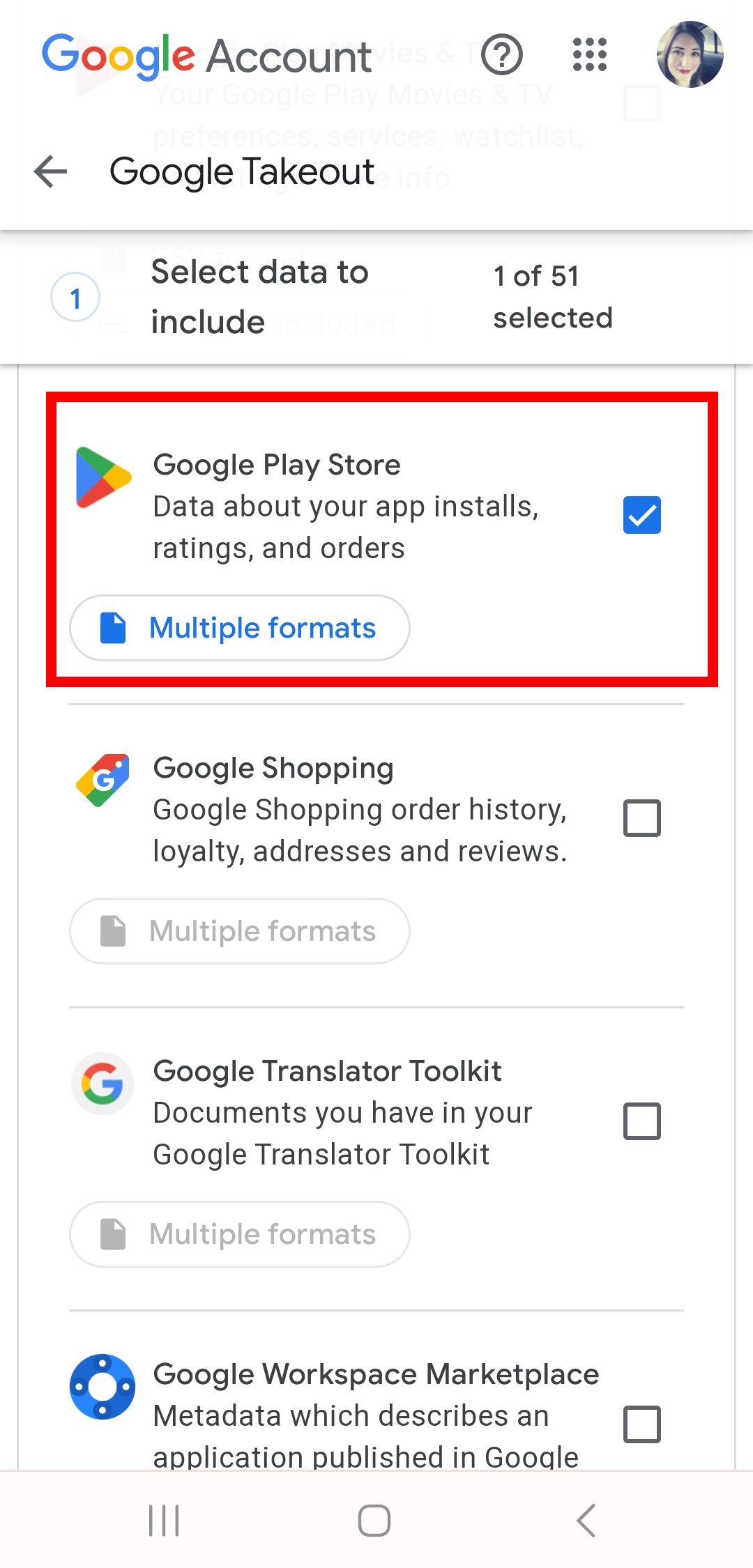
If you discover that the Google Play Store is missing from your Android device, it is usually the result of a disabled system application, a restricted profile, or an accidental uninstallation through third-party management tools. Because the Play Store is a core component of the Google Mobile Services (GMS) framework, it cannot be permanently deleted by standard users; rather, it is hidden or deactivated, and it can be restored by re-enabling it through your device settings.
Understanding Why the Play Store Disappears
Before attempting to restore the application, it is helpful to understand why it might have vanished. On Android, the Google Play Store is classified as a "system app." This means that unlike a downloaded game or a third-party social media app, the Play Store is baked into the read-only partition of your phone’s internal storage. When you "uninstall" a system app, you are typically only uninstalling the updates, causing the app to revert to its factory-shipped state or to be disabled entirely to save system resources.
The most common reasons for the Play Store "disappearing" include:
- Accidental Disabling: Users often navigate to the "App Info" menu to manage storage and may inadvertently tap the "Disable" button, which removes the icon from the home screen and app drawer.
- Parental Controls or Managed Profiles: If your device is managed by a school, employer, or through Google Family Link, the Play Store may be restricted by an administrator profile.
- Software Glitches: In rare cases, a system cache corruption can lead to the app icon failing to render correctly in the launcher, making it appear as if the app is missing when it is merely invisible.
- Region Restrictions or Custom ROMs: If you are using a device without Google services pre-installed (such as some imported devices from specific regions), you might be dealing with a missing GMS framework rather than just a disabled app.
Step-by-Step Restoration Methods
The following procedures are designed to systematically re-enable the Play Store. Ensure your device has sufficient battery and is connected to a stable network before beginning.
Method 1: Re-enabling via Device Settings
The most direct way to bring back the icon is through the main Android settings menu.
- Open your device Settings.
- Tap on Apps or Apps & notifications. Depending on your device manufacturer (Samsung, Pixel, Motorola), this may be labeled Manage Apps or See all apps.
- Locate the Google Play Store in the list. You may need to select "See all apps" or tap the menu icon (three dots) and select Show system apps if it is not immediately visible.
- If the app is labeled as "Disabled," simply tap on the entry and select Enable.
- Once enabled, wait a few seconds. The Play Store icon should reappear in your app drawer automatically.
Method 2: Clearing Cache and Data
If the app is enabled but still not appearing, or if it crashes upon opening, a cache reset often resolves the underlying conflict.
- Navigate to Settings > Apps > Google Play Store.
- Tap on Storage & cache.
- Select Clear cache.
- If the issue persists, select Clear storage or Clear data. Note that this will reset your Play Store preferences, though it will not delete your account or purchased apps.
- Restart your device to force the system to rebuild the application's icon cache.
Method 3: Checking for Restricted Profiles
If you are using a device with multiple user profiles or have set up Family Link, the application might be hidden by a policy.
- Check if you are currently signed into a "Guest" or "Restricted" profile. You can toggle your user profile in the Quick Settings panel (swiping down from the top of the screen).
- If you are a minor or part of a managed family group, check the Family Link app. If the administrator has toggled the "Play Store" switch to "Off," the app will be hidden from view across the device.
Troubleshooting and Technical Considerations
If the standard methods above do not work, the issue may involve the underlying framework that supports the Play Store.
Managing Google Play Services
The Google Play Store relies entirely on Google Play Services, a background process that handles authentication and synchronization. If this service is also disabled or outdated, the Play Store will not function or appear.
- Navigate to Settings > Apps > Google Play Services.
- Ensure it is enabled.
- If it is enabled but failing, try updating it by ensuring your device software is up to date under Settings > System > System Update.
Understanding System Limitations
It is important to differentiate between a device that had the Play Store and one that never came with it. Some devices, particularly those manufactured for markets where Google services are restricted, do not have the Play Store installed. While enthusiasts often attempt to "sideload" the Play Store APK (the installer file), this can result in an unstable experience. If your device was manufactured without the Play Store, simply installing the APK may not work, as the system firmware lacks the necessary background privileges to execute Google-signed applications.
Comparison of Potential Fixes
| Solution | Primary Goal | Complexity | Best For |
|---|---|---|---|
| Enable in Settings | Restore system app | Low | Accidental disabling |
| Clear App Cache | Fix UI/Display bugs | Low | Icon missing, app crashes |
| Family Link Check | Adjust permissions | Medium | Monitored/Family accounts |
| Update Android OS | Repair framework | High | System-wide GMS failure |
Frequently Asked Questions
Q: Will I lose my paid apps if I re-enable the Play Store? No. Your apps, purchase history, and subscriptions are tied to your Google Account, not to the specific installation of the app on your phone. Once you successfully restore the Play Store and sign back into your account, all your content will be accessible again.
Q: Why can't I find "Google Play Store" in my apps list even after selecting "Show system apps"? If the app is genuinely not listed, your device may be using a custom launcher that is hiding it, or the Google services framework has been damaged. Try downloading a third-party app drawer or checking your home screen folder settings to ensure the icon hasn't been moved into a hidden folder.
Q: Can I download the Play Store from a website if my phone deleted it? You should avoid downloading the Play Store from third-party websites. These "APK" sites often host modified versions that can pose a security risk to your account credentials. Always rely on factory-provided methods or a system software update.
Q: How do I know if my device is a "certified" Android device? You can check this within the Play Store itself once it is running. Go to Settings > About and look for "Play Protect certification." If your device is not certified, Google services may be unreliable regardless of your efforts to keep the app active.
Q: What if "Enable" is grayed out? If the "Enable" button is grayed out, it is almost certainly due to a system-level restriction or a policy pushed by an organization (like a work-managed phone). In this scenario, you must contact your device administrator to unlock access to the application.
Final Recommendations for Ongoing Stability
To ensure the Play Store remains available and functional throughout 2026 and beyond, practice regular device maintenance. Avoid using "de-bloater" tools that claim to remove system apps to "speed up" your device, as these tools often cause the exact issues described here. Keep your operating system updated via the manufacturer's official support channels, as these updates typically include the latest versions of the Google Mobile Services framework, which are essential for the long-term stability of the Play Store. If your Play Store remains missing despite these efforts, performing a factory reset is the final, albeit drastic, step to restore the device to its factory-shipped, fully functional state.
Image Gallery
Select an image to open it in a new tab.



Celine Dubois
Contemporary Living and Global Arts Columnist
