
To block someone on a MacBook, you must manage settings within specific apps like Messages, FaceTime, and Mail. For Messages and FaceTime, navigate to the app's Settings, select the iMessage or General tab, and add the contact to the Blocked list. These changes typically sync across all your iCloud-connected Apple devices.
Communication privacy has become a cornerstone of the macOS experience. As we move through 2026, Apple has further integrated its ecosystem, making the process of silencing unwanted noise more streamlined yet more nuanced. Blocking someone on a MacBook is not a single "global" toggle; rather, it is a series of intentional actions across the native applications you use most. Whether you are dealing with persistent spam, protecting your mental health, or managing professional boundaries, understanding the mechanics of macOS blocking is essential for a secure computing environment.
Understanding How Blocking Works on macOS
Before diving into the step-by-step procedures, it is important to understand what happens "under the hood" when you block a contact on your MacBook. In the current macOS architecture, blocking is primarily an identity-based filter. When you block a contact, you are telling the system to intercept incoming data packets associated with specific identifiers—namely phone numbers and email addresses.
The most significant aspect of blocking on a Mac is iCloud Synchronization. If your MacBook is signed into the same Apple ID as your iPhone or iPad, any contact you block on your Mac will automatically be blocked on your other devices, and vice versa. This creates a unified "Block List" that follows you across the ecosystem. However, it is important to note that blocking only affects Apple’s native services: iMessage, FaceTime, and Apple Mail. It does not automatically block that person on third-party platforms like WhatsApp, Zoom, or Slack, which require separate management within those respective applications.
The Difference Between Blocking and Muting
Many users confuse blocking with muting (often labeled as "Hide Alerts").
- Muting: You still receive the messages or calls, but your Mac does not play a sound or show a notification banner. The message simply sits in your inbox unread.
- Blocking: The communication never reaches you. The sender may see their message as "Delivered" (in the case of iMessage), but no data is ever surfaced to your user interface.
How to Block Someone in Apple Messages
The Messages app is the most common platform for communication on a Mac, and consequently, the primary place where blocking is necessary.
Blocking a Current Conversation
If you are currently receiving unwanted messages from a specific individual, you can block them directly from the chat interface:
- Open the Messages app.
- Select the conversation with the person you wish to block.
- Click the Info (i) button in the top-right corner of the window.
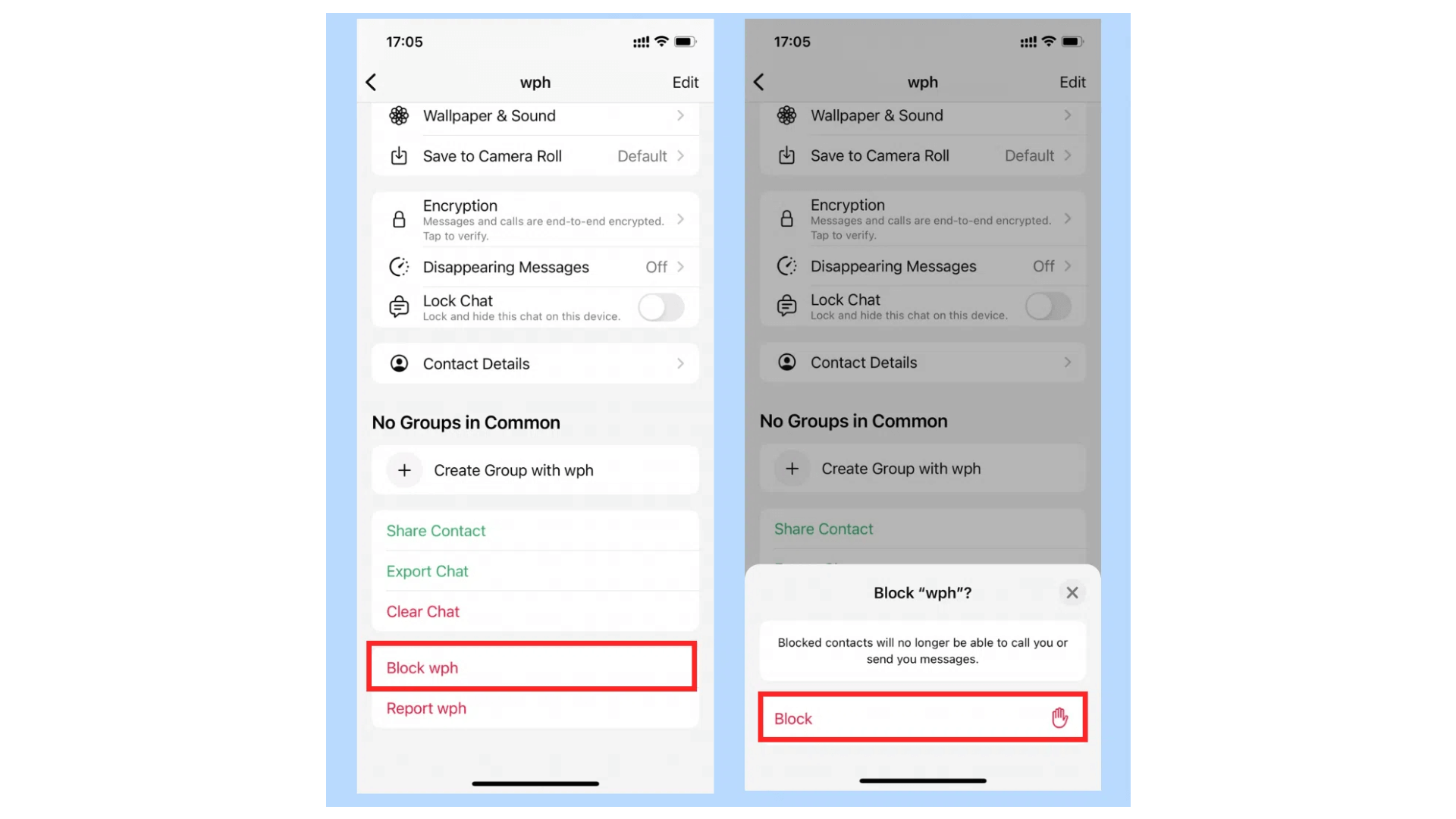
- Scroll to the bottom of the info pane and click Block Caller (or Block this Contact).
- A confirmation dialog will appear; click Block to finalize the action.
Manually Adding a Contact to the Blocked List
If you do not have an active thread with the person but want to preemptively block them:
- Open Messages.
- In the Menu Bar at the top of the screen, click Messages > Settings (or Preferences on older macOS versions).
- Navigate to the iMessage tab.
- Click the Blocked sub-tab.
- Click the Plus (+) icon at the bottom of the list.
- Select the person from your Contacts or type in their email/phone number manually.
Once added here, they are restricted from sending you iMessages or SMS (if you have Text Message Forwarding enabled via your iPhone).

How to Block Someone in FaceTime
FaceTime calls can be particularly intrusive. Because FaceTime is integrated into the macOS communication framework, blocking a contact here usually overlaps with the Messages block list.
- Launch the FaceTime app on your MacBook.
- In the sidebar, locate the recent caller you wish to block.
- Right-click (or Control-click) on the contact's name or number.
- Select Block this Caller from the contextual menu.
Alternatively, you can manage the list via settings:
- Go to FaceTime > Settings in the Menu Bar.
- Click the Blocked tab.
- Here you can review everyone currently blocked or add new entries using the Plus (+) button.
In 2026, FaceTime's advanced "Silence Unknown Callers" feature—which can be toggled in System Settings—works in tandem with your blocked list to ensure that only recognized contacts can initiate a video or audio call with you.
How to Block Senders in Apple Mail
Blocking in the Mail app functions differently than in Messages or FaceTime. Because email is an open protocol, "blocking" usually refers to how the client handles the incoming mail rather than preventing the server from receiving it entirely.
Setting Up Blocked Senders in Mail
- Open the Mail app.
- Select a message from the sender you want to block.
- Move your cursor to the sender's name in the message header.
- Click the small arrow next to their name and select Block Contact.
Customizing Blocked Mail Behavior
By default, macOS Mail will mark a message from a blocked sender but keep it in your Inbox. To make blocking more effective, you should change the settings to move these emails to the Trash automatically:
- Go to Mail > Settings > Junk Mail.
- Ensure the Blocked tab is selected.
- Check the box for Enable Blocked Mail Filtering.
- Select the radio button for Move it to the Trash.
This ensures that you never see the content of the emails, effectively automating the "blocking" experience.
Managing Blocked Contacts via System Settings
With recent updates to macOS, Apple has centralized more privacy controls. You can now manage your global "identity" block list without opening individual communication apps.
- Click the Apple Menu () and select System Settings.
- Navigate to Privacy & Security.
- Scroll down to the Communication Safety or Contacts section (the specific naming may vary slightly depending on your exact macOS 16 or 17 build in 2026).
- Look for Blocked Contacts. This provides a master list that covers Messages, FaceTime, and Phone interactions.
Comparison of Privacy Actions on MacBook
When deciding how to handle unwanted interactions, it helps to compare the different levels of restriction available in 2026.
| Feature | What It Does | Visibility to Sender | Best For |
|---|---|---|---|
| Block Contact | Prevents all incoming messages/calls from reaching you. | Usually shows as "Delivered" but no response. | Harassment, persistent spam. |
| Hide Alerts (Mute) | Silences notifications for a specific thread. | None (Sender sees nothing different). | High-volume group chats. |
| Do Not Disturb | Silences all notifications globally for a set time. | Can show "Notifications Silenced" status. | Deep work or sleep. |
| Filter Unknown Senders | Moves messages from non-contacts to a separate list. | None. | Avoiding marketing and cold outreach. |
| Move to Trash (Mail) | Automatically deletes emails from a specific sender. | None (No bounce-back). | Newsletter spam or unwanted ex-contacts. |
Advanced Strategies: Screen Time and Focus Modes
Sometimes, blocking a specific person isn't enough, especially if you are managing a device for a minor or if you are being targeted by multiple new accounts.
Using Screen Time for Restricted Communication
If you are setting up a MacBook for a child, you can use Screen Time to limit who they can communicate with:
- Go to System Settings > Screen Time.
- Select Communication Limits.
- Choose During Allowed Screen Time and set it to Contacts Only. This effectively blocks anyone who is not already in the approved address book.
Focus Modes for Temporary Blocking
If you need to block everyone except a few specific people during work hours:
- Go to System Settings > Focus.
- Select a Focus profile (e.g., Work).
- Click Allowed People.
- Set it to "Allow Notifications From" and add only your essential contacts. While not a permanent block, this is a powerful tool for controlling who can interrupt your MacBook workflow.
Troubleshooting Common Blocking Issues
Despite the robustness of macOS, users occasionally encounter issues where blocked contacts still seem to "get through."
- Identifier Mismatch: If you block a person’s phone number but they email your iMessage address, the message will still arrive. To fix this, ensure you have added all known email addresses and phone numbers for that individual to the blocked list.
- iCloud Sync Delay: If you just blocked someone on your iPhone and they immediately message you on your Mac, there might be a 30-second to 2-minute sync window. Restarting the Messages app can force a sync.
- Group Chat Exceptions: Blocking someone does not always remove them from a group chat you are both in. You will still see their messages within the context of the group. To solve this, you may need to leave the group or start a new group thread without the blocked individual.
- Third-Party Apps: As mentioned, blocking a contact in macOS Settings does not affect Skype, Discord, or Telegram. You must open those specific apps and use their internal blocking tools.
Frequently Asked Questions
Does the person know I blocked them on my MacBook?
Apple does not send a notification to a user when you block them. However, there are subtle clues. In iMessage, their messages will remain "Delivered" but will never change to "Read." In FaceTime, the call will simply ring several times and go to voicemail (if applicable) or appear to be unanswered.
Can I block someone who isn't in my Contacts list?
Yes. In the Messages or FaceTime app, you can right-click any number or email in your "Recents" list and select the block option. You do not need to create a contact card for them to initiate a block.
Will blocking someone on my Mac also block them on my iPhone?
Yes, provided you have iCloud for Messages and FaceTime enabled in your iCloud settings. The block list is tied to your Apple ID and synchronizes across all devices running modern versions of iOS, iPadOS, and macOS.
How do I see a list of everyone I have blocked?
The easiest way is to go to Messages > Settings > iMessage > Blocked. This list is generally the most comprehensive view of your blocked identities across the Apple ecosystem.
Can a blocked person still leave a voicemail?
If you have a cellular-connected account (via iPhone mirroring), a blocked caller may still be able to leave a voicemail, but it will be moved to a "Blocked Messages" folder at the bottom of your voicemail list, and you will not receive a notification for it.
Does blocking an email address in Mail block it in Messages too?
Not necessarily. The Apple Mail "Blocked Senders" list is often handled separately from the iMessage/FaceTime "Blocked Contacts" list. For total peace of mind, it is best to add the sender's email address to both the Mail blocked list and the Messages blocked list.
Practical Recommendation for 2026
If you are looking for the most effective way to maintain privacy on your MacBook, we recommend a top-down approach. Start by ensuring your "Contacts" are well-organized, then use the System Settings > Privacy & Security menu to audit your blocked list once a month. For immediate relief from a specific nuisance, use the right-click "Block this Caller" shortcut in FaceTime or Messages. Finally, always verify that your iCloud sync is active; a block is only as strong as its consistency across all your devices.
Image Gallery
Select an image to open it in a new tab.





Declan O'Connor
Higher Education and Campus Culture Reporter
