Default Text Editor Linux: Comprehensive Guide to System Tools and Customization
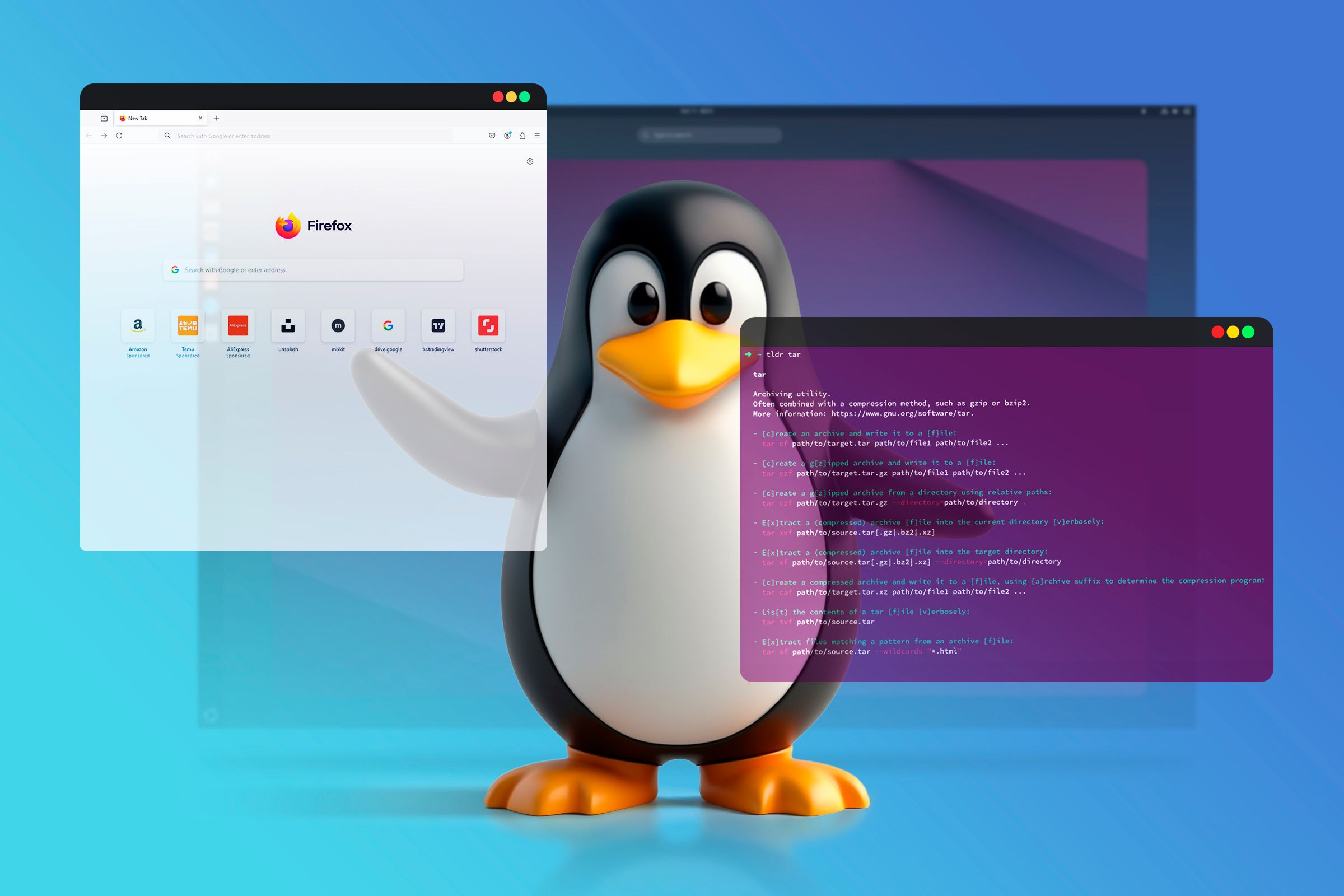
Linux operating systems rely heavily on text files for configuration, scripting, and development, making the choice of a default text editor a foundational aspect of the user experience. The default text editor on Linux is the program that automatically opens when you view or edit plain text files through the command line or desktop environment without specifying a particular application. Depending on your distribution, installation choices, and desktop environment—such as GNOME or KDE—this default might be a lightweight command-line utility like Nano, a classic Unix programmer's tool like Vim, or a graphical interface application like Gedit or Kate. Understanding how these defaults are established, how to change them, and which tool fits your workflow is essential for efficiently managing any Linux environment.
Understanding Linux Text Editor Classifications
To understand how Linux handles default text editors, it is necessary to examine the architectural divide between command-line interface (CLI) tools and graphical user interface (GUI) applications. Unlike operating systems that bundle a single proprietary notepad application, Linux distributions often include multiple editors tailored to different operating scenarios.
Command-line text editors run entirely within terminal emulators. They require no graphical display server, making them indispensable for remote administration via SSH, headless server management, and system recovery procedures. Conversely, GUI text editors provide familiar windowed environments with mouse support, graphical menus, and syntax highlighting tailored for local desktop users and software developers.
- Linux Text Editors
- Command-Line (CLI)
- Nano (Beginner-friendly)
- Vim / Vi (Advanced, modal)
- Emacs (Extensible environment)
- Graphical (GUI)
- Gedit / Text Editor (GNOME)
- Kate (KDE Plasma)
- Mousepad (XFCE)
- Command-Line (CLI)
The Role of System Alternatives and Environment Variables
Linux distributions manage default programs through modular configuration systems rather than rigid hardcoded links. When a desktop application or shell command requests a text editor, the operating system consults environment variables and system-wide preference frameworks to determine which binary to execute.
- The
$EDITORand$VISUALEnvironment Variables: Shell scripts and command-line utilities check these variables to determine which editor to launch for tasks like writing git commit messages or editing crontabs. - The
update-alternativesSystem: Debian-based distributions (such as Ubuntu and Debian) use a symlink management system to designate a default program for generic commands likeeditor. - MIME Types and Desktop Files: Graphical desktop environments rely on
xdg-openand MIME type associations to determine which GUI application opens when a user double-clicks a plain text file in a file manager like Nautilus or Dolphin.
--
Common Default Editors Across Distributions
Different Linux distributions prioritize different default applications based on their target audience, desktop environments, and design philosophies. While server installations universally default to lightweight terminal tools, desktop installations vary significantly.
| Distribution / Family | Default CLI Editor | Default GUI Editor | Management Framework |
|---|---|---|---|
| Ubuntu / Debian | Nano | GNOME Text Editor / Gedit | update-alternatives |
| Fedora Workstation | Nano | GNOME Text Editor | XDG MIME Associations |
| Arch Linux | Nano (via base-devel) | Varies by Desktop Environment | Shell Environment Variables |
| openSUSE Leap | Nano | Kate (KDE) / Gedit (GNOME) | Alternatives Framework |
| Alpine Linux (Server) | Vi (BusyBox) | None (Headless) | Direct Binary Symlink |
The Dominance of Nano as a System Default
Across most mainstream consumer Linux distributions, Nano serves as the default command-line text editor. Selected for its straightforward keyboard shortcuts displayed at the bottom of the screen, Nano lowers the barrier to entry for users who need to quickly modify configuration files in terminal windows.
The Power User Standard: Vi and Vim
On minimalist distributions, recovery environments, and traditional Unix-like systems, Vi or its enhanced successor Vim frequently acts as the fallback default editor. Vim utilizes a modal editing paradigm—separating input mode from command mode—which allows experienced developers to navigate and modify code at high speeds without lifting their hands from the keyboard. However, its steep learning curve often frustrates newcomers who encounter it unexpectedly during system operations.
--
How to Check Your Current Default Text Editor
Before modifying or configuring a default text editor, you must determine what the system currently uses for various contexts. Because Linux separates terminal-based defaults from graphical desktop defaults, checking both environments is necessary.
Checking Command-Line Defaults
To inspect the environment variables governing command-line text operations, run the following commands in your terminal:
echo $EDITOR echo $VISUAL
If these variables return blank, the system falls back to a hardcoded default, typically /bin/ed or /bin/nano. You can also check which binary is mapped to the generic editor command on Debian and Ubuntu systems by querying the alternatives subsystem:
sudo update-alternatives --display editor
This command outputs a list of installed editors, indicates the current auto-selected default, and displays the priority assigned to each program.
--
How to Change the Default Text Editor in Linux
System administrators and users frequently need to override default text editor settings to align with personal preferences, such as switching from Nano to Vim, or setting up a modern code editor like VS Code.
Changing CLI Defaults via Environment Variables
To permanently change your default command-line editor for your user account, add export statements to your shell configuration file (such as ~/.bashrc or ~/.zshrc).
- Open your shell configuration file using your current editor:
nano ~/.bashrc - Add the following lines to the bottom of the file, replacing
vimwith your preferred editor binary:export EDITOR="vim" export VISUAL="vim" - Save the file and reload your shell configuration:
source ~/.bashrc
Changing System-Wide Defaults on Debian and Ubuntu
To update the default editor for all users on a Debian-based system, use the update-alternatives utility:
sudo update-alternatives --config editor
The terminal will present an interactive menu displaying all registered text editors on the system alongside their selection numbers. Enter the number corresponding to your desired editor and press Enter.
| Selection | Path | Priority | Status |
|---|---|---|---|
| * 0 | /bin/nano | 40 | auto mode |
| 1 | /bin/ed | -100 | manual mode |
| 2 | /usr/bin/vim.basic | 30 | manual mode |
| 3 | /usr/bin/vim.tiny | 15 | manual mode |
| 4 | /usr/bin/nano | 40 | manual mode |
Press
Changing Graphical File Associations
If you want double-clicking a text file in your desktop file manager to open a specific GUI application rather than the system default:
- Open your desktop file manager (e.g., GNOME Files or Dolphin).
- Right-click any plain text file (such as a
.txtor.conffile). - Select Properties or Open With Other Application.
- Choose your preferred text editor from the list and select the option to Always use for this file type or set it as the default handler in the settings panel.
--
Troubleshooting Common Text Editor Issues
Managing default text editors can occasionally lead to unexpected system behavior. Understanding common pitfalls helps resolve administrative roadblocks quickly.
Being Trapped in Vi or Nano Without Help
New users frequently encounter frustration when a command-line utility unexpectedly launches vi or nano and they cannot figure out how to exit.
- In Nano: Look at the bottom menu bar. The caret symbol (
^) represents theCtrlkey. To exit, pressCtrl + X. If you made changes, Nano will ask if you want to save (Yfor yes,Nfor no) and confirm the filename. - In Vi / Vim: Press the
Esckey to ensure you are in command mode. Type:q!and pressEnterto quit without saving changes, or type:wqto write changes and exit.
Broken Environment Variables in Cron Jobs
When running automated background tasks via crontab -e, the cron daemon launches the editor defined in the $VISUAL or $EDITOR variables. If a user sets a graphical editor (like Gedit or VS Code) as their environment variable without configuring it for headless execution, the cron edit command will fail with a display error. Always ensure that $EDITOR points to a terminal-compatible text editor when configuring server environments.
--
FAQ: Frequently Asked Questions
What is the default text editor for most Linux distributions?
Nano is the most common default command-line text editor across mainstream distributions like Ubuntu, Debian, Fedora, and Arch Linux. For graphical environments, distributions typically default to their flagship desktop environment's native tool, such as the GNOME Text Editor or KDE Kate.
How do I make Vim my permanent default editor?
You can make Vim your permanent default command-line editor by exporting EDITOR="vim" and VISUAL="vim" inside your shell startup configuration file (~/.bashrc or ~/.zshrc), or by running sudo update-alternatives --config editor on Debian-based systems.
Can I use Visual Studio Code as my default Linux text editor?
Yes. You can configure Visual Studio Code (code) as your default GUI text editor by updating your desktop environment's file associations for plain text MIME types (text/plain). However, it cannot be used directly as a CLI fallback editor for terminal-exclusive utilities that require a text UI.
Why does my terminal open a strange editor I have never seen?
If your terminal opens an unfamiliar editor like ed or joe, it is usually because the primary editors (nano or vim) are not installed in the current minimal container or recovery environment, causing the system shell to fall back to the POSIX standard fallback editor.
--
Conclusion and Next Actions
Mastering the default text editor in Linux empowers you to efficiently navigate configuration files, write shell scripts, and troubleshoot system anomalies. Whether you choose to stick with the beginner-friendly simplicity of Nano, embrace the efficiency of Vim, or configure a customized graphical environment, verifying your system environment variables ensures your workflows remain uninterrupted. Review your current terminal settings using echo $EDITOR, adjust your alternatives framework if necessary, and select the tool that best matches your daily operational requirements.
Image Gallery
Select an image to open it in a new tab.
Simon Caldwell
Enterprise Technology and Systems Editor
