How to Back Up Outlook Emails: A Comprehensive Guide for 2026
To back up Outlook emails, the most reliable method is using the built-in Export/Import Wizard to create a PST (Personal Storage Table) file. Navigate to File > Open & Export > Import/Export, select Export to a file, choose Outlook Data File (.pst), and follow the prompts to save your data securely.
Effective email management in 2026 requires more than just keeping messages in an inbox. As digital communication remains the primary record for both professional and personal transactions, the risk of data loss due to accidental deletion, account compromise, or service outages is a significant concern. Backing up your Outlook emails ensures that your historical data remains accessible even if you lose access to your live server or transition between different versions of the software.
Understanding Outlook Data Structures: PST vs. OST
Before executing a backup, it is essential to understand how Microsoft Outlook stores your data. Depending on your account type (IMAP, POP3, or Microsoft 365/Exchange), Outlook uses two primary file formats: PST and OST.
PST (Personal Storage Table)
A PST file is an open-standard data file used to store copies of messages, calendar events, and other items on your local computer. This is the format used for backing up or exporting items from any type of email account. When you "back up" Outlook, you are almost always creating a PST file.
OST (Offline Storage Table)
An OST file is a synchronized copy of your mailbox stored on your local machine, used by Exchange and IMAP accounts. It allows you to work offline, and changes are synced when you reconnect to the server. Crucially, an OST file is not a backup. You cannot simply copy an OST file to another computer and open it; it is tied to the specific Outlook profile and hardware that created it. To back up an account that uses an OST, you must export the data into a PST.
Method 1: Exporting to a PST File (Classic Outlook for Windows)
The "Classic" Outlook desktop application remains the gold standard for data management due to its robust export features. This method captures emails, attachments, contacts, and calendar data.
Step-by-Step Export Process
- Open Outlook: Launch the Classic Outlook desktop application.
- Access the Wizard: Click on File in the top-left corner.
- Navigate to Export: Select Open & Export from the left-hand sidebar, then click Import/Export.
- Choose Action: In the Import and Export Wizard, select Export to a file and click Next.
- Select File Type: Choose Outlook Data File (.pst) and click Next.
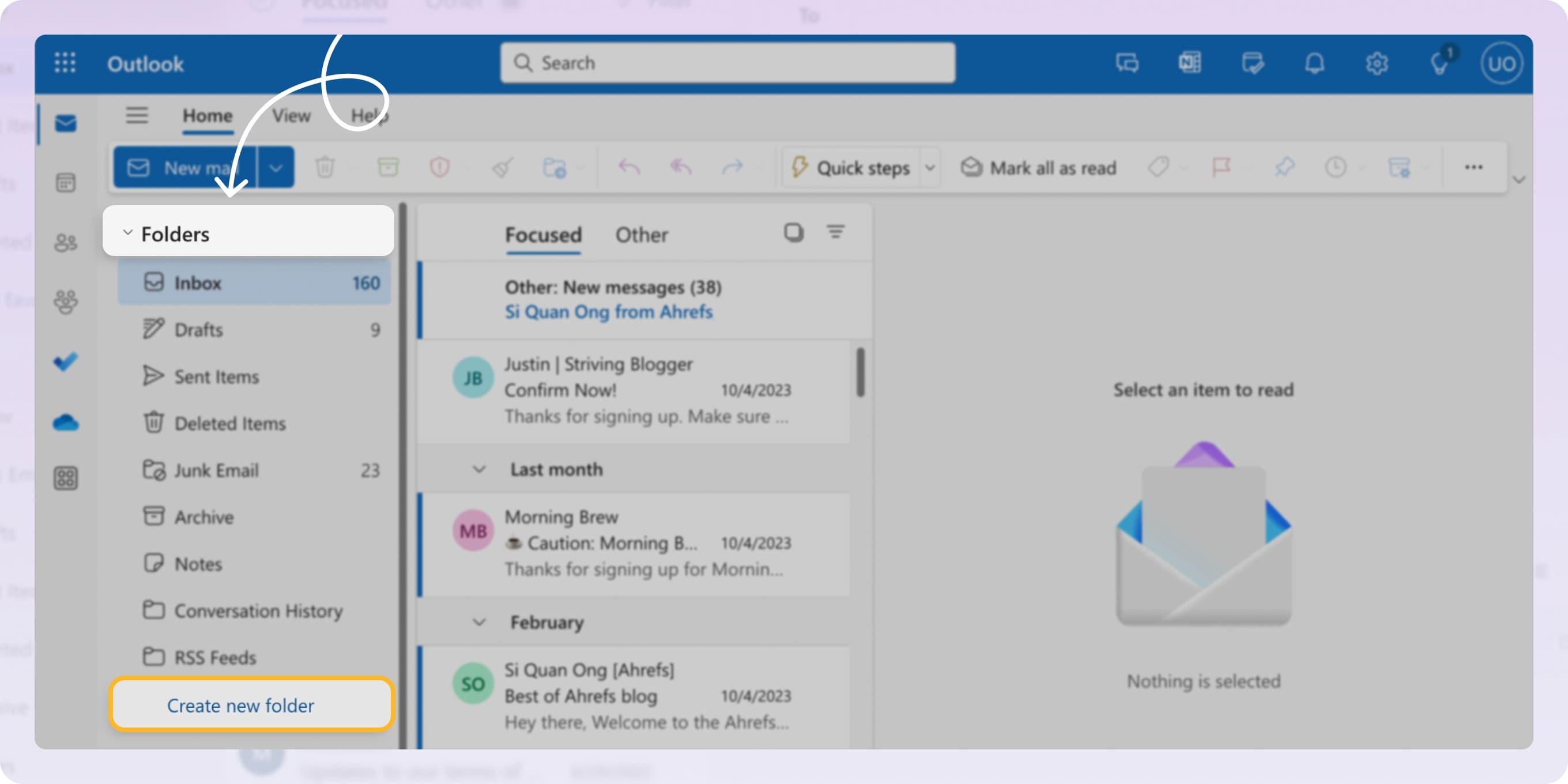
- Select Folders: Choose the specific email account or individual folders (e.g., Inbox, Sent Items) you wish to back up. Ensure the Include subfolders checkbox is selected to capture the entire directory structure.
- Choose Destination: Click Browse to select a location on your computer or an external drive. Provide a descriptive name, such as
Outlook_Backup_March_2026.pst. - Configure Options: Decide how to handle duplicate items. Generally, "Replace duplicates with items exported" is the preferred setting for a fresh backup.
- Set a Password (Optional): You will be prompted to protect the PST file with a password. While optional, it is highly recommended if you are storing the backup on a shared drive or in the cloud.
Technical Limitations to Consider
PST files have a default size limit of 50 GB in modern versions of Outlook. If your mailbox exceeds this size, the export may fail or the resulting file may become corrupted. If you have a massive archive, consider exporting specific year ranges or individual folders into separate, smaller PST files.
Method 2: Backing Up the "New" Outlook for Windows
As of 2026, Microsoft has moved many users toward the "New Outlook" interface, which is based on the web architecture. Unlike the Classic version, the New Outlook does not natively support the creation of PST files through a desktop wizard. Instead, it relies on server-side export tools.
Using the Settings Menu
- Open the New Outlook app.
- Click the Settings (gear icon) in the top-right corner.
- Navigate to General > Privacy and data.
- Look for the Export mailbox section.
- Click Export mailbox.
Note: This process happens on Microsoft’s servers. It can take anywhere from a few hours to several days depending on the size of your mailbox. Once the export is complete, you will receive an email with a link to download your data in a compressed format. This is less convenient for frequent backups but is the primary official method for the modern client.
Method 3: Backing Up Outlook on the Web (Microsoft 365)
For users who do not use a desktop client and rely solely on a web browser, the backup process mirrors the New Outlook app.
- Log in to Outlook.com or your organizational Microsoft 365 portal.
- Click Settings > View all Outlook settings.
- Go to General > Privacy and data.
- Click Export mailbox.
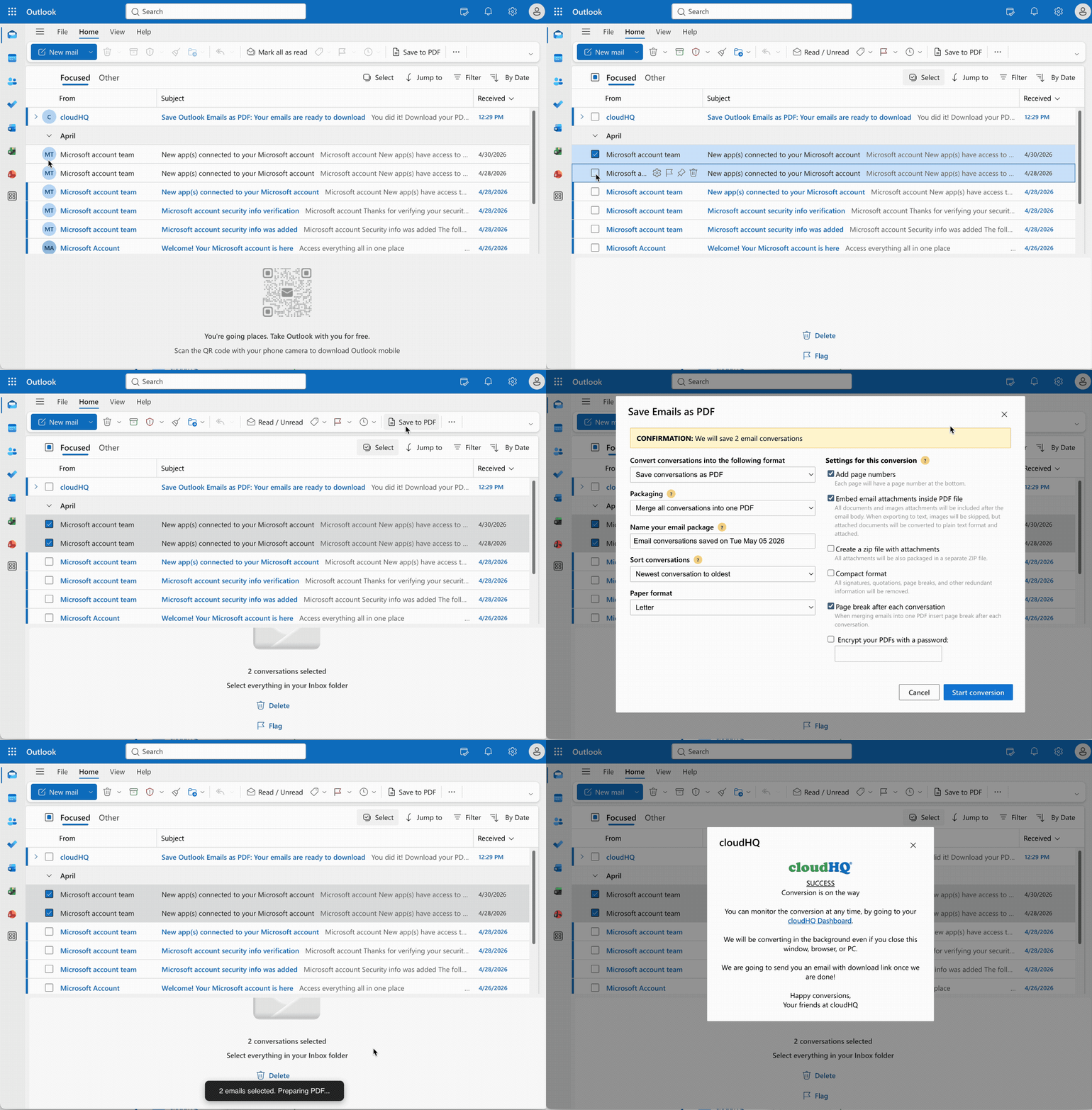
- Microsoft will prepare a copy of your mailbox and provide a download link. This download usually includes your emails in a format compatible with other mail clients, though the specific file structure may vary from a traditional PST.
Method 4: Manual Backup via Drag-and-Drop (MSG Files)
If you only need to back up a few critical emails rather than an entire database, the drag-and-drop method is the most efficient.
- Create a folder on your computer's desktop or in your file explorer.
- Open Outlook and select the emails you wish to save.
- Drag the selected emails directly into the Windows folder.
- Outlook will save each email as an .msg file.
The advantage of .msg files is that they are independent of a database; you can open them individually in Outlook or even view them with certain third-party viewers. They also preserve all original headers and attachments.
Method 5: Enterprise-Grade Backups and Third-Party Tools
For business users, manual PST exports are often insufficient because they lack automation and central management. In 2026, most organizations utilize dedicated SaaS (Software as a Service) backup solutions.
Why Use Third-Party Tools?
Microsoft operates under a Shared Responsibility Model. While Microsoft ensures the availability of the infrastructure (the servers and the app), the user is responsible for the data itself. If an employee deletes an email and the "Deleted Items" retention period (usually 14–30 days) passes, Microsoft cannot recover it.
Popular Solutions include:
- Veeam Backup for Microsoft 365: Allows for granular recovery of individual items and stores data in independent locations (on-premise or other clouds).
- Barracuda Cloud-to-Cloud Backup: A fully managed service that automates the backup of Exchange Online, OneDrive, and SharePoint.
- Acronis Cyber Protect: Integrates backup with cybersecurity, scanning email archives for malware before they are stored.
These tools provide "point-in-time" recovery, allowing you to restore your mailbox exactly as it appeared on a specific date, which is crucial for recovering from ransomware attacks.
Comparison of Outlook Backup Methods
| Method | Best For | Pros | Cons |
|---|---|---|---|
| PST Export | Individual Desktop Users | Comprehensive, portable, offline access. | Manual process, file size limits (50GB). |
| New Outlook/Web Export | Web-only & Modern App users | No software installation required. | Slow (can take days), cloud-dependent. |
| Drag-and-Drop (.msg) | Critical individual emails | Instant, very simple, no wizard needed. | Not feasible for large volumes of mail. |
| AutoArchive | Routine maintenance | Automatic, reduces mailbox size. | Can be unreliable; easy to lose track of files. |
| Third-Party SaaS | Businesses & Power Users | Automated, secure, ransomware protection. | Requires a paid subscription. |
Best Practices for Email Data Security
Simply creating a backup is not enough. To ensure your data is truly safe, follow the 3-2-1 Backup Rule, adapted for 2026 standards:
- Three Copies of Data: Keep your primary mailbox, a local PST backup, and a secondary offsite backup.
- Two Different Formats: Store data in its original cloud format and a local format like PST or MSG.
- One Offsite Location: Always keep one copy of your backup outside of your primary computer—either on an encrypted external drive or in a separate cloud storage provider like Proton Drive or AWS S3.
Verifying Your Backup
A backup is only useful if it works. Periodically test your PST files by importing them into a temporary folder in Outlook.
- Go to File > Open & Export > Open Outlook Data File.
- Navigate to your backup.
- Ensure the folder structure is intact and attachments are readable.
Security and Encryption
PST files are notoriously easy to compromise if stolen. When exporting your data, always use the Add Password feature. Furthermore, ensure the drive where you store these backups is encrypted with BitLocker (Windows) or FileVault (Mac).
Frequently Asked Questions
1. Does Outlook AutoArchive count as a backup?
Not exactly. AutoArchive is a cleanup tool designed to move older items from your main mailbox to a local archive.pst file to save server space. While it does create a local copy, it often removes the items from the server. If your local hard drive fails and you haven't backed up that archive.pst file elsewhere, you lose the data entirely.
2. Can I back up Outlook emails to Gmail or another provider?
Yes. You can add a Gmail account to your Outlook desktop app via IMAP and then manually drag folders from your Outlook account into the Gmail folders within the Outlook interface. This effectively syncs your Outlook history to Gmail’s servers.
3. Why is the "Import/Export" option greyed out?
This usually happens for one of two reasons: you are using a trial version of Outlook that has expired, or your organization’s IT department has disabled the export feature via Group Policy for security and data exfiltration prevention. If you are in a corporate environment, you may need to contact your IT administrator.
4. How often should I back up my emails?
For personal use, a monthly backup is usually sufficient. For business users who handle sensitive contracts or legal correspondence, weekly backups or the use of an automated SaaS backup tool is recommended to minimize the "Recovery Point Objective" (RPO).
5. Can I back up Outlook on a Mac?
Yes, but the process is different. On Outlook for Mac, you go to Tools > Export. This creates an .olm file rather than a PST. Note that .olm files cannot be opened directly by Outlook for Windows without a third-party conversion tool.
Final Recommendations
To maintain the integrity of your digital correspondence in 2026, start by performing a full PST export today. Once your historical data is secured, evaluate whether your needs require an automated solution. For most professional users, a combination of the Classic Outlook Export for yearly archives and a reputable cloud backup service for daily protection provides the best balance of accessibility and security. Always remember to store your backup files on a device separate from your main computer to protect against hardware failure.
Image Gallery
Select an image to open it in a new tab.


Zara El-Hashem
Sociocultural Dynamics and Academics Writer
