
To play PSP games on a PS Vita with full compatibility, you must install the Adrenaline eCFW (Easy Custom Firmware). Adrenaline transforms the Vita's internal PSP hardware into a fully functional PSP environment. This requires a PS Vita running custom firmware (HENkaku/Enso), the Adrenaline VPK file, and a basic understanding of file management.
The PlayStation Vita remains one of the most versatile handheld consoles in 2026, largely due to its ability to natively run the entire PlayStation Portable (PSP) library. Unlike traditional software emulators that struggle with frame rates and accuracy, the PS Vita contains the actual MIPS processor architecture found in the original PSP. This means that when you use a "PSP emulator" on a Vita, you are actually running the games on native hardware with nearly 100% compatibility. The software that facilitates this experience is called Adrenaline, developed by the developer TheFlow.
This guide provides a comprehensive walkthrough on setting up the PSP environment, optimizing performance, and managing your digital library to ensure the best possible gaming experience on your PS Vita.
Understanding Adrenaline: The Definitive PSP Solution
While the PS Vita could officially download and play select PSP games from the PlayStation Store, this official method was heavily restricted. Many games were never listed, and the official emulator lacked the ability to customize graphics or utilize the Vita’s hardware improvements.
Adrenaline is technically an "eCFW" (emulator Custom Firmware). It takes over the Vita’s built-in PSP emulator (PEmulator) and injects a custom 6.61 firmware environment. When you launch Adrenaline, your PS Vita essentially "becomes" a PSP, complete with the iconic XrossMediaBar (XMB) interface.
Why Choose Adrenaline Over Other Options?
In 2026, there are alternative methods like "Chovy-Sign" or using RetroArch’s PPSSPP core. However, Adrenaline remains the superior choice for several reasons:
- Native Performance: It uses the Vita's internal PSP hardware, ensuring no lag or graphical glitches common in software emulation.
- Full XMB Access: You can use PSP plugins, themes, and save-data managers exactly like on an original PSP.
- Right Analog Stick Support: Through specialized plugins, Adrenaline allows you to map the Vita's second analog stick to control the camera in PSP games—a feature the original PSP never had.
- Save States: Adrenaline supports "Savestates," allowing you to pause and resume any game at any moment, regardless of in-game checkpoints.
Prerequisites for Installation
Before attempting to install a PSP emulator on your PS Vita, you must ensure your device meets specific hardware and software requirements.
1. Custom Firmware (CFW)
Your PS Vita must already be running custom firmware. As of 2026, the standard remains HENkaku or Enso on firmware versions 3.60 or 3.65. If your Vita is still "stock," you must follow a modern browser-based exploit (like VitaDeploy) to install CFW before proceeding with Adrenaline.
2. Storage Considerations (SD2Vita)
PSP ISO files can range from 200MB to 1.8GB. The proprietary Sony memory cards are often too small and prone to failure. It is highly recommended to use an SD2Vita adapter with a high-capacity microSD card (128GB or 256GB is the sweet spot in 2026) to house your PSP library.
3. Required Software Files
- Adrenaline.vpk: The latest version of the Adrenaline installer.
- PSP 6.61 Firmware (PBP): Though recent versions of Adrenaline can download this automatically, having the
661.PBPfile ready is a safer bet for offline installations. - VitaShell: The standard file manager for PS Vita, used to move files and install VPKs.
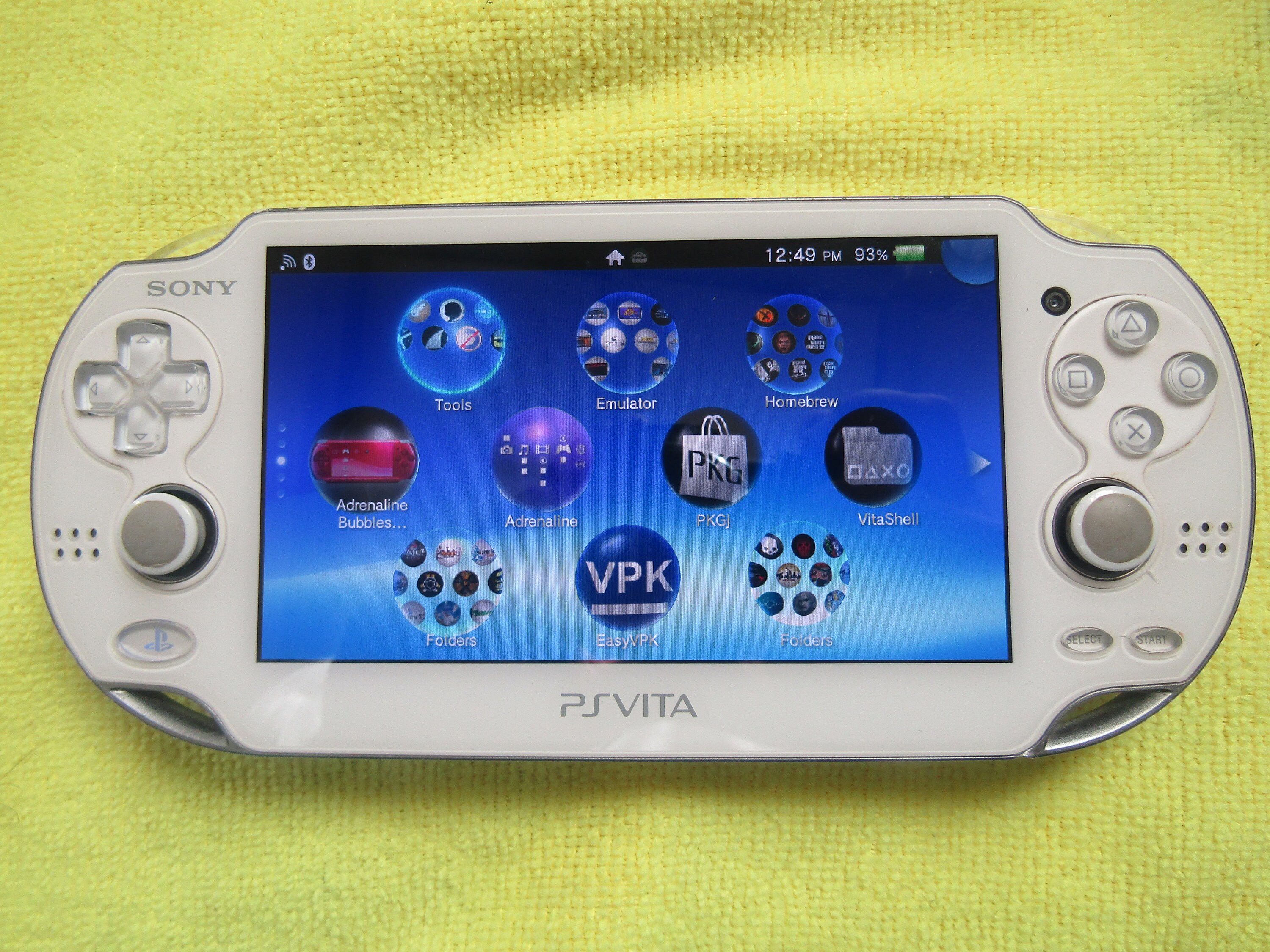
Step-by-Step Installation Guide
Follow these steps carefully to ensure a clean installation of the PSP environment on your console.
Step 1: Transferring the Installer
- Connect your PS Vita to your PC using a USB cable or FTP via VitaShell.
- Navigate to your
ux0:partition (the primary storage). - Create a folder named
vpkif it doesn't exist, and copy theAdrenaline.vpkfile into it. - Disconnect the Vita from the PC.
Step 2: Installing the VPK
- Open VitaShell on your Vita.
- Navigate to
ux0:/vpk/. - Highlight
Adrenaline.vpk, press X, and follow the prompts to install the application. - Once finished, a new "Adrenaline" bubble will appear on your LiveArea (home screen).
Step 3: Initializing the 6.61 Firmware
- Ensure your Vita is connected to Wi-Fi.
- Launch the Adrenaline app from the LiveArea.
- The app will prompt you to download the 6.61 PSP firmware. Press X to start the download.
- After the download and extraction, the app will close. Relaunch it.
- You will be greeted by the PSP setup screen. Set your time and date. You are now inside the PSP XMB on your PS Vita.
Optimizing the PSP Experience on Vita
The default PSP resolution (480x272) can look slightly blurry on the PS Vita’s superior 960x544 display. Fortunately, Adrenaline includes tools to sharpen the image and improve controls.
Graphics Filters and Scaling
Inside the Adrenaline environment, hold the PlayStation Button for two seconds to open the Adrenaline Settings Menu. Navigate to the "Settings" tab to find these options:
- Graphics Filtering: Options like "Advanced AA" (Anti-Aliasing) or "Sharp Bilinear" help smooth out jagged edges without making the image too soft.
- Screen Size: You can set the aspect ratio to "Original" for the sharpest pixels or "Full" to utilize the entire Vita screen.
- Color Space: The PS Vita (especially the 1000 model with the OLED screen) has a wider color gamut than the PSP. Enabling "PSP Color Space" can make games look as they did on original hardware, preventing over-saturation.
Mapping the Right Analog Stick
One of the most significant upgrades for PSP gaming on Vita is the ability to use the right analog stick. By default, PSP games used the D-pad or face buttons for camera control.
- The Flow's Remastered Controls: Many popular games (like The 3rd Birthday or Kingdom Hearts Birth by Sleep) have specific plugins that enable native dual-analog support.
- Manual Mapping: In the Adrenaline menu, you can manually map the right stick to mimic the D-pad, making shooters like Star Wars: Battlefront II much more playable.
| Feature | Official Sony Emulator | Adrenaline eCFW |
|---|---|---|
| Game Compatibility | Limited to Store Purchases | 100% (ISO, CSO, PS1) |
| UI Experience | Basic Menu | Full PSP XMB |
| Graphics Filters | Minimal | Advanced (Bilinear, AA, LCD) |
| Plugin Support | None | Full (CXMB, CheatHUD, etc.) |
| Right Analog Stick | Limited Mapping | Full Custom Mapping |
| Save States | No | Yes |
Managing Your Game Library
To play games, you must place them in the correct directory. Adrenaline looks for games in the "virtual" PSP file structure it creates within your Vita's storage.
Where to Put Games
- Open VitaShell.
- Navigate to
ux0:pspemu/. This folder is hidden by default; ensure "Show Hidden Files" is enabled in your PC's file explorer or VitaShell settings. - Inside
pspemu/, you will see anISOfolder. This is where you place your.isoor.cso(compressed) PSP game files. - For PS1 games (PSX2PSP), place the folder containing the
EBOOT.PBPfile intoux0:pspemu/PSP/GAME/.
Organizing with Categories Lite
If you have a large library, the PSP XMB can become cluttered. You can install the Categories Lite plugin (a .prx file) inside the Adrenaline environment. This allows you to create sub-folders like "Action," "RPG," and "Homebrew," keeping your library neat and easy to navigate.
Troubleshooting Common Issues
Even in 2026, users may encounter a few standard errors when running Adrenaline.
Error C1-2858-3
This is a generic crash error. It usually occurs if you have conflicting Vita plugins (like certain versions of rePatch or button swap plugins).
- Solution: Try disabling all plugins in your
ur0:tai/config.txtexcept for the essential ones, then restart the console and try launching Adrenaline again.
Adrenaline Reverts to Official Settings
Sometimes, the Adrenaline settings menu won't save.
- Solution: Ensure you are properly exiting the Adrenaline menu by pressing the PS button. If the settings still don't stick, check if your
ux0:partition is set to "Read Only" in VitaShell.
GPU Crash in Specific Games
Some games, particularly those with high CPU demands like God of War: Ghost of Sparta, may cause the Vita to hang.
- Solution: Use the Adrenaline menu to overclock the "PSP" CPU to 333MHz (the maximum official PSP speed). This is safe and often resolves performance-related crashes.
Frequently Asked Questions
Can I play multiplayer games using Adrenaline?
Yes. Adrenaline supports "Ad-Hoc" multiplayer mode. If you are in the same room as another PS Vita (using Adrenaline) or an original PSP, you can connect and play together. For online play, you can use the Pro Online plugin to connect to private servers, though this requires additional configuration.
Will playing PSP games on Vita drain the battery faster?
Generally, no. Because the Vita uses native hardware to run the PSP engine, it is very power-efficient. In most cases, you will get 4 to 6 hours of playtime, which is often better than the battery life of an original PSP 1000 or 2000 model in 2026.
Can I use my old PSP save files on my Vita?
Absolutely. Simply copy the SAVEDATA folder from your original PSP's ms0:/PSP/SAVEDATA/ directory to ux0:pspemu/PSP/SAVEDATA/ on your Vita. The games will recognize the saves instantly.
Is it possible to play PS1 games through Adrenaline?
Yes. While the Vita has its own native PS1 launcher, running PS1 games through Adrenaline allows you to use PSP-specific PS1 plugins and custom screen ratios. However, for the best audio and visual clarity, many users prefer the "POPS" (PlayStation on PSP) engine that is built into the Adrenaline environment.
Does Adrenaline support DLC?
Yes. Place your DLC folders into ux0:pspemu/PSP/GAME/. Ensure the DLC region matches the region of your game ISO (e.g., a US ISO requires US DLC).
Final Recommendation
For any PS Vita owner in 2026, installing Adrenaline is the single most important modification you can make. It effectively doubles the library of the handheld and provides the most authentic way to experience PSP classics with modern comforts like improved storage and better analog controls. Once your folders are organized and your graphics filters are tuned to your preference, the PS Vita becomes the ultimate "PlayStation Portable" machine, surpassing even the original hardware in display quality and ergonomics.
Image Gallery
Select an image to open it in a new tab.
Ingrid Bjornson
Global Cyber Policy and Regulation Analyst
