Getting widgets on your iPhone allows you to see glanceable information from your favorite apps directly on your Home Screen or Lock Screen without needing to open the applications themselves. By integrating these dynamic elements, you can monitor weather updates, check calendar appointments, track fitness goals, or control smart home devices with a single tap, significantly streamlining your daily interactions with iOS.
Prerequisites and Compatibility
Before attempting to add widgets, ensure your device is running a modern version of iOS. While the widget feature was introduced in iOS 14, the functionality has expanded significantly in subsequent updates. By 2026, the standard for a fluid, feature-rich widget experience is the latest publicly available version of iOS.
Verify that the specific apps you wish to use support widget functionality. Not every application developer includes a widget with their software. You can generally verify this by checking the app’s description in the App Store or by attempting to access the widget gallery as described in the following sections. Ensure your iPhone is unlocked, as you cannot add or rearrange widgets while the device is secured by a passcode or Face ID/Touch ID if you are accessing the Home Screen for the first time after a restart.
Adding Widgets to Your Home Screen
The Home Screen is the primary location for interactive and informative widgets. Adding them is a straightforward process handled through the "jiggle mode" interface.
- Enter Edit Mode: Long-press any empty area on your Home Screen or an app icon until the apps begin to jiggle.
- Access the Gallery: Tap the plus (+) icon located in the top-left or top-right corner of the screen. This opens the Widget Gallery.
- Browse or Search: Scroll through the list of suggested widgets or use the search bar at the top to find a specific application.
- Select Size and Style: Once you select an app, swipe left or right to preview the available sizes (small, medium, large, and sometimes extra-large). Each size displays a different amount of information.
- Placement: Tap the "Add Widget" button. The widget will appear on your current Home Screen page. You can drag it to a new location or even to a different page before tapping "Done" in the top-right corner.
Utilizing Smart Stacks for Efficiency
One of the most powerful features in iOS is the "Smart Stack." This allows you to place multiple widgets into a single space, reducing clutter while maintaining access to a wealth of information.
To create a stack, drag one widget on top of another of the same size. iOS will automatically group them. You can add up to ten widgets to a single stack. To configure a stack, long-press it and select "Edit Stack." Here, you can enable "Smart Rotate," which allows the iPhone to use on-device intelligence to surface the most relevant widget based on your time of day, location, or activity. You can also manually reorder the widgets within the stack to ensure your preferred information is always at the forefront.
Configuring Widgets for the Lock Screen
Since the introduction of the Lock Screen customization features, widgets have moved beyond the Home Screen. These Lock Screen widgets are smaller and provide essential, high-contrast information even when your phone is locked.
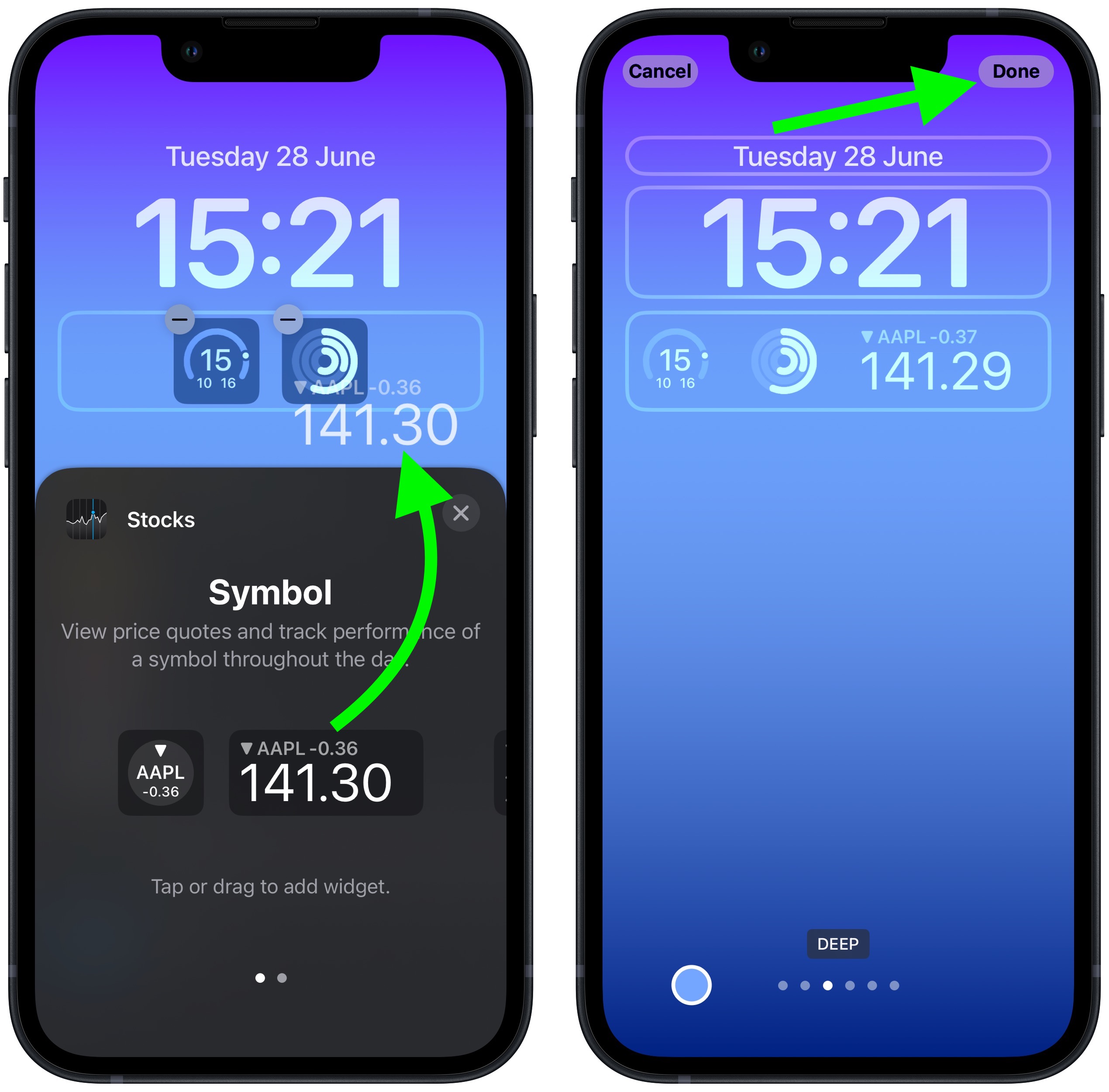
- Activate Customization: Lock your phone, then wake it up. Long-press on the Lock Screen until the "Customize" button appears at the bottom.
- Enter Editor: Tap "Customize" and select "Lock Screen" on the left.
- Select the Widget Area: Tap the box located below the time. This opens the widget picker.
- Add Items: Tap or drag a widget from the menu to add it to the row. Because the space is limited, the system will prevent you from adding widgets once the row is full.
- Finalize: Tap the "X" to close the picker, then tap "Done" in the top-right corner to save your changes.
Comparison of Widget Environments
Widgets behave differently depending on where they are placed. Understanding these differences helps in planning your screen layout for maximum productivity.
| Feature | Home Screen Widgets | Lock Screen Widgets |
|---|---|---|
| Visibility | While phone is unlocked | While phone is locked or unlocked |
| Size Options | Small, Medium, Large | Small (circular or rectangular) |
| Interaction | Full app access upon tap | Limited app launching |
| Information Density | High (visuals, charts, lists) | Low (status, numbers, short text) |
| Customization | Extensive grouping (Stacks) | Fixed space limitations |
Troubleshooting Common Widget Issues
If you encounter issues where widgets do not load information or appear blank, follow these diagnostic steps:
- Update the App: Ensure the app providing the widget is updated to the latest version in the App Store. Developers often release updates specifically to fix widget-related bugs.
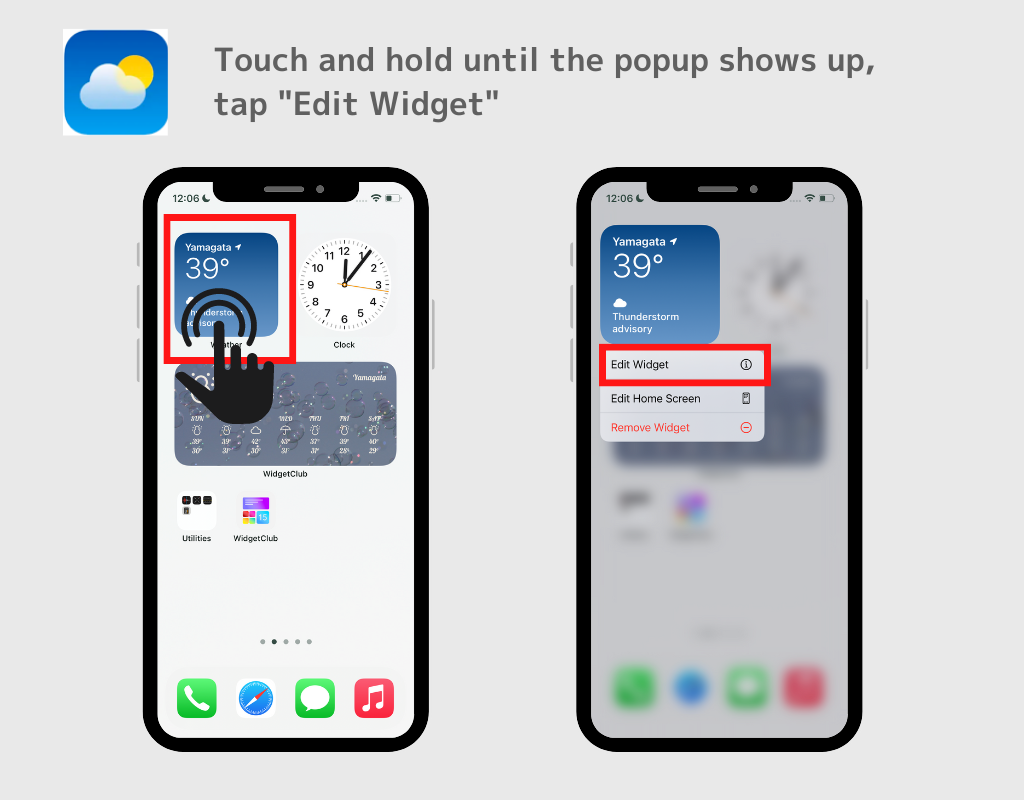
- Restart the Process: Remove the malfunctioning widget by long-pressing it and selecting "Remove Widget," then add it again. This often refreshes the data connection.
- Check Background App Refresh: Go to Settings > General > Background App Refresh and ensure it is turned on. Widgets rely on this setting to update their content in the background.
- Location Services: If a widget provides weather or location-based info, ensure the parent app has permission to access your location ("While Using" or "Always").
- Restart Your iPhone: A standard power cycle can often resolve stalled system processes that prevent widgets from updating.
Managing Privacy and Security
Because widgets display information on your Lock Screen, it is important to consider privacy. By default, sensitive information may be visible to anyone who picks up your phone. To limit this, go to Settings > Face ID & Passcode (or Touch ID & Passcode) and review the settings under "Allow Access When Locked." You can toggle off access to widgets or specific notifications if you prefer not to have data displayed while the device is locked.
Frequently Asked Questions
Can I create my own widgets? You cannot build a native widget from scratch without programming knowledge and an Apple Developer account. However, you can use third-party "widget builder" apps available on the App Store that allow you to design aesthetic widgets using your own photos, quotes, or simple calendar layouts.
Why are some widgets not updating? Widgets do not update in real-time to preserve battery life. They refresh periodically based on your usage patterns. If you find a widget is stale, tapping it usually forces the parent application to open and refresh the data instantly.
Do widgets drain the battery? Yes, widgets that require frequent location updates or data syncing can contribute to higher battery consumption. If you notice a sudden drop in battery performance, try removing high-intensity widgets or changing their settings to refresh less frequently.
Are there limits to how many widgets I can have? There is no hard limit on the number of widgets, but there is a limit on available screen space. Once your Home Screen pages are full, you will be unable to add more unless you create a new page or utilize a Smart Stack.
Can I hide widgets without deleting them? Yes. You can hide entire Home Screen pages. Long-press an empty area, tap the page indicator dots at the bottom, and uncheck the circle under the page you want to hide. This preserves the widgets on that page while removing them from your immediate view.
Final Recommendation
For the best experience, start by limiting your Home Screen to essential apps. Use Smart Stacks for items you use intermittently, such as weather or fitness trackers, and reserve your primary Lock Screen space for critical, glanceable data like your next calendar event or battery levels for connected devices like AirPods. Review your layout once a month to ensure that the information being displayed is still relevant to your current daily workflow.
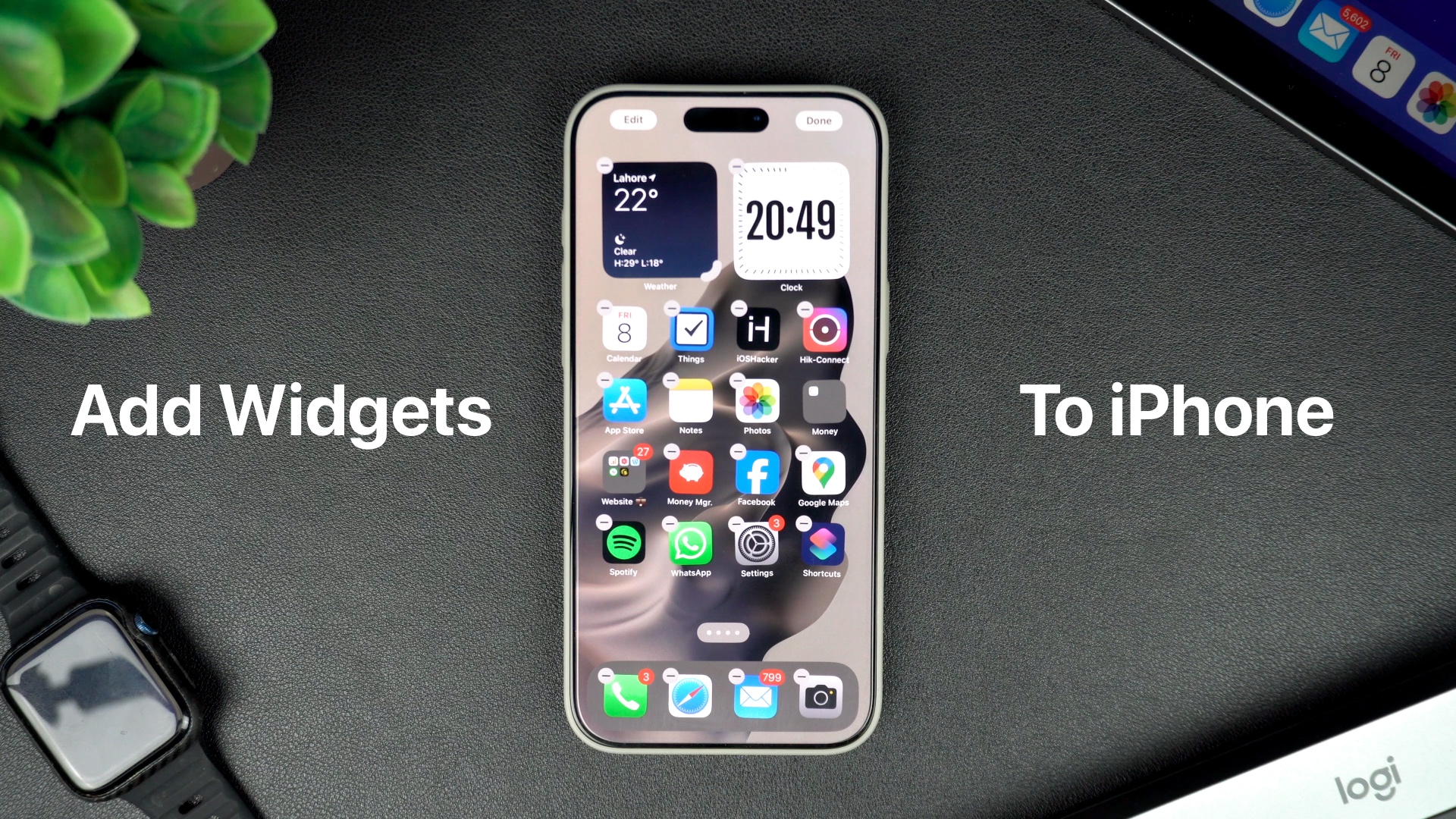
Image Gallery
Select an image to open it in a new tab.

Simon Caldwell
Enterprise Technology and Systems Editor
