How an IMAP Email Server Works
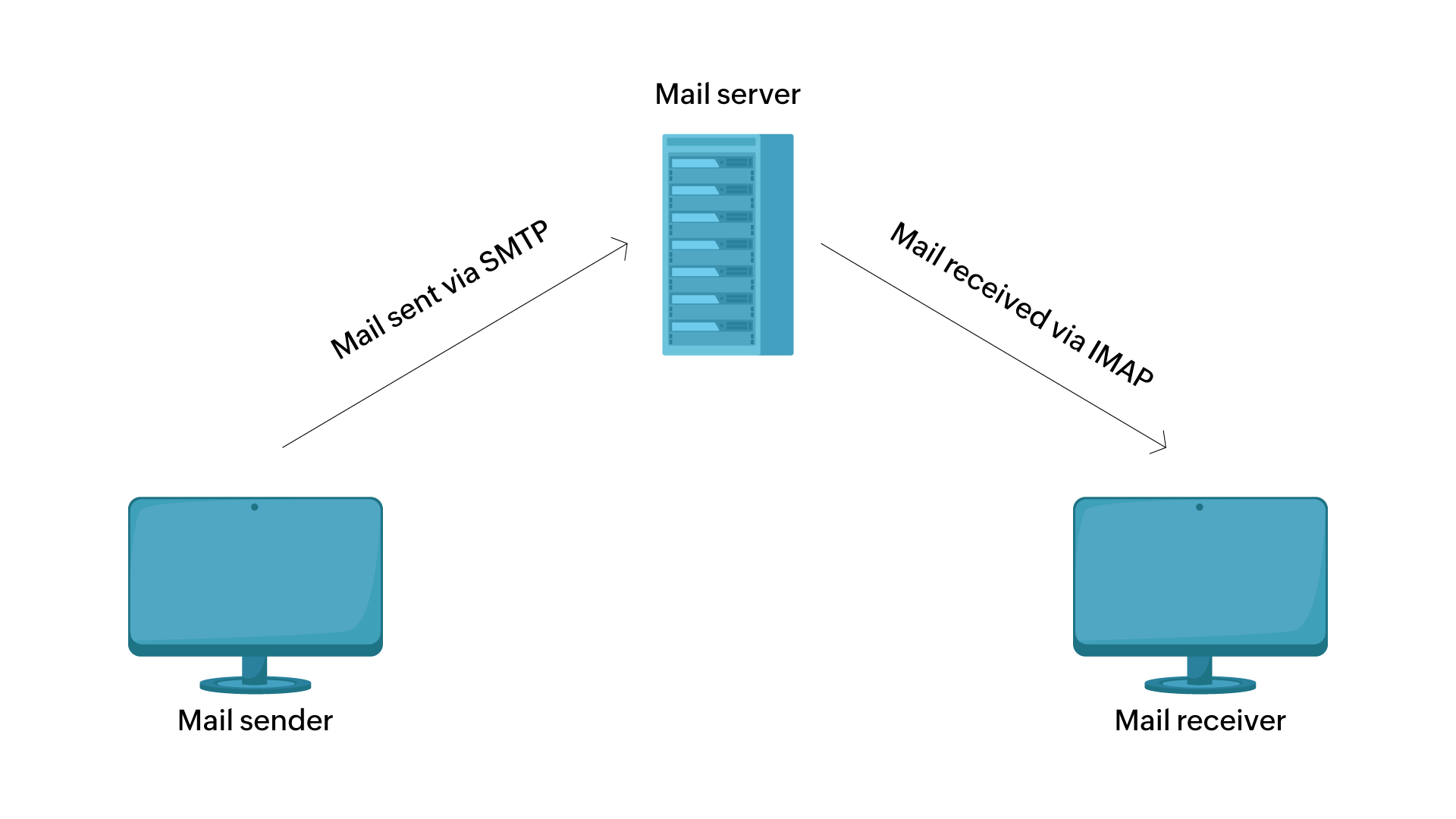
An IMAP email server works by storing emails in a centralized mailbox on a remote server while allowing multiple client devices to synchronize, view, and manage those messages in real time without permanently downloading or deleting them from the host.
Electronic mail has transformed from a system where a single desktop computer downloaded messages over a dial-up connection to an interconnected ecosystem where users switch seamlessly between smartphones, tablets, and web browsers. At the heart of this multi-device synchronization lies the Internet Message Access Protocol (IMAP). Understanding how an IMAP email server operates requires examining network communications, server-side storage structures, synchronization algorithms, and the lifecycle of a message from the moment it arrives at a domain to the second it is read by a recipient.
The Core Concept: Centralized Server Storage
Unlike older retrieval models that pulled messages off a host and erased them locally, an IMAP email server is designed to act as the permanent, authoritative home for all user messages. When an email is sent to a recipient, it passes through the Simple Mail Transfer Protocol (SMTP) and lands on the incoming mail server. The mail transfer agent (MTA) delivers the message to the recipient's mailbox managed by the IMAP server software, such as Dovecot or Cyrus IMAP.
The defining characteristic of this architecture is persistence. The server maintains the master copy of every folder, subfolder, and message. When a user connects via an email client like Microsoft Outlook, Apple Mail, or Thunderbird, the client does not download the entire mailbox. Instead, it downloads only the message headers—the sender, subject line, date, and size—allowing the user to scan their inbox rapidly without consuming excessive bandwidth or local storage.
- Email Sender
- Sends via SMTP to Mail Server / MTA
- Delivered to IMAP Server Storage
- Connects to Laptop Client (Synchronized State)
- Connects to Smartphone Client (Synchronized State)
- Connects to Tablet Client (Synchronized State)
Client-Server Communication and Ports
Communication between an email client and an IMAP email server relies on a structured command-and-response protocol over TCP/IP networks. Traditionally, standard IMAP communication occurred over port 143. However, modern security standards mandate encryption to protect credentials and message content from interception.
Secure IMAP implementations generally use one of two methods:
- IMAP over SSL/TLS (IMAPS): Historically designated as port 993, this method wraps the entire IMAP communication channel in a Transport Layer Security (TLS) tunnel from the very beginning of the connection handshake.
- STARTTLS: This method establishes an unencrypted connection on port 143 and immediately issues a
STARTTLScommand to upgrade the plain text channel to an encrypted TLS session before authentication occurs.
When a client initiates a connection, it undergoes an authentication phase. The client presents credentials, which can range from traditional plain-text passwords (sent only over encrypted channels) to modern token-based authorization mechanisms such as OAuth 2.0. Once authenticated, the client enters the selected state, where it can issue commands to inspect mailboxes, search message contents, and modify flags.
Message States and Synchronization Flags
One of the most powerful features of an IMAP email server is its ability to maintain consistent message states across an arbitrary number of clients. If a user reads an email on their smartphone during their morning commute, that exact message must appear as read when they open their laptop at the office. The IMAP protocol achieves this through standardized message flags.
Every message stored on an IMAP server carries a set of system flags that define its status:
- \Seen: Indicates whether the message has been read.
- \Answered: Indicates that a reply has been sent to the message.
- \Flagged: Marks the message for important follow-up or priority viewing (often displayed as a star or flag).
- \Deleted: Marks the message for deletion. In IMAP, deletion is typically a two-step process: messages are first flagged as deleted, and a subsequent
EXPUNGEcommand permanently removes them from the server storage. - \Draft: Identifies the message as an uncompleted draft currently being composed.
- $Draft / Custom Flags: Many modern servers allow user-defined or extension flags for custom categorization.
When a client changes one of these flags—for example, marking a message as read—it sends an update command to the IMAP server (such as STORE +FLAGS (\Seen)). The server updates its internal database and immediately broadcasts a notification to all other connected clients sharing that session, triggering an instantaneous UI update across every device.
| Protocol Feature | IMAP (Internet Message Access Protocol) | POP3 (Post Office Protocol v3) |
|---|---|---|
| Primary Storage | Centralized on the remote server | Downloaded to a single local device |
| Multi-Device Sync | Full synchronization across all clients | Poor; actions on one device do not reflect on others |
| Server Space Usage | High; messages remain on server until deleted | Low; messages are usually removed from server after download |
| Offline Access | Requires local caching; supports offline reading/drafting | Excellent; complete mailbox lives locally |
| Folder Management | Supports server-side folders and custom directories | Limited or no support for server-side folders |
Mailbox Hierarchy and Server-Side Organization
IMAP servers do not simply dump all messages into a single flat directory. They support a hierarchical tree structure of mailboxes, commonly referred to as folders. A user can organize messages into top-level directories like Inbox, Sent, Archive, and Trash, as well as create nested subfolders such as Work/Projects/2026.
This hierarchy is maintained entirely on the server. When a client requests the mailbox list using the LIST command, the server returns the directory tree path and the hierarchy delimiter character (frequently a forward slash / or a period .). Because the folder structure resides on the server, any reorganization performed on one device—such as moving an email from Inbox to a client-created project folder—is instantly reflected across all other connected devices.
Furthermore, IMAP supports multiple concurrent namespaces and shared mailboxes. In enterprise environments, administrative tools or shared team mailboxes allow multiple users to access and manage the same set of folders, utilizing ACLs (Access Control Lists) to determine who can read, write, or delete messages within specific directory branches.
Fetching Data and Bandwidth Optimization
Early email protocols required downloading entire message payloads every time a user checked their mail. IMAP introduced sophisticated data fetching commands that minimize bandwidth consumption, making it exceptionally well-suited for mobile devices operating on cellular data networks.
When a user clicks on an email to read it, the client issues a FETCH command specifying precisely what parts of the message it needs. The protocol breaks down a MIME-compliant email into distinct sections:
- Envelope: Metadata including sender, recipients, subject, and timestamp.
- Body Structure: A breakdown of the message parts (text, HTML, and attachments).
- Body Content: The actual textual payload or specific attachment files.
If a user opens an email containing a high-resolution PDF attachment, the IMAP server does not force the client to download the attachment immediately. The client can fetch only the text body first. If the user explicitly clicks the attachment, a secondary FETCH command retrieves only that specific binary block. Additionally, IMAP supports partial fetching, allowing clients to read large messages in chunks rather than downloading megabytes of data at once.
Server-Side Searching
Another major advantage of an IMAP email server is its ability to perform server-side searches. In a local-download model, searching for a specific term requires the client application to download every message and parse through them locally.
With IMAP, the client sends a structured SEARCH query to the server, specifying criteria such as FROM "client@example.com", SINCE 01-Jan-2026, or UNSEEN. The server executes the search against its indexed database and returns only the matching message sequence numbers or unique identifiers (UIDs). This capability drastically reduces network overhead and enables fast search capabilities even on mobile devices with limited processing power and storage.
Reliability, Backups, and Administrative Maintenance
Maintaining an IMAP email server requires robust backend infrastructure to ensure data integrity and uptime. Because the server is the single source of truth for all user mailboxes, corruption or hardware failure can lead to catastrophic data loss if proper safeguards are not in place.
Administrators configure IMAP servers with redundant storage arrays (RAID), continuous replication, and automated backup routines. Mailbox data is typically stored in standardized formats on the filesystem, such as Maildir (where each message is stored as an individual file) or mbox (where multiple messages are concatenated into a single flat file). Maildir is heavily favored in modern high-performance environments because it eliminates file-locking contention issues when multiple clients access the same mailbox simultaneously.
Security hardening is another critical administrative responsibility. Mail servers are frequent targets for brute-force authentication attacks and credential stuffing. Administrators deploy tools like Fail2ban to monitor login failures and automatically block malicious IP addresses, alongside enforcing strict TLS ciphers and rate-limiting policies.
Frequently Asked Questions
What happens to my emails if I lose my internet connection while using IMAP?
When your internet connection drops, most modern email clients rely on a local cache or offline database. You can still read messages that were previously downloaded, view cached folder structures, and even compose new drafts. However, any actions requiring server communication—such as sending new mail, marking messages as read, or moving items between folders—will be queued locally and synchronized automatically once the IMAP server connection is re-established.
Can I use multiple devices with an IMAP email server at the same time?
Yes, multi-device synchronization is one of the primary design benefits of IMAP. You can connect your smartphone, desktop computer, and web browser simultaneously to the same IMAP server. Any action you take on one device—such as deleting an email or moving it to an archive folder—is instantly transmitted to the server and propagated to all other connected client applications in real time.
Why do my deleted emails sometimes reappear or stay in my inbox?
If deleted emails reappear, it is usually due to a configuration mismatch between the client's deletion behavior and the IMAP server settings. In some clients, deleting a message only applies a \Deleted flag rather than expunging it. If your client is not configured to automatically purge deleted items upon closing or switching folders, the server retains the messages. Checking your client's advanced IMAP account settings to ensure trash folders and expunge commands are mapped correctly resolves this issue.
Is IMAP secure enough for enterprise and sensitive communications?
IMAP on its own is a plain-text protocol, but when paired with modern Transport Layer Security (TLS)—referred to as IMAPS—it provides robust encryption in transit. Enterprise environments routinely use secure IMAP alongside strong authentication methods like multi-factor authentication and OAuth tokens. However, because emails are stored on a remote server, overall security also depends heavily on the physical and administrative security measures implemented by the email hosting provider.
How does IMAP differ from Exchange ActiveSync?
While both IMAP and Microsoft's Exchange ActiveSync (EAS) provide multi-device synchronization, they operate at different levels of capability and purpose. IMAP is an open, standardized internet protocol designed specifically for retrieving and managing email messages and folders. Exchange ActiveSync is a proprietary protocol designed by Microsoft to synchronize not only email, but also calendars, contacts, tasks, and notes across mobile devices and proprietary groupware servers like Microsoft Exchange.
Image Gallery
Select an image to open it in a new tab.


Akira Tanaka
International Academic Trends Correspondent
