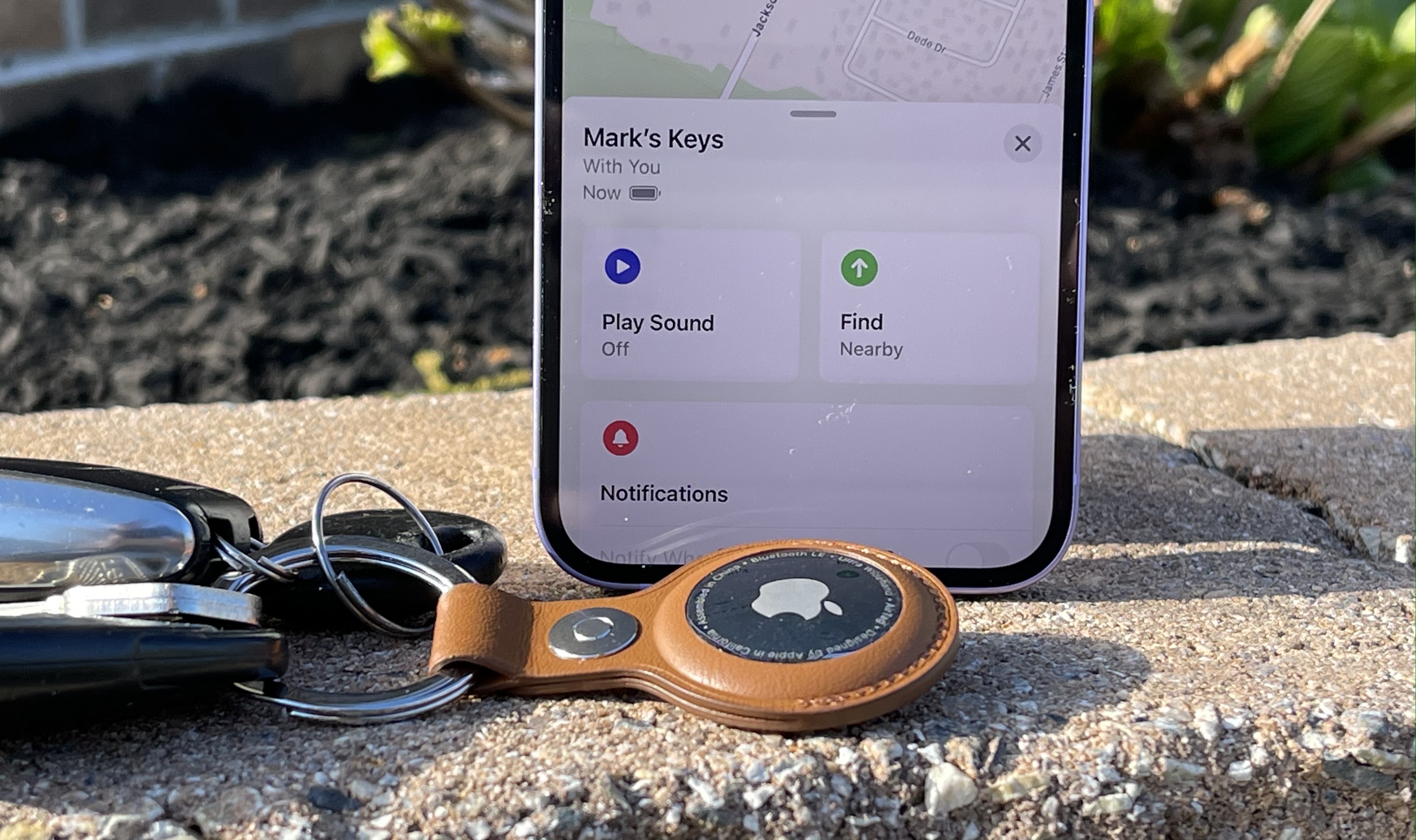
If you suspect an unknown AirTag is traveling with you, your iPhone can detect it automatically through built-in security features designed to prevent unwanted tracking. By using the "Trackers Detected" alert system, leveraging the Find My app, or using Precision Finding if you are using an iPhone 11 or later, you can identify, locate, and safely disable any unauthorized item tracker in your vicinity.
Understanding Apple’s Anti-Stalking Protections
Apple introduced AirTag in 2021 as a consumer-friendly way to keep track of personal items like keys, bags, and luggage. Because of the potential for misuse, Apple implemented robust safety protocols to prevent unauthorized tracking. These systems work continuously in the background, provided your iPhone is running an up-to-date operating system.
When an AirTag that is not paired to your Apple ID moves with you for an extended period, your iPhone recognizes the patterns of travel. It is important to understand that your iPhone does not need to be actively looking for trackers. Instead, the "Item Safety Alerts" feature is enabled by default on all iPhones updated to iOS 14.5 or later. This feature uses the device's Bluetooth and location services to correlate the movement of a foreign tracker with your own device's movement.
How Automatic "Trackers Detected" Alerts Work
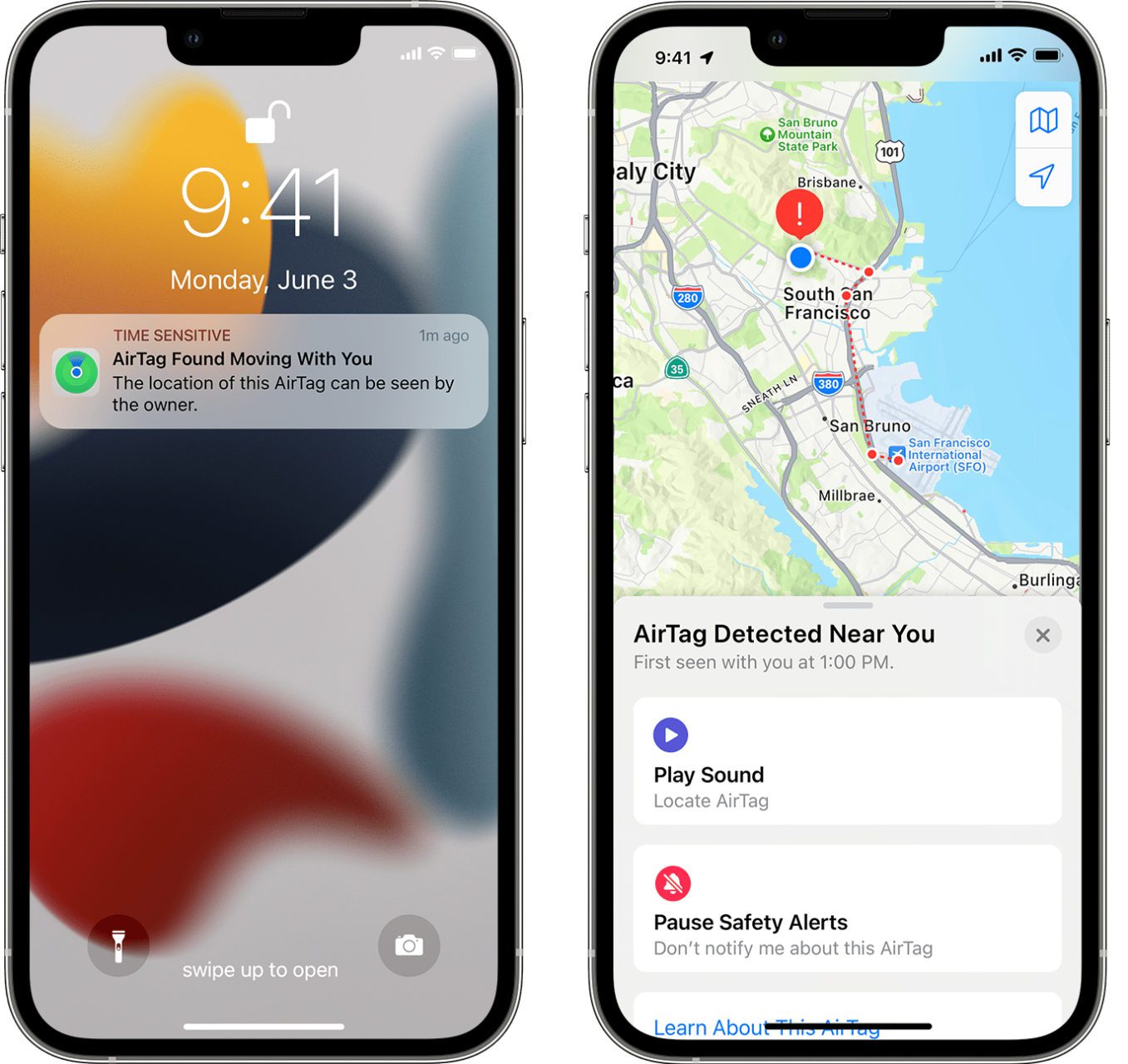
The most common way to discover an unknown tracker is through a push notification. If an AirTag—or any other device compatible with the Find My network—is moving with you, your iPhone will display an alert titled "AirTag Found Moving With You."
- Receiving the Notification: When you tap this notification, the Find My app will open.
- Visualizing the Path: The map provided in the app displays where the tracker was first detected moving with you and where it is currently located relative to your iPhone.
- Playing a Sound: You can tap the "Play Sound" button. This triggers the AirTag to emit a chime, helping you physically locate it if it is hidden in a pocket, bag, or under a car seat.
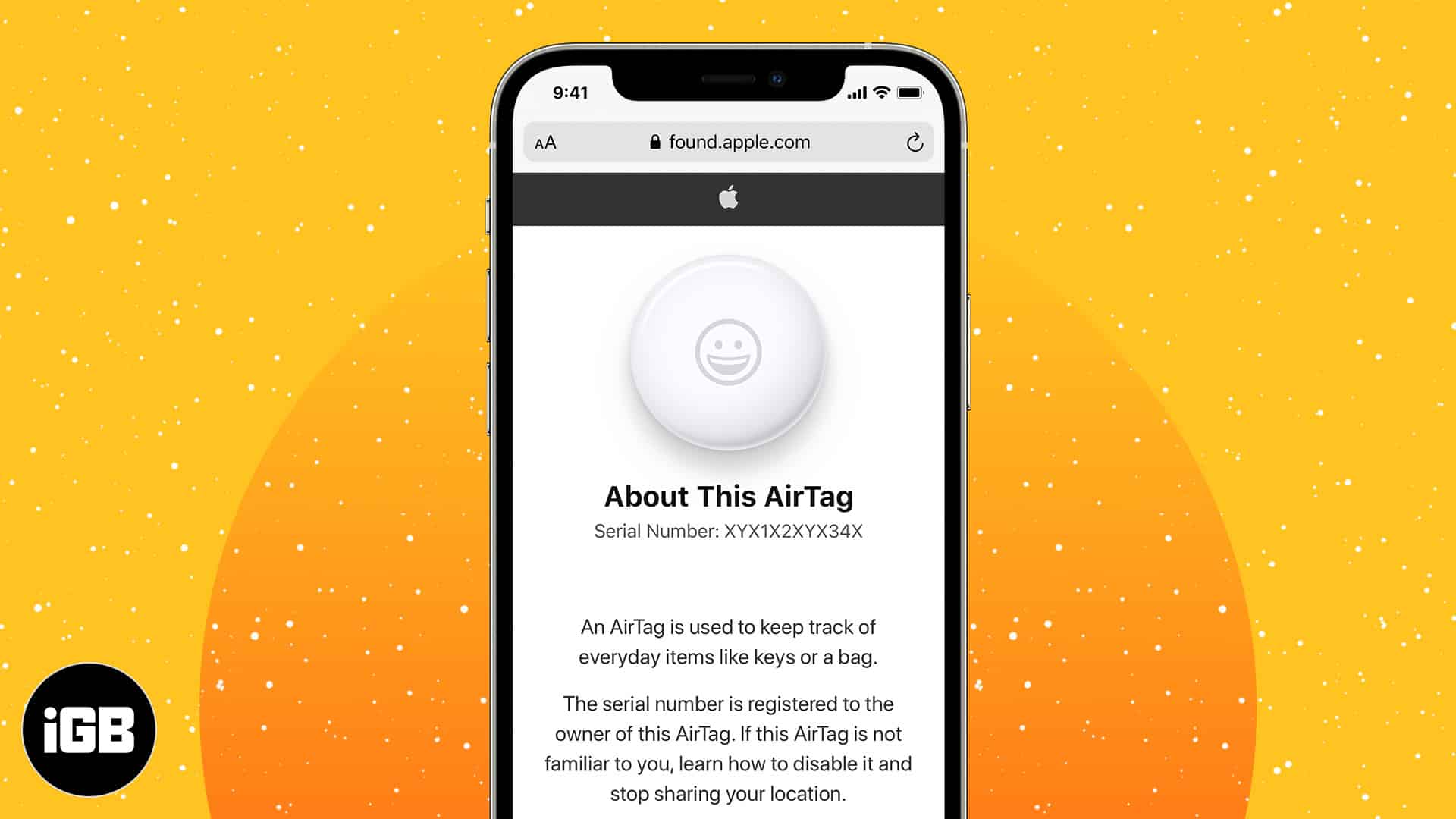
- Disabling the Tracker: If you find the device, you can hold your iPhone or any NFC-capable smartphone near the white side of the AirTag. A web page will appear with the serial number and instructions on how to disable it by removing the battery.
Manual Detection Through the Find My App
If you have a persistent feeling that you are being followed but have not received an automatic notification, you can manually trigger a search for nearby trackers. This is particularly useful if you believe a device is nearby but has not yet met the temporal or distance requirements to trigger an automatic alert.
To manually scan for trackers:
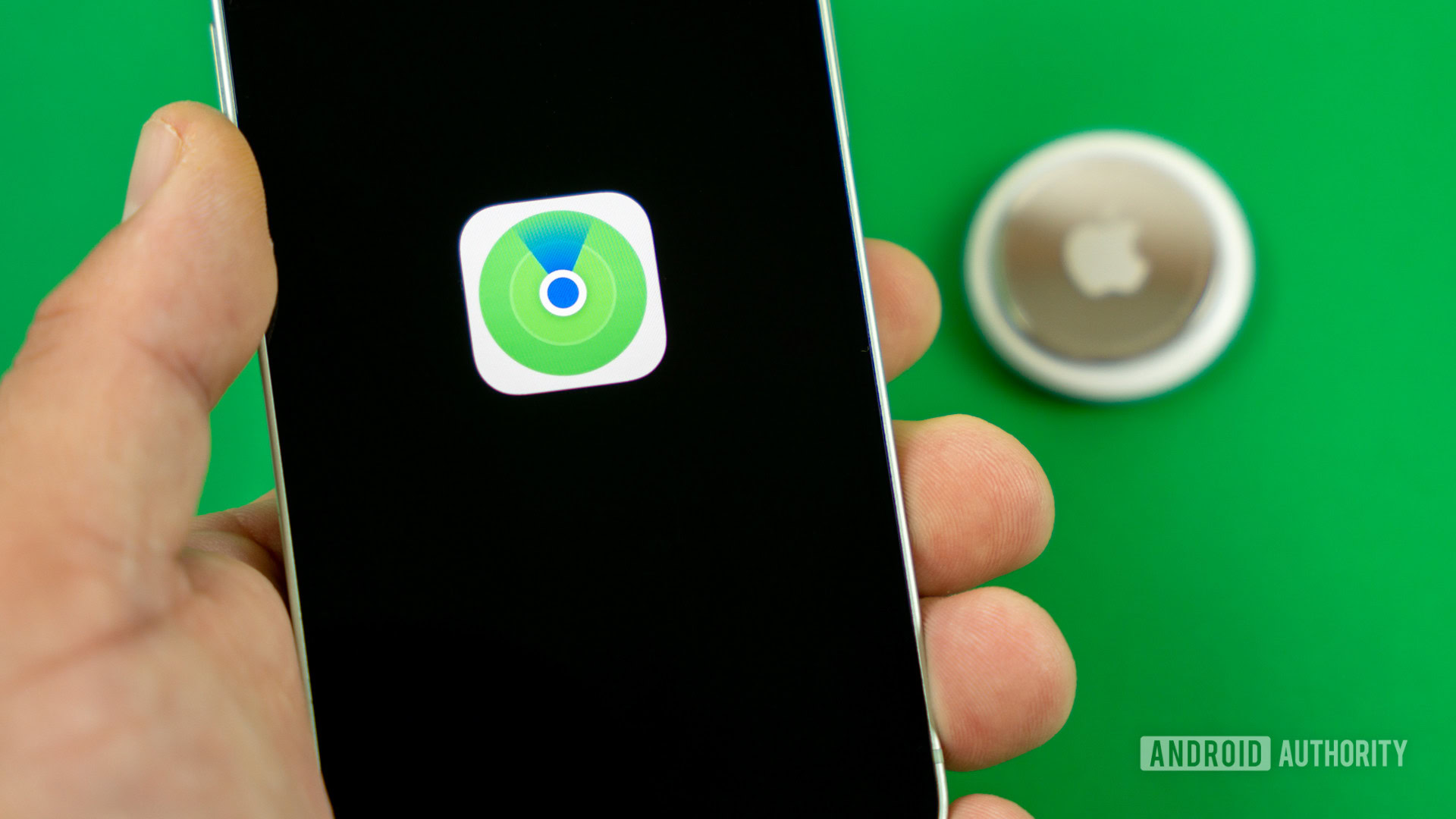
- Open the Find My app on your iPhone.
- Tap the Items tab at the bottom of the screen.
- Scroll down to the bottom of the list and tap Identify Found Item.
- Your iPhone will begin searching for active trackers in the immediate vicinity.
If the app detects a nearby tracker, it will guide you through the same steps as the automatic alert, including playing a sound or disabling the device. It is important to note that this feature requires your Bluetooth to be active and location services to be enabled for the Find My app.
Utilizing Precision Finding
For users with an iPhone 11 or later, the process of finding an unknown AirTag is made significantly easier through Ultra Wideband (UWB) technology. If your iPhone detects a tracker and you choose to play a sound, the interface may change to show "Precision Finding."
This mode provides directional arrows and distance indicators on your screen, effectively turning your iPhone into a compass that points directly toward the AirTag. This is highly effective if the AirTag is concealed in a crowded environment, such as a suitcase or a vehicle exterior. If your device does not support Precision Finding, you will rely primarily on the audio chime to pinpoint the location.
Comparison of Detection Methods
| Feature | Automatic Alert | Manual Scan | Precision Finding |
|---|---|---|---|
| Prerequisites | Background activity | User-initiated | U1 Chip (iPhone 11+) |
| Availability | iOS 14.5+ | Find My App | Specific models only |
| Best Used For | Passive discovery | Targeted search | Physical pinpointing |
| User Effort | Low | Medium | High (involves movement) |
Troubleshooting Common Issues
If you are unable to detect an AirTag that you suspect is present, consider these common technical limitations:
- Bluetooth Connectivity: AirTags communicate via Bluetooth Low Energy. If your Bluetooth is turned off, your iPhone cannot "see" the tracker. Always ensure Bluetooth is active in your Control Center.
- Outdated Software: If your iPhone is running an early version of iOS, it may lack the updated safety features introduced by Apple in recent years. Keeping your device updated to the latest version of iOS is the single most effective way to ensure your security features are functioning correctly.
- Firmware Delays: Sometimes, an AirTag may not update its location in the Find My network immediately. If the tracker is stationary, it may take longer for the system to register it as a threat compared to a tracker that is actively moving with you.
- Alternative Trackers: Ensure you are looking for an Apple-branded device. While the Find My network is compatible with other third-party trackers, their specific "unwanted tracking" behaviors may vary slightly from official Apple hardware.
What to Do Once You Find the AirTag
If you successfully locate a tracker that does not belong to you, do not panic. First, attempt to disable it. As mentioned previously, you can tap the AirTag with your phone to view its serial number. In many cases, if the owner has placed the AirTag in "Lost Mode," the serial number may be linked to their contact information.
If you feel you are in danger or being stalked, take a photo of the AirTag and its serial number. Contact your local law enforcement agency. Apple cooperates with law enforcement by providing account information in response to valid legal requests, such as a subpoena or a warrant. Do not attempt to track the owner of the device yourself, as this can escalate a dangerous situation.
Frequently Asked Questions
Can I detect an AirTag if I have an Android phone? Yes. You can download the "Tracker Detect" app from the Google Play Store. It works similarly to the manual scan feature in the Find My app on iOS, allowing Android users to scan for nearby trackers and play sounds to locate them.
Will I get an alert if the AirTag is near me but not moving? Generally, the system is designed to alert you if a foreign AirTag is moving with you. If the AirTag is stationary in a public place, you are unlikely to receive an alert, as it is assumed to be a misplaced item rather than a tracking device.
Can I block an AirTag signal? You cannot block the signal of an AirTag through your iPhone settings. The only way to stop a tracker from reporting its location is to remove its battery or destroy the device. If you cannot find the device but suspect it is in your vehicle, contact a mechanic or professional who can assist in a physical search.
What is the "Item Safety Alerts" setting? This is a core security setting in iOS. You can verify it is on by going to Settings > Notifications > Tracking Notifications. Ensure that "Allow Notifications" is toggled on to receive immediate alerts.
Does detecting an AirTag require an internet connection? While the initial detection happens via Bluetooth, your iPhone may need an internet connection to process the information through Apple’s servers or to map the tracker's journey through the Find My network.
Taking Action
Security and privacy regarding location tracking are critical. If you receive a notification that an AirTag is moving with you, treat it as a genuine security concern. Utilize the built-in detection tools on your iPhone, document the incident, and contact local authorities if you believe your physical safety is being compromised. By remaining vigilant and keeping your software updated, you maintain the highest level of protection offered by Apple’s safety architecture.
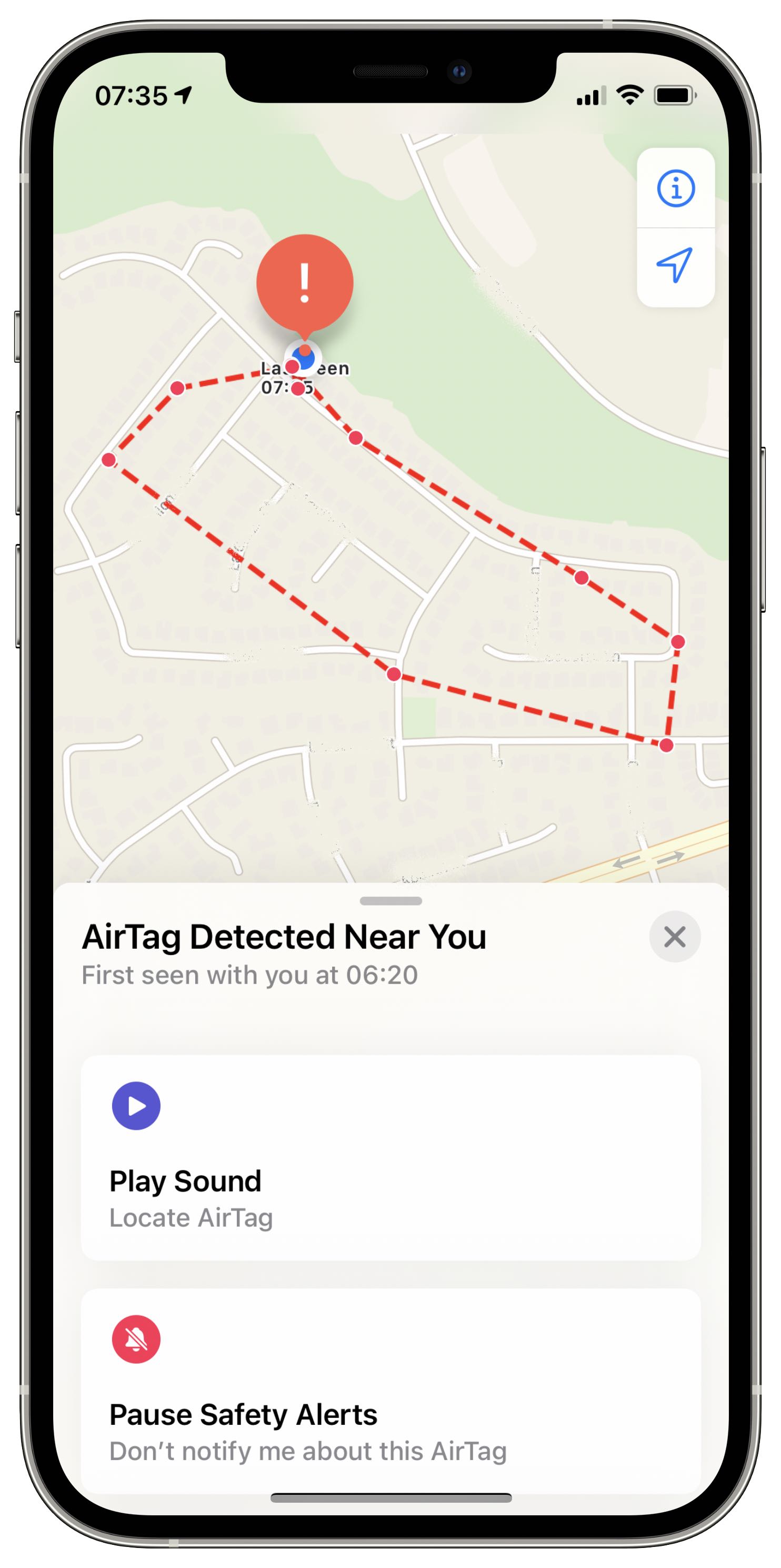
Image Gallery
Select an image to open it in a new tab.



Simon Caldwell
Enterprise Technology and Systems Editor
