
Managing both personal and professional communications on a single smartphone can present daily challenges, particularly for professionals, entrepreneurs, and individuals who prefer to keep their social circles separate. For many years, using two distinct phone numbers required carrying a second physical mobile phone or constantly swapping SIM cards, both of which are cumbersome and inefficient. Fortunately, modern mobile operating systems and official application features now offer multiple reliable pathways to run two separate WhatsApp accounts on one device. Whether you are using an Android smartphone with dual-SIM capabilities or an iPhone running iOS, several built-in tools and official methods allow you to configure and manage two active WhatsApp profiles simultaneously without violating platform terms of service.
Understanding the Prerequisites and Core Requirements
Before attempting to configure a secondary WhatsApp account on your device, you must ensure that your hardware and phone number infrastructure meet the fundamental technical requirements mandated by the platform. WhatsApp operates by tying a unique profile to a verified telephone number capable of receiving either an SMS text message or a voice call for authentication. Therefore, the absolute primary prerequisite for running a second account is access to a second operational phone number. This can be achieved through several common hardware and network configurations:
- Dual-SIM Hardware: Many modern Android smartphones and recent iPhone models (starting from the iPhone XS generation onward) feature dual-SIM functionality. This capability is typically delivered through a combination of a physical nano-SIM card slot and an embedded digital SIM (eSIM), or dual physical nano-SIM trays depending on the regional variant of the device.
- Secondary Active Line: The second number must be currently active and able to receive incoming cellular signals, Wi-Fi calling authentication codes, or automated voice calls. Virtual numbers or Voice-over-IP (VoIP) services that are not officially supported by WhatsApp may fail during the registration verification phase.
- Sufficient Storage and Memory: Operating two instances of WhatsApp or utilizing dual app features requires additional local storage space for application data, media files, and local database backups. Ensure your device has at least one to two gigabytes of free storage available to prevent performance degradation.
- Updated Operating System: Ensure that your device is running a reasonably modern version of Android or iOS. Older operating system builds may lack the native cloning tools or multi-account architectural support required to run separate application processes smoothly.
Method 1: Using Official Native Features on Android
Android manufacturers have long recognized the demand for dual-account management, leading many major brands to build native application cloning tools directly into their custom user interfaces. These features allow you to duplicate installed applications, creating an isolated second instance that operates independently from the original installation. The exact nomenclature of this feature varies depending on the smartphone manufacturer, but the underlying mechanics remain largely consistent across popular ecosystems.
Configuring Dual Apps on Samsung Devices
Samsung includes a native feature called Dual Messenger on most of its mid-range and flagship Galaxy smartphones. This tool specifically targets communication applications like WhatsApp, allowing users to install a duplicate copy with minimal configuration effort.
- Open your device Settings menu and scroll down to locate the Advanced features section.
- Tap on Advanced features and look for the Dual Messenger option.
- The system will display a list of eligible applications installed on your device that support dual instances. Locate WhatsApp in this list.
- Toggle the switch next to WhatsApp to the On position.
- A confirmation prompt will appear asking if you want to install a second copy of WhatsApp. Tap Install.
- If prompted, choose whether you want to use a separate contact list for the second application or share your main contact list.
- Return to your home screen or application drawer. You will now see two distinct WhatsApp icons, with the secondary icon distinguished by a small orange badge or chain link overlay.
- Tap the secondary icon, agree to the terms of service, and enter your second phone number to complete the verification process.
Utilizing App Cloner Features on Xiaomi, OnePlus, and Oppo
Other major Android manufacturers implement similar functionalities under different menu headings, such as App Twin (Xiaomi/MIUI/HyperOS), Cloned Apps (OnePlus/OxygenOS), or App Cloner (Oppo/RealMe/ColorOS).
- Xiaomi (MIUI/HyperOS): Navigate to Settings > Apps > Dual apps. Tap Create, select WhatsApp from the list, and enable the dual app toggle.
- OnePlus (OxygenOS): Go to Settings > Apps > App Cloner. Select WhatsApp and toggle Create app clone on. You can also rename the cloned application for easier identification on your home screen.
- Oppo/RealMe: Open Settings > Apps > App Cloner. Tap WhatsApp and enable Enable app cloning.
Method 2: Using the Official WhatsApp Multi-Account Feature
In addition to device-level cloning, WhatsApp has rolled out an official Multi-Account feature for Android users that eliminates the need for third-party tools or manufacturer-specific app cloners. This feature allows you to maintain two active accounts simultaneously within a single, unified WhatsApp application interface, mirroring how other social media platforms handle account switching.
Requirements for the Official Multi-Account Feature
- An Android smartphone with a dual-SIM setup or a device capable of accepting multiple phone numbers sequentially.
- The latest official version of WhatsApp downloaded from the Google Play Store or sideloaded via official distribution channels.
Step-by-Step Setup Instructions
- Open your primary WhatsApp application.
- Tap the three vertical dots in the top-right corner to open the menu, then select Settings.
- Tap the down arrow or profile expansion icon located right next to your profile name and QR code.
- Tap Add account.
- Follow the on-screen setup instructions, accept the terms of service, and enter your second phone number when prompted.
- Complete the SMS or phone call verification process for the second number.
- You can now customize your notification settings, privacy preferences, and profile details independently for each account.
- To switch between your accounts at any time, return to Settings, tap the profile dropdown arrow, and select the account you wish to view. Notifications from both accounts will be received in real-time, though the active foreground interface will display the currently selected profile.
| Method | Primary Platform | Ease of Use | Third-Party Risk | Pros & Cons |
|---|---|---|---|---|
| Official Multi-Account | Android | High | None (Official) | Pros: Single app, seamless switching, official support.Cons: Limited to Android currently; cannot view both concurrently in separate windows. |
| Manufacturer Cloner | Android (Samsung, Xiaomi, etc.) | High | None (OEM Native) | Pros: Two separate app icons, independent notifications.Cons: Dependent on specific phone brand features. |
| WhatsApp Business | Android & iOS | High | None (Official) | Pros: Professional features, works on both iOS and Android.Cons: Intended for business profiles; business label visible to contacts. |
| iOS Dual Accounts (Web/App) | iOS (iPhone) | Moderate | Low | Pros: Enables dual access on restricted operating systems.Cons: Requires secondary device or web browser workaround. |
Method 3: Combining WhatsApp and WhatsApp Business on iOS and Android
For users operating within the Apple iOS ecosystem—where native application cloning features are restricted by strict operating system sandboxing—running two accounts requires leveraging the official WhatsApp Business application alongside the standard consumer version. Because WhatsApp permits a single phone number to be registered on either the standard app or the business app, you can easily run both applications side-by-side on the same iPhone or Android device.
How to Set Up WhatsApp Business for Your Second Number
- Open the Apple App Store (iOS) or Google Play Store (Android) and search for WhatsApp Business.
- Download and install the application on your device.
- Open WhatsApp Business and review the terms of service. Tap Agree and Continue.
- The application will automatically detect your primary phone number if it is already registered on the standard WhatsApp app. Tap Use a different number instead.
- Enter your secondary phone number and tap Next.
- Confirm the number is correct and proceed with the SMS or voice verification process.
- Set up your business profile name, category, and profile picture. Note: Even though the application is labeled for business use, you can configure the profile as a personal account, though contacts will see standard business profile categorization options.
- Grant notification permissions to ensure you receive alerts from both apps concurrently without delay.
Method 4: Accessing WhatsApp Web for Secondary Account Management
If you prefer not to install cloned applications or second instances on your mobile device, or if you are seeking a temporary desktop-friendly solution, you can utilize WhatsApp Web or the standalone desktop application in conjunction with your mobile device. While a single smartphone can only host one active session per app instance, web-based pairings allow you to bridge additional sessions.
Steps to Use Web Sessions for Secondary Access
- Open a web browser on your computer or open a secondary browser app on your mobile device configured to request the desktop site version.
- Navigate to the official web portal at
web.whatsapp.com. - Open WhatsApp on a secondary phone or use an alternative browser profile where your second account is active.
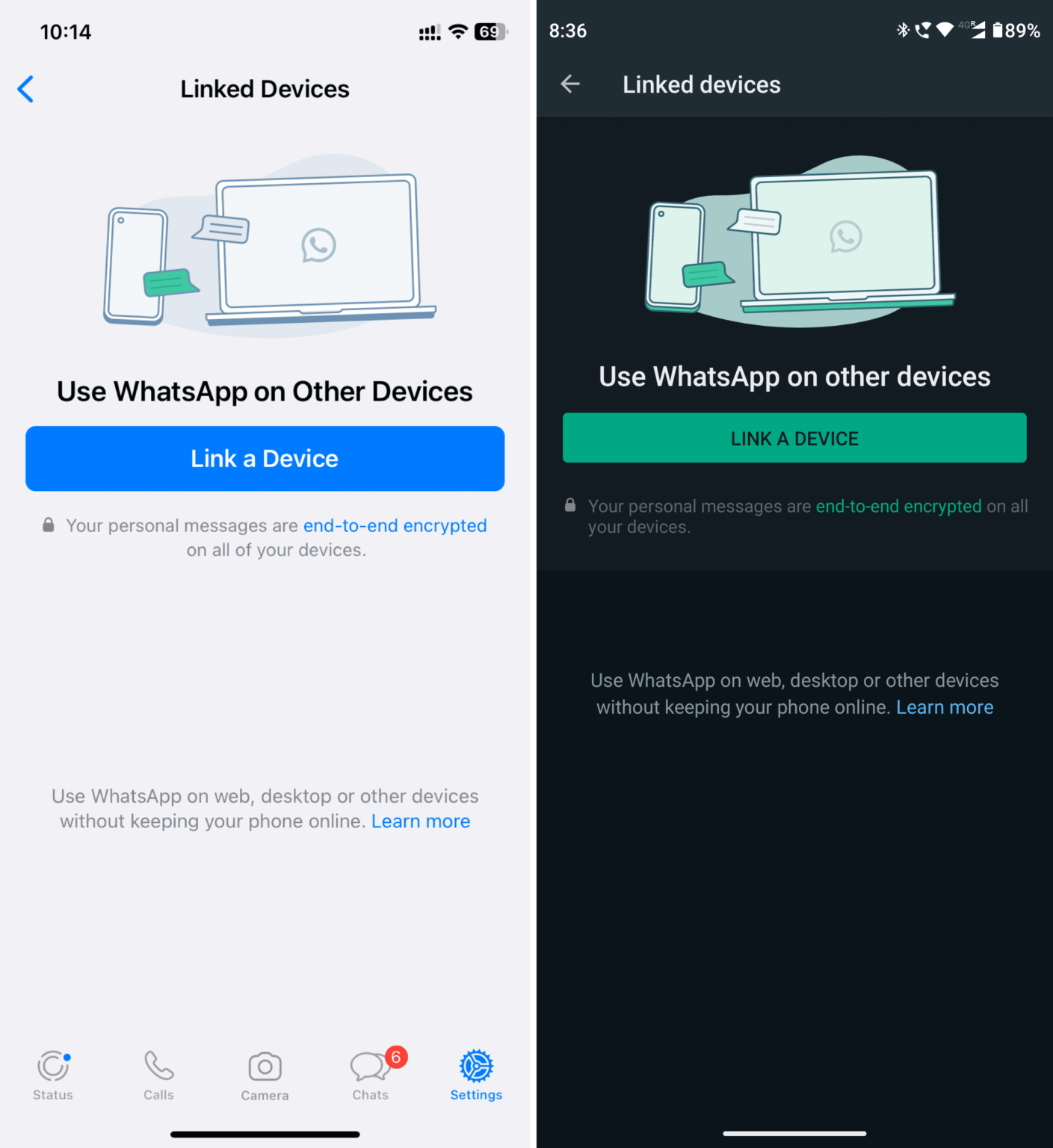
- Navigate to Linked Devices within your WhatsApp settings and scan the QR code displayed on your primary screen.
- This method is particularly useful for managing customer service lines, administrative chats, or shared organizational numbers directly from a workstation environment while keeping your primary personal account active on your mobile phone's native app.
Troubleshooting Common Issues and Verification Errors
Configuring multiple accounts on a single device occasionally introduces technical friction, particularly during the verification and notification phases. Understanding how to resolve these common hurdles ensures uninterrupted communication.
- Verification Code Failures: If you do not receive the SMS verification code for your second number, ensure that the SIM card is properly seated, has cellular signal coverage, and is not blocking incoming automated messages. If SMS fails, wait for the countdown timer to expire and select the Call me option to receive an automated voice call with the verification code.
- Notification Delays: Cloned applications or secondary profiles running via battery-saving operating systems may occasionally experience delayed notifications. To fix this, navigate to your device's app settings, locate the cloned or secondary WhatsApp instance, and disable battery optimization or background restriction rules.
- Account Banned Warnings: Ensure you are using official methods (such as native OEM cloners, official multi-account settings, or WhatsApp Business) rather than unofficial modified APKs like GBWhatsApp or WhatsApp Plus. Unofficial third-party modifications violate WhatsApp terms of service and frequently result in permanent or temporary account suspension.
Frequently Asked Questions
Can I run two WhatsApp accounts using the exact same phone number?
No. Every active WhatsApp account must be uniquely associated with a distinct, active telephone number capable of receiving verification codes. You cannot register the same phone number on two different active instances simultaneously.
Does the official WhatsApp multi-account feature work on iPhones?
As of current software iterations, the native multi-account feature inside the standard WhatsApp application is primarily rolled out for Android devices. iPhone users must utilize the combination of standard WhatsApp and WhatsApp Business to run two accounts on a single device.
Will my chat history merge or mix between the two accounts?
No. Each WhatsApp account operates within its own completely sandboxed database partition. Contacts, media files, message histories, and backup archives remain entirely separate and secure from the other account.
Can I use WhatsApp Web for both accounts on the same computer?
Yes, but you must use separate browser profiles, different web browsers (such as Chrome and Firefox), or an incognito browsing window alongside a standard window to maintain two separate active web sessions simultaneously.
Is it safe to use manufacturer app cloners like Samsung Dual Messenger?
Yes. Native application cloning tools provided directly by smartphone manufacturers operate within the security parameters of the operating system and do not compromise your end-to-end encryption or account security.
Conclusion and Next Actions
Running two WhatsApp accounts on a single device is no longer a complicated technical hurdle thanks to modern smartphone operating systems, manufacturer-level app cloners, and official multi-account updates. To get started, evaluate your hardware platform—choose the native multi-account feature or OEM cloner if you are on Android, or pair standard WhatsApp with WhatsApp Business if you are using an iPhone. Ensure your second phone number is active and ready for verification, configure your notification preferences to keep your conversations organized, and avoid unauthorized third-party applications to maintain optimal security and account longevity.
Image Gallery
Select an image to open it in a new tab.


Ingrid Bjornson
Global Cyber Policy and Regulation Analyst
