How to Run an SEO Speed Test: A Technical Guide for Web Performance Optimization
Running an SEO speed test involves using diagnostic tools to measure how quickly your website renders content and interacts with users, providing data to improve Core Web Vitals. By analyzing metrics like Largest Contentful Paint and Cumulative Layout Shift, you can identify latency bottlenecks and implement technical optimizations that help search engines prioritize your pages in search results.
Understanding the Relationship Between SEO and Page Speed
Page speed is a fundamental pillar of modern technical SEO. Since Google integrated Core Web Vitals into its ranking signals, the speed at which a page loads and becomes interactive is no longer just a user experience metric—it is a search engine optimization requirement.
When you run an SEO speed test, you are essentially auditing the "technical health" of your site. Search engines prioritize pages that deliver a seamless experience because high-latency pages often lead to higher bounce rates. When a user clicks a result and is forced to wait for assets to load, they are likely to return to the search engine, creating a negative signal for the search engine's quality assessment of that page.
Key Metrics in Modern SEO Speed Testing
To interpret the results of a speed test effectively, you must understand the industry-standard metrics used by tools like Google PageSpeed Insights and Chrome User Experience Report (CrUX).
- Largest Contentful Paint (LCP): Measures the time it takes for the largest image or text block to become visible within the viewport. An LCP under 2.5 seconds is considered "Good."
- Interaction to Next Paint (INP): This metric assesses a page's overall responsiveness to user interactions by observing the latency of all clicks, taps, and keyboard interactions throughout the lifespan of a page visit. An INP at or below 200 milliseconds is ideal.
- Cumulative Layout Shift (CLS): This tracks visual stability. It measures how much the page content shifts unexpectedly during the loading process. A score of 0.1 or less is required to ensure a stable user experience.
- Time to First Byte (TTFB): While not a Core Web Vital, this measures server response time. If your TTFB is high, all subsequent metrics will likely suffer regardless of your site's client-side optimizations.
Choosing the Right Tools for Your SEO Speed Test
Not all testing tools provide the same type of data. It is important to distinguish between "lab data" and "field data."
1. Google PageSpeed Insights (PSI)
PSI is the industry standard because it combines both lab data (controlled environment) and field data (real-world user performance). It uses the Lighthouse engine to provide specific recommendations on how to improve.
2. Google Search Console (GSC)
GSC provides the "Core Web Vitals" report, which is arguably the most important metric because it relies solely on real-world user data from the Chrome browser. Unlike a one-off speed test, GSC shows you performance trends over time.
3. WebPageTest
For advanced users, WebPageTest allows you to simulate specific geographic locations, connection speeds (e.g., 3G vs. 4G), and browser configurations. This is excellent for troubleshooting niche performance issues that do not appear in standard reports.
| Tool | Primary Use Case | Data Source |
|---|---|---|
| PageSpeed Insights | General audit and actionable fixes | Lab + Field (CrUX) |
| Search Console | Monitoring site-wide status | Field (CrUX) |
| WebPageTest | Deep technical/regional debugging | Lab (Custom) |
| Lighthouse (CLI/DevTools) | Development phase testing | Lab |
Step-by-Step: Running Your SEO Speed Test
Follow these steps to conduct an accurate assessment of your website’s performance.
Step 1: Baseline Testing
Before making any changes, run your URL through PageSpeed Insights. Note the "Mobile" and "Desktop" scores. In 2026, Google employs mobile-first indexing, meaning your site's mobile performance is the primary factor used for ranking, even if the user is on a desktop.
Step 2: Analyze the "Opportunities" Section
Under the performance score, PSI will provide a list of "Opportunities" and "Diagnostics." These are your actionable tasks. Common findings include "Reduce unused JavaScript," "Serve images in next-gen formats," and "Eliminate render-blocking resources."
Step 3: Check for Server-Side Latency
Review your TTFB. If it is consistently high, the issue is likely not your code, but your hosting environment. Consider checking server response times, database query efficiency, or the implementation of a Content Delivery Network (CDN) to serve assets closer to the user’s location.
Step 4: Validate Mobile Rendering
Use the browser’s developer tools (F12) to simulate different device screen sizes. Watch the "Network" tab to see which assets are the largest (e.g., unoptimized hero images) and which are taking the longest to download.
Common Pitfalls and Troubleshooting
Many site owners fall into the trap of obsessing over the "100/100" score. While high scores are desirable, they are not a guaranteed ranking factor. A score of 85 that provides a great user experience is better than a 99 that sacrifices functionality or content richness.
- Third-Party Scripts: Marketing pixels, chat widgets, and external social media embeds are often the largest contributors to poor performance. If an SEO speed test shows high "Total Blocking Time," look for third-party scripts that can be deferred or removed.
- Image Bloat: The most frequent culprit of high LCP is an uncompressed image that loads at the top of the page. Ensure all images are responsive, use modern formats like WebP or AVIF, and use the
fetchpriority="high"attribute for the primary hero image. - Caching Misconfigurations: Ensure your server is correctly configured to cache static assets. If browser caching is not active, returning users will be forced to redownload the entire site, which hurts your performance signals in field data reports.
Integrating Speed Testing into Your Workflow
Performing a single SEO speed test is a "point-in-time" measurement. Because the internet environment, user devices, and server loads fluctuate, you must treat performance as a continuous task rather than a one-time project.
- Automate Regular Audits: Use the Lighthouse CI (Continuous Integration) tool if you are deploying updates frequently. This prevents performance regressions from being pushed to production.
- Monitor via Search Console: Set up alerts in Google Search Console for any sudden drops in your Core Web Vitals performance.
- Prioritize the User: Always view your speed test results through the lens of user experience. If a specific script is required for the site to function, balance its necessity against the performance cost. Sometimes, accepting a slightly lower speed score is better than removing a feature that drives conversions.
Frequently Asked Questions
Does a perfect 100 on PageSpeed Insights guarantee the number one ranking? No. Speed is a ranking signal, but it is one of hundreds. Quality of content, authority, relevance, and internal linking are equally, if not more, important. A fast site with poor content will not outrank a slightly slower site with superior, high-authority content.
Why does my mobile score differ significantly from my desktop score? Mobile devices often have slower CPUs and rely on cellular networks rather than high-speed broadband. Google evaluates your site based on how it performs under these constrained conditions, which usually leads to lower mobile scores than desktop scores.
Are there legal requirements regarding performance and user privacy? While speed is not a legal mandate, privacy regulations like the GDPR require you to disclose the use of trackers. Many of these trackers slow down your site. Ensure your cookie consent management system is not loading heavy scripts before the user has actually consented, as this can negatively impact your CLS and INP metrics.
How often should I run an SEO speed test? If you are actively developing your site, you should run a test with every major update. If your site is relatively static, a monthly audit is sufficient to ensure that no new issues have emerged due to changes in browser standards or hosting service performance.
Should I use a paid speed monitoring service? For most websites, free tools like PageSpeed Insights and Search Console provide enough data to identify and fix 95% of performance issues. Paid services are generally only necessary for large-scale e-commerce sites or global networks that require synthetic monitoring across dozens of different countries and device combinations simultaneously.
Recommendation for Immediate Action
Start by logging into your Google Search Console account and viewing the "Core Web Vitals" report. Identify any pages labeled "Poor" or "Needs Improvement." Once you have your list, run those specific URLs through Google PageSpeed Insights. Focus on the "Diagnostics" section of the report—start by fixing the items that have the largest "Potential Savings" in milliseconds. By systematically addressing these high-impact items, you will see a measurable improvement in your search engine performance and user satisfaction.
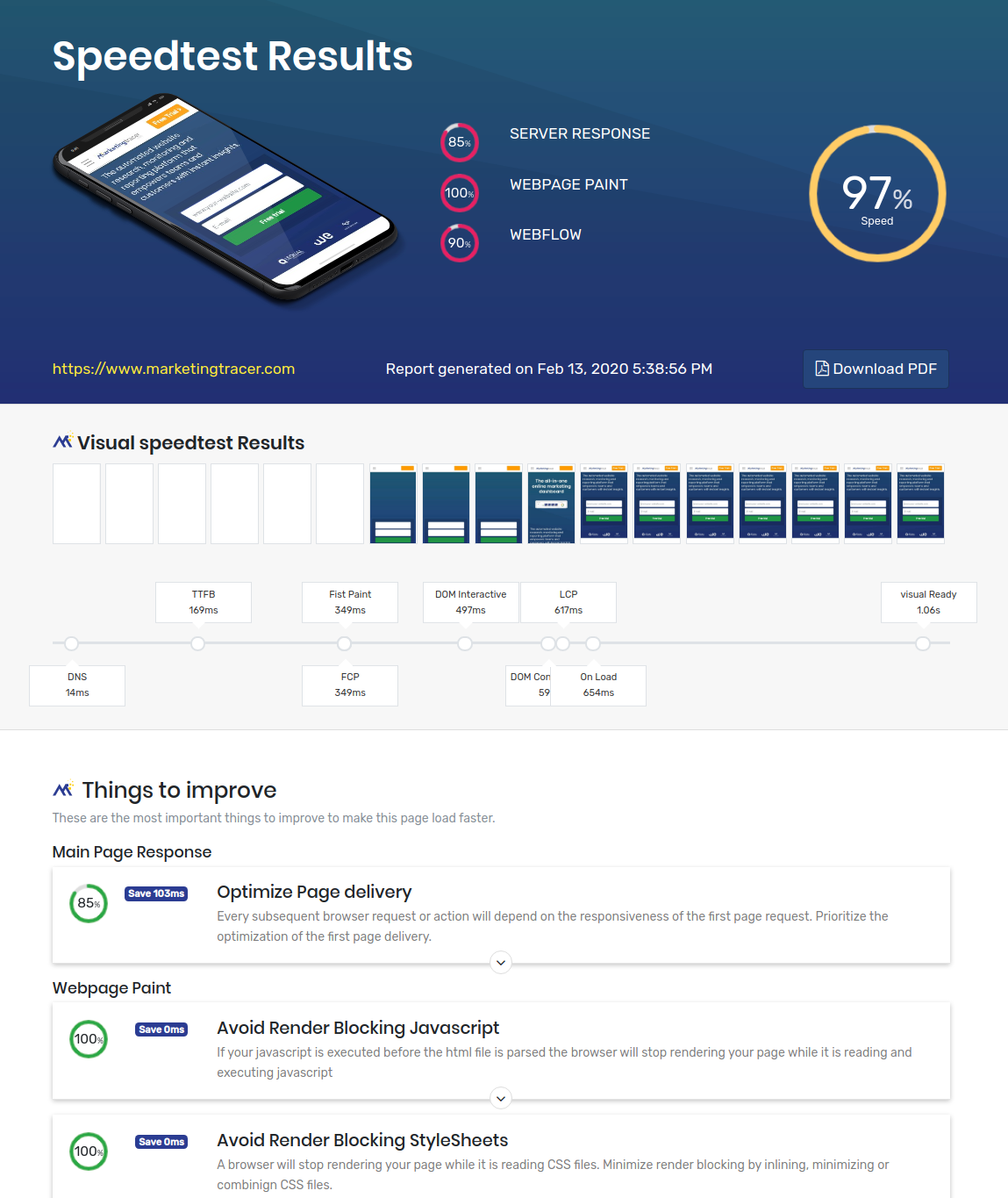
Image Gallery
Select an image to open it in a new tab.
Lars Thomsen
Global Labor Markets and Economic Strategy Editor
