
Dynamic DNS (DDNS) services like No-IP solve the problem of changing residential IP addresses by automatically mapping a consistent hostname to your network’s current public IP. By using a background software client or router integration, No-IP ensures that even when your Internet Service Provider (ISP) rotates your IP address, your home server, security camera, or remote desktop remains accessible via a single, unchanging web address.
The concept of "no IP address" in the context of networking often leads to confusion. For most home users and small business owners, the issue is not the absence of an IP address—every device connected to the internet must have one to communicate—but rather the lack of a static IP address. Most ISPs assign dynamic IP addresses that change periodically. When this change occurs, any external connection you have established to your home network breaks because the "address" of your home has moved. Dynamic DNS services, specifically No-IP, act as a bridge, ensuring your digital front door is always found at the same URL regardless of behind-the-scenes IP shifts.
The Fundamentals of IP Addressing: Static vs. Dynamic
To understand why a service like No-IP is necessary in 2026, one must first understand the architecture of the Internet Protocol (IP). Every connection to the global internet is assigned an IP address, which functions much like a physical mailing address. There are two primary types of IP assignments used by service providers.
Static IP Addresses
A static IP address is a permanent number assigned to a specific connection. It never changes, regardless of whether the router is rebooted or the connection is dropped. Businesses often pay a premium for static IPs because they make hosting websites, mail servers, and Virtual Private Networks (VPNs) straightforward. However, for the average consumer, static IPs are expensive and often unavailable on standard residential tiers.
Dynamic IP Addresses
ISPs typically use dynamic IP addresses to manage their limited pool of IPv4 addresses efficiently. When a customer disconnects or their lease expires, the ISP reclaims that IP and assigns it to another user. As a result, your public-facing IP might change once a week, once a day, or every time your router restarts. This unpredictability makes it nearly impossible to reliably access local resources from the outside world without a tracking mechanism.
How Dynamic DNS Bridges the Gap
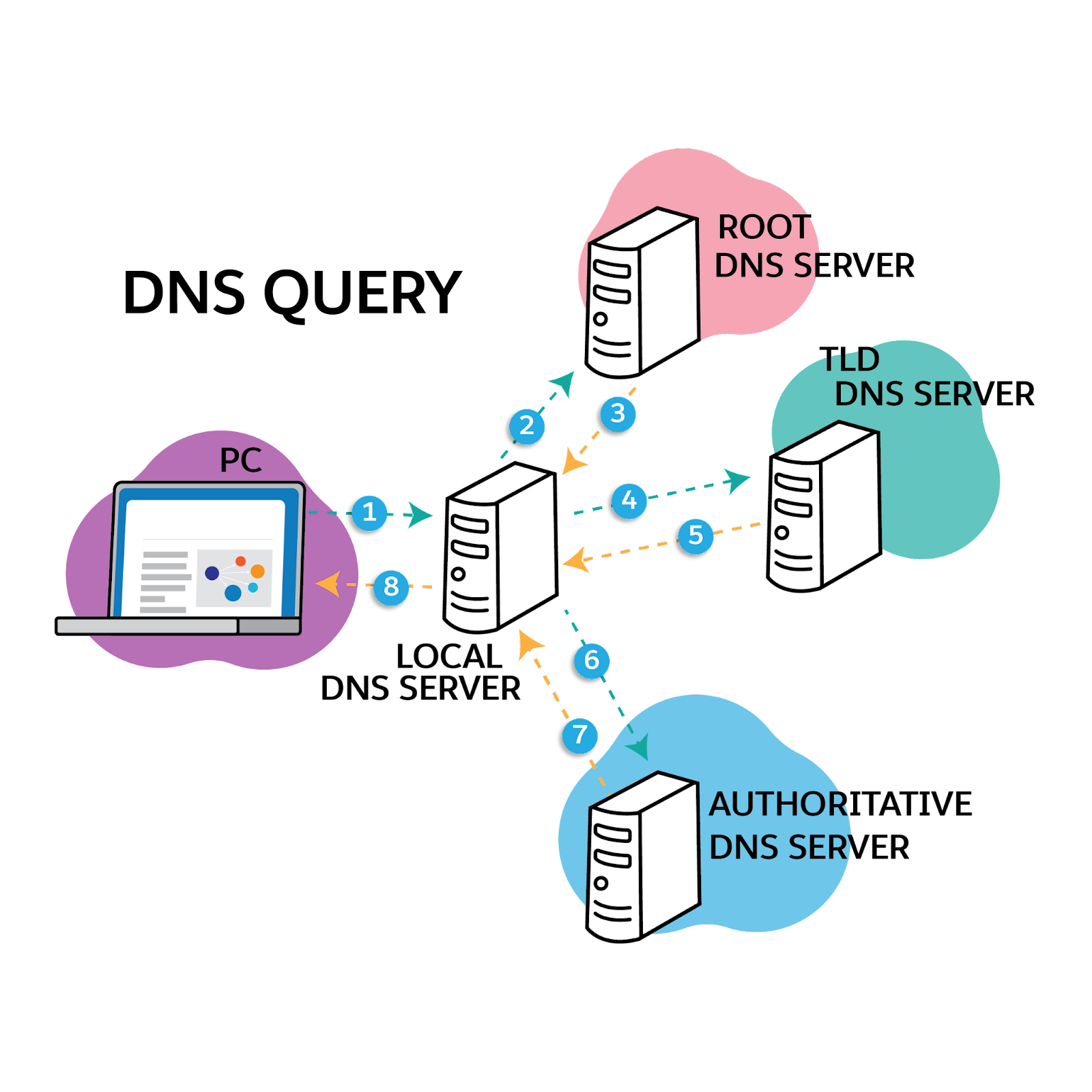
Dynamic DNS (DDNS) is a technology that updates a Name Server in the Domain Name System (DNS) in real-time. Under normal circumstances, DNS translates a human-readable hostname (like www.example.com) into a machine-readable IP address (like 192.0.2.1). With traditional DNS, these records are updated manually and can take hours or days to propagate across the internet.
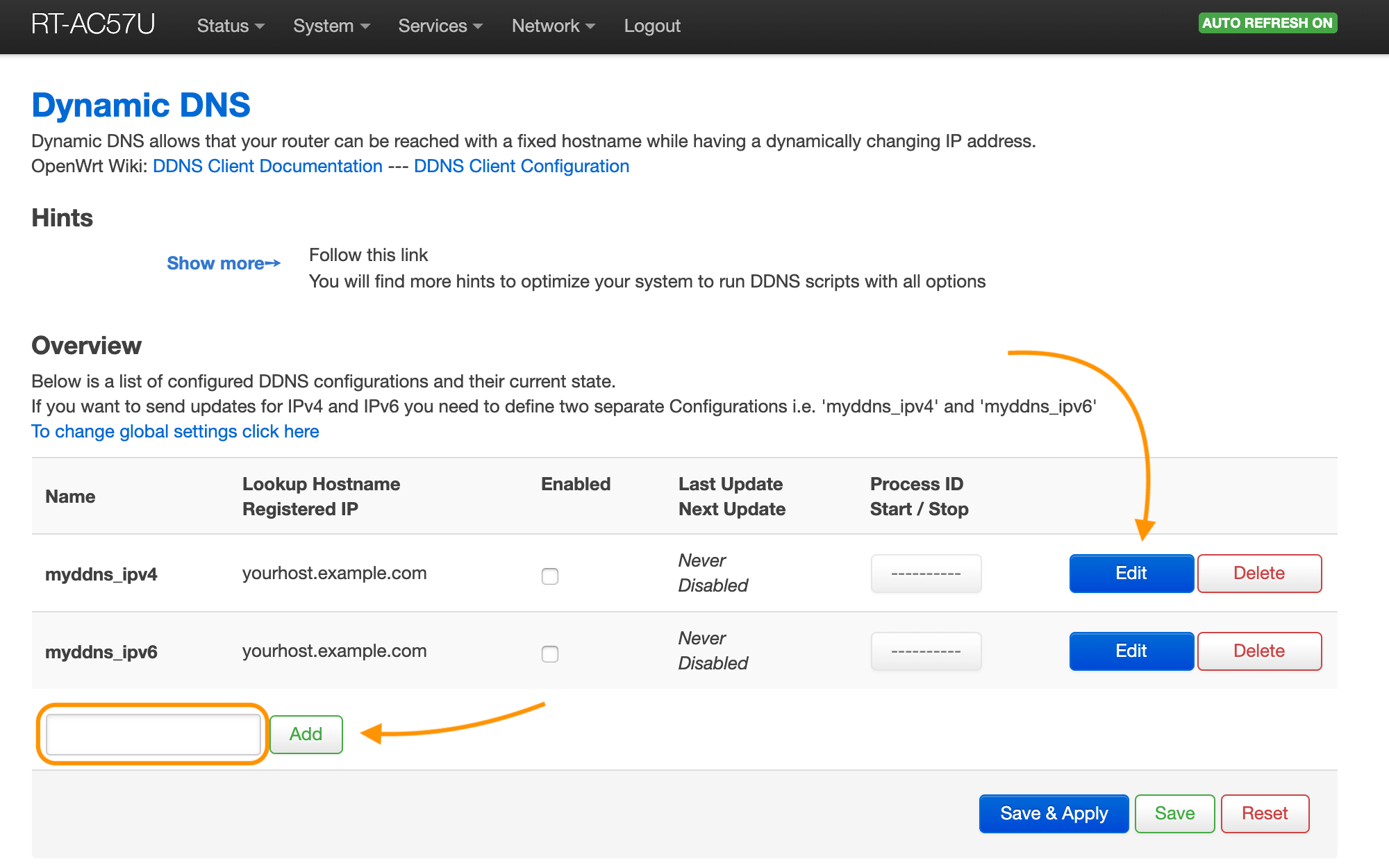
No-IP and similar services automate this process. They provide a lightweight software application called a Dynamic Update Client (DUC) or integrate directly into the firmware of most modern routers. This client monitors your network’s public IP address. The moment the client detects that the ISP has changed your IP, it sends an update request to No-IP’s servers. Within seconds, the hostname you chose (e.g., myhome.ddns.net) points to your new IP address.
The Components of a No-IP Setup
Implementing a DDNS solution requires three distinct components working in harmony. If any of these links fail, remote access is lost.
- The Hostname: This is the URL you choose. No-IP offers various domains (such as .ddns.net, .hopto.org, or .zapto.org) for free users, while paid users can use their own custom domains.
- The Update Client: This is the "brain" of the operation. It must reside inside your network. It can be a standalone application running on a Windows or Linux machine, a background process on a Raspberry Pi, or a built-in feature in your router’s settings.
- Port Forwarding: While No-IP ensures the world knows your network’s "address," port forwarding is what tells your router which specific device should receive incoming traffic. If you want to access a security camera, you must tell the router to send traffic arriving on a specific port (like 8080) to the internal IP of that camera.
Benefits of Using No-IP in 2026
In 2026, the demand for home-hosted services has increased significantly due to the rise of personal clouds and decentralized web services. No-IP remains a dominant player in this space because it balances accessibility with robust infrastructure.
Accessibility and Cost-Effectiveness
For hobbyists and home users, No-IP provides a free tier that is sufficient for basic needs. By using a free DDNS hostname, users avoid the monthly surcharges often associated with business-class internet plans or static IP leases. This democratizes the ability to host personal projects without significant overhead.
Integration and Compatibility
Because No-IP is one of the oldest and most established DDNS providers, its protocol is supported by almost every major router manufacturer, including Asus, TP-Link, Netgear, and Cisco. This means you often don't need to leave a computer running 24/7 to update your IP; the router handles it natively.
Security and Redundancy
No-IP provides managed DNS services that include geographically distributed servers. This ensures that even if one segment of the internet experiences an outage, your hostname remains resolvable. For professional users, they offer features like Pro Dynamic DNS, which includes more hostnames, no advertisement redirects, and the ability to use a custom domain name you already own.
No-IP Service Tier Comparison (2026 Guidelines)
Choosing the right level of service depends on the number of devices you need to access and your requirement for automation.
| Feature | Free Dynamic DNS | Enhanced Dynamic DNS | Managed DNS (Pro) |
|---|---|---|---|
| Number of Hostnames | Up to 3 | Up to 25 | 50+ |
| Hostname Expiration | Must confirm every 30 days | Never expires | Never expires |
| Domain Options | Choice of No-IP domains | Choice of No-IP domains | Use your own (.com, .net, etc.) |
| Customer Support | Knowledge Base only | Priority Email | Phone & Priority Email |
| Advanced Records | Limited | TXT, SRV, CNAME | Full DNS Control |
| 2026 Annual Est. Cost | $0 (Free) | ~$30.00 USD | ~$60.00+ USD |
Step-by-Step: Setting Up No-IP
To resolve the "no IP address" understanding gap and get your service running, follow these verified steps.
Step 1: Create an Account and Hostname
Visit the official No-IP website and sign up for an account. During registration, you will be prompted to create your first hostname. Choose something easy to remember but unique. Select one of the available domains from the dropdown menu (e.g., yourname.ddns.net).
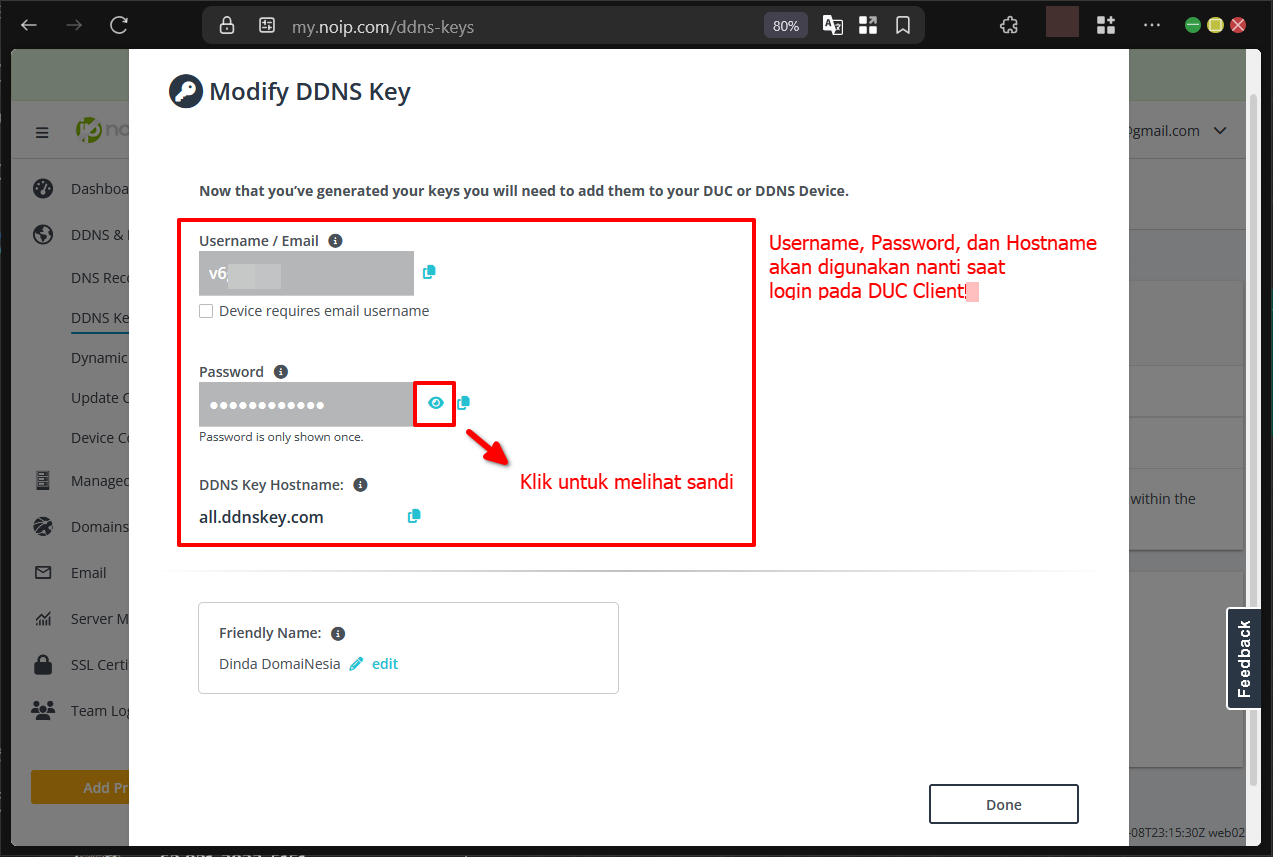
Step 2: Install the Dynamic Update Client (DUC)
If your router does not support No-IP natively, download the DUC for your operating system (Windows, macOS, or Linux).
- Install the software.
- Log in with your No-IP credentials.
- Select the hostname you created in Step 1.
- Set the update interval (how often the client checks for an IP change).
Step 3: Configure Router Port Forwarding
This is the most technical phase. You must log into your router's administrative interface (usually by entering 192.168.1.1 or 192.168.0.1 in a browser).
- Locate the "Port Forwarding" or "Virtual Server" section.
- Create a new rule.
- Enter the "Internal IP" of the device you want to reach (e.g., 192.168.1.50).
- Enter the port used by the service (e.g., 3389 for Windows Remote Desktop).
- Save and apply the settings.
Step 4: Verification
Turn off the Wi-Fi on your smartphone to use your cellular data (this ensures you are testing from "outside" your network). Open a browser or the relevant app and enter your No-IP hostname. If the setup is correct, you will be directed to your local device.
Common Obstacles: CGNAT and Double NAT
Despite a correct No-IP setup, some users still cannot connect. In 2026, the most frequent culprit is Carrier-Grade NAT (CGNAT).
Understanding CGNAT
As IPv4 addresses have become scarcer, many ISPs (especially mobile networks and fiber startups) no longer give customers a unique public IP. Instead, they put thousands of customers behind a single massive router. In this scenario, No-IP will detect the ISP's shared IP, but because that IP doesn't belong exclusively to you, port forwarding will fail. If your router’s "WAN IP" does not match the IP shown on a site like "WhatIsMyIP.com," you are likely behind CGNAT.
Solutions for CGNAT
If you are behind CGNAT, standard DDNS will not work. You have three primary options:
- Request a Static IP: Ask your ISP to opt you out of CGNAT (often for a fee).
- IPv6: Check if your ISP provides a public IPv6 address, as CGNAT is usually an IPv4-only workaround.
- Tunnelling/VPN: Use a service like Tailscale or Cloudflare Tunnels, which do not require port forwarding or public IPs.
Safety and Security Considerations
Exposing a home device to the internet via a DDNS hostname makes it a target for automated bots and scanners. Security is paramount.
- Strong Passwords: Never use default passwords for your router or any device you are exposing.
- Change Default Ports: Instead of using common ports (like 80 or 443), use high-numbered custom ports (like 45231) to avoid simple scans.
- Encryption: Only use services that support encryption (HTTPS, SSH, etc.). If you are accessing a web interface, ensure it has an SSL certificate.
- Enable 2FA: On your No-IP account, enable Two-Factor Authentication to prevent unauthorized changes to your DNS records.
Troubleshooting No-IP Services
If your hostname is not resolving or pointing to the wrong IP, check the following:
- DUC Status: Ensure the update client is running and the "smile" icon is green (on Windows/macOS).
- DNS Propagation: Use a tool like
nslookupor an online DNS checker to see what IP your hostname is currently returning. It can take a few minutes for changes to propagate. - Firewall Settings: Ensure the firewall on your host computer (Windows Firewall, for example) is allowing traffic on the specific port you opened.
- Confirming Free Accounts: If you use the free tier, No-IP requires you to click a link in an email every 30 days to keep the hostname active. If you miss this, the hostname is deleted and may be claimed by someone else.
FAQs
What happens to my No-IP hostname if my router loses power?
When your router loses power and restarts, it will often receive a new IP address from the ISP. As soon as the Dynamic Update Client (either on your router or a computer) reconnects to the internet, it will detect the new IP and update No-IP’s servers. There may be a brief window of a few minutes where the old IP is still cached, but access will be restored automatically.
Can I use No-IP with my own custom domain?
Yes, but this typically requires a paid tier (Plus or Managed DNS). With a paid account, you can point your registered domain (e.g., www.yourdomain.com) to No-IP’s nameservers. This allows you to use your professional branding while still benefiting from dynamic IP tracking.
Does No-IP work with IPv6?
Yes. No-IP supports AAAA records, which are the IPv6 equivalent of standard A records. As more ISPs transition to IPv6 in 2026, this ensures that No-IP remains a viable solution for modern networking stacks where devices may have unique global IPv6 addresses but still require a consistent hostname for ease of use.
Is No-IP better than using a VPN for remote access?
They serve different purposes. No-IP makes a device "visible" to the entire internet, which is necessary for hosting a public website or a game server. A VPN creates a secure "tunnel" between two points. For private access to sensitive files, a VPN is more secure. However, many users use No-IP to find their home network so they can then initiate a VPN connection to it.
Why does my No-IP hostname take so long to update?
This is usually related to Time to Live (TTL) settings. TTL determines how long a DNS server or your computer should remember an IP address before checking for an update. While No-IP updates their records almost instantly, your ISP or your local computer's DNS cache might hold onto the old address for a short period. Clearing your DNS cache (ipconfig /flushdns on Windows) can often fix this.
Final Recommendation
For users struggling to understand why they cannot reach their home network, No-IP provides a reliable and time-tested solution to the dynamic IP problem. If you are just starting, begin with the Free Dynamic DNS tier and install the Dynamic Update Client on a machine that stays on consistently. For a more robust, "set and forget" experience, check your router's settings to see if No-IP integration is built-in. This removes the need for software on your computer and provides the most stable connection possible in 2026.
Image Gallery
Select an image to open it in a new tab.


Mateo Castillo
Decentralized Finance and E-Payments Strategist
