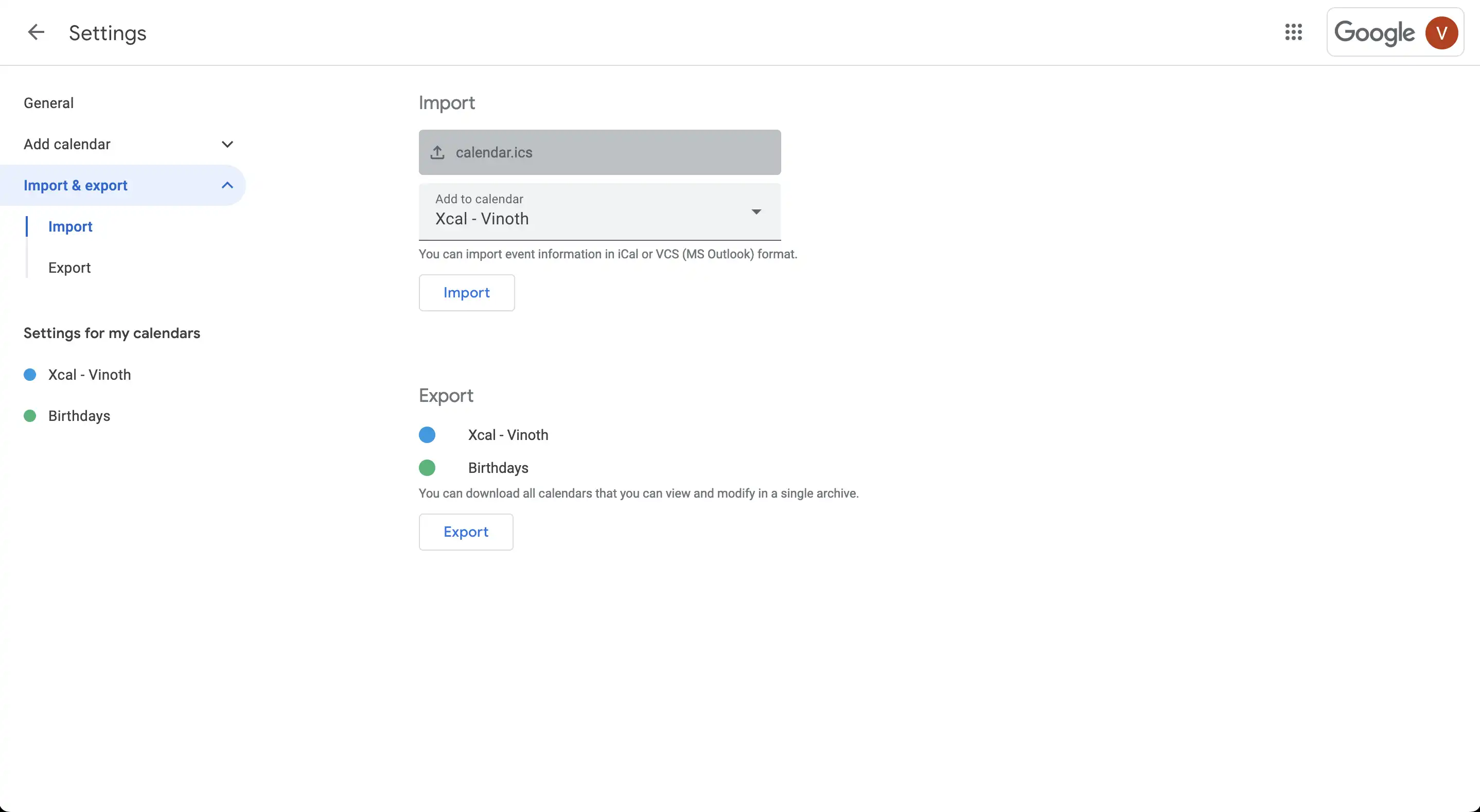
Importing an ICS file into Google Calendar allows you to seamlessly integrate event schedules from external sources—such as travel itineraries, subscription calendars, or exported event data from other platforms—directly into your primary planning workflow. The process involves using the Google Calendar web interface to upload the file, mapping the events to your chosen calendar, and verifying the synchronization across your connected devices.
Understanding ICS Files and Their Role in Scheduling
An ICS file, identifiable by the .ics file extension, is a standard format used by various calendaring and scheduling applications, including Microsoft Outlook, Apple Calendar, and Yahoo Calendar. Known technically as the iCalendar format, it serves as a universal language for calendar data, allowing users to move event details—such as dates, times, locations, and descriptions—between disparate systems.
Because Google Calendar is built upon modern web standards, it natively supports the import of these files. When you import an ICS file, Google Calendar parses the underlying text-based structure and recreates the entries as native calendar objects. This ensures that features like notifications, time zone adjustments, and calendar sharing remain functional even after the data has moved from its source to Google’s servers.
Prerequisites Before Importing
Before attempting to import an ICS file, ensure you have the following prerequisites in order to avoid data loss or formatting issues:
- Google Account Access: You must have a valid Google account with an active Google Calendar profile. Ensure you are signed in to the correct account if you manage multiple profiles.
- Access to a Desktop Browser: While mobile applications have limited calendar management capabilities, the official import feature is fully supported only through a desktop web browser (such as Google Chrome, Mozilla Firefox, or Microsoft Edge).
- The .ics File: Ensure the file has been fully downloaded to your device. If you are retrieving this file from an email or a website, save it to a local folder where you can easily locate it during the upload process.
- Calendar Permissions: You must have "Make changes to events" or "Make changes and manage sharing" permission for the specific calendar into which you are importing the data. You cannot import events into a calendar that is shared with you as "read-only."
Step-by-Step Procedure to Import an ICS File
To successfully import your ICS file, follow this structured process using a desktop browser.
- Access Google Calendar: Navigate to calendar.google.com and sign in if prompted.
- Open Settings: In the top-right corner of the screen, click the Settings (gear icon) and select Settings from the drop-down menu.
- Navigate to Import/Export: In the left-hand sidebar, look for the Import & export section. Click it to reveal the upload interface.
- Select the File: Click Select file from your computer. A file browser window will appear. Navigate to the folder where your .ics file is saved, select it, and click Open.
- Choose the Destination Calendar: Beneath the file selection area, you will see a drop-down menu labeled Add to calendar. Select the specific calendar where you want these events to appear. Be cautious here; if you have multiple calendars (e.g., Work, Personal, Shared), selecting the wrong one can clutter your schedule or lead to privacy issues if the calendar is shared with others.
- Execute the Import: Click the Import button. A progress notification will appear. Depending on the size of the file and the number of events, this could take a few seconds or a few minutes.
- Verification: Once the process completes, a confirmation message will display the number of events imported. Click Back to return to your main calendar view and confirm the events have been populated correctly.
Comparing Calendar Import Methods
Depending on the source of your data, you may have different options for integrating external calendars. Understanding these differences helps in selecting the right approach for your needs.
| Method | Best Use Case | Dynamic Updates |
|---|---|---|
| ICS Import | One-time migration of events or static schedules. | No (Static snapshot) |
| URL Subscription | Live calendars (e.g., sports schedules, work shifts). | Yes (Auto-syncs) |
| Third-Party Sync | Constant two-way syncing between apps. | Yes (Real-time) |
The ICS import method is essentially a "copy and paste" of events. If the original source changes after you have imported the file, your Google Calendar will not automatically update. Conversely, subscribing via a URL creates a "live link," meaning any changes made at the source are reflected in Google Calendar automatically.
Managing Common Import Errors
Even with a straightforward process, you may encounter issues. Addressing them effectively is key to a successful transfer.
- File Size Limits: Google Calendar places limits on the size of the file you can import. If your ICS file is extremely large—such as an archive of several years of data—it may fail. If this occurs, try splitting the file into smaller chunks using a text editor or a specialized calendar utility tool.
- Malformed Data: Occasionally, a file exported from a non-standard application may contain syntax errors. If Google returns an error message, open the .ics file in a simple text editor (like Notepad or TextEdit) and ensure it follows standard iCalendar formatting. Often, removing non-compliant characters at the top of the file can resolve the issue.
- Time Zone Conflicts: If your events appear at the wrong time, verify the time zone settings on your Google Calendar account. The ICS format usually contains time zone data, but if the file is ambiguous, Google will default to your account's primary time zone. You may need to manually adjust these events if they were created in a different locale.
Best Practices for Data Safety and Organization
Before finalizing your import, consider the following best practices to keep your calendar organized:
- Create a Dedicated Calendar: If you are importing a large set of events from a third-party source (like a conference schedule or a complex project timeline), create a new, empty calendar in Google first. This allows you to toggle these events on or off independently of your primary personal or work schedule. It also makes it significantly easier to delete or modify the events in bulk if you decide you no longer need them.
- Verify Privacy: Remember that if you import events into a calendar that is shared with colleagues or family, they may be able to see the event details depending on your sharing permissions. Always verify your calendar's privacy settings before performing a bulk import of sensitive or private information.
- Backup Your Current Data: While importing an ICS file is generally safe and non-destructive to existing events, it is good practice to export your current Google Calendar data (using the "Export" function in the same settings menu) if you are importing a massive, unknown dataset. This serves as a fail-safe restore point.
Frequently Asked Questions
Can I import an ICS file directly into the Google Calendar mobile app? No. The official Google Calendar mobile application for iOS and Android does not support the direct import of ICS files. You must perform the import process on a desktop web browser. Once the import is complete, the events will sync automatically to your mobile devices through your Google account.
What happens if I import an ICS file into a shared calendar? If you import events into a calendar you have shared with others, those events will automatically become visible to anyone who has access to that calendar. If you intend to keep the imported events private, ensure you import them into a private, non-shared calendar.
Why are my imported events not showing up? If the import tool claims the process was successful but you don't see the events, check your calendar list in the left-hand sidebar. You may have accidentally imported the events into a hidden calendar or a calendar that is currently toggled off. Ensure the checkbox next to the calendar name is checked.
Can I undo an import if I make a mistake? Google Calendar does not have a native "Undo Import" button. If you imported events into an existing calendar, you will need to manually delete them. This is why creating a separate, dedicated calendar for large imports is highly recommended; if you make a mistake, you can simply delete the entire calendar to clear the clutter instantly.
Do imported events count toward my Google Drive storage? Calendar events are managed through the Google Calendar service and generally do not count against your Google Drive storage quota in the same way that large files or photos do. However, keep in mind that the ICS file itself, if saved in Drive, will occupy storage space until deleted.
Final Next Steps
Once you have successfully imported your ICS file, perform a final review of a few events to ensure the time, date, and location data transferred accurately. If everything looks correct, consider deleting the original .ics file from your computer to maintain organization. If you find that you need to access these events frequently and they are subject to change, look into "subscribing" to the calendar URL instead of importing the file to maintain a live, synchronized feed.
Image Gallery
Select an image to open it in a new tab.

Declan O'Connor
Higher Education and Campus Culture Reporter
