If your phone will not make calls, the issue usually stems from a temporary software glitch, an inactive service plan, or a misconfigured network setting. To resolve this immediately, try toggling Airplane Mode on and off, restarting your device, and verifying that your cellular plan is active and has sufficient signal strength.
For many users, the smartphone is the primary tool for both professional and personal communication. When the device fails to perform its most fundamental task—making a phone call—it creates an immediate and often stressful disruption. By 2026, mobile networks have become increasingly complex, integrating 5G Standalone (SA) architectures and satellite-to-cell secondary layers. While these advancements provide faster data, they also introduce new variables into the troubleshooting process.
Identifying the Scope of the Call Failure
Before diving into complex technical repairs, it is essential to determine whether the problem is localized to your specific device, your carrier, or a broader regional outage. Identifying the scope helps you avoid unnecessary resets and focuses your energy on the most likely culprit.
Is It a Network Outage?
Carrier networks are robust, but they are not infallible. Maintenance windows, physical damage to cell towers (caused by weather or accidents), and software bugs in the carrier’s core network can cause localized outages. Check your carrier’s official status page or use third-party tools like DownDetector to see if other users in your area are reporting similar issues. In 2026, many carriers provide real-time maps via their mobile apps that show tower-level health.
Is the Failure Specific to Outbound Calls?
Check if you can still receive incoming calls. If you can receive calls but cannot make them, the issue is likely related to account restrictions, "Fixed Dialing" settings, or an error in the way the phone handles the outbound handshake with the network. If both inbound and outbound calls fail, the problem is more likely related to the SIM card, the internal antenna, or a total lack of network registration.
Immediate First Steps and Quick Fixes
The majority of call-related failures are resolved through simple "power cycling" techniques that force the device to re-establish its connection with the nearest base station.
Toggling Airplane Mode
When you enable Airplane Mode, you effectively shut down all radio transmissions, including Cellular, Wi-Fi, and Bluetooth. Disabling it forces the phone’s Baseband Processor (the chip responsible for cellular communication) to scan for the strongest available signal and re-authenticate with the network.
- Swipe down for the Control Center (iOS) or Quick Settings (Android).
- Tap the Airplane icon and wait 10 seconds.
- Tap it again to disable and wait for the signal bars to return.
Performing a Hard Restart
A standard restart clears the device's volatile memory (RAM) and stops any background processes that might be interfering with the phone app. If a standard restart doesn't work, a forced restart (which mimics pulling the battery) can be more effective for frozen software modules.
- For iPhone (Recent Models): Press and quickly release Volume Up, then Volume Down, then hold the Side Button until the Apple logo appears.
- For Android: Hold the Power button and Volume Down simultaneously for about 10–15 seconds.

Account and Subscription Verification
Even the most advanced hardware cannot bypass a service suspension. In the current 2026 landscape, many users utilize "Auto-Pay" or digital-only prepaid plans that can lapse without traditional notice.
Check for Service Suspension
Log into your carrier’s web portal or mobile app. Ensure your billing cycle has refreshed and that there are no "past due" notices. Carriers often "soft-suspend" accounts for non-payment, allowing data usage (to pay the bill) but blocking outbound voice calls.
Prepaid Balance and Limits
If you are on a prepaid plan, verify that you have not exhausted your "Minutes" or "Voice Credit." While "Unlimited" plans are standard, some specialized or international roaming plans still operate on a credit-based system. If you are traveling, ensure that International Roaming is enabled on your account; otherwise, the local network will reject your outbound call request.
Troubleshooting the SIM Card and eSIM
The SIM (Subscriber Identity Module) is the digital "key" that identifies you to the network. If this key is damaged or displaced, the network will not recognize your device, and calls will be blocked.
Reseating a Physical SIM
If your phone still uses a physical SIM card, it can occasionally shift within the tray due to drops or vibrations.
- Power off the phone entirely.
- Use a SIM ejector tool to remove the tray.
- Inspect the gold contacts for scratches or oxidation.
- Wipe the card gently with a dry, lint-free cloth and reinsert it firmly.
eSIM Management
By 2026, most flagship devices have moved entirely to eSIM (embedded SIM). An eSIM can "glitch" if there was a recent software update or if the profile has been corrupted.
- Go to Settings > Cellular (iOS) or Settings > Network & Internet > SIMs (Android).
- Ensure the eSIM is toggled to "On."
- If the phone says "No SIM" despite having an active eSIM profile, you may need to contact your carrier to push a new eSIM Activation QR code or "Push Notification" to your device.
Advanced Software and Network Settings
If the hardware and account are in good standing, the failure often lies within the device’s software configuration.
Reset Network Settings
This is one of the most effective solutions for persistent call failures. It wipes all saved Wi-Fi passwords, Bluetooth pairings, and cellular configurations, resetting them to the factory defaults.
- iOS: Settings > General > Transfer or Reset iPhone > Reset > Reset Network Settings.
- Android: Settings > System > Reset Options > Reset Wi-Fi, mobile & Bluetooth.
- Note: This will not delete your personal data (photos or messages), but you will need to reconnect to your Wi-Fi networks afterward.
Disabling "Fixed Dialing" and Call Barring
"Fixed Dialing Numbers" (FDN) is a security feature that restricts the phone to calling only specific numbers stored in a list. If this is accidentally enabled, you will be unable to call anyone else.
- Check your Phone App settings (usually under "More Settings" or "Supplementary Services") to ensure Call Barring and FDN are disabled. These often require a PIN from the carrier to change.
VoLTE and 5G Settings
With the 2026 transition to 5G Standalone (SA) and the retirement of legacy 2G/3G networks, voice calls are now handled entirely over data protocols (VoLTE or VoNR). If your settings are forced to an older, non-existent protocol, calls will fail.
- Ensure VoLTE (Voice over LTE) or 5G Voice is toggled ON in your Cellular Data options.
Comparison of Common Call Failure Symptoms
| Symptom | Probable Cause | Recommended First Step |
|---|---|---|
| "Call Failed" immediately after dialing | Network congestion or software glitch | Toggle Airplane Mode |
| "Not Registered on Network" | SIM card/eSIM authentication error | Reseat SIM or contact carrier for eSIM refresh |
| Three rapid beeps then hang up | Account suspension or billing issue | Check carrier app for account status |
| Phone shows "No Service" | Signal dead zone or antenna damage | Move to an outdoor area or check for hardware damage |
| Only 911/Emergency calls allowed | Device is locked to another carrier or SIM is inactive | Verify SIM compatibility and activation status |
| Calls drop after 1-2 seconds | Weak VoLTE signal or interference | Toggle Wi-Fi Calling on/off |
Environmental and Hardware Factors
Sometimes the inability to make a call has nothing to do with the software. The physical environment and the integrity of the device's internal components play a vital role.
Signal Dead Zones and Interference
Even in 2026, certain building materials—such as reinforced concrete, radiant barrier insulation, and thick metal roofing—can act as a Faraday cage, blocking cellular signals. If your phone shows one bar or "Searching," step near a window or go outside. If the problem persists indoors, enable Wi-Fi Calling, which routes your voice traffic over your internet connection instead of a cell tower.
Case and Accessory Interference
Inexpensive or poorly designed metal phone cases can interfere with the internal antenna bands. If you are experiencing call failures, remove any protective case or magnetic accessories (like MagSafe wallets or car mounts) to see if the signal strength improves.
Internal Antenna Damage
If your phone has recently been dropped or exposed to liquid, the internal antenna or the cellular modem on the motherboard may be damaged. Signs of hardware failure include a "No Service" message that never goes away, even with a known-working SIM card, or the phone becoming excessively hot when trying to find a signal. If hardware damage is suspected, a professional diagnostic at an authorized service center is required.
Frequently Asked Questions
Why can I send texts but not make calls?
Text messages (SMS) and voice calls often use different layers of the network. In 2026, many SMS messages are actually sent via "RCS" or "iMessage" over a data connection (Wi-Fi/5G), while voice calls require a specific "Voice-over-IP" handshake with the carrier's core. If your voice service is suspended or if VoLTE is disabled, data-based messaging will continue to work while calls will fail.
Can a malware infection prevent me from making calls?
Yes, though it is rare. Some malicious applications may attempt to "hijack" the dialer to call premium-rate numbers or may crash the com.android.phone process (on Android) entirely. If your call issues started immediately after installing a third-party app from outside the official app store, try booting your phone into Safe Mode. If calls work in Safe Mode, a third-party app is the culprit.
Does "Do Not Disturb" block outbound calls?
No. Do Not Disturb and Focus Modes are designed to silence incoming notifications and calls. They do not prevent the user from initiating an outbound call. However, if you have a "Screen Time" limit or "Digital Wellbeing" restriction set for the Phone app, the app may be greyed out or locked, preventing use.
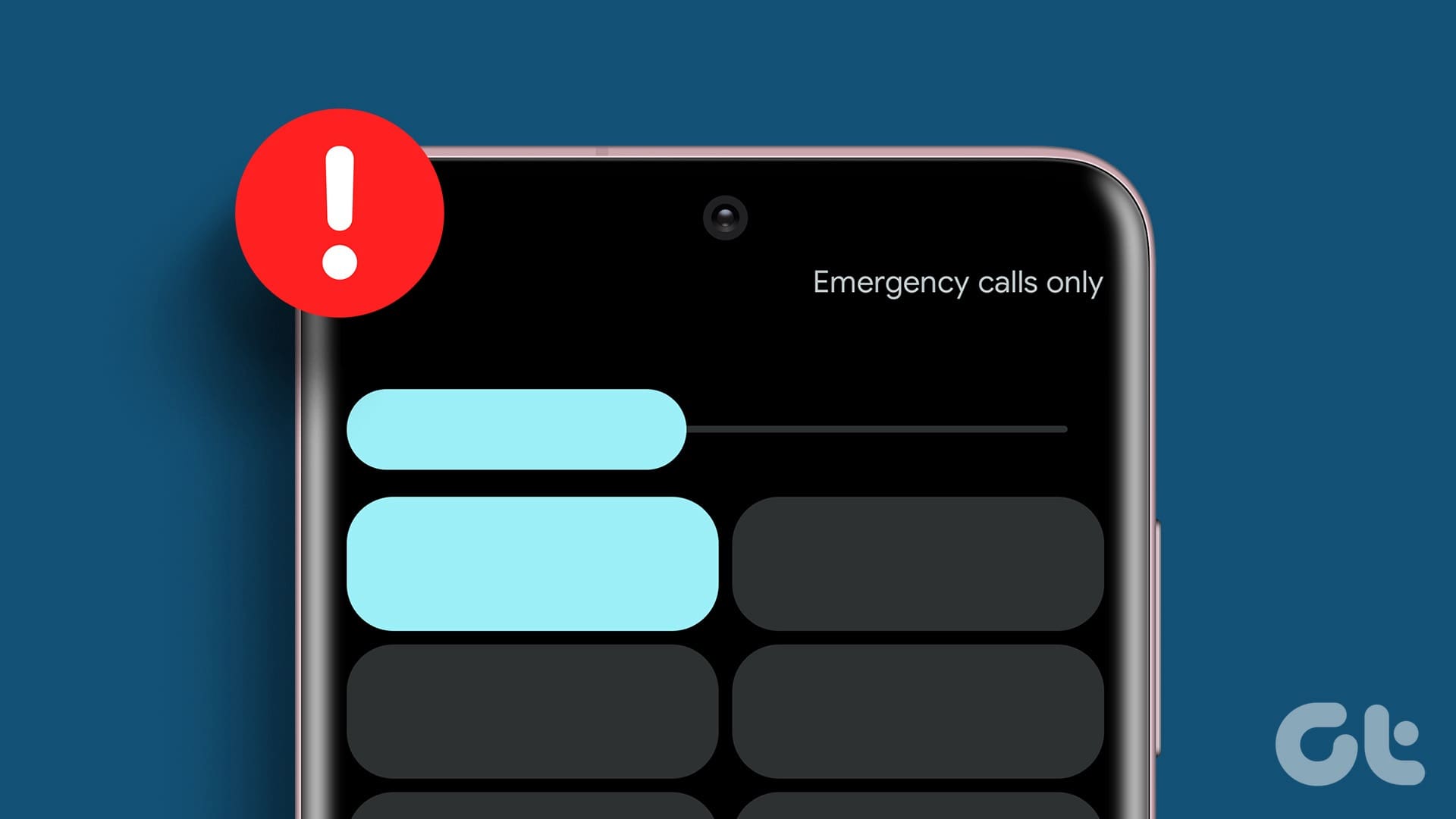
What should I do if my phone says "Emergency Calls Only"?
This message usually indicates that your phone is successfully communicating with a cell tower, but it is not your carrier's tower, or your SIM card is not authenticated. The network is legally required to allow emergency calls (911) even without a subscription, but it will block standard calls. This typically means your account is inactive or your SIM is faulty.
How does 5G Standalone (SA) affect my calls in 2026?
In 2026, many networks have transitioned to 5G Standalone, meaning they no longer rely on a 4G "anchor" for connectivity. If your phone is an older model that only supports 5G Non-Standalone (NSA), you might experience "handover" issues where the phone fails to switch from a 5G data stream to a 4G voice channel. Ensuring your phone’s firmware is up to date is critical for these modern network handshakes.
Final Recommendations for Resolution
If you have tried restarting, resetting network settings, and verifying your account balance, and your phone still will not make calls, the final step is a Cross-Device Test. Take your SIM card and put it into a different, unlocked phone.
- If the second phone can make calls, the issue is definitely with your original phone's hardware or software. You should perform a factory reset (after backing up data) or seek hardware repair.
- If the second phone also cannot make calls, the issue is definitely with your carrier account or the SIM card itself. In this case, visit a carrier retail store to have them provision a new SIM card or investigate a block on your service line.
Image Gallery
Select an image to open it in a new tab.




Celine Dubois
Contemporary Living and Global Arts Columnist
