
When configuring third-party email clients or managing enterprise mail architectures, choosing an IMAP server for Outlook and Gmail involves evaluating secure connection parameters, synchronization reliability, protocol support, and client compatibility to ensure seamless cross-platform messaging workflows.
Understanding IMAP and Its Role in Modern Email Ecosystems
The Internet Message Access Protocol (IMAP) serves as the foundational communication standard that allows email clients to interact with remote mail servers. Unlike the older Post Office Protocol (POP), which typically downloads messages to a single device and removes them from the remote host, IMAP maintains a centralized copy of all emails on the server. Every action a user takes—such as marking a message as read, moving it to a folder, or deleting it—synchronizes in real time across multiple devices. This synchronization model makes IMAP indispensable for professionals and organizations that switch between desktop applications like Microsoft Outlook, webmail interfaces, and mobile devices running Gmail or other clients.
When configuring email synchronization, understanding the underlying server infrastructure of major providers is critical. Microsoft and Google operate massive, highly optimized mail delivery networks. However, neither company offers a standalone, customizable IMAP server product that users can download and host on private hardware. Instead, both companies provide standardized, cloud-managed IMAP endpoints that clients connect to using specific ports, authentication tokens, and security layers. Choosing an IMAP server in this context actually means selecting the correct server hostnames, port configurations, and authentication mechanisms required to bridge your client applications with Microsoft 365, Outlook.com, or Google Workspace and consumer Gmail accounts.
Furthermore, network administrators and advanced users occasionally evaluate self-hosted or third-party IMAP servers—such as Dovecot or Cyrus IMAP—to aggregate mailboxes, handle local archiving, or route messages between enterprise systems and cloud mailboxes. Evaluating these options requires an understanding of how well local servers integrate with the OAuth 2.0 authentication frameworks mandated by modern security postures at Microsoft and Google.
Evaluating Microsoft Ecosystems: Outlook.com and Exchange Online IMAP Servers
Microsoft handles email through two primary consumer and enterprise infrastructures: Outlook.com (formerly Hotmail and Windows Live Mail) and Exchange Online (part of Microsoft 365). While Exchange Online relies heavily on its proprietary Exchange ActiveSync (EAS) and MAPI/HTTP protocols for native Outlook clients, it also maintains robust IMAP4 support for legacy systems, multi-platform mobile apps, and third-party mail clients that do not support Microsoft’s native APIs.
For consumer accounts on Outlook.com, the incoming IMAP server hostname is outlook.office365.com, configured to listen on port 993 with SSL/TLS encryption enabled. The outgoing mail server relies on the Simple Mail Transfer Protocol (SMTP), using smtp.office365.com on port 587 with STARTTLS encryption. Enterprise users operating custom domains hosted on Microsoft 365 utilize the exact same server endpoints, though administrative controls within the Microsoft 365 admin center dictate whether IMAP access is enabled globally, per user, or restricted entirely for security compliance.
Security policies within the Microsoft ecosystem have evolved significantly. Modern authentication (OAuth 2.0) has largely replaced basic authentication (username and password) across Microsoft 365 tenants. When choosing or configuring an IMAP connection for Outlook, administrators must verify that legacy authentication protocols are either permitted within their security defaults or that their chosen email client natively supports modern token-based authentication flows. Failing to account for this requirement results in persistent connection failures, incorrect password prompts, and security alert flags on the user's account dashboard.
Examining Google Ecosystems: Consumer Gmail and Google Workspace IMAP Servers
Google provides a standardized IMAP architecture for both consumer Gmail accounts and business-tier Google Workspace accounts. The core infrastructure remains consistent across both tiers, though Google Workspace administrators retain granular control over IMAP availability, client access restrictions, and security enforcement policies at the organizational unit level.
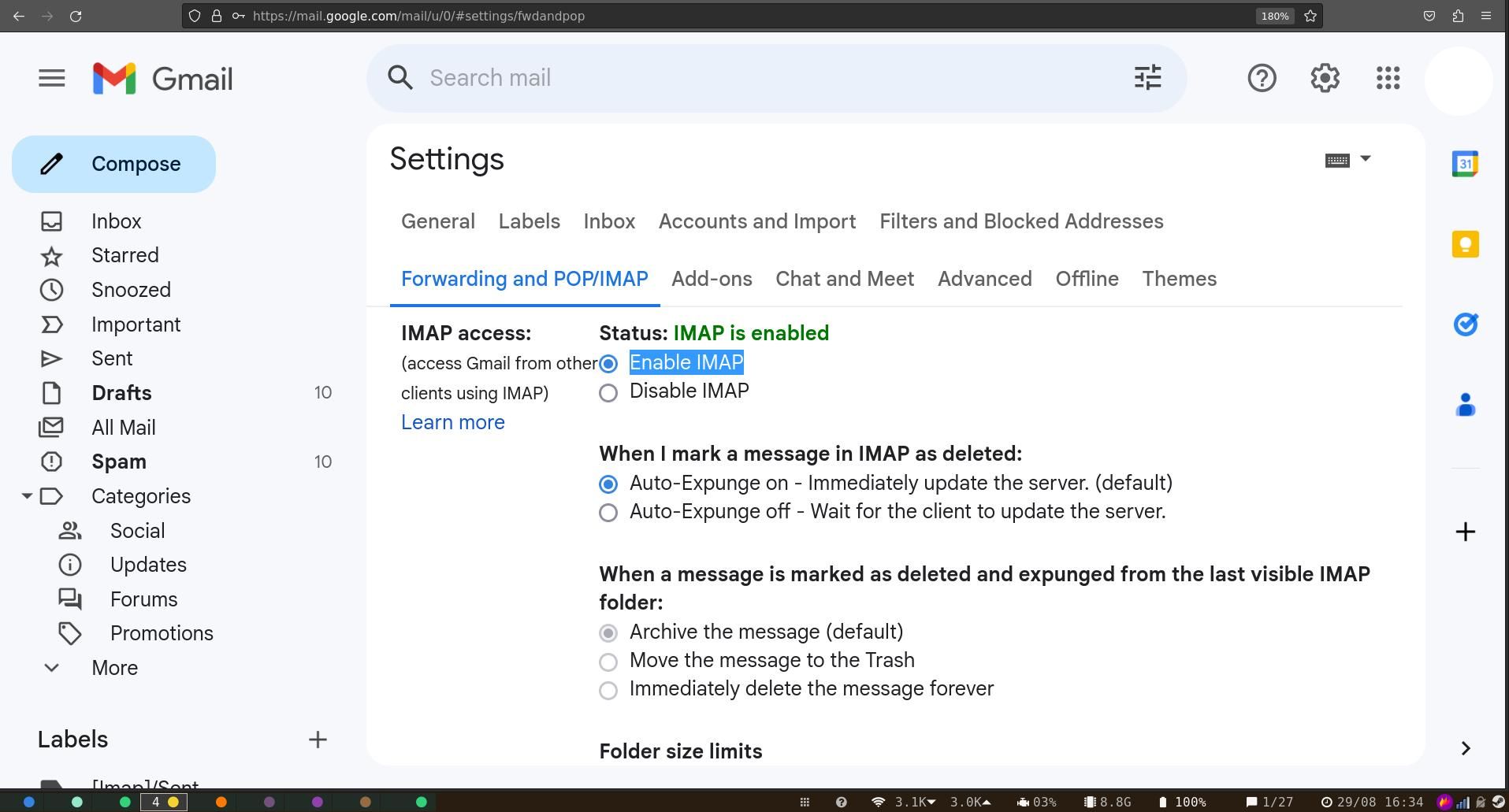
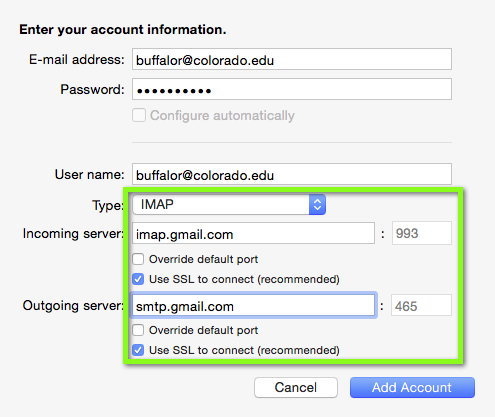
The incoming IMAP server address for Google accounts is imap.gmail.com, utilizing port 993 with SSL/TLS encryption. For outgoing mail transmission, the SMTP server address is smtp.gmail.com, operating on port 465 (SSL/TLS) or port 587 (STARTTLS). To establish a successful connection, users must also enable IMAP access within the settings panel of their webmail interface under the "Forwarding and POP/IMAP" tab.
Authentication with Google’s IMAP servers requires careful attention to security configurations. Google enforces secure sign-in standards, meaning that standard password authentication is blocked unless specific prerequisites are met. Users must either configure OAuth 2.0 authentication within an IMAP-compliant client or generate an App Password—a 16-character code generated specifically for less secure or non-OAuth applications—provided that two-factor authentication is active on the account. Relying on basic credentials without these measures leads to immediate connection rejection by Google's security gateways.
Comparative Overview of Outlook and Gmail IMAP Architectures
| Parameter | Outlook.com / Microsoft 365 | Gmail / Google Workspace |
|---|---|---|
| Incoming Server (IMAP) | outlook.office365.com |
imap.gmail.com |
| Incoming Port & Security | Port 993 (SSL/TLS) | Port 993 (SSL/TLS) |
| Outgoing Server (SMTP) | smtp.office365.com |
smtp.gmail.com |
| Outgoing Port & Security | Port 587 (STARTTLS) | Port 465 (SSL/TLS) or Port 587 (STARTTLS) |
| Authentication Standard | Modern Auth (OAuth 2.0) / Basic (where permitted) | OAuth 2.0 / App Passwords |
| Activation Requirement | Enabled by default (subject to tenant policy) | Manual toggle in webmail settings |
| Folder Synchronization | Standard IMAP folders (Inbox, Sent Items, Trash) | Label-based mapping to IMAP virtual folders |
Technical Specifications and Protocol Constraints
Deploying IMAP across Outlook and Gmail environments requires navigating distinct technical limitations inherent to each platform's architecture. While IMAP is an open standard defined by Internet Engineering Task Force (IETF) specifications, implementation details vary between Microsoft and Google, particularly regarding folder management, search indexing, and rate limiting.
Google’s IMAP implementation maps its native label system onto traditional hierarchical IMAP folders. When a message contains multiple labels in Gmail, Google's IMAP server exposes that single email across multiple virtual folders. Deleting or moving a message in an IMAP client triggers specific behavior depending on the client configuration; users must decide whether deletion removes the message entirely or merely strips a specific label. Furthermore, Google imposes strict bandwidth quotas and hourly connection limits on IMAP clients to prevent automated abuse, which can cause temporary synchronization lockouts for heavy users or poorly optimized mail clients.
Microsoft’s Exchange-backed IMAP servers adhere more strictly to traditional folder hierarchies, treating mailboxes as discrete directory trees. However, synchronization performance can be impacted by folder depth, large attachment sizes, and items-per-folder thresholds. Exchange Online applies throttling policies that monitor resource consumption per user session. If an IMAP client issues rapid, unoptimized synchronization commands, the Microsoft server may issue temporary throttling responses, resulting in delayed message delivery or connection drops.
Security Protocols, Encryption, and Authentication Requirements
Securing IMAP connections between email clients and major providers is paramount to prevent credential theft, man-in-the-middle attacks, and unauthorized data interception. Both Microsoft and Google mandate encrypted connections for all IMAP and SMTP traffic. Unencrypted plaintext connections on port 143 or port 25 are universally rejected or redirected by their edge gateways.
| Security Layer | Incoming Protocol (IMAP) | Outgoing Protocol (SMTP) |
|---|---|---|
| Transport Layer Security | TLS 1.2 or TLS 1.3 required | TLS 1.2 or TLS 1.3 required |
| Certificate Validation | Strict hostname verification | Strict hostname verification |
| Credential Enforcement | OAuth 2.0 tokens preferred | OAuth 2.0 tokens preferred |
Administrators must ensure that client applications support modern TLS cipher suites. Deprecated protocols such as SSLv3, TLS 1.0, and TLS 1.1 are disabled across both Microsoft 365 and Google Workspace environments to comply with modern security frameworks and regulatory mandates.
Step-by-Step Configuration Guide for Third-Party IMAP Clients
Configuring a third-party email client to connect with Outlook or Gmail via IMAP follows a structured sequence. Before initiating setup, ensure you have administrative access, valid account credentials, and network connectivity.
- Prepare the Mailbox Provider Settings: Log into your webmail account (Outlook.com, Microsoft 365 admin center, or Gmail). Navigate to account settings and verify that IMAP protocol access is explicitly enabled.
- Gather Endpoint Parameters: Note the correct server hostnames (
outlook.office365.comorimap.gmail.com), port numbers (993 for incoming), and security encryption types (SSL/TLS). - Configure Authentication Credentials: If the client supports modern authentication, prepare to authenticate via browser-based OAuth 2.0 popups. If basic authentication is required or if utilizing App Passwords, generate and record the application-specific password beforehand.
- Input Server Details into the Client: Open your mail client, select manual setup or other mail account types, and enter your email address along with the respective incoming and outgoing server parameters.
- Test and Verify Connection: Complete the setup wizard to test the connection. Monitor the client logs or status indicators to verify that folders synchronize correctly and test sending a message via the configured SMTP endpoint.
Common Configuration Mistakes and Troubleshooting Strategies
Even with precise configuration, administrators and end-users frequently encounter specific errors when connecting IMAP clients to Outlook and Gmail. Recognizing these failure points accelerates resolution.
- Authentication Failures (Error 800ccc0e or Invalid Credentials): This typically occurs when basic authentication is blocked or when an app password is required. Verify whether two-factor authentication is active on the account and generate a dedicated app password if OAuth 2.0 is not supported by the client.
- Certificate Mismatch or Timeout Errors: Connection timeouts often stem from strict local firewall rules, corporate proxy restrictions, or outdated TLS configurations on the client device. Ensure local security software permits outbound traffic on ports 993, 465, and 587.
- Synchronization Stalls and Missing Folders: In Gmail, missing folders often result from unchecked subscription settings in the mail client. Navigate to IMAP folder settings within the client and ensure all relevant labels are subscribed. For Outlook, repair the data file or clear the offline cache if synchronization flags become corrupted.
Frequently Asked Questions
Can I use the same IMAP server settings for personal and business accounts?
For consumer Gmail (@gmail.com) and Google Workspace accounts, the server addresses (imap.gmail.com and smtp.gmail.com) remain identical. However, Google Workspace administrators can enforce security restrictions that block external IMAP access entirely. Similarly, consumer Outlook.com accounts and enterprise Microsoft 365 accounts use identical server endpoints (outlook.office365.com), but enterprise tenants may require strict Modern Authentication policies.
Why is my IMAP connection rejected despite entering the correct password?
Modern security standards enforced by Microsoft and Google prohibit standard password authentication from less secure apps in most configurations. If your email client does not support OAuth 2.0, you must enable two-step verification on your account and generate an application-specific password to use as your login credential.
How do Gmail labels affect IMAP folder synchronization?
Gmail does not use traditional physical directories for folders. Instead, it applies labels to messages. When connecting via IMAP, Gmail presents these labels as virtual folders. Moving an email out of a label folder via IMAP removes that specific label in Gmail, while deleting a message from an IMAP folder typically moves it to the Gmail Trash or Archive depending on client settings.
What ports are required for secure IMAP and SMTP traffic?
Secure IMAP requires port 993 utilizing SSL/TLS encryption. Secure SMTP transmission typically uses port 465 with SSL/TLS or port 587 with STARTTLS encryption. Unencrypted ports such as 143 and 25 are blocked or deprecated by major email providers.
How can administrators disable IMAP access for security compliance?
Google Workspace administrators can disable IMAP access globally or for specific organizational units within the Google Admin console under Apps > Google Workspace > Gmail > Service settings. Microsoft 365 administrators can manage IMAP activation via the Exchange Admin Center or by executing PowerShell cmdlets to modify individual mailbox protocol settings.
Conclusion and Recommended Next Actions
Selecting and configuring an IMAP server for Outlook and Gmail requires careful adherence to provider-specific hostnames, secure port parameters, and modern authentication frameworks. To ensure stable, secure messaging operations, verify that your client applications support OAuth 2.0 token exchange or utilize generated app passwords where basic authentication is restricted. Review your provider's administrative console to confirm that IMAP access is explicitly permitted, test connection parameters using standard secure ports, and monitor synchronization logs to address latency or throttling issues promptly.
Image Gallery
Select an image to open it in a new tab.
Omar Farooq
EdTech Innovation and Virtual Pedagogy Journalist
