How to Cast My Android Phone to My Roku TV
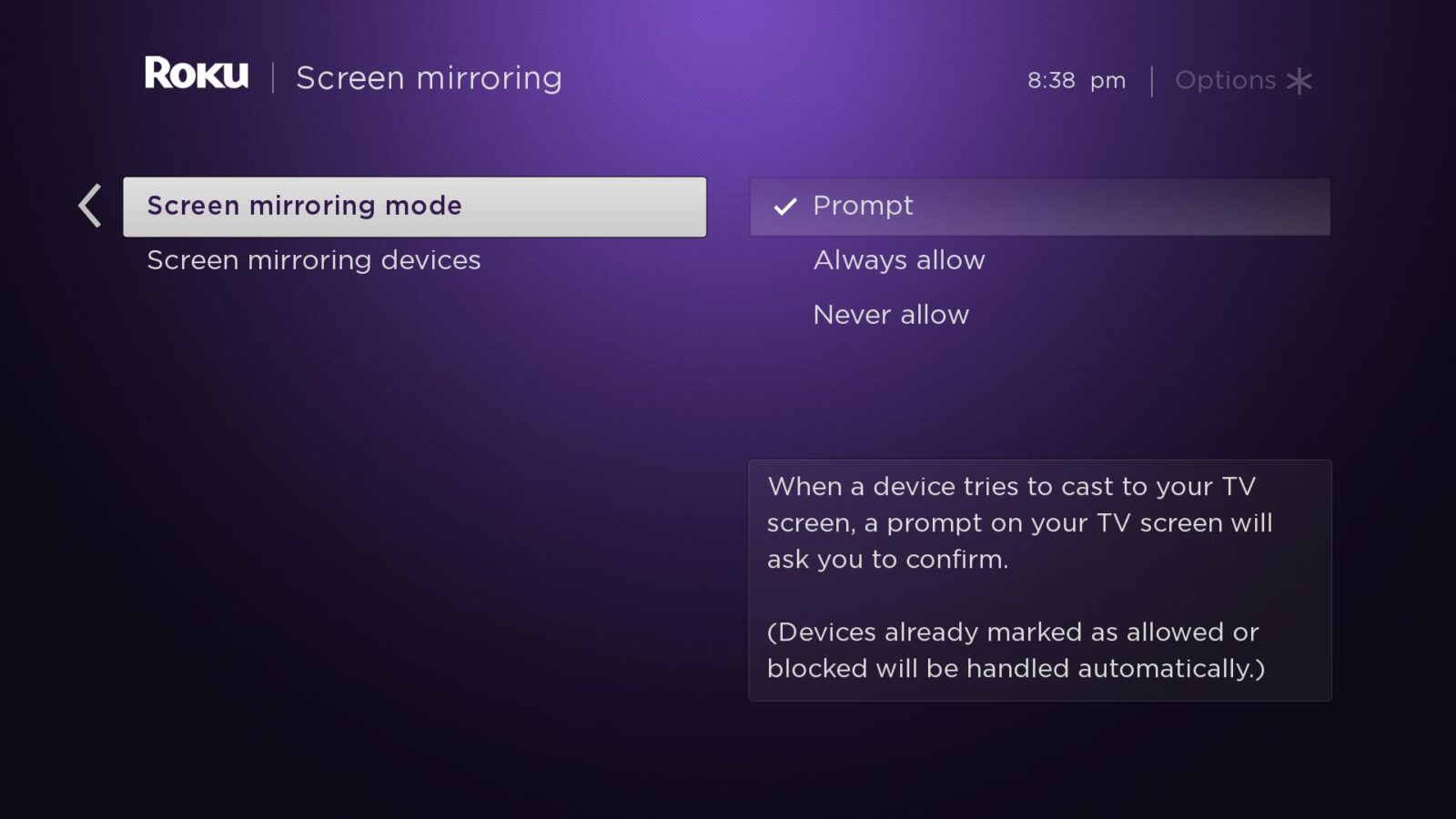
Casting your Android phone to a Roku TV involves using built-in screen mirroring or casting protocols like Google Cast, which is supported on modern Roku devices and Roku OS versions. To successfully mirror your display, ensure both your Android phone and your Roku TV are connected to the exact same Wi-Fi network, and enable screen mirroring in your Roku settings before initiating the connection from your mobile device's quick settings or a compatible application.
Understanding the Technology: How Roku and Android Communicate
When you want to display your Android phone's screen on a larger television monitor, understanding the underlying technology helps demystify the process. Roku devices and Android smartphones rely on specific wireless display protocols to establish a stable connection without physical HDMI cords.
Historically, Roku devices primarily utilized Miracast technology for screen mirroring from Windows and Android devices. Miracast operates via a peer-to-peer Wi-Fi Direct connection, meaning your phone and Roku TV communicate directly with each other rather than routing all data through your wireless router. However, modern Roku devices—particularly those running recent iterations of Roku OS—also incorporate support for Apple AirPlay and, crucially, Google Cast.
Google Cast is the protocol native to the Android ecosystem. Developed by Google, it allows apps like YouTube, Netflix, and Google Photos to send video and audio streams directly to a compatible receiver. When you use the "Cast" button inside a media application, your phone tells the Roku TV where to stream the content from the internet, freeing up your phone battery. Conversely, when you use full-device "Screen Mirroring," your phone captures its entire display, compresses it, and transmits it frame-by-frame to the Roku screen. Knowing whether you are casting a specific app or mirroring your entire desktop is the first step toward troubleshooting any connection issues.
Prerequisites and Initial System Requirements
Before attempting to establish a connection between your Android phone and your Roku TV, you must verify that your hardware and software meet the necessary requirements. Skipping these foundational checks is the single most common reason casting attempts fail.
Network Configuration
Both devices must reside on the exact same local area network (LAN). Many modern home routers feature dual-band capabilities, broadcasting separate 2.4 GHz and 5 GHz Wi-Fi frequencies. If your Roku TV connects to the 5 GHz band while your Android phone connects to the 2.4 GHz band, network isolation or router security settings may prevent them from discovering each other. Ensure both devices are connected to the same frequency band and network name (SSID). Furthermore, check that client isolation or AP isolation features are disabled in your router settings, as these security settings block devices on the same Wi-Fi network from communicating with one another.
Device and OS Compatibility
Verify that your Roku device supports screen mirroring or Google Cast. Most modern Roku TVs, Roku Streaming Sticks, and Roku Express models manufactured within recent years include built-in casting support. Your Roku OS should be updated to the latest available version. To check this on your Roku, navigate to Settings > System > System update > Check now. On the Android side, running Android 5.0 (Lollipop) or newer is typically required for basic Miracast screen mirroring, while Google Cast integration is universally supported across virtually all modern Android smartphones and tablets running current versions of Android.

Preparing Your Roku TV for Connection
By default, Roku devices include security settings that govern how external devices request screen mirroring access. Configuring these settings properly ensures a smooth connection process.
Step-by-Step Roku Preparation
- Turn on your Roku TV and grab your Roku remote.
- Press the Home button to reach the main user interface.
- Scroll down and select Settings (represented by a gear icon).
- Navigate to System and select Screen mirroring.
- Locate the Screen mirroring mode setting. You will typically be given three choices: Prompt, Always allow, and Never allow.
- Prompt: Every time a new device attempts to cast, a notification will appear on your TV screen asking you to accept or block the connection. This offers the highest level of security.
- Always allow: Devices can connect immediately without requiring manual confirmation. This is convenient for households where multiple trusted devices frequently cast to the TV.
- Never allow: Disables the feature entirely. Ensure this is not selected.
- If you want to prevent previously connected devices from connecting automatically or wish to clear your connection history, you can manage paired devices within this same menu.
Methods to Share Your Android Screen with Roku
Depending on what you want to achieve—whether viewing a personal video clip or mirroring your entire phone interface—you can choose between full screen mirroring and app-specific casting.
| Casting Method | Primary Use Case | Protocol Used | Requires TV Permission Prompt? | Phone Battery Impact |
|---|---|---|---|---|
| Full Screen Mirroring | Displaying games, web browsers, or unsupported apps | Miracast / Smart View | Yes (if set to Prompt) | High (renders entire display) |
| App-Specific Casting | Streaming video from YouTube, Netflix, or Spotify | Google Cast / DIAL | No (streams direct from web) | Low (phone acts as remote) |
| Roku Mobile App Media | Sharing local photos, videos, and music stored on phone | Roku Mobile Protocol | No | Moderate |
Method 1: Using Android Quick Settings (Screen Mirroring / Smart View)
Different Android manufacturers use different terminology for system-level screen mirroring. On Samsung devices, it is called Smart View. On Google Pixel and Motorola devices, it may be labeled Cast or Screen Cast. On Xiaomi, OnePlus, and LG devices, terms like Cast, Wireless Display, or Miracast are common.
- Swipe down from the top of your Android phone screen twice to fully expand the Quick Settings panel.
- Look for the tile labeled Smart View, Cast, Screen Cast, or Wireless Display. If you do not see it immediately, swipe horizontally through your tiles or tap the pencil/edit icon to add it to your active panel.
- Tap the casting tile. Your phone will begin scanning for nearby wireless displays.
- From the list of discovered devices, locate and tap your Roku TV name.
- If your Roku TV screen mirroring mode is set to "Prompt," look at your TV screen and use your Roku remote to select Accept or Always allow for this device.
- Your Android phone screen will now be mirrored in real-time on your Roku TV. To stop casting, open your quick settings panel again and tap the casting icon to disconnect.
Method 2: Casting Content via Individual Apps (Google Cast / Built-in Cast)
If you are watching video content or listening to music, casting from within the specific application yields much higher video resolution and smoother frame rates than full-screen mirroring.
- Open a media application on your Android phone that supports casting (such as YouTube, Spotify, or Prime Video).
- Ensure both your phone and Roku TV are on the same Wi-Fi network, and that your Roku device has Google Cast enabled (enabled by default on modern Roku OS builds).
- Play the video, song, or media item you wish to view.
- Tap on the video playback window to reveal the on-screen controls. Look for the Cast icon (a small rectangle with Wi-Fi waves in the corner).
- Tap the Cast icon and select your Roku TV from the list of available receivers.
- The media will instantly transfer playback to your Roku TV. You can now use your phone to control playback, adjust the volume, or lock your screen while the media continues playing uninterrupted.
Method 3: Using the Official Roku Mobile App
Roku provides a dedicated companion application for Android available on the Google Play Store, which offers an alternative pathway for sharing local media and controlling your device.
- Download and install the Roku app from the Google Play Store onto your Android phone.
- Connect your phone to the same Wi-Fi network as your Roku TV.
- Open the app and tap the Devices tab at the bottom to connect to your specific Roku TV.
- Once paired, tap the Media or Photos tab within the app to browse local files stored on your Android device.
- Select photos, home videos, or music to cast them directly to your television screen.
Common Troubleshooting Steps When Casting Fails
Even when following instructions precisely, technical hiccups can prevent a successful connection. If your Android phone fails to find your Roku TV, or if the connection drops mid-stream, work through these diagnostic steps.
Verify Network Parity
The single most frequent point of failure is network mismatch. Double-check that your Android phone is not connected to a guest network, a cellular data connection (5G/4G), or a different Wi-Fi extender band than your Roku TV. Turn your phone's Wi-Fi off and back on to force a fresh network handshake.
Perform Power Cycles
Temporary software glitches in network interface cards can block wireless discovery.
- Unplug the power cable from your Roku TV, wait 10 seconds, and plug it back in.
- Restart your Android phone.
- Unplug your wireless router and modem for 30 seconds before reconnecting them to refresh local IP address assignments via DHCP.
Check Device Isolation and VPNs
Virtual Private Networks (VPNs) and security software installed on your Android phone alter network routing protocols, effectively hiding your phone from other devices on your local network. Disable any active VPN services or ad-blocking firewalls on your Android device while attempting to cast. Similarly, ensure your home Wi-Fi router does not have "AP Isolation" or "Client Isolation" enabled, as this blocks peer-to-peer communication required for screen mirroring.
Adjust Display Resolution and Aspect Ratio
When mirroring your entire phone screen, hardware scaling issues can result in black bars or stretched images on your Roku TV. While most modern Android devices automatically negotiate the optimal resolution with the television, you can check your phone's display settings if you experience severe letterboxing or clipping. Ensure your Roku TV picture size setting is adjusted to "Direct," "Normal," or "Unscaled" rather than stretched zoom modes.
Performance Optimization and Best Practices
To achieve the smoothest possible streaming experience when casting high-motion video or gaming from your Android phone to a Roku TV, consider the following optimization strategies:
- Reduce Network Congestion: Wireless casting consumes significant local bandwidth. If multiple devices in your home are streaming 4K video or downloading large files simultaneously, your screen mirroring session may stutter or lag. Move closer to your Wi-Fi router if you are experiencing packet loss.
- Prefer 5 GHz Wi-Fi Bands: Whenever possible, connect both your Android phone and Roku TV to a 5 GHz Wi-Fi channel rather than a 2.4 GHz channel. The 5 GHz band offers higher data transfer speeds and suffers from significantly less radio frequency interference from household appliances, Bluetooth devices, and neighboring networks.
- Close Background Apps: Resource-intensive background processes on older Android phones can cause CPU throttling, leading to dropped frames during full-screen mirroring. Close unnecessary applications before initiating a screen share.
Summary and Next Actions
Casting your Android phone to a Roku TV bridges the gap between small mobile displays and large-screen home entertainment. By confirming that both devices share the same Wi-Fi network, verifying your Roku system settings, and choosing the appropriate casting method—whether full-screen mirroring via Smart View or direct app casting via Google Cast—you can effortlessly share photos, videos, and presentations. For your next action, power on your Roku TV, check your system settings to ensure screen mirroring is set to "Prompt" or "Always allow," and test your connection using the Quick Settings menu on your Android device.
Image Gallery
Select an image to open it in a new tab.
Ingrid Bjornson
Global Cyber Policy and Regulation Analyst
