Master Steam Automatic Updates: A Comprehensive Guide to Management and Troubleshooting

Steam manages automatic updates by default to ensure games are secure, bug-free, and compatible with online services. Users can control these updates globally through the Downloads section of the Steam Settings or individually via a game's Properties menu. While you cannot permanently disable updates for most titles, you can schedule them for off-peak hours, prioritize specific games, or restrict background downloads to preserve system performance and bandwidth.
In the current gaming landscape of 2026, where AAA titles frequently exceed 200GB and receive multi-gigabyte "day-one" patches, managing Steam automatic updates is no longer just a convenience—it is a necessity for maintaining a stable internet connection and optimizing storage health. Steam’s "SteamPipe" content delivery system is highly efficient, utilizing delta patching to only download modified files, yet the sheer volume of data can still overwhelm many home networks.
This guide provides a deep dive into the mechanics of Steam’s update system, offering step-by-step instructions for configuration, troubleshooting common errors, and optimizing your download environment for the best possible experience.
Understanding the Steam Update Ecosystem
Before adjusting settings, it is essential to understand how Steam handles data. Steam does not simply "replace" a game when an update occurs. Instead, it compares your local files with the current version on Valve's servers using a system of manifests.
The Role of Manifest Files
Every game on Steam has an associated .acf (Appmanifest) file stored in the steamapps folder. This file contains the "CurrentState" of the game, its BuildID, and information about whether an update is required. When a developer pushes a new version to the Steam branch, your client detects the BuildID discrepancy and triggers the automatic update process.
Delta Patching and Disk Allocation
Steam uses delta patching, meaning if a 50GB file has a 100MB change, the client only downloads the 100MB change. However, the client must then "apply" this change to the local 50GB file. This is why you often see a small download followed by a long period of "Disk Usage" in the Steam download manager. In 2026, with the prevalence of ultra-fast NVMe storage, this process is faster than ever, but it can still be a bottleneck on older SATA SSDs or HDDs.
Configuring Global Automatic Update Settings
For users with many games installed, managing them one by one is inefficient. Steam provides global controls to dictate how the client behaves across your entire library.
1. Scheduling Update Windows
If you live in a household where multiple people share the same bandwidth, you may want to prevent Steam from updating during peak hours (e.g., 9:00 AM to 11:00 PM).
- Open the Steam Client.
- Click on Steam in the top-left corner and select Settings.
- Navigate to the Downloads tab.
- Under Download Restrictions, check the box for "Only auto-update games between:".
- Set your preferred timeframe (e.g., 03:00 to 07:00).
Steam will only initiate automatic updates during this window. If you launch a game outside this window that requires an update, Steam will prompt you to update it immediately before starting.
2. Restricting Background Downloads
By default, Steam pauses downloads when it detects a game is running to prevent network lag (ping spikes). However, if you have high-speed fiber internet, you might want to allow downloads while playing.
- In Settings > Downloads, find "Allow downloads during gameplay."
- Toggle this Off to ensure your gaming latency remains low.
- Toggle this On if you want to clear your update queue while playing a non-intensive single-player game.
3. Throttle Bandwidth
If you need to use your PC for video conferencing or work while Steam updates in the background, you can limit the amount of bandwidth the client consumes.
- In Settings > Downloads, find the "Limit download speed" dropdown.
- Select a speed that leaves enough "headroom" for your other activities. For example, if you have a 100Mbps connection, limiting Steam to 25Mbps (approx. 3MB/s) ensures 75% of your pipe remains free.

Managing Individual Game Update Priorities
Sometimes, you want your favorite competitive shooter to be updated immediately, while a single-player RPG you haven't played in months can wait. Steam allows per-game customization via the Library.
Accessing Individual Settings
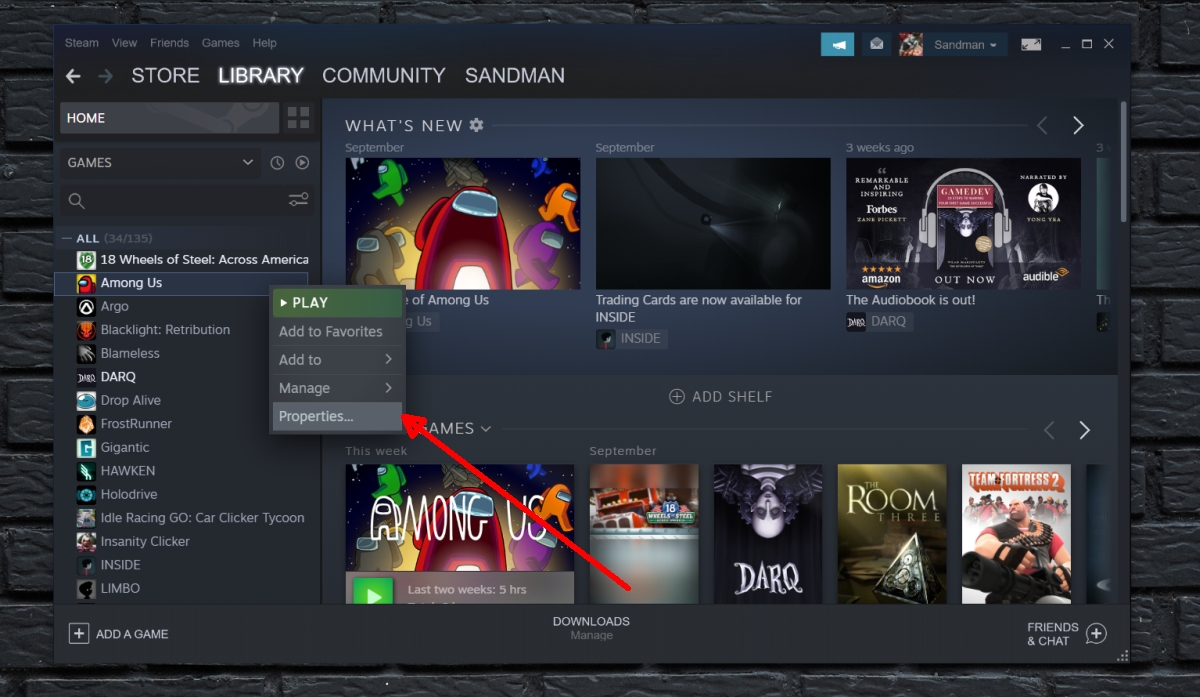
- Go to your Steam Library.
- Right-click on a specific game title.
- Select Properties.
- Navigate to the Updates tab.
The Three Automatic Update Tiers
Under the Automatic Updates dropdown, you have three distinct choices:
| Setting | Description | Best Use Case |
|---|---|---|
| Always keep this game updated | Steam will download the update as soon as it is detected, regardless of when you last played. | Daily-play games, multiplayer titles, and eSports. |
| Only update this game when I launch it | Steam will ignore new updates until you physically click "Play." This "pauses" the update until you are ready. | Large single-player games, titles with heavy modding, or games played infrequently. |
| High Priority | This game will jump to the front of the download queue and can even override global schedule restrictions. | New releases or games where you need the latest patch the millisecond it drops. |
Handling Background Downloads Per Game
Within this same menu, you can also override the global "Allow downloads during gameplay" setting. For instance, you can disable background downloads globally but enable them specifically for a low-intensity card game.
Can You Truly Disable Steam Automatic Updates?
A common question among users is whether they can completely stop a game from updating. As of 2026, Valve does not provide a "Never Update" button. This is primarily to prevent version mismatching in multiplayer environments and to ensure security patches are applied.
However, there are two primary workarounds for users who need to stay on an older version (common for Speedrunners or those using complex mods):
- Offline Mode: If you set Steam to "Go Offline" before an update is detected, the client will not know a new version exists. This allows you to play the current local version indefinitely, provided the game does not require an active server connection.
- The "Only Update on Launch" + Mod Launcher Strategy: By setting a game to "Only update when I launch it" and then launching the game via a third-party executable (like a Script Extender or a direct .exe shortcut in the game folder), you can often bypass the Steam update trigger. Warning: This does not work for games with heavy DRM or those that require the Steam API to be active for core functions.
Troubleshooting Steam Update Errors
Even with a perfect configuration, updates can fail. The following are the most common issues and their verified solutions.
"Disk Write Error"
This occurs when Steam cannot move a file from the temporary "downloading" folder to the final "common" game folder.
- Cause: Often caused by a failing drive, a full disk, or antivirus software locking the file.
- Solution: Run Steam as an Administrator. If that fails, check your drive's health using a SMART tool. Ensure you have at least 10% free space on the drive where the game is installed.
"Manifest Unavailable" or "Missing File Privileges"
This typically points to a communication error between your client and the specific Steam content server.
- Solution 1: Change Download Region. In Settings > Downloads, change the "Download Region" to a different city or neighboring country. This forces Steam to connect to a different set of servers.
- Solution 2: Clear Download Cache. In the same menu, click "Clear Download Cache." Note that this will log you out of Steam and restart the client. It flushes local configuration data that may be corrupted.
Updates Stuck at 0% or 100% (Verifying)
If an update appears stuck at 100%, Steam is likely busy moving files or recalculating hashes.
- Action: Check the "Disk" graph in the download manager. If the green "Disk" line is active while the blue "Network" line is flat, do not cancel the update. The client is patching the files on your drive. Interrupting this can corrupt the entire game installation.
Verifying Game Files
If an update completes but the game crashes, the update may have been corrupted during the patching phase.
- Right-click the game > Properties > Installed Files.
- Click Verify integrity of game files.
- Steam will scan every file and redownload only those that don't match the official manifest.
Storage Management: Steam's New Storage Manager
In recent updates leading into 2026, Valve has overhauled the Storage Manager, which is vital for managing updates across multiple drives.
To access it, go to Settings > Storage. Here, you can see exactly how much space "Updates" and "Shader Cache" are taking up. If you find that automatic updates are failing due to space constraints, you can use this interface to move games between drives (e.g., from a cramped M.2 boot drive to a larger secondary SSD) without needing to redownload or reconfigure the update settings.
Shader Pre-Caching
Steam also automatically updates "Shader Caches" for games. These are small files that help your GPU render the game more smoothly, preventing "stutter." On the Steam Deck and Linux systems, these updates are frequent. While you can disable this in Settings > Shader Pre-Caching, it is generally recommended to keep it enabled to maintain optimal performance in modern titles.
Steam Automatic Updates on the Steam Deck
For Steam Deck users, automatic updates behave slightly differently to account for battery life and mobile usage.
- Wake for Updates: By default, if the Deck is plugged into power, it may occasionally wake from sleep to perform maintenance and updates.
- Metered Connections: If you are tethering your Deck to a phone, ensure you mark the Wi-Fi connection as "Metered" in the Steam Deck network settings. This prevents Steam from starting massive automatic updates that could exhaust your mobile data plan.
Comparison of Update Management Strategies
| Strategy | Impact on Bandwidth | Impact on Storage | Recommended For |
|---|---|---|---|
| Fully Automated | High (Instant downloads) | Moderate (Standard patching) | Fiber users with unlimited data. |
| Scheduled Window | Low (Off-peak only) | Moderate | Households with shared internet. |
| Manual (Only on Launch) | Very Low | None until played | Users with limited storage or metered data. |
| Throttled | Balanced | Moderate | Users who work/stream on the same PC. |
Frequently Asked Questions
Why does Steam download updates even when I'm not playing?
Steam's default behavior is to keep your library ready to play at all times. By downloading patches in the background, the platform ensures that when you finally have time to sit down and play, you aren't met with a "Downloading: 2 Hours Remaining" screen. You can change this by selecting "Only update this game when I launch it" in the game's properties.
Can I stop Steam from updating a specific game permanently?
No, there is no official "Disable Updates" button for games that are connected to the Steam network. Steam requires games to be on the latest version to ensure compatibility with Steam Cloud saves, achievements, and multiplayer services. The only way to prevent an update is to stay in Offline Mode or use specific launcher workarounds for single-player titles.
Why is my Steam update taking so long if the download is small?
This is usually due to the "patching" process. Steam downloads the "delta" (the changes), but it then has to rewrite the original game files on your disk to include those changes. If the game is installed on a slow Hard Disk Drive (HDD) or if the game's file structure requires large files to be rewritten, the disk operation can take much longer than the actual download.
How do I prioritize one update over another?
In the Download Manager (accessible by clicking "Downloading" at the bottom of the Steam client), you will see a list of games in the queue. You can click the "Up Arrow" icon next to any game to move it to the top of the queue, or simply click the "Download Now" (Play icon) to force that specific update to start immediately.
Will clearing my download cache delete my games?
No. Clearing the download cache only deletes temporary configuration files and local manifest fragments used by the Steam client. Your installed games, save files, and user settings will remain intact. You will, however, be required to log back into your Steam account after the cache is cleared.
Is it safe to play a game while it is updating?
You cannot play the specific game that is currently being updated; Steam will block the launch until the process is finished. However, you can play other games while an update is running in the background, provided you have "Allow downloads during gameplay" enabled in your global settings.
Practical Recommendation: The "Optimal Setup"
For the best balance of performance and readiness in 2026, use a Hybrid Update Strategy:
- For competitive/daily games: Set them to High Priority. This ensures they are always ready the moment you have a window to play.
- For your general library: Set a Global Schedule for late-night hours (e.g., 2 AM - 7 AM). This prevents daytime bandwidth congestion while ensuring most of your games stay updated.
- For "Backlog" games: If you have 50+ games installed "just in case," set them to "Only update on launch." This prevents hundreds of gigabytes of unnecessary data usage for games you may not touch for months.
- Hardware Check: Ensure Steam is installed on an SSD (NVMe preferred). The move from downloading to installing is significantly faster on modern storage, reducing the "Update" time from minutes to seconds.
By taking these steps, you ensure that Steam remains a high-performance portal to your library rather than a source of network frustration.
Image Gallery
Select an image to open it in a new tab.



Lars Thomsen
Global Labor Markets and Economic Strategy Editor
