How to Block a Phone Number on Your Device: A Comprehensive Guide for 2026

To block a phone number on your device, access your recent calls list or contacts app, select the specific number or contact, and choose the "Block" or "Report Spam" option. This action prevents the caller from reaching you via phone calls, FaceTime, or text messages by routing them directly to a silent voicemail or terminating the connection.
Unwanted calls—ranging from aggressive telemarketing and "neighbor-spoofed" robocalls to malicious phishing attempts—remain a significant challenge for mobile and landline users in 2026. While communication technology has advanced, the methods used by spammers have also evolved, necessitating a multi-layered approach to privacy. Modern operating systems, mobile carriers, and third-party software now offer sophisticated tools to intercept these disruptions before they ever ring on your device.
Understanding the distinction between local device blocking, carrier-level interception, and AI-driven filtering is essential for reclaiming control over your digital interruptions. This guide provides the technical steps and strategic context needed to manage your blocked list across all major platforms and services.
Prerequisites for Effective Call Blocking
Before implementing blocking measures, ensure your device’s operating system is updated to the latest version available in 2026. Security patches and dialer app updates often include refreshed databases of known spam signatures and improved algorithms for detecting spoofed numbers.
- Operating System Requirements: For iPhone users, ensure you are running the latest iteration of iOS. For Android users, ensure the "Phone by Google" app or your manufacturer’s proprietary dialer (such as Samsung’s One UI Phone app) is updated via the Play Store.
- Carrier Permissions: Some advanced blocking features require your carrier’s "Scam Protection" or "Caller ID" services to be active on your account.
- Data Connection: While basic blocking works offline, AI-based screening and real-time spam database lookups typically require an active cellular or Wi-Fi connection.
Blocking Numbers on iOS (iPhone and iPad)
Apple’s ecosystem provides a centralized way to manage blocked contacts that syncs across your iCloud-enabled devices. When you block a number on an iPhone, it is also blocked on your iPad and Mac, provided they are signed into the same Apple Account.
Using the Phone App
The most common method to block a persistent caller is through the "Recents" list.
- Open the Phone app and tap the Recents tab at the bottom.
- Locate the number or contact you wish to block.
- Tap the blue "i" (Information) icon to the right of the number.
- Scroll to the bottom of the contact details page and tap Block this Caller.
- Confirm the action by selecting Block Contact.
Using the Messages App
Spam often arrives via SMS or iMessage. Blocking here also prevents the sender from calling you.
- Open the Messages app and tap the conversation with the number you want to block.
- Tap the profile icon or number at the top of the screen.
- Select info.
- Scroll down and tap Block this Caller.
Silence Unknown Callers
For a broader approach, iOS offers a feature that automatically silences any number not found in your Contacts, Mail, or Messages.
- Go to Settings.
- Tap Phone.
- Select Silence Unknown Callers and toggle the switch to On. Numbers that are silenced are sent directly to voicemail and appear in your Recents list, but your phone will not ring.
Blocking Numbers on Android Devices
Android blocking procedures can vary slightly depending on whether you are using a Google Pixel, a Samsung Galaxy, or another manufacturer's device. However, most modern Android devices utilize the Google Phone app or a very similar interface.
Google Phone App (Pixel and Android One)
- Open the Phone app.
- Tap the Recents tab.
- Long-press the number you want to block or tap the caller's profile icon.
- Select Block/Report Junk.
- You will often see a checkbox to "Report call as spam." Check this to help improve global spam detection, then tap Block.
Samsung Galaxy Devices (One UI)
Samsung integrates its "Smart Call" feature directly into the dialer, which identifies spam numbers even if they aren't in your contacts.
- Open the Phone app and tap Recents.
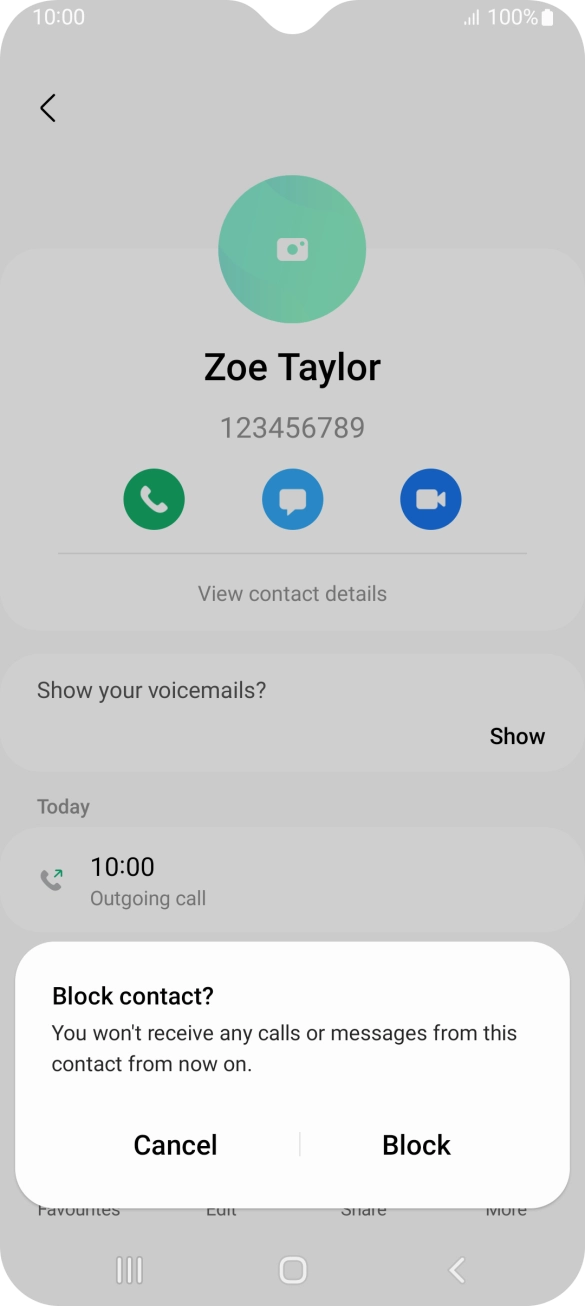
- Tap the number you wish to block.
- Tap the Details (i) icon.
- Tap Block at the bottom of the screen.
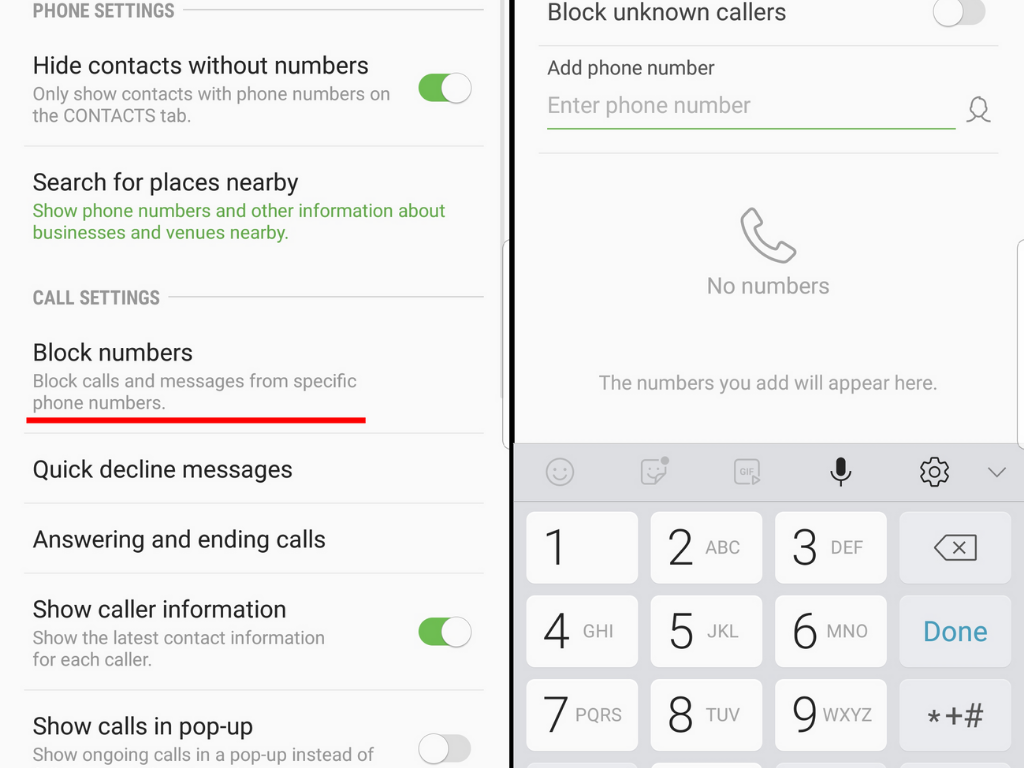
- To manage advanced settings, go to Phone App > Three-dot menu > Settings > Block numbers. Here you can toggle Block calls from unknown private numbers.
Call Screen (AI-Based Filtering)
On many Android devices in 2026, the Call Screen feature allows Google Assistant to answer the call for you. If the Assistant determines the call is a robocall or spam, it hangs up without your phone ever ringing. If it is a legitimate caller, you can see a transcript of what they are saying in real-time and choose to pick up or block.
Carrier-Level Blocking Services
While device-level blocking is effective, the call still technically reaches your device before being diverted. Carrier-level blocking stops the call at the network level, which is often more robust against sophisticated "spoofing" (where a caller fakes their Caller ID).
| Carrier | Primary Service | Key Features |
|---|---|---|
| AT&T | ActiveArmor | Automatic fraud blocking, nuisance call alerts, and public Wi-Fi protection. |
| Verizon | Call Filter | Spam detection, neighborhood filter (blocks similar area codes), and personal block lists. |
| T-Mobile | Scam Shield | Scam ID and Block, enhanced Caller ID, and a "PRO" version for proxy numbers. |
| Google Fi | Built-in Filtering | Free spam blocking, automated screening, and "verified caller" badges. |
To activate these, you typically need to download the carrier's specific app from the App Store or Google Play Store. These services are particularly useful because they utilize the STIR/SHAKEN authentication framework, which helps verify that the calling number is legitimate and not a spoofed "ghost" number.
Third-Party Blocking Applications
If built-in tools are insufficient, third-party apps offer community-sourced blacklists that are updated thousands of times per hour. These apps are especially useful for identifying "grey-area" calls, such as legitimate but annoying debt collectors or political pollsters.
- Truecaller: Known for its massive global database. It identifies callers in real-time and provides a "spam score" for incoming calls.
- RoboKiller: Uses "Answer Bots" to waste the time of telemarketers, effectively discouraging them from calling your number again.
- Hiya: Often integrated directly into manufacturer hardware, Hiya provides clean, data-driven security without excessive ads.
- YouMail: Replaces your standard voicemail with a "Number Disconnected" greeting for known spammers, which can eventually remove your name from their automated dialer lists.
Note: Be aware of privacy trade-offs when using third-party apps, as many require access to your contacts and call logs to function effectively.
Blocking on Landlines and VoIP Systems
Blocking numbers on a landline is more restrictive but still possible. The methods depend on whether you have a traditional copper-wire line or a Voice over IP (VoIP) service provided by your internet company.
- Traditional Landlines: Most providers support the *60 code. Dialing *60 will usually prompt a voice menu that allows you to add the last incoming number to a local block list.
- VoIP Services (Xfinity, Spectrum, Cox): Log into your service provider's web portal. Under "Voice Settings," you can manually enter numbers into a "Call Screening" or "Blacklist" section.
- Hardware Blocker: You can purchase physical call-blocking devices that plug into your phone jack. These devices contain a pre-loaded database of thousands of known spam numbers and a large "Big Red Button" to block new ones instantly.
Managing Your Blocked List
It is important to periodically review your blocked list to ensure you haven't accidentally blocked a legitimate contact, such as a doctor's office or a delivery service.
- On iOS: Navigate to Settings > Phone > Blocked Contacts. From here, you can swipe left on any number to Unblock it.
- On Android: Open the Phone app > Settings > Blocked numbers. You can tap the "X" next to any number to remove it from the list.
Frequently Asked Questions
Does the person know I blocked them?
No, the caller is not explicitly notified that they have been blocked. On most networks, they will hear one or two rings followed by a diversion to voicemail. However, they will not be able to leave a message that appears in your primary inbox, and their texts will appear as "delivered" (on iMessage) or simply disappear into the network (on SMS) without an error message.
Does blocking a number stop them from leaving voicemails?
Technically, no. Most mobile operating systems move blocked voicemails to a "Blocked Messages" folder at the bottom of your voicemail list. The phone does not notify you of these messages, allowing you to ignore them entirely while still preserving the evidence if needed for legal purposes.
Why do I still get calls from "Unknown" or "No Caller ID"?
"No Caller ID" is a status applied when a caller deliberately hides their information using *67 or specialized software. Since there is no specific number to target, you cannot block them individually. Instead, you must use the "Silence Unknown Callers" (iOS) or "Block Unknown" (Android) features to filter out all anonymous calls.
Can I block international numbers?
Yes. You can block international numbers using the same steps as local numbers. If you are manually adding a number to a block list, ensure you include the "+" symbol and the correct country code (e.g., +44 for the UK) to ensure the filter recognizes the full string.
What is the difference between "Do Not Disturb" and "Blocking"?
"Do Not Disturb" (or Focus Modes) is a temporary silence for all or most callers, usually based on a schedule or activity. The callers can still reach your phone, but it won't make sound. "Blocking" is a permanent, specific filter directed at a single entity to prevent them from contacting you entirely.
Practical Recommendation
For the most robust protection in 2026, do not rely on a single method. Enable the Silence Unknown Callers feature on your device for immediate peace of mind, and supplement it by downloading your mobile carrier's official security app (like AT&T ActiveArmor or T-Mobile Scam Shield). This creates a two-tier defense: the carrier stops known fraudulent actors at the network level, while your device filters out the remaining unidentified interruptions. If you are receiving harassing calls from a specific person, document the occurrences before blocking them, as this data may be necessary if you eventually need to involve law enforcement or seek a protective order.
Image Gallery
Select an image to open it in a new tab.

Mateo Castillo
Decentralized Finance and E-Payments Strategist
