Apple CarPlay on the Toyota Camry: Compatibility, Setup, Retrofits, and Troubleshooting
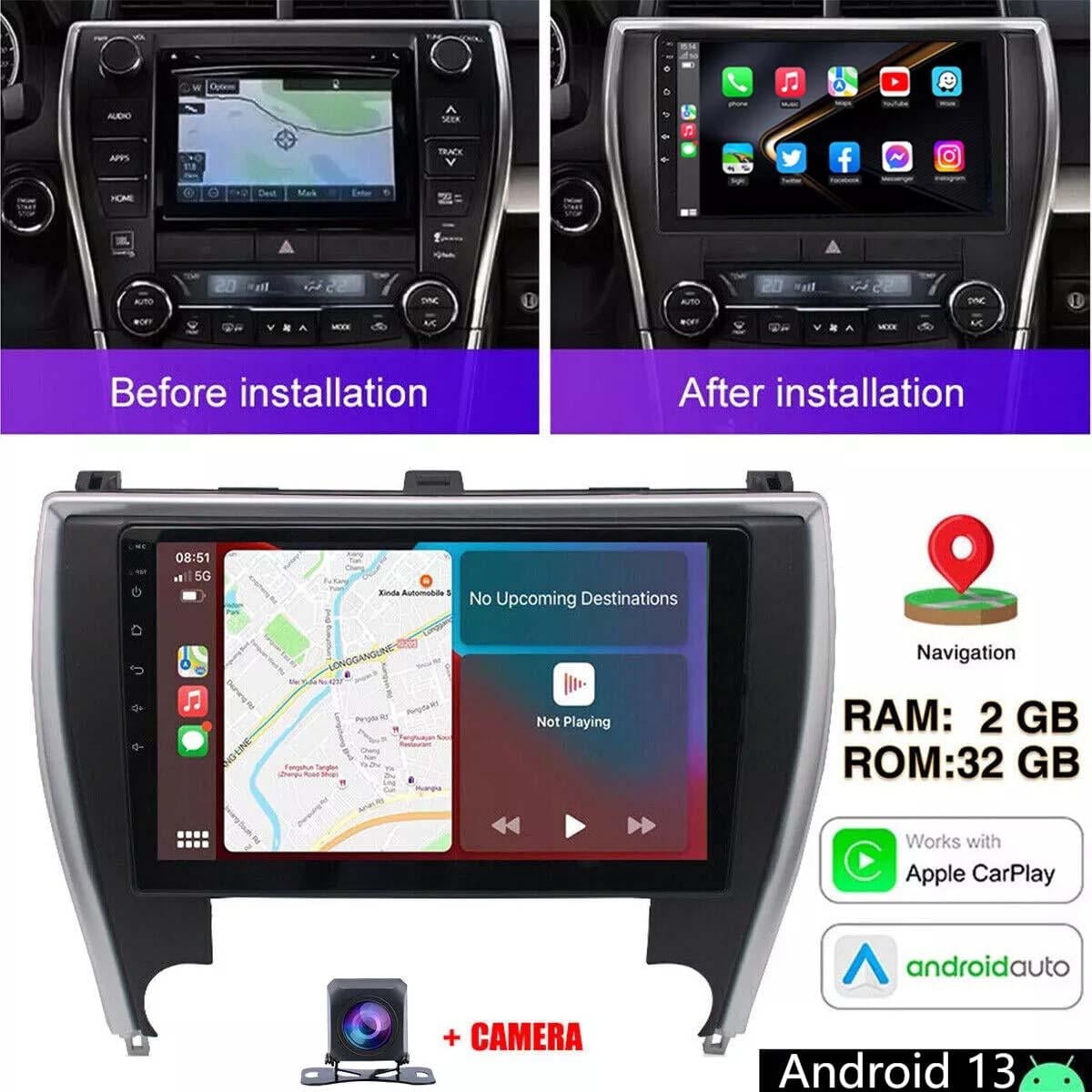
Apple CarPlay comes standard on all Toyota Camry models starting with the 2019 model year. For the 2018 Camry, CarPlay can be retrofitted through a dealer-installed software update. The 2025 and 2026 ninth-generation Camry models support native wireless CarPlay across all trim levels, whereas 2019 through 2024 models generally require a wired USB connection or a third-party wireless adapter.
Toyota Camry Apple CarPlay Compatibility by Model Year
Understanding Apple CarPlay integration across different Toyota Camry generations requires examining the transition from Toyota's legacy Entune infotainment system to the modern Toyota Audio Multimedia platform. While smartphone integration is standard on dealership lots today, its rollout across the Camry line followed a specific timeline of software upgrades and hardware revisions.
Toyota Camry CarPlay Timeline:
- 2018 Camry: No Factory CarPlay; Retrofit Software Update Available
- 2019 Camry: Standard Wired CarPlay Introduced Across All Trims
- 2020-2024: Standard Wired CarPlay + Android Auto (7" or 9" Screens)
- 2025-2026+: Standard Wireless CarPlay Across All Trims (8" or 12.3" Screens)
2018 Toyota Camry: The Retrofit Exception
When Toyota redesigned the Camry for its eighth generation in the 2018 model year, the vehicle shipped with Entune 3.0, a proprietary infotainment system that initially lacked both Apple CarPlay and Android Auto integration. Following significant customer demand, Toyota launched an official customer satisfaction program offering a retroactive software update for 2018 Camry vehicles.
This software update retrofits Apple CarPlay and Amazon Alexa functionality directly into the factory Entune 3.0 Audio and Entune 3.0 Audio Plus head units. If you own or are purchasing a 2018 Camry that does not currently display the Apple CarPlay icon, the vehicle's multimedia unit can be updated either through a Toyota dealership service department or by manually installing the official firmware via a USB flash drive.
2019 to 2024 Toyota Camry (Eighth Generation)
Beginning with the 2019 model year, Toyota made wired Apple CarPlay standard equipment on every Camry trim level, from the base L and LE trims to the higher-tier XLE, XSE, and TRD models.
Key technical characteristics of this generation include:
- Connection Type: Native wired connection requiring an Apple-certified Lightning-to-USB-A or USB-C cable connected to the vehicle's primary multimedia USB data port.
- Display Sizes: Standard 7-inch touchscreen on entry trims; upgraded 9-inch floating touchscreen display on mid-to-high trim levels (introduced during the 2021 mid-cycle refresh).
- Audio Systems: Fully integrated with both standard 6-speaker setups and the premium JBL 9-speaker audio configuration.
2025 and 2026 Toyota Camry (Ninth Generation)
The redesigned ninth-generation Toyota Camry fundamentally updates the in-cabin digital environment by introducing Toyota's latest Audio Multimedia system. For these model years, Apple CarPlay is completely wireless across all trim levels (LE, SE, XLE, and XSE).
- Standard Hardware: An 8.0-inch Toyota Audio Multimedia touchscreen comes standard on LE and SE trims.
- Upgraded Hardware: A 12.3-inch widescreen digital display is standard on XLE and XSE trims and available as an option on lower trims.
- Dual Connection Support: Supports simultaneous dual-Bluetooth smartphone pairing, allowing wireless Apple CarPlay operation alongside a second phone for voice calls.
- Over-the-Air (OTA) Updates: Software updates for the multimedia system and CarPlay interface occur over-the-air via Toyota Connected Services, eliminating the need for manual USB updates.
Detailed Compatibility Matrix
The table below outlines Apple CarPlay features, connection requirements, screen dimensions, and software update paths across all recent Toyota Camry model years.
| Model Year | CarPlay Availability | Connection Type | Display Size | Native Audio Software | Retrofit / Upgrade Notes |
|---|---|---|---|---|---|
| 2018 | Optional (via update) | Wired USB | 7.0" or 8.0" | Entune 3.0 | Dealer or USB firmware update adds CarPlay |
| 2019 | Standard | Wired USB | 7.0" or 8.0" | Entune 3.0 | First year with standard factory CarPlay |
| 2020 | Standard | Wired USB | 7.0" or 8.0" | Entune 3.0 | Added native Android Auto support alongside CarPlay |
| 2021 | Standard | Wired USB | 7.0" or 9.0" | Entune 3.0 (Refreshed) | Upgraded display hardware; floating screen style |
| 2022 | Standard | Wired USB | 7.0" or 9.0" | Entune 3.0 | Standard wired configuration across all trims |
| 2023 | Standard | Wired USB | 7.0" or 9.0" | Entune 3.0 | Wireless requires aftermarket adapter |
| 2024 | Standard | Wired USB | 7.0" or 9.0" | Entune 3.0 | Final year of eighth-generation architecture |
| 2025 | Standard | Wireless & Wired | 8.0" or 12.3" | Toyota Audio Multimedia | Native wireless support; OTA update capable |
| 2026 | Standard | Wireless & Wired | 8.0" or 12.3" | Toyota Audio Multimedia | Native wireless support; OTA update capable |

Step-by-Step Guide to Connecting CarPlay in a Toyota Camry
Connecting your iPhone to your Toyota Camry depends on whether your vehicle uses a wired USB interface (2018–2024 models) or the modern wireless Toyota Audio Multimedia system (2025–2026 models).
Setting Up Wired Apple CarPlay (2018–2024 Camry)
- Enable Siri on Your iPhone: Navigate to Settings > Siri & Search on your iPhone and ensure that Press Side Button for Siri (or Listen for "Hey Siri") is turned on. CarPlay will not operate if Siri is disabled.
- Unlock Your iPhone: Ensure your device is turned on and unlocked during the initial connection setup.
- Locate the Primary USB Port: Locate the multimedia USB-A data port situated at the bottom of the center console stack, directly below the climate controls. Note: Auxiliary charge-only USB ports inside the center armrest storage box or on the rear console will not launch Apple CarPlay.
- Connect the Cable: Plug an Apple-certified Lightning cable into your phone and the designated console USB port.
- Confirm Prompts on Head Unit: On the Camry’s touchscreen display, a prompt will ask if you wish to enable Apple CarPlay. Select Always Enable or Agree.
- Confirm iPhone Permissions: On your iPhone, select Allow when asked if you want to permit CarPlay to access your phone while it is locked.
Camry Console Layout:
- Climate Controls
- USB Data Port (MUST USE THIS PORT - Marked with phone icon)
- 12V Socket
- Armrest Storage Ports (Charge Only - Will NOT run CarPlay)
Setting Up Wireless Apple CarPlay (2025–2026 Camry)
- Verify Phone Settings: Ensure Wi-Fi and Bluetooth are turned on in your iPhone’s settings menu.
- Access Car Setup Menu: Turn on the Camry’s ignition. On the central touchscreen, tap the gear icon (Settings) on the left sidebar.
- Add New Device: Select Bluetooth & Devices, then tap Add New Device.
- Initiate Pairing: The system will search for nearby Bluetooth signals. Select your iPhone from the list of available devices shown on the vehicle screen.
- Confirm Passkey: Verify that the 6-digit PIN shown on the Camry's touchscreen matches the prompt on your iPhone display, then tap Pair.
- Enable Wireless CarPlay: A pop-up prompt on the Camry display will ask if you want to use Apple CarPlay for this device. Tap Use for CarPlay. On your iPhone, select Use CarPlay when prompted.
- Automatic Reconnection: Subsequent trips will automatically pair the vehicle to your iPhone wirelessly via a local Wi-Fi direct handshake initiated by Bluetooth.
Practical Features and Multimedia Integration
When Apple CarPlay is running in your Toyota Camry, it overrides the native software interface with an optimized version of iOS designed to minimize driver distraction.
Touchscreen and Physical Control Integration
Drivers can control Apple CarPlay using three distinct interaction modes:
- Direct Touch Input: Tap, swipe, and scroll through media and navigation screens using the Camry's high-resolution touchscreen display.
- Siri Voice Controls: Press and hold the voice command button on the left side of the steering wheel, or state "Hey Siri" aloud to initiate messaging, call routing, and destination changes without taking your eyes off the road.
- Physical Controls: The Camry's physical volume knob, track selection buttons, and climate control interface operate seamlessly in the background while CarPlay is actively displayed.
Native Vehicle Integration
The Camry’s multi-information display (MID)—located in the instrument cluster between the speedometer and tachometer—syncs with Apple CarPlay. Turn-by-turn navigation instructions generated by Apple Maps, Google Maps, or Waze will display directions directly in your instrument cluster (and on the Head-Up Display on fully equipped XLE and XSE models).
Instrument Cluster Layout:
- Speedometer
- Multi-Info Display:
- Turn Right 200 ft
- Main Street
- Tachometer
Troubleshooting Common Camry CarPlay Issues
If Apple CarPlay fails to launch, disconnects unexpectedly, or displays a black screen on your Camry's display, work through these proven technical resolution steps.
1. The Screen Remains Black or Shows "Device Not Supported"
- Check the USB Cable: The majority of wired CarPlay issues trace back to degraded or non-compliant charging cables. Aftermarket cables designed purely for charging often lack the requisite data transmission lines. Use an original Apple Lightning cable or a verified USB-IF certified data cable.
- Clean the iPhone Port: Pocket lint accumulated inside your iPhone's Lightning or USB-C port often prevents proper pin connection. Carefully clean the port using a non-metallic toothpick.
- Inspect the USB Port: Ensure your phone is plugged into the single dedicated multimedia USB port on the front console, not the charging-only ports inside the center storage compartment.
2. CarPlay Icon Fails to Appear on the Toyota Screen
- Verify Siri Settings: On your iPhone, go to Settings > Siri & Search and verify that Siri is enabled. CarPlay will fail to launch completely if Siri is turned off.
- Check Content & Privacy Restrictions: Open Settings > Screen Time > Content & Privacy Restrictions > Allowed Apps. Ensure the toggle switch for CarPlay is set to On.
- Reset Phone Authorization: On your phone, go to Settings > General > CarPlay, select your Toyota Camry, tap Forget This Car, and perform the initial connection setup again.
3. Frequent Wireless Disconnections (2025–2026 Models or Wireless Adapters)
- Check Wi-Fi and Bluetooth Interference: Wireless CarPlay uses Bluetooth to initiate the handshake, then transfers data over a 5 GHz Wi-Fi link. Ensure your iPhone is not manually connecting to another local hotspot or external Wi-Fi signal (such as a garage network) while in the car.
- Reset Entune / Toyota Audio Multimedia System: Press and hold the physical power/volume knob on the radio unit for 10 to 15 seconds until the display turns off and reboots.
- Forget and Re-Pair: In the Camry’s screen settings, delete your iPhone from the Bluetooth & Devices list. On your iPhone, forget the car from both your Bluetooth settings and your CarPlay menu. Restart your iPhone and repair from scratch.
Adding Wireless CarPlay to 2018–2024 Camry Models
Owners of 2018 through 2024 Toyota Camry models equipped with factory wired CarPlay can upgrade to a wireless connection without replacing the factory head unit. This is accomplished using a third-party wireless CarPlay adapter.
How Wireless Adapters Work:
- Camry Head Unit
- Connected via Wired USB to Wireless Adapter
- Wireless Adapter
- Connected via Wi-Fi/Bluetooth to iPhone
How Wireless Adapters Work
A wireless CarPlay dongle plugs directly into the Camry's front USB data port. The adapter acts as an interface: it tricks the Toyota head unit into believing a physical wired iPhone is plugged in, while communicating with your actual iPhone via Bluetooth and 5 GHz Wi-Fi.
Recommended Implementation Requirements
- Vehicle Requirement: The Camry must already have working factory wired Apple CarPlay (2018 models must have received the Entune software update). Wireless adapters cannot add CarPlay to a head unit that never supported it.
- Supported Devices: Established hardware adapters such as the Carlinkit 5.0, Motorola MA1 (for Android), or Quad Lock Wireless CarPlay Adapter.
- Setup Process:
- Plug the adapter into the Camry's primary front USB data port.
- Pair your iPhone to the adapter's Bluetooth signal using your phone's settings menu.
- Accept the prompt on your iPhone to turn on Wireless CarPlay.
- Leave the adapter plugged into the USB port permanently; it will automatically launch CarPlay within 15–30 seconds of starting the engine.
Frequently Asked Questions
Can I upgrade a 2018 Toyota Camry to have Apple CarPlay?
Yes. If your 2018 Camry does not have Apple CarPlay, you can get an official software retrofit. Toyota released a software update for Entune 3.0 systems that adds native wired Apple CarPlay and Amazon Alexa functionality. You can have this installed at a Toyota dealership service department or download the official update file onto a USB drive to perform the update yourself.
Is Apple CarPlay free on the Toyota Camry?
Yes, Apple CarPlay is completely free to use on the Toyota Camry. It does not require a subscription, and Toyota does not charge an ongoing fee to access CarPlay on either wired or wireless systems. However, data used by navigation and streaming applications within CarPlay relies on your iPhone's cellular data plan.
Can I use Apple CarPlay wirelessly on a 2021-2024 Toyota Camry?
Natively, no. Toyota Camry models from 2019 through 2024 only support wired Apple CarPlay from the factory. If you want to use wireless CarPlay on an 8th-generation Camry (2018–2024), you must purchase a reputable third-party wireless CarPlay USB adapter. Factory wireless CarPlay became standard equipment starting with the 9th-generation 2025 Camry.
Why is Apple CarPlay not working on my Toyota Camry after an iOS update?
iOS updates occasionally reset privacy permissions or network configurations on your iPhone. To resolve this, open your phone's Settings, go to General > CarPlay, select your vehicle, and tap Forget This Car. Next, press and hold the Camry's volume knob to soft-reboot the infotainment system, then reconnect your iPhone using an official Apple data cable to re-establish the pairing.
Does Android Auto work on the same Toyota Camry models as CarPlay?
Not on every model year. While Apple CarPlay became standard on the Camry in 2019 (and retrofittable on 2018 models), Android Auto was not added to the Camry factory lineup until the 2020 model year. Furthermore, the 2018 Entune software retrofit only added Apple CarPlay and Amazon Alexa, not Android Auto. Both platforms are supported wirelessly on all 2025 and 2026 Camry models.
Recommended Next Steps
If you are setting up or troubleshooting Apple CarPlay in your Toyota Camry, take the following actions based on your vehicle's model year:
- For 2018 Camry Owners: Check your system software version in the Entune menu. If Apple CarPlay is missing, contact your local Toyota dealer to schedule a software update service or obtain the official USB installation update file.
- For 2019–2024 Camry Owners: Ensure you use an Apple-certified Lightning-to-USB cable plugged into the console data port. If you prefer a cable-free cabin, select a verified wireless CarPlay adapter to convert your factory USB port to wireless operation.
- For 2025–2026 Camry Owners: Pair your phone using the Bluetooth & Devices menu on the Toyota Audio Multimedia touchscreen, confirm Siri is enabled on your iPhone, and grant wireless CarPlay permissions during the initial Bluetooth pairing sequence.
Image Gallery
Select an image to open it in a new tab.


Ingrid Bjornson
Global Cyber Policy and Regulation Analyst
