To convert a Compiled HTML Help (CHM) file to PDF, open the file in a dedicated document management tool like Calibre, select the output format as PDF, adjust page layout settings, and execute the conversion. Alternatively, decompile the archive using built-in command-line tools and print or render the underlying HTML into a structured PDF document.
Understanding the CHM Architecture and the Need for Conversion
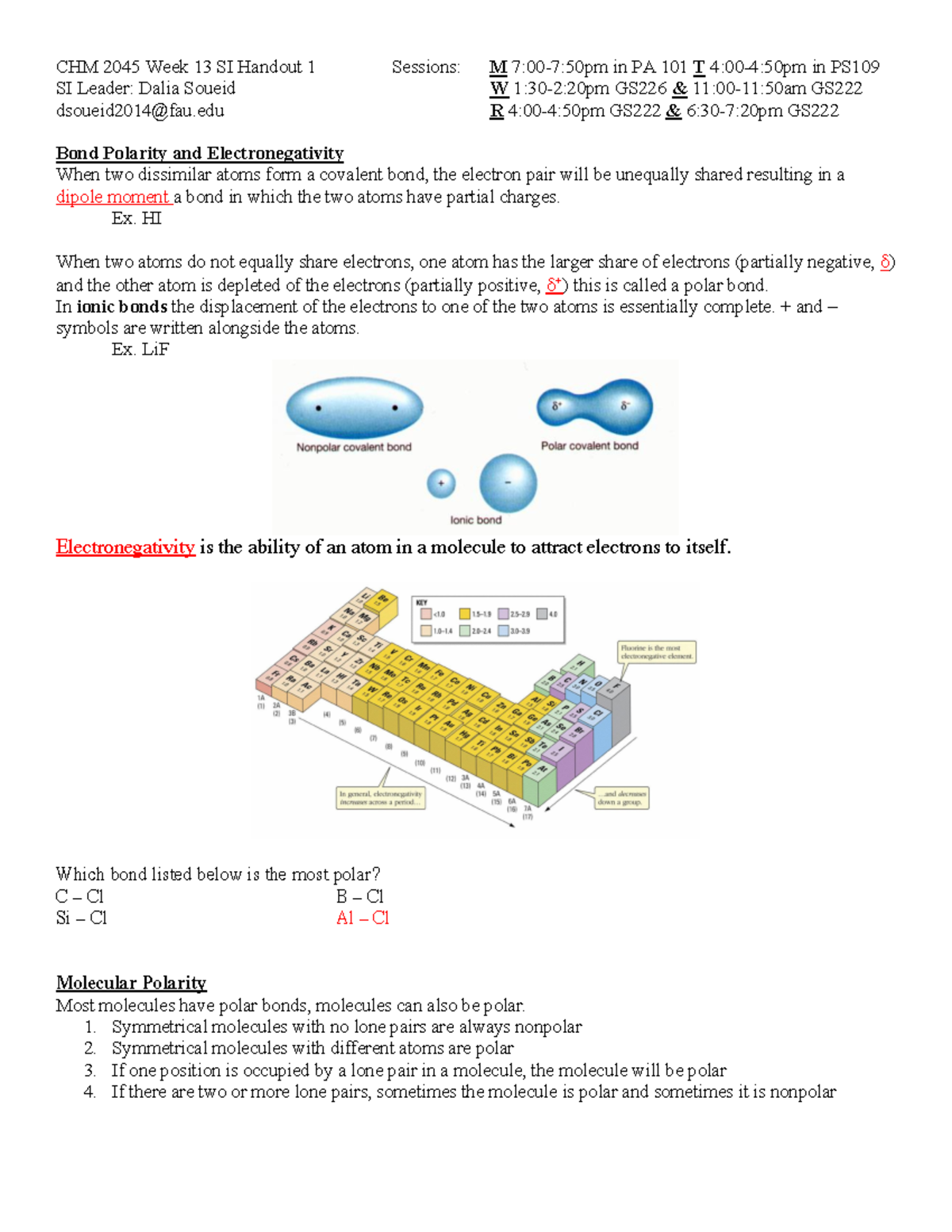
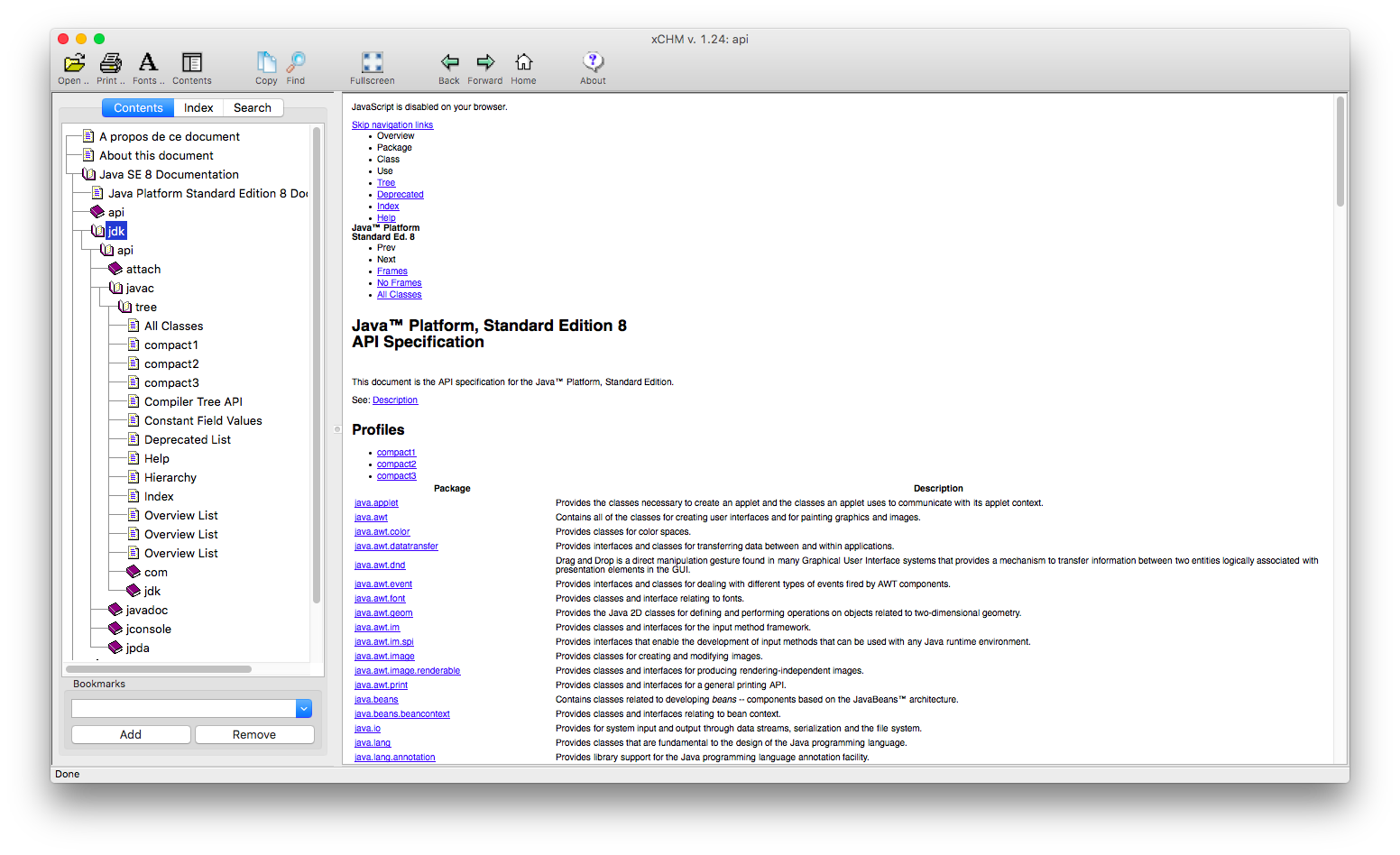
Microsoft Compiled HTML Help, denoted by the .chm file extension, served as the standard proprietary online help format for Windows applications starting with Windows 98. At its technical core, a CHM file is an Indexed Archive containing compressed HTML documents, Cascading Style Sheets (CSS), JavaScript, images, an internal table of contents (.hhc file), and an index file (.hhk), packaged together using Microsoft LZX compression.
While the format offered exceptional compression and fast search indexing in desktop environments during the late 1990s and 2000s, it presents serious friction points across modern computing environments.
First, cross-platform accessibility is severely restricted. Operating systems such as macOS, Linux, iOS, and Android lack native rendering engines for Compiled HTML Help files. Users on non-Windows platforms must install third-party viewers that often struggle to render complex typography, nested navigation trees, or embedded frames correctly.
Second, the format presents documented security vulnerabilities. Because CHM files rely on Microsoft HTML Help Viewer (hh.exe) and Microsoft Internet Explorer rendering components, malicious actors can embed arbitrary scripts, ActiveX controls, or executable code inside them. Many enterprise email filters and security gateways flag or quarantine incoming .chm files automatically.
Converting a CHM document to the Portable Document Format (PDF) addresses these shortcomings. PDF is an internationally recognized standard (ISO 32000) that guarantees visual fidelity across any hardware platform, operating system, or e-reader. Converting documentation to PDF preserves pagination, allows granular vector scaling, provides robust text annotation capabilities, and facilitates long-term archiving without exposure to the legacy execution risks inherent to older compiled help packages.
Prerequisites and Preparation Before Conversion
Before beginning any conversion process, taking a few preparatory steps ensures that the resulting PDF retains full fidelity, working internal links, and legible typography.
- Verify Archive Integrity: Ensure the CHM file is not corrupted or blocked by modern Windows security mitigations. If downloaded from the internet, Windows frequently flags CHM files with an "Attachment Execution Service" zone identifier. If this occurs, the file may open with a navigation tree visible on the left, but display a blank panel stating "Navigation to the webpage was canceled" or "Address is invalid." Right-click the CHM file, select Properties, check the Unblock box at the bottom of the General tab, and click Apply.
- Examine Internal Character Encoding: Older help files often rely on regional character encodings—such as Windows-1252 for Western European languages, Shift-JIS for Japanese, or GB2312 for Simplified Chinese—rather than standard UTF-8. Identifying whether your document uses non-standard character sets will help you select the proper font and encoding options if characters appear garbled after rendering.
- Assess the Internal Document Structure: Some CHM files are compiled as single, long continuous pages, while others contain hundreds of modular HTML topic files organized in an extensive hierarchy. The total topic count dictates whether a simple print-to-PDF approach will suffice or whether an automated batch converter is mandatory.
Method 1: Converting via Calibre (Recommended for Most Users)
Calibre is a free, open-source, cross-platform e-book management suite that runs on Windows, macOS, and Linux. It contains one of the most robust rendering engines available for converting compiled help archives into structured PDF documents while preserving internal tables of contents.
Step-by-Step Conversion Process
- Import the Document: Launch Calibre and click the Add books button located on the primary top toolbar. Browse your local storage, select the target .chm file, and confirm. Calibre copies the file into its managed library directory and extracts basic metadata.
- Initiate the Conversion Engine: Select the imported CHM book within the central library list, then click the Convert books button on the top toolbar (or right-click the book and choose Convert books > Convert individually).
- Set the Target Format: In the conversion dialog window, confirm that the Input format in the upper-left corner displays CHM, and set the Output format dropdown in the upper-right corner to PDF.
- Adjust Page Setup and Margins: Navigate to the Page setup tab on the left navigation panel. In the Output profile dropdown, choose a target that matches your reading intent (for example, Default Output Profile for standard desktop viewing, or a tablet-specific profile). Navigate to the PDF Output tab to set physical page dimensions (such as Letter or A4), define uniform page margins (20 to 30 points is standard), and configure page numbering.
- Preserve the Table of Contents: Under the Table of Contents tab, check the box labeled Force use of auto-generated Table of Contents if the original CHM index does not automatically map to PDF bookmarks. Ensure the option for Add PDF Table of Contents remains enabled so that reading applications generate a navigable sidebar.
- Execute and Retrieve: Click OK in the bottom-right corner. Calibre initiates a background conversion job. When the job counter in the lower-right corner returns to zero, select the book in your library, open the details pane on the right side, and click the PDF link to access your converted document.
Advantages and Limitations
Calibre excels at parsing relative links between internal HTML topics, resolving local image paths, and generating an interactive PDF outline matching the original navigation tree. However, because Calibre processes content through an e-book rendering pipeline, complex CSS layouts designed strictly for wide, non-paginated desktop displays may experience reflow anomalies, such as overlapping sidebars or awkwardly split data tables.
Method 2: Native Windows HTML Help Viewer and Virtual PDF Printing
If you are operating on Windows and prefer not to install third-party conversion software, you can convert smaller help files using the built-in Microsoft HTML Help Viewer paired with a virtual printer, such as Microsoft Print to PDF.
Step-by-Step Instructions
- Open the Help File: Double-click the target .chm file to load it in the standard Windows HTML Help executable (
hh.exe). - Select the Print Scope: Click the Print icon on the top toolbar, or choose File > Print. A prompt will appear with two choices: Print the selected topic or Print the selected heading and all subtopics. To capture entire chapters or the full document, select the latter option and ensure the topmost parent heading is selected in the Contents tab.
- Target the PDF Printer: When the system print dialog appears, choose Microsoft Print to PDF (or an alternate installed virtual printer like Adobe PDF) from the list of available printers.
- Configure Print Settings: Click Preferences to verify that the paper orientation (Portrait or Landscape) and paper size align with your requirements.
- Print and Save: Click Print, specify the destination file path and name in the file save dialog, and allow the Windows print spooler to complete the generation of the PDF file.
When to Use This Method
This native method is ideal for localized extractions where you need only a specific chapter or reference topic rather than an entire multi-thousand-page technical manual.
Critical Drawbacks
Using a print-to-PDF pipeline does not generate interactive PDF bookmarks or preserve hyperlinked navigation. Internal cross-references become static text, requiring the reader to rely entirely on manual scrolling or standard search strings. Furthermore, if a CHM file contains deeply nested subtrees, the built-in print spooler can intermittently hang or skip nested topics without returning a clear error code.
Method 3: Decompilation and CLI Rendering (Best for Developers and Batch Tasks)
For software engineers, technical writers, or systems administrators managing enterprise documentation, automated decompilation followed by command-line rendering provides precise control over stylesheets, typography, and batch processing pipelines.
Understanding the Decompilation Phase
Every CHM archive can be decomposed back into its raw, uncompiled constituent files: the constituent HTML files, CSS sheets, image assets, and XML-like navigation files. Windows provides a built-in command-line utility named hh.exe capable of extracting these files without third-party dependencies.
Open Command Prompt or PowerShell, navigate to the directory holding your file, and execute the decompiler command using the following syntax structure:
hh.exe -decompile [destination_folder] [source_file.chm]
For example:
hh.exe -decompile C:\ExtractedHelp C:\Docs\manual.chm
On Linux or macOS, the open-source extraction tool 7z (part of the p7zip or 7-Zip package) or extract_chmLib can decompile the archive identically:
7z x manual.chm -o./extracted_help
Merging and Converting the Extracted HTML
Once extracted, you possess a structured directory containing every individual page and graphic. To produce a coherent PDF from this collection, two command-line rendering utilities provide optimal results:
- Pandoc with WeasyPrint or wkhtmltopdf: Pandoc can read the extracted HTML files and compile them into a unified PDF. If your extraction contains an index file (
toc.hhc), you can write a short automation script in Python or Bash to parse the.hhcfile, arrange the HTML files in the exact sequence defined by the author, and pass them to the rendering engine. - Headless Chromium: Modern web browsers can render HTML files directly to PDF via the command line. By invoking Chromium or Google Chrome in headless mode with parameters like
--headless --print-to-pdf=output.pdf input.html, developers can produce print-perfect renderings using modern CSS standards, including CSS Paged Media module directives (@page).
This approach gives you direct access to the source CSS before rendering. If the original CHM displays low-contrast fonts, tiny body text, or backgrounds unsuitable for paper printing, you can modify the global stylesheet or run an automated search-and-replace script across the extracted directory before generating the final PDF.
Method 4: Web-Based Conversion Portals
When converting a CHM file on mobile devices, locked-down corporate workstations, or platforms lacking administrative privileges to install local tools, browser-based conversion services provide an accessible alternative. Platforms such as CloudConvert, Zamzar, and FreeConvert offer dedicated pipelines for compiling CHM archives into downloadable PDF files.
Workflow
- Navigate to the chosen web conversion portal using an updated web browser.
- Upload the CHM file from your local storage or connected cloud drive.
- Select PDF as the target output format.
- Access advanced conversion options if provided by the platform (e.g., page orientation, margin adjustments, or image rendering quality).
- Click Convert, allow the cloud server to process the internal archive, and download the finished PDF to your local system.
Privacy, Compliance, and Technical Trade-offs
While convenient, cloud-based converters present limitations that must be evaluated:
- Data Confidentiality: Uploading proprietary software manuals, internal corporate operating procedures, or confidential schematics to third-party cloud infrastructure can violate internal data security policies, non-disclosure agreements, or regulatory compliance frameworks such as GDPR or HIPAA.
- Archive Size Restrictions: Most free-tier web services impose strict maximum file size thresholds (typically between 50 MB and 100 MB). Highly graphical CHM documentation files frequently exceed these limitations.
- Rendering Timeouts: Extensive help manuals containing thousands of small, interrelated HTML topics frequently trigger server execution timeouts, resulting in failed conversions or truncated PDF documents.
Comparative Analysis of CHM to PDF Conversion Methods
Choosing the appropriate conversion pathway depends heavily on technical expertise, volume of documents, security requirements, and the necessity of retaining an interactive table of contents.
| Feature / Metric | Calibre (Desktop GUI) | Native Windows Print (hh.exe) |
Decompile + CLI Engine | Cloud-Based Converters |
|---|---|---|---|---|
| Supported OS | Windows, macOS, Linux | Windows only | Windows, macOS, Linux | Cross-platform (Browser) |
| Software Cost | Free (Open Source) | Free (Built-in) | Free (Open Source) | Free tier / Paid subscription |
| Interactive Bookmarks | Yes (Automated) | No (Static pages) | Yes (With scripting) | Variable (Engine-dependent) |
| Internal Hyperlinks | Preserved | Lost | Preserved | Variable |
| Batch Conversion | Yes | No | Yes (Fully scriptable) | Limited on free tiers |
| Custom CSS Control | Moderate | None | Complete | None |
| Data Privacy | 100% Local (Secure) | 100% Local (Secure) | 100% Local (Secure) | Third-party cloud processing |
| Setup Complexity | Low | Low | High | None |
Overcoming Common Conversion Pitfalls
Converting a dynamic, browser-like help system into a static, paginated document format often encounters visual and structural translation bugs. Understanding how to resolve these issues ensures clean, readable documentation.
Broken Hyperlinks and Anchor Tags
In Compiled HTML Help, navigation links rely on internal file paths (such as ms-its:manual.chm::/topic1.html#anchor). When passed through basic conversion scripts, these proprietary URI schemes fail to resolve, causing clicked links to produce errors in PDF viewers.
Solution: Use conversion software that specifically recognizes the Microsoft ITS (Information Technology Storage) protocol. Calibre automatically parses and normalizes these references into standard relative local paths prior to rendering, translating them into working internal PDF link dictionaries.
Garbled Characters and Text Encoding Mismatches
If technical manuals contain international alphabets, mathematical notation, or non-Latin scripts, the resulting PDF may display disjointed glyphs, question marks, or unrecognizable strings (mojibake). This occurs when the conversion utility assumes an input encoding of UTF-8 when the original HTML files were compiled using Windows code pages such as CP1251 (Cyrillic) or CP1252 (Latin-1).
Solution: In Calibre, navigate to the Look & feel settings within the Convert books dialog, open the Text tab, and explicitly specify the source encoding format in the Input character encoding field. Alternatively, if decompiling files manually, open the constituent .htm files in an editor capable of batch re-encoding (such as VS Code or Notepad++) and convert all files to UTF-8 before compiling them into a PDF.
Incomplete or Truncated Tables
CHM documentation frequently incorporates extensive, fixed-width HTML data tables designed to be viewed with horizontal scrollbars on desktop screens. Standard PDF conversion engines often clip the right side of these tables off the physical page boundary rather than scaling them down.
Solution: Switch the PDF page orientation to Landscape within your converter's layout settings. If using Calibre or a command-line engine, inject a custom CSS snippet into the output configuration:
table { table-layout: auto !important; width: 100% !important; word-wrap: break-word !important; }
This directive forces tables to respect the printable canvas boundary and wrap internal string content cleanly across rows.
Header and Footer Page Numbering Collisions
When converting voluminous documents, automated converters sometimes stamp running headers and page numbers directly over top-level headings, diagrams, or breadcrumb navigation elements embedded in the original HTML topics.
Solution: Increase top and bottom margins within the PDF output settings to at least 40 points, or utilize CSS print rules to hide repetitive web navigation headers (such as .header, .nav-bar, or #top-nav) during the conversion rendering phase.
Security Considerations: The Risks of Legacy CHM Files
When handling CHM files from external sources, caution is essential. CHM is not a passive document format like a basic plain-text or standard PDF file; it is an active container capable of executing system-level actions via embedded scripts.
- Active Scripting Exploits: Compiled help files can leverage Microsoft's legacy HTML Help ActiveX control (
HHCtrl.ocx). Attackers have historically utilized this mechanism to run arbitrary Windows commands, execute PowerShell payloads, or initiate memory-corruption exploits via malicious shortcut references (hh.exe -exec). - Decompression Bombs: Like standard zip archives, an intentionally crafted CHM file can exploit compression ratios, consuming negligible space on disk while expanding into hundreds of gigabytes of junk data upon decompression, exhausting system memory and storage.
- Safety Verification: Always scan unrecognized .chm files with an updated anti-malware suite before opening or decompiling them. If you suspect an archive is malicious, do not double-click it in Windows; use isolated virtual machines or cross-platform command-line extraction tools on non-Windows systems (such as Linux) to safely decompress and inspect the underlying HTML files without invoking the native Windows help viewer.
Frequently Asked Questions
Can I convert a CHM file to PDF on a mobile device?
Yes, but you will generally need to use a reputable web-based conversion service rather than a local application. Neither iOS nor Android provides native support for opening or parsing CHM archives. You can upload the file through a mobile web browser to a conversion portal, generate the PDF on their servers, and download the resulting document directly into your mobile PDF reader.
Will converting CHM to PDF preserve the original search index?
The compiled keyword search index (.hhk) found in CHM files is unique to the Microsoft HTML Help format and will not survive conversion as a dedicated index tab. However, the text inside the resulting PDF will be fully searchable using standard full-text search capabilities in any modern PDF reader, provided the conversion engine rendered the text as vector glyphs rather than flattening pages into rasterized images.
Why does my converted PDF contain missing images or red X place-holders?
This issue occurs when an automated converter cannot resolve relative path references inside the decompiled archive. If images are stored in a nested subdirectory that uses spaces, non-standard characters, or case-sensitive filenames that conflict with the HTML references, the rendering engine fails to load them. Using Calibre typically resolves this because it normalizes internal file structures in memory before rendering the output document.
How do I convert a batch of multiple CHM files simultaneously?
Calibre provides native batch processing capabilities. Import all your CHM files into the library simultaneously, select them using Shift-click or Ctrl-click, select Convert books, and choose Bulk convert from the menu. You can apply identical margins, paper sizes, and table-of-contents rules to the entire queue simultaneously. For automated system administration tasks, writing a script that loops through directories using a decompilation utility and a CLI rendering engine offers an efficient, headless solution.
What causes pages to split awkwardly across sections in the converted PDF?
HTML files are designed for continuous scrolling without predetermined page breaks, whereas PDF is an inherently paginated format. If an HTML topic does not contain explicit page-break styling, a converter will split the page arbitrarily when the vertical height limit is reached, sometimes cutting images or lines of text in half. You can resolve this in conversion tools that support custom CSS by applying the rule page-break-inside: avoid; to headings, tables, and image wrapper tags.
Practical Recommendation
For the vast majority of personal, educational, and standard workplace tasks, Calibre represents the most balanced, reliable, and secure solution for converting CHM files to PDF. It avoids the file size limits and security exposures of web converters, requires no programming background, automatically repairs relative link paths, and reliably converts the legacy navigation tree into standard, navigable PDF bookmarks.
Download and install Calibre, import your compiled help documentation, verify your target page setup and margin parameters under the PDF Output options, and convert the file locally on your system to retain visual fidelity and data privacy.
Image Gallery
Select an image to open it in a new tab.

Vivian Cho
Executive IT and Emerging Technologies Reporter
