
To turn off Google Translate on your web browser, open your browser's settings menu, navigate to the Languages section, and switch off the setting labeled Use Google Translate or Offer to translate pages that aren't in a language you read. If you use a translation browser extension, disable or remove it from your browser's extension management page.
Why Browsers Automatically Prompt Translation
Modern web browsers integrate automatic translation features to help users read content published in foreign languages. In Google Chrome, this feature relies directly on the Google Translate service. Other popular browsers, such as Microsoft Edge, Mozilla Firefox, and Apple Safari, feature native translation tools powered by their respective cloud or local translation engines, though users frequently confuse these built-in systems with Google Translate.
When your browser loads a webpage, it examines the HTML document's language attribute (such as ) or performs client-side language detection on the text content. If the detected language differs from your default operating system or browser display language, the browser triggers an automated banner, address bar pop-up, or full-page translation dialog.
While automatic translation aids web navigation across international domains, it can interfere with specific workflows:
- Language Learners: Automated pop-ups disrupt immersion for individuals attempting to read content in a foreign language they are actively studying.
- Multilingual Users: Fluent speakers who comfortably read multiple languages often find redundant translation bars unnecessary and disruptive to screen real estate.
- Web Developers and QA Engineers: Automated page modification alters original DOM elements, text strings, and layout flows, which can mask rendering issues or break JavaScript applications during testing.
- Financial and Form Security: Automatic page translation occasionally alters dynamic form field values, inputs, or currency formats, leading to unexpected input errors on interactive web portals.
Understanding how to control or completely disable these prompts ensures your browser operates according to your specific language preferences across all desktop and mobile environments.
How to Turn Off Google Translate in Google Chrome
Google Chrome embeds Google Translate directly into its core interface. Disabling the feature stops Chrome from displaying the translation icon in the address bar and prevents pop-up prompts when visiting foreign-language websites.
Disabling Google Translate on Chrome Desktop (Windows, macOS, ChromeOS)
- Open Google Chrome on your computer.
- Click the three vertical dots (Menu icon) in the upper-right corner of the window and select Settings.
- In the left-hand navigation sidebar, click on Languages.
- Locate the Google Translate section in the main panel.
- Toggle the switch next to Use Google Translate to the Off position.
Chrome Settings -> Languages -> Google Translate -> Turn OFF "Use Google Translate"
Once turned off, Chrome will no longer automatically translate pages or show pop-up prompts when foreign-language sites load. If you still want translation capabilities for specific languages while blocking others, leave the master switch On and customize the sub-settings:
- Automatically translate these languages: Remove any languages listed here if you want Chrome to ask before translating them.
- Never translate these languages: Click Add languages to specify tongues you read fluently so Chrome never prompts you to translate them.
- Never translate these sites: If Chrome translated a specific domain by mistake, you can add domains to this exclusion list.
Disabling Google Translate on Chrome for Android
- Launch the Chrome app on your Android device.
- Tap the three vertical dots in the top-right corner and select Settings.
- Scroll down to the Advanced section and tap Languages.
- Under Translation settings, locate the toggle for Offer to translate pages in other languages.
- Switch the toggle to Off.
Disabling Google Translate on Chrome for iOS (iPhone and iPad)
- Open the Chrome app on your iOS device.
- Tap the three horizontal dots (Menu icon) at the bottom-right corner of the screen.
- Select Settings from the menu card.
- Scroll down and tap Languages.
- Toggle off the setting labeled Translate Pages.
- Tap Done in the top-right corner to save your preferences.

How to Turn Off Built-in Page Translation in Other Browsers
Many non-Chrome browsers include native translation tools or offer Google Translate integrations. Disabling translation in these browsers requires navigating their respective language settings.
Microsoft Edge (Desktop & Mobile)
Microsoft Edge uses Microsoft Translator rather than Google Translate by default, though its translation prompt behaves similarly to Chrome's interface.
On Edge Desktop (Windows & macOS):
- Launch Microsoft Edge.
- Click the three horizontal dots in the top-right corner and choose Settings.
- Click Languages in the left sidebar.
- Locate the option Offer to translate pages that aren't in a language I read.
- Turn the toggle switch to Off.
On Edge Mobile (Android & iOS):
- Open the Edge app and tap the menu icon (three horizontal lines or dots) at the bottom navigation bar.
- Select Settings and tap General.
- Choose Microsoft Translate or Language Settings.
- Turn off Offer to translate pages.
Mozilla Firefox (Desktop & Mobile)
Firefox includes a privacy-focused, local machine-translation engine. If you wish to stop Firefox from offering page translations:
Disabling Translation via Standard Settings:
- Open Mozilla Firefox.
- Click the three horizontal lines (Menu icon) in the top-right corner and select Settings.
- In the General panel, scroll down to the Language and Appearance section.
- Under Translations, click the Settings... button.
- Check the box for Never offer to translate or clear specific language configurations, then save your changes.
Fully Disabling Translation via Advanced Configuration (about:config):
For users who want to permanently strip out the translation framework in Firefox:
- Type
about:configinto the Firefox address bar and press Enter. - Click Accept the Risk and Continue on the warning screen.
- Search for the preference key:
browser.translations.enable. - Double-click the preference or click the toggle button to set its value from
truetofalse.
Firefox Address Bar -> about:config -> Search "browser.translations.enable" -> Toggle to "false"
Apple Safari (macOS, iOS, and iPadOS)
Safari uses Apple's internal translation infrastructure. While Safari does not automatically alter page text without user intervention, it may present translation icons or suggestions in the Smart Search field.
On macOS:
- Open Safari and choose Safari > Settings (or Preferences) from the top menu bar.
- Select the Websites tab.
- Choose Page Translation (if available in your regional macOS version) and set automatic behavior for listed domains to Off or Ask.
On iOS / iPadOS:
Safari on mobile triggers translation through the aA button in the address bar. To adjust system-level language behaviors:
- Open the iOS Settings app.
- Navigate to General > Language & Region.
- Under Preferred Language Order, ensure your primary and secondary languages are correctly prioritized. iOS uses this list to determine whether to offer translation options in Safari.
Brave Browser
Brave originally relied on Google Translate extension prompts and later introduced Brave Translate (powered by Lingvanex).
- Open Brave Browser.
- Click the three horizontal lines in the top-right corner and click Settings.
- Select Languages from the left-hand menu.
- Turn off the toggle for Use Brave Translate or Offer to translate pages that aren't in a language you read.
Opera Browser
- Open Opera.
- Click the Opera logo (or gear icon) to open Settings.
- Expand the Advanced section in the left sidebar and select Browser.
- Scroll down to the Languages heading.
- Disable Offer to translate pages that aren't in a language you read.
Disabling Google Translate Extensions
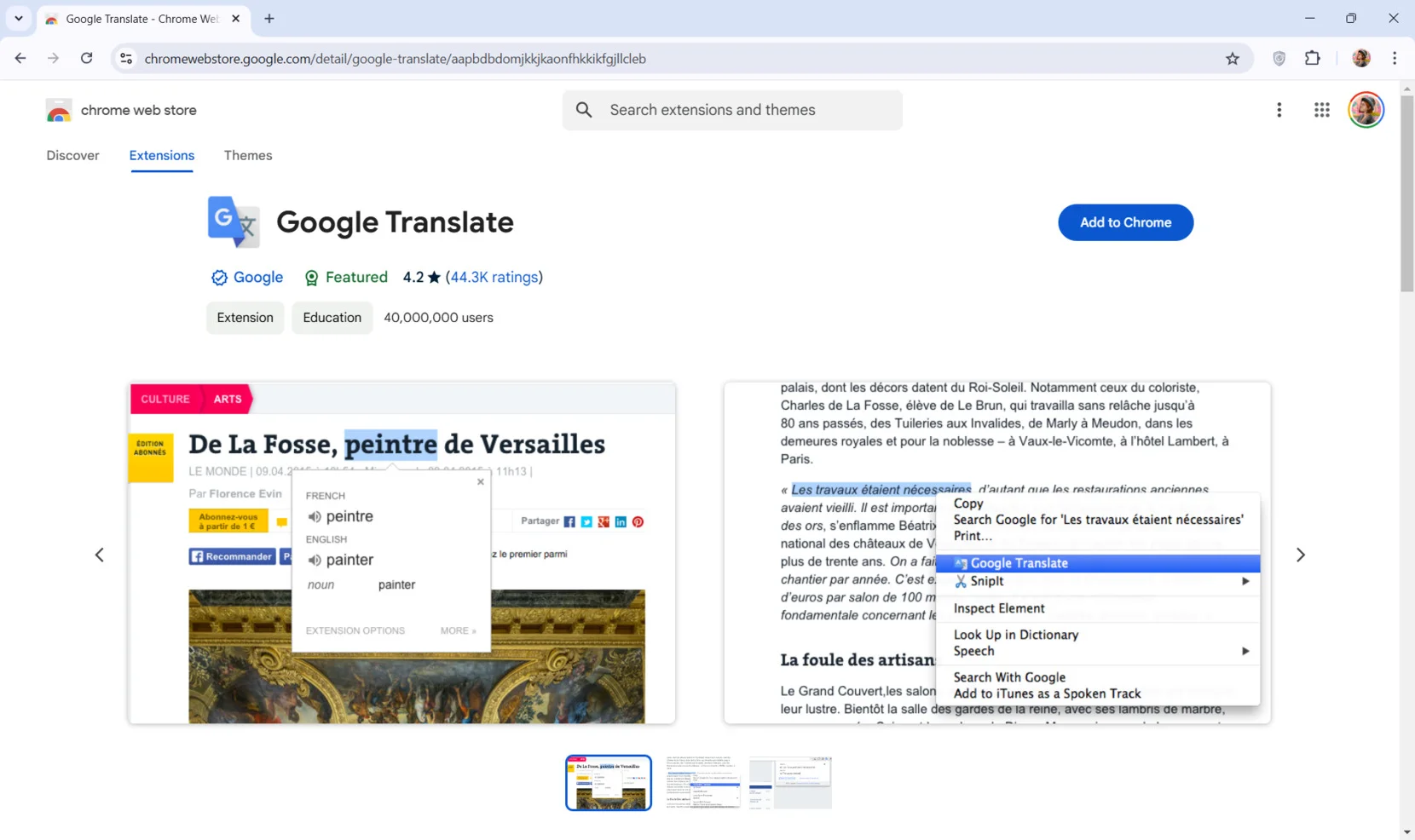
If you manually installed the official Google Translate extension or a third-party translation add-on, turning off browser settings will not prevent the extension from displaying pop-ups or context menus. You must manage or remove the extension directly.
Removing Extensions in Google Chrome & Chromium Browsers
- Open your browser and type
chrome://extensions/into the address bar, then press Enter. - Locate Google Translate (or your installed third-party translation tool) in the list of installed extensions.
- To disable it temporarily: Click the toggle switch in the bottom-right corner of the extension card to the Off position.
- To remove it permanently: Click the Remove button, then confirm by clicking Remove again in the confirmation pop-up.
Removing Extensions in Microsoft Edge
- Type
edge://extensions/into the address bar and press Enter. - Locate the translation extension.
- Toggle the status switch to Off, or click Remove to uninstall it completely.
Removing Add-ons in Mozilla Firefox
- Type
about:addonsinto the address bar and press Enter. - Click Extensions in the left panel.
- Find your translation extension.
- Click the three dots icon next to the extension and select Disable or Remove.
Comparison of Browser Translation Controls
The matrix below summarizes where to find translation controls across major desktop and mobile browsers, including the default translation engine used and the scope of control provided.
| Browser | Platform | Default Engine | Setting Path / Location | Scope of Disabling |
|---|---|---|---|---|
| Google Chrome | Desktop (Win/macOS/Linux) | Google Translate | Settings > Languages > Use Google Translate |
Global, Language-specific, Site-specific |
| Google Chrome | Mobile (Android/iOS) | Google Translate | Settings > Languages > Offer to translate... |
Global toggle |
| Microsoft Edge | Desktop & Mobile | Microsoft Translator | Settings > Languages > Offer to translate... |
Global, Language-specific, Site-specific |
| Mozilla Firefox | Desktop | Firefox Local Translate | Settings > General > Language > Translations or about:config |
Global, Language-specific, Advanced toggle |
| Apple Safari | macOS / iOS | Apple Translate | System Settings > Language & Region / Smart Search Field |
Regional / Language Preference based |
| Brave Browser | Desktop & Mobile | Brave Translate / Lingvanex | Settings > Languages > Use Brave Translate |
Global, Language-specific |
| Opera | Desktop | Built-in / Extension-based | Settings > Advanced > Browser > Languages |
Global toggle |
Managing Site-Specific and Language-Specific Rules
You do not always need to turn off translation globally. Most modern browsers let you customize rules for specific languages or domains without shutting down translation capabilities entirely.
Preventing Translation for Specific Languages
If you read multiple languages, you can tell your browser never to prompt translation for those specific tongues while retaining translation for languages you do not know.
- In Google Chrome: Go to
Settings > Languages. Click Add languages under the main language list, select the language you speak, and ensure it appears in your preferred list. Click the three dots next to that language and select Never translate this language. - In Microsoft Edge: Go to
Settings > Languages. Under Never translate these languages, click Add languages and choose the languages you wish to exclude from translation prompts.
Preventing Translation for Specific Websites
If a particular site causes issues when translated, or if you prefer viewing a specific web application in its native language:
- Visit the foreign-language website in Chrome or Edge.
- Click the Translate icon located inside the right side of the address bar.
- Click Options (represented by three vertical dots or a gear icon inside the pop-up panel).
- Select Never translate this site (or Never translate [domain.com]).
This creates a domain-level exception. The browser will remember this setting and refrain from popping up translation banners on that domain, even if global translation remains turned on for other sites.
Troubleshooting Persistent Translation Prompts
If you turned off Google Translate or your browser's native translation setting but translation banners or automatically translated text still appear, explore these troubleshooting steps to resolve the issue.
1. Enterprise Policies and Managed Browsers
If you are using a computer supplied by an employer, school, or organization, your browser settings may be enforced by enterprise management policies.
To check if your Chrome browser is managed by enterprise policies:
- Type
chrome://policyinto the Chrome address bar and press Enter. - Look for policies named
TranslateEnabled. - If
TranslateEnabledis listed and set totrueunder Policy Value, your network administrator has forced translation features on. You must contact your IT administrator to change this policy.
2. Website-Embedded Google Translate Widgets
Sometimes, the translation prompt is not coming from your web browser at all. Many international websites embed a third-party Google Translate Web Element directly into their site code. This script displays a dropdown menu or top bar asking if you want to translate the page.
- How to identify: If the translation bar appears inside the webpage body rather than anchored to your browser's address bar or tab UI, it is embedded by the website owner.
- How to block: Browser language toggles cannot disable site-embedded scripts. To block embedded Google Translate scripts, install a script blocker or ad-blocking browser extension (such as uBlock Origin) and add custom filter rules to block
translate.google.com/translate_a/element.js.
3. Clear Cache and Cached Web Application State
Browsers occasionally store translated page fragments or temporary cookies indicating a page was translated. Clearing cached files ensures the site loads freshly in its native source language.
- Open your browser's history clearing tool (press
Ctrl + Shift + Deleteon Windows orCmd + Shift + Deleteon macOS). - Select Cached images and files and Cookies and other site data.
- Set the time range to All time (or Everything).
- Click Clear data.
- Restart your browser and reload the page.
4. Third-Party Extension Conflicts
Certain privacy, dictionary, or reading extensions include hidden translation features that run independently of your browser's native settings.
- Open your browser in Incognito / Private Mode (
Ctrl + Shift + NorCmd + Shift + N). - Load the webpage in Private Mode.
- If the translation prompt disappears, a browser extension is causing the behavior. Return to your main window, disable your extensions one by one, and test the site to isolate the culprit.
Frequently Asked Questions
Why does Google Translate keep popping up even after I turned it off?
If translation pop-ups continue after disabling the feature in browser settings, the site you are visiting likely embeds a Google Translate JavaScript widget directly on the page. Alternatively, you may have an active translation browser extension installed, or an IT enterprise policy (TranslateEnabled) may be enforcing the setting on your managed device.
Will turning off Google Translate break any websites?
No. Turning off automatic translation simply prevents your browser from altering the web page text content. The underlying website will display in its original native language, preserving default layout scripts, text strings, and formatting.
Can I turn off translation for one specific language while keeping it on for others?
Yes. In browsers like Chrome and Edge, navigate to Settings > Languages. Rather than turning off the global translate toggle, add your preferred languages to the Never translate these languages list. The browser will bypass translation prompts for those chosen languages while offering translations for unfamiliar ones.
How do I turn Google Translate back on if I change my mind?
You can re-enable translation at any time by returning to your browser's settings menu. For Chrome, go to Settings > Languages > Google Translate and toggle Use Google Translate back to the On position. In Edge, toggle on Offer to translate pages that aren't in a language I read.
Is browser translation processing done on my device or sent to external servers?
It depends on the browser. Google Chrome and Microsoft Edge send web page text to cloud servers (operated by Google and Microsoft respectively) to generate translations. In contrast, browsers like Mozilla Firefox perform translation locally on your device using on-device neural models, preventing page text from leaving your computer.
Final Recommendation
To quickly stop unwanted page translations, navigate directly to your browser's Languages settings tab and disable the primary translation toggle. If you frequently navigate between multiple languages you understand, consider setting up explicit Never translate rules for those specific tongues rather than turning off the engine entirely. Finally, if translation elements persist despite turning off browser settings, inspect your installed browser extensions or check for website-embedded translation widgets that operate independently of browser configuration.
Image Gallery
Select an image to open it in a new tab.


Mateo Castillo
Decentralized Finance and E-Payments Strategist
