How to Fix Your Mic on Discord: A Comprehensive Troubleshooting Guide
Fixing a microphone that is not working on Discord typically involves checking your hardware connections, verifying that Discord is using the correct input device in its Voice & Video settings, and ensuring that your operating system’s privacy permissions allow Discord access to your microphone. Most issues arise from a mismatch between the hardware selected in the software and the physical device connected to your computer.
Understanding the Discord Audio Architecture
Discord functions as a Voice over IP (VoIP) application that sits on top of your existing operating system audio stack. Because it is a software intermediary, it relies on your computer's operating system (Windows, macOS, or Linux) to recognize the microphone hardware before it can process that audio. When you encounter a "mic not working" error, the fault almost always lies in one of three layers: the hardware/physical connection, the OS permission/driver layer, or the Discord-specific input configuration.
Understanding this hierarchy is essential for efficient troubleshooting. If your system cannot detect the microphone, Discord cannot see it. If your system sees the microphone but has blocked Discord from accessing it, the software will remain silent regardless of your settings.
Phase 1: Validating Physical Connections and Hardware
Before adjusting software sliders, ensure the physical chain of connectivity is sound.
- Check Physical Ports: If you are using a wired 3.5mm jack, ensure it is plugged into the specific "Microphone" or "Combo" port. Many modern laptops feature a single TRRS jack; if you are using a headset with separate audio and mic cables, you will need a splitter adapter to function correctly.
- USB Reliability: If your microphone is USB-based, bypass any external USB hubs or front-panel case ports. Plug the device directly into the motherboard’s rear I/O panel. Hubs often fail to provide sufficient power for high-quality condenser microphones, leading to intermittent signal dropouts.
- Physical Mutes: Many gaming headsets feature a physical "mute" switch on the cable or the ear cup. Ensure this is in the "unmuted" position. Even if the computer recognizes the device, a hardware-level mute will physically break the audio circuit.
- Device Indicators: Check if the device shows a red LED or status light indicating it is powered and active.
Phase 2: OS-Level Microphone Permissions
Even if the hardware is connected correctly, your operating system may prevent Discord from "hearing" the input. This is a common security feature in modern versions of Windows and macOS.
Windows Privacy Settings
- Open the Settings menu and navigate to Privacy & security.
- Select Microphone under the "App permissions" section.
- Ensure "Microphone access" is toggled On.
- Scroll down to ensure that the Discord application is specifically granted permission to access the microphone. If you are using the browser version of Discord, ensure that your web browser is also permitted to use the microphone.
macOS Permissions
- Open System Settings and go to Privacy & Security.
- Click on Microphone.
- Find Discord in the list and ensure the toggle switch is enabled. If you have recently updated your OS, you may need to restart Discord for these permission changes to take effect.
Phase 3: Discord Voice & Video Configuration
This is the most frequent point of failure. Discord allows you to select specific input devices, which can sometimes be overridden by software updates or driver changes.
- Open Discord and click on the User Settings (the gear icon) at the bottom-left of the window.
- Navigate to the Voice & Video tab.
- Input Device: Look at the "Input Device" dropdown menu. Do not leave this on "Default." Explicitly select the specific model of your microphone from the list.
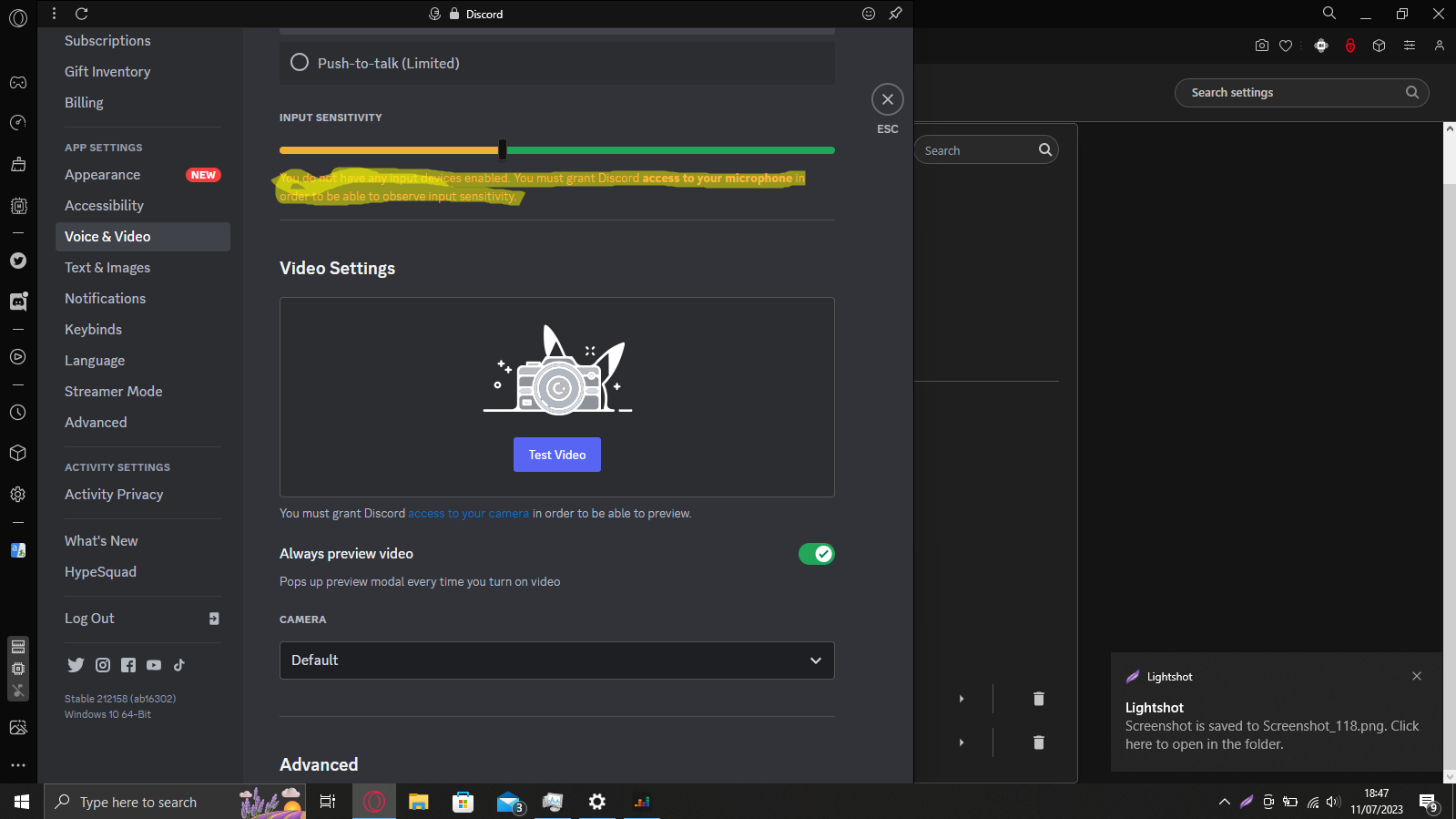
- Input Sensitivity: Ensure the "Automatically determine input sensitivity" toggle is enabled. If you prefer to set it manually, verify that the slider is not pushed so far to the right that your voice cannot trigger the threshold. A simple test is to speak and look at the bar below the slider; if it lights up green when you speak, the connection is active.
- Reset Voice Settings: If the microphone still fails, scroll to the bottom of the Voice & Video page and click Reset Voice Settings. This clears any corrupted configurations and forces Discord to re-initialize your audio hardware.
Phase 4: Dealing with Audio Drivers and Input Gain
Sometimes the issue persists because of outdated drivers or misconfigured gain levels within the operating system.
Updating Audio Drivers
If your system shows the microphone as "Connected" but "Not Responding" or "Low Signal," your audio drivers might be outdated. For USB microphones, visit the manufacturer’s website to download the latest firmware. For integrated audio ports, check your motherboard manufacturer's website for the latest Realtek or High Definition Audio drivers.
Adjusting Input Levels (Windows)
- Right-click the speaker icon in your taskbar and select Sound settings.
- Under the Input section, select your microphone.
- Ensure the "Input volume" slider is at 100%. If your microphone is naturally quiet, check the "Device properties" or "Additional device properties" to see if there is an "Extra Boost" or "Gain" setting.
Troubleshooting Table: Common Scenarios
| Issue Symptom | Most Likely Cause | Primary Fix |
|---|---|---|
| Microphone works in Windows but not Discord | Discord Input Device mismatch | Select specific mic in Voice & Video settings |
| No sound detected by Windows | Physical connection/Driver issue | Re-seat cable or reinstall audio drivers |
| Audio cuts out randomly | Insufficient USB power | Use direct motherboard USB port |
| "Mic Test" produces static | Gain staging or interference | Lower gain / Check cable shielding |
| Discord shows "Input Sensitivity" as greyed out | Permission restriction | Re-grant OS microphone access to Discord |
Frequently Asked Questions
Why does my microphone work in other apps but not in Discord? This usually occurs because Discord’s internal "Input Device" setting has been reset to an incorrect device (such as a webcam microphone or a virtual audio cable). Manually re-selecting your specific hardware in the "Voice & Video" settings menu generally resolves this.
Does changing my Discord server region fix audio lag or mic issues? No. Server region settings affect the latency of the data transmission between you and the server, but they do not influence the local recognition of your microphone. If your mic is not working, changing the region will not affect the input signal.
What is the "Krisp" feature, and can it break my mic? Krisp is a noise-suppression technology integrated into Discord. While it is designed to filter out background noise, it can sometimes aggressively filter out your own voice if your input gain is too low. If you are having trouble being heard, try toggling "Krisp" off in the Voice & Video settings to see if your voice returns.
My microphone is "too quiet" even when the volume is at 100%. What should I do? This is often a result of microphone gain staging. Ensure you are close enough to the microphone capsule. If you are using a professional XLR or USB mic, ensure there isn't a pad (reduction) switch active on the hardware itself. Additionally, increase the input volume in your operating system's sound control panel.
Should I use "Default" for my input device? It is generally discouraged. Using the "Default" setting makes your microphone subject to whatever the operating system decides is the "Communication Device," which can change unexpectedly when you plug in a headset or a webcam. Manually selecting the specific device ensures a consistent configuration.
Practical Next Steps
If you have performed the above steps and are still experiencing issues, the most reliable next action is to perform a clean reinstallation of the Discord application. Download the latest installer from the official Discord website, uninstall the current version, restart your computer to clear the audio cache, and install the fresh version. If the microphone fails across multiple applications (e.g., Discord, Zoom, and the Windows Voice Recorder), the issue is almost certainly a hardware failure or a damaged audio driver, and you should consider testing the microphone on a different computer to isolate the hardware.

Image Gallery
Select an image to open it in a new tab.
Ingrid Bjornson
Global Cyber Policy and Regulation Analyst
