
To unzip a 7z file in Linux, you typically use the p7zip utility, which provides the 7z command-line interface. Most Linux distributions require you to install this package first via your system's package manager. Once installed, you can extract the contents of a 7z archive by executing 7z x filename.7z in your terminal.
Understanding the 7z Archive Format in Linux
The 7z file format is a popular, high-compression archival method that utilizes the LZMA and LZMA2 compression algorithms. While common in Windows environments, 7z files are equally functional in Linux. Unlike formats like .tar.gz, which are native to Unix-like systems and often handle file permissions differently, the 7z format is a platform-independent container.
In Linux, managing these files requires specific software because the standard system utilities (like tar) are designed primarily for POSIX-compliant formats. The 7z utility acts as a bridge, allowing Linux users to interact with these archives without needing to switch operating systems. Because the format supports strong AES-256 encryption, it is frequently used for secure file transfers, making the ability to handle it via the command line an essential skill for system administrators and power users.
Prerequisites: Preparing Your Linux Environment
Before attempting to unzip a 7z file, you must ensure that your system has the necessary binaries installed. Linux distributions do not always include 7z support by default due to licensing variations and minimal installation goals.
First, check if the utility is already installed by running:
7z --version
If the terminal returns a version number, you are ready to proceed. If it returns a "command not found" error, you must install the p7zip package. The installation command varies based on your distribution family:
- Debian, Ubuntu, Linux Mint, and derivatives: Use the Advanced Package Tool.
sudo apt update && sudo apt install p7zip-full - Fedora, RHEL, CentOS, and AlmaLinux: Use the DNF package manager.
sudo dnf install p7zip - Arch Linux and Manjaro: Use the Pacman package manager.
sudo pacman -S p7zip
The p7zip-full package (on Debian-based systems) is generally preferred over the minimalist p7zip package because it includes support for a wider array of compression headers and algorithms, ensuring compatibility with almost any 7z file you encounter.
Step-by-Step Guide to Extracting 7z Files
Once the software is installed, extracting files is a straightforward process. The command-line interface is powerful, offering granular control over where files go and how they are handled.
1. Basic Extraction
The most common operation is simply extracting the files into your current working directory. Use the x (extract with full paths) command:
7z x archive_name.7z
Using the x command is superior to the e (extract) command in most cases because x preserves the directory structure stored within the archive. If your archive contains folders, e would extract all files into a single flat directory, which often breaks software installations or organizational structures.
2. Extracting to a Specific Directory
If you do not want to clutter your current directory, you can specify an output folder using the -o switch. Note that there is no space between -o and the path:
7z x archive_name.7z -o/path/to/destination/
Ensure the destination directory exists or that you have write permissions in the parent directory, or the operation will fail.
3. Listing Archive Contents
Before extraction, it is often wise to view the contents of an archive to ensure it does not contain unexpected files or nested directories. You can list the contents without extracting them by using the l (list) command:
7z l archive_name.7z
This command provides the file size, compression ratio, and internal path for every item stored in the archive, which is useful for verifying the contents of untrusted downloads.
Comparison of Extraction Methods and Utilities
While the command line is the most robust method for Linux, users have access to various tools depending on their workflow preferences.
| Method | Tool | Best For | Requirement |
|---|---|---|---|
| Command Line | 7z |
Automation, Scripts, Servers | p7zip-full |
| GUI (GNOME) | File Roller |
Casual users, Desktop usage | Integrated Archive Manager |
| GUI (KDE) | Ark |
Desktop integration | Ark/libarchive |
| Universal | dtrx |
Batch processing | dtrx package |
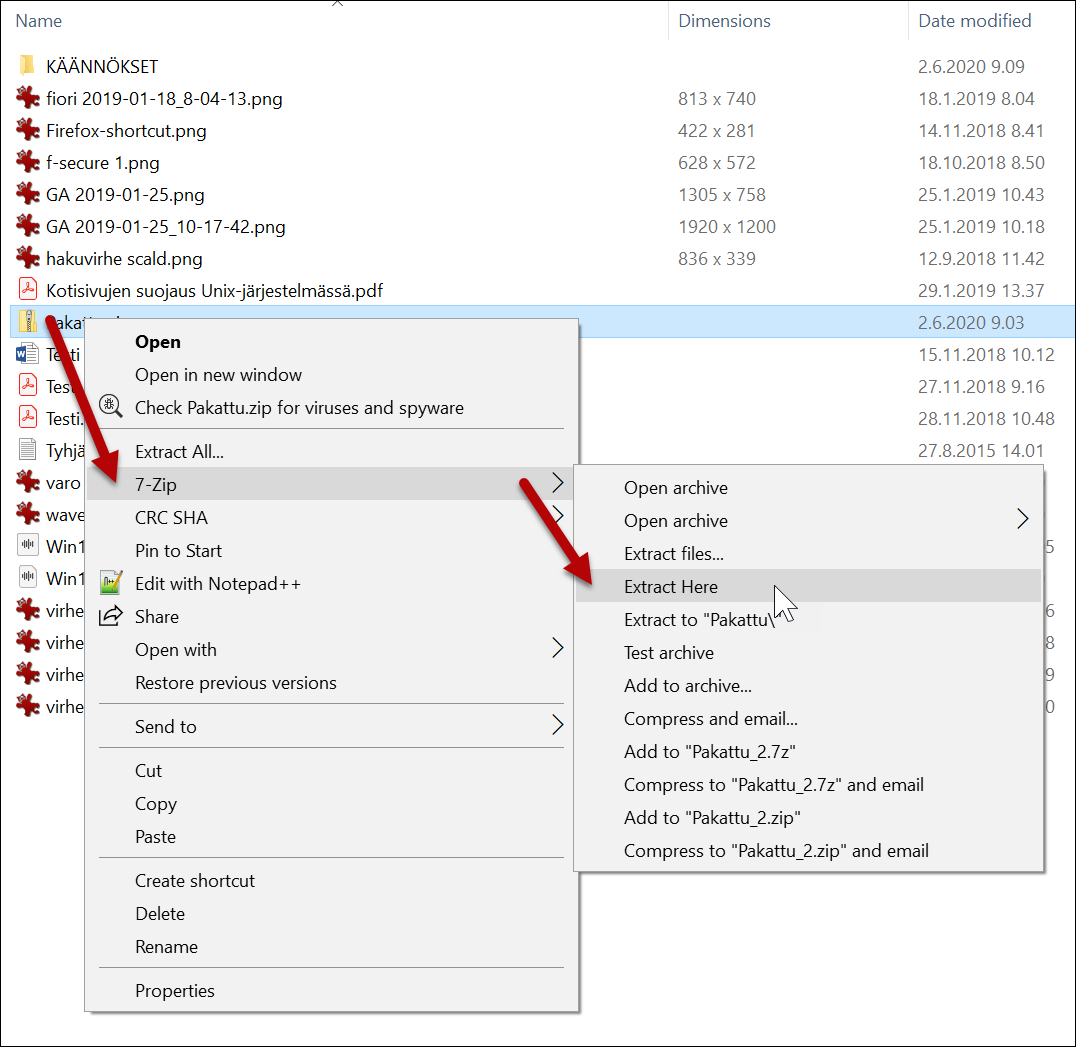
The File Roller or Ark tools are pre-installed on most desktop Linux environments (GNOME and KDE, respectively). If you prefer a visual interface, you can simply right-click the file in your file manager and select "Extract Here." These tools use the same underlying libraries as the command-line utility but provide a drag-and-drop experience.
Handling Encrypted 7z Archives
One of the primary reasons for using the 7z format is its support for password protection. When you attempt to extract an encrypted file, the utility will prompt you for the password:
7z x secure_data.7z
Enter password (will not be echoed):
When typing the password, the terminal will show no characters (not even asterisks). This is standard security behavior in Linux. Simply type the password and press Enter. If you are automating this process via a script, you can provide the password via the -p switch, though this is insecure as it exposes the password in the process list and shell history. Instead, consider piping the password into the command or using a secure configuration file if required by your automation workflow.
Troubleshooting Common Extraction Issues
Even with the correct software, you may occasionally run into issues when decompressing archives.
- "Command not found": This almost always indicates the package is not installed or the
PATHvariable is misconfigured. Re-run the installation commands provided in the prerequisite section. - "Data Error" or "CRC Failed": This indicates that the file is corrupted. This can happen during incomplete downloads or if the storage medium has bad sectors. Re-downloading the file is the most effective solution.
- Permission Denied: This occurs if you are trying to extract files into a system directory that requires elevated privileges. Use
sudobefore your command if you are certain you need to place the files in a protected location. - Unsupported Compression Method: If you encounter an error stating the method is unsupported, your version of
p7zipmay be outdated or missing a specific codec. Ensure you are usingp7zip-fullrather than the minimal version.
Expert Guidance: Best Practices for Archiving
When working with archives, maintain a clean workspace. Always extract to a new directory if you are unsure of how the archive is structured. Many archives are created by developers who include a "top-level" folder, but others may extract dozens of loose files directly into your current folder, leading to significant clutter.
For professional or academic environments, always verify the checksum of the archive before extracting, if a hash (MD5 or SHA256) is provided by the source. This ensures the integrity of the data and protects against potential malicious modifications during transit.
Frequently Asked Questions
Can I extract a 7z file without installing anything?
No, the 7z format requires external libraries to decompress. However, many Linux distributions include libarchive, which allows some file managers to handle 7z files natively without explicit user-installed packages.
What is the difference between 7z x and 7z e?
The x command extracts files while maintaining the internal directory structure. The e command extracts all files into the target folder, ignoring the original folder structure, which can cause naming conflicts if multiple files have the same name in different subdirectories.
How do I extract only specific files from a 7z archive?
You can append the path of the specific file to your extract command: 7z x archive.7z path/to/file.txt. This extracts only the requested file while ignoring the rest of the archive.
Are 7z files secure? The 7z format supports strong AES-256 encryption. If a file is encrypted, it is cryptographically secure, provided a strong password is used. The format itself is not inherently "secure" without a password.
Can I create a 7z file in Linux?
Yes, you can create a 7z archive using the a command: 7z a archive_name.7z /path/to/folder_or_file. This is an efficient way to compress large data sets for backup or transmission.
Final Recommendation
To effectively manage 7z files on Linux, prioritize installing the p7zip-full package to ensure full algorithmic support. For routine tasks, rely on the 7z x command to preserve directory integrity. If you are handling sensitive information, ensure your passwords are complex and, whenever possible, verify file integrity using hash checks to guarantee your data remains uncorrupted and secure.

Image Gallery
Select an image to open it in a new tab.


Omar Farooq
EdTech Innovation and Virtual Pedagogy Journalist
