
To turn off Live Photos on your iPhone, open the Camera app and tap the Live Photo icon (a set of concentric circles) in the top-right corner until a slash appears through it. To make this change permanent, navigate to Settings > Camera > Preserve Settings and toggle the Live Photo switch to On.
Live Photos have been a staple of the iOS ecosystem since their introduction alongside the iPhone 6s. By capturing 1.5 seconds of video and audio before and after the shutter is pressed, the feature creates a "living" memory. However, as of 2026, many users prefer high-resolution static images to save storage space or to ensure the perfect frame is captured without the distraction of movement. Understanding how to manage this feature—both temporarily and permanently—is essential for optimizing your iPhone’s photography experience and managing your iCloud storage effectively.
Understanding the Mechanics of Live Photos
Before disabling the feature, it is helpful to understand what happens under the hood. A Live Photo is not a single file; it is a combination of a high-quality 12-megapixel (or 48-megapixel on newer Pro models) HEIF/JPEG image and a three-second MOV video file.
When you press the shutter button, the iPhone is already buffering video. The resulting file allows for unique effects like Long Exposure, Loop, and Bounce. However, this dual-file nature means that every Live Photo occupies significantly more space than a traditional static image. In an era where 48MP ProRAW photos are common, managing the "weight" of your photo library is a high priority for many users.
How to Disable Live Photos in the Camera App
The most immediate way to control Live Photos is directly within the Camera interface. This method is ideal for users who want to toggle the feature on or off based on the specific scene they are shooting.
Step-by-Step Toggle Instructions
- Launch the Camera App: Open the Camera from your Home Screen, Control Center, or Lock Screen.
- Locate the Icon: Look for the icon consisting of concentric dotted circles. On most modern iPhones running recent iOS versions, this is located in the top-right corner of the screen when in "Photo" mode.
- Tap to Disable: Tap the icon. You will see a brief yellow badge that says "LIVE OFF" appear at the top of the viewfinder, and the icon will now have a diagonal slash through it.
- Verification: Ensure the icon is white or grey with a slash. If the icon is yellow, Live Photo is currently active.
It is important to note that by default, the Camera app may reset to "Live Photo On" the next time you open the app. This is a common source of frustration for users who find the feature reactivating itself automatically. To prevent this, you must adjust your system settings.
How to Permanently Turn Off Live Photos via Settings
Apple’s "Preserve Settings" menu is the secret to ensuring your preferences stick. Without adjusting these settings, the iPhone defaults to its factory configuration—which prioritizes Live Photos—every time the Camera app is fully closed and restarted.
Accessing Preserve Settings
To stop Live Photos from turning back on automatically, follow these steps:
- Open the Settings app on your iPhone.
- Scroll down and tap on Camera.
- Select the Preserve Settings menu.
- Find the toggle for Live Photo.
- Toggle the switch to ON (Green).
Note of Clarification: This specific setting is often misunderstood. By turning the "Live Photo" toggle On in the Preserve Settings menu, you are telling the iPhone to remember the last state of the Live Photo button in the Camera app. Therefore, if you turn Live Photo off in the Camera app while this setting is enabled, it will stay off until you manually turn it back on.
Converting Existing Live Photos to Still Images
If you have already taken hundreds of Live Photos and wish to reclaim storage space or simplify your library, you don't have to delete them. You can convert them into static photos after the fact.
Manual Conversion Process
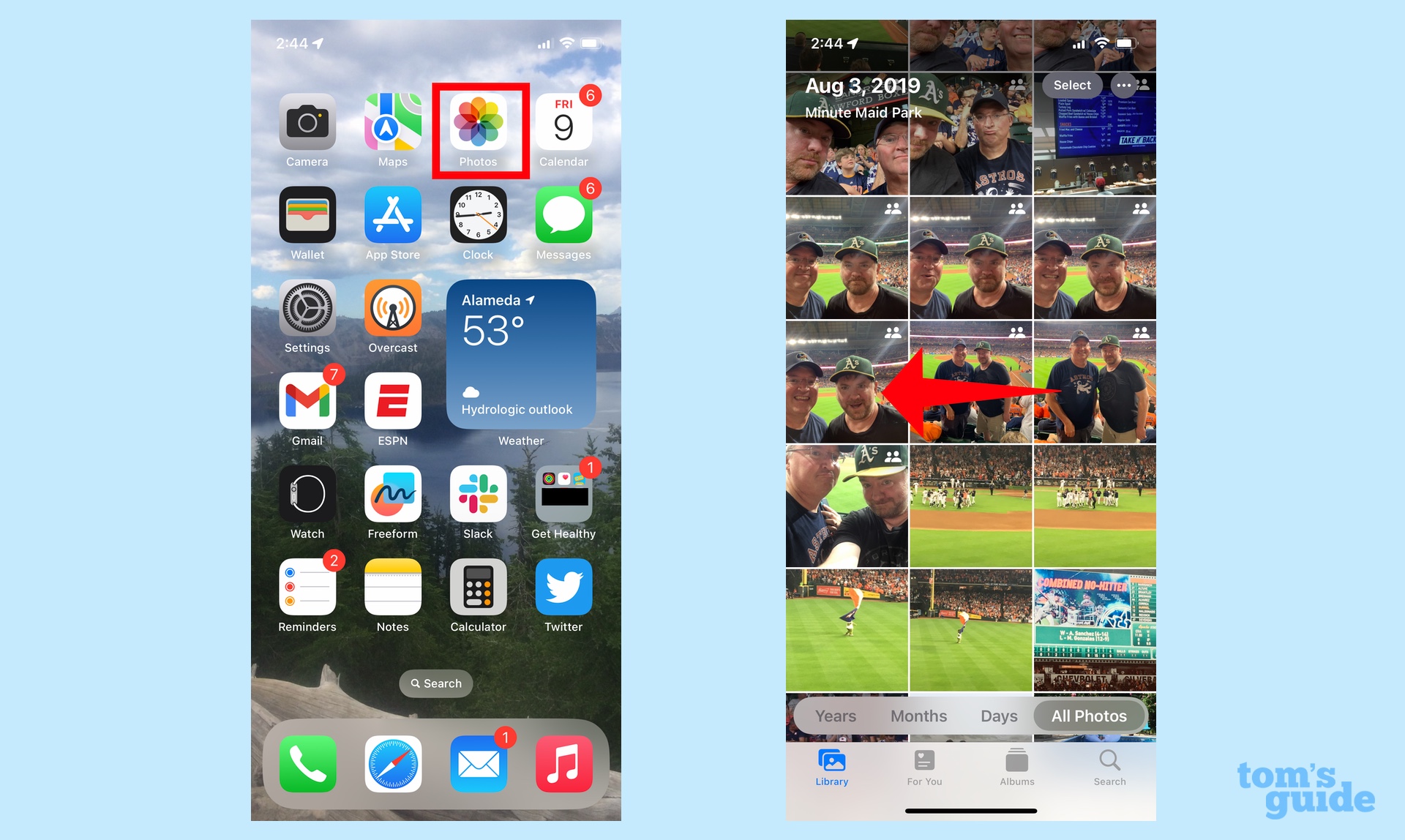
- Open the Photos app and select a Live Photo.
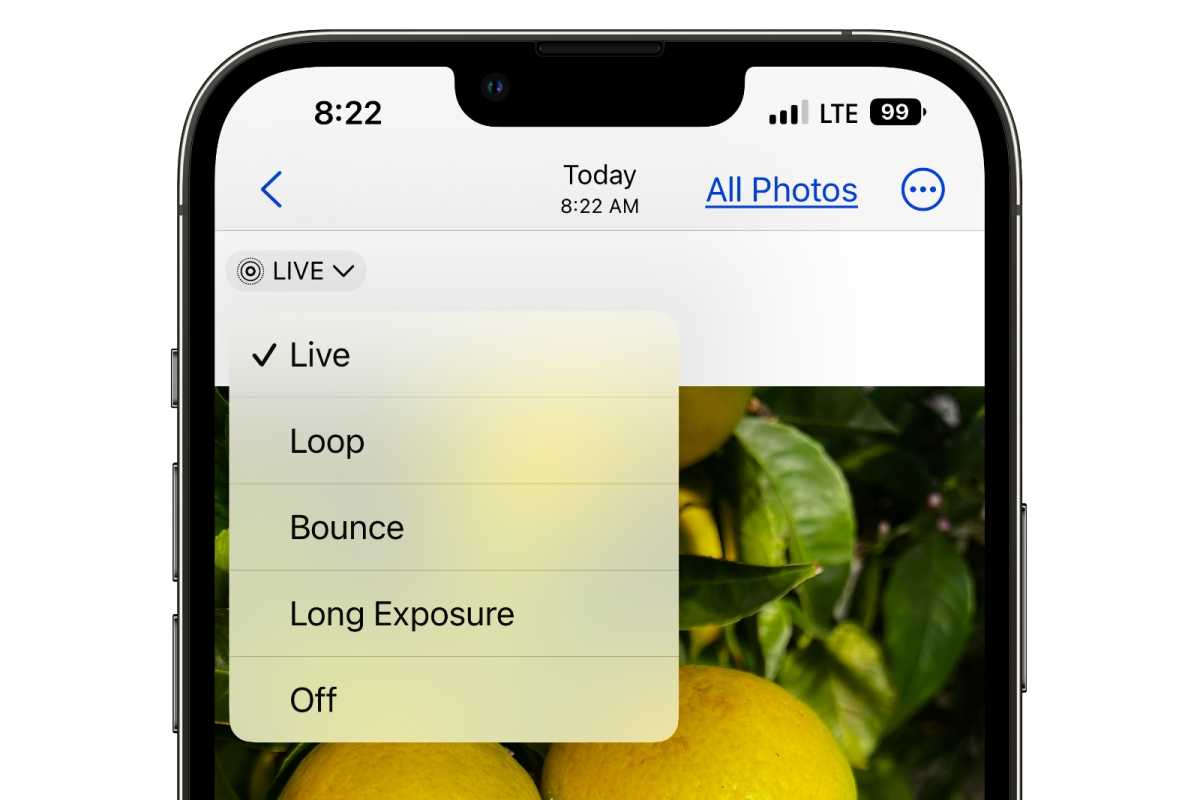
- Tap the Live badge in the top-left corner of the image.
- Select Off from the dropdown menu. This hides the motion but does not immediately delete the video data.
- To fully "flatten" the image into a static file, tap the Share icon (the square with an upward arrow).
- Select Duplicate from the list of actions.
- Choose Duplicate as Still Photo.
This creates a new, standard image file that lacks the video component. You can then delete the original Live Photo to save space. As of 2026, third-party apps also exist that can batch-convert your entire library, which is highly recommended for users with limited iCloud capacity.
Storage Impact and Performance Considerations
One of the primary reasons users search for how to turn off live photos on iPhone is the impact on device storage. While Apple has improved the efficiency of the High Efficiency Image File (HEIF) format, the video component still adds weight.
| Photo Type | Estimated File Size (12MP) | Estimated File Size (48MP) | Video Component |
|---|---|---|---|
| Static JPEG | 2.5 MB – 3.5 MB | N/A | No |
| Static HEIF | 1.2 MB – 2.0 MB | 4.0 MB – 6.0 MB | No |
| Live Photo (HEIF) | 3.0 MB – 4.5 MB | 8.0 MB – 12.0 MB | Yes (3 Seconds) |
| ProRAW (Static) | 25 MB | 75 MB+ | No |
By disabling Live Photos, you can effectively double the number of images stored on your device's local memory. This is particularly relevant for the 128GB base models that remain common in the 2026 market. Furthermore, disabling the feature can slightly reduce the shutter lag on older hardware, as the processor does not need to manage the continuous video buffer.
Impact on Social Media and Sharing
Sharing Live Photos can sometimes lead to unexpected results. When you send a Live Photo via iMessage to another Apple user, they receive the full motion experience. However, when sharing to platforms like Instagram, X (formerly Twitter), or via email to Windows users, the result varies.
- Instagram: Usually treats the Live Photo as a static image unless you upload it as a "Boomerang" in Stories.
- Email/Windows: Often attaches two files—a .JPG and a .MOV—which can be confusing for the recipient.
- Android Devices: Will typically only see the static "key photo."
If you frequently share professional or high-quality snapshots, turning off Live Photos ensures that the recipient sees exactly what you intended without the awkward "half-second of movement" that often occurs right before the pose is struck.
Troubleshooting: Why Won't Live Photos Stay Off?
If you find that your iPhone continues to take Live Photos despite your efforts, check the following common issues:
1. The Preserve Settings Toggle is Off
Ensure you have navigated to Settings > Camera > Preserve Settings and that the Live Photo toggle is green. If this is off, the camera will reset to "Live On" every time the app is cleared from the iPhone's RAM.
2. Accidental Activation
The Live Photo icon in the Camera app is located near other frequently used tools like the flash or timer. It is easy to accidentally tap the icon while trying to adjust other settings.
3. Software Bugs
In rare cases, iOS updates can reset "Preserve Settings" to their default state. After a major system update (such as transitioning to iOS 19 or 20 in the 2025/2026 cycle), it is wise to verify that your camera preferences remain intact.
Related Questions
Does turning off Live Photos improve image quality?
Turning off Live Photos does not inherently change the resolution of the sensor, but it may improve the perceived quality. In low-light environments, the iPhone may struggle to capture a high-quality 3-second video alongside the photo, leading to more noise. Static photos allow the sensor to focus entirely on the single-frame exposure, often resulting in a cleaner image in challenging lighting.
Can I turn a Live Photo back on after I've taken it?
Yes, as long as you haven't "Duplicated as Still Photo" and deleted the original. If you simply toggled the "Live" badge to "Off" in the Photos app, you can go back to that photo, tap the badge again, and select "Live" to restore the animation and sound.
Is there a way to turn off Live Photos for just one specific person in a shared album?
No, the Live Photo setting is a camera-level function. If you contribute to a Shared Album, the photo will retain whatever properties it had when it was taken. If you want to share a static version, you must convert it or disable Live Photo before shooting the image.
Does Live Photo drain the battery faster?
Yes, albeit marginally. Because the camera sensor and the Image Signal Processor (ISP) are constantly recording and processing video frames while the app is open, there is a higher power draw compared to taking a static shot. For users who keep their camera app open for long periods, disabling Live Photos can help extend battery life.
Practical Recommendation
For the average user in 2026, the best balance of convenience and storage management is to keep Live Photos off by default using the Preserve Settings method. This ensures that your storage isn't filled with unnecessary video data of your feet or the ground as you put the phone away.
However, keep in mind that Live Photos are invaluable for shots involving children, pets, or candid group moments where someone might blink. In these specific scenarios, manually toggling the feature on via the Camera app icon allows you to capture the "Key Photo" that best represents the moment, while the "Preserve Settings" configuration ensures the camera returns to its static mode once you are finished.
Image Gallery
Select an image to open it in a new tab.



Mateo Castillo
Decentralized Finance and E-Payments Strategist
