How to Repair a Drive at Home: A Technical Guide to Data Recovery and Hardware Fixes
Repairing a drive at home involves identifying whether the failure is logical or physical. Logical issues, such as file system corruption or partition loss, can often be fixed using software tools like CHKDSK or TestDisk. Physical repairs are limited to replacing external enclosures or swapping identical circuit boards, as internal mechanical repairs require a professional cleanroom environment.
While the term "drive" can occasionally refer to a residential driveway in a home improvement context, this guide focuses on the technical repair of computer storage drives, including Hard Disk Drives (HDDs) and Solid State Drives (SSDs). As of 2026, the complexity of high-density storage means that a systematic, safety-first approach is essential to prevent permanent data loss.
Assessing the Type of Drive Failure
Before attempting any repair, you must determine the nature of the malfunction. Drive failures generally fall into two categories: logical and physical. Treating a physical failure with logical repair software can cause further mechanical wear, potentially rendering data unrecoverable even for professionals.
Logical Failures
A logical failure occurs when the drive’s hardware is functional, but the operating system cannot access the data. This is often caused by sudden power loss, improper ejection, or malware.
- Symptoms: The drive appears in Disk Management but shows as "Unallocated" or "RAW." You receive "Access Denied" or "Format Disk" prompts. Files appear as gibberish or disappear entirely.
- Risk Level: Low to Moderate. As long as you do not write new data to the drive, the existing data usually remains intact.
Physical and Mechanical Failures
Physical failure involves the breakdown of the drive's internal components or its external electronic interface.
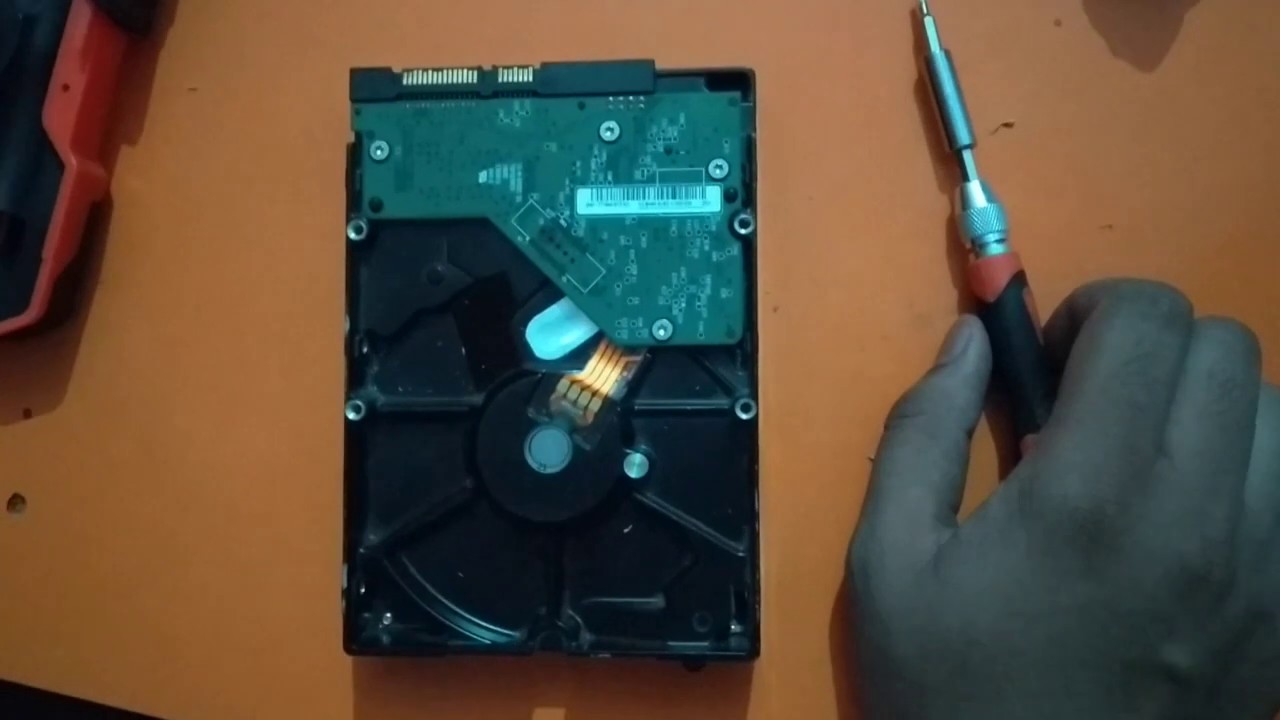
- Symptoms: The drive makes rhythmic clicking, grinding, or beeping noises (often called the "Click of Death"). The drive does not spin up or is not detected by the BIOS/UEFI at all. A burning smell or visible scorch marks on the Printed Circuit Board (PCB) indicate electrical failure.
- Risk Level: Critical. Attempting to power on a clicking HDD can lead to a "head crash," where the read/write heads scrape the magnetic platters, physically destroying the data.
Essential Tools and Safety Precautions for Home Repair
Repairing sensitive electronics requires a controlled environment. Static electricity can destroy the delicate NAND flash in an SSD or the controller chip on an HDD’s PCB.
- Anti-Static Measures: Use an anti-static wrist strap or regularly touch a grounded metal object. Work on a non-conductive surface, avoiding carpets or plastic tablecloths.
- External Power Supply: If you are testing a 3.5-inch desktop HDD, ensure you have a powered SATA-to-USB adapter. These drives require 12V power, which a standard USB port cannot provide alone.
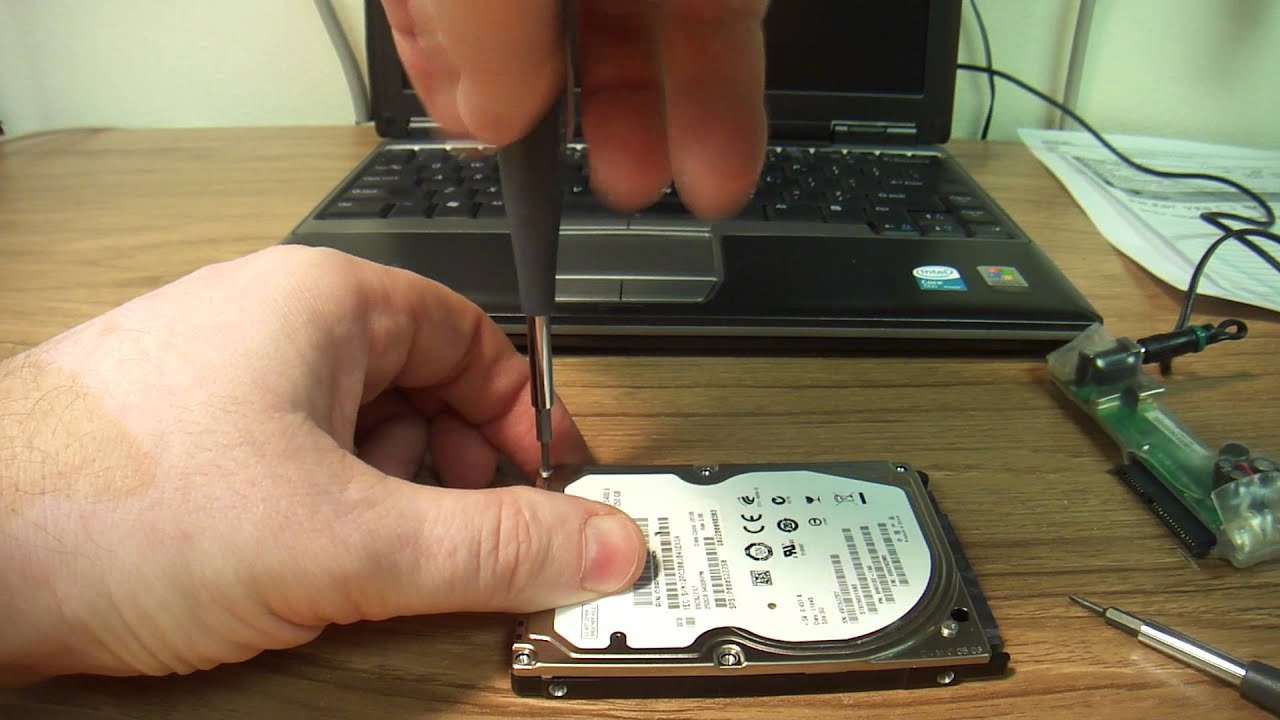
- Precision Screwdriver Set: You will typically need Torx (T5, T6, T8) and small Phillips head drivers to access the PCB or open external enclosures.
- Software Toolkit: Download reputable tools such as TestDisk for partition recovery and the manufacturer’s official diagnostic software (e.g., Seagate SeaTools or Western Digital Dashboard).
Warning: Never open the sealed top cover of a Hard Disk Drive at home. HDDs are assembled in ISO Class 5 cleanrooms. A single speck of dust is larger than the gap between the read/write head and the platter; if dust enters, the drive will fail almost instantly upon spinning up.
Logical Repair: Fixing File Systems and Partitions
If your drive is detected by the computer but the data is inaccessible, follow these steps in order of increasing complexity.
Step 1: Using Native System Tools
Windows and macOS have built-in utilities designed to fix minor file system errors.
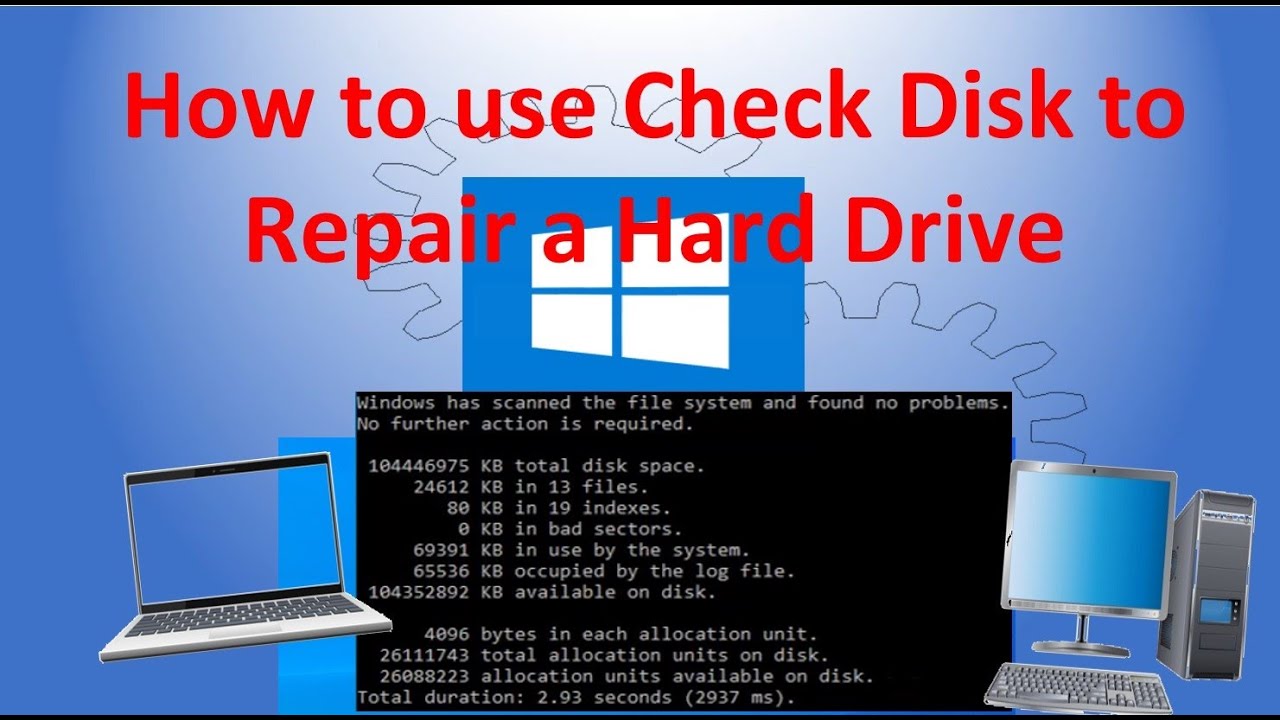
- Windows (CHKDSK): Open Command Prompt as an administrator and type
chkdsk X: /f(replace X with your drive letter). This command scans the file system metadata and repairs logical inconsistencies. - macOS (Disk Utility): Use the "First Aid" feature. It verifies the partition map and repairs the underlying directory structure of APFS or HFS+ volumes.
Step 2: Partition Table Recovery with TestDisk
If a drive shows up as "RAW" or "Unallocated," the partition table might be deleted or corrupted. TestDisk is an open-source tool that can scan the drive and rewrite the partition table without moving the actual data.
- Run TestDisk and select the drive.
- Select the partition table type (usually EFI GPT for modern drives).
- Perform a "Quick Search."
- If the lost partitions are found, select "Write" to restore the partition structure.
Step 3: Deep Data Recovery (PhotoRec)
If the file system is too damaged to repair, you must focus on extracting the files to a different, healthy drive. PhotoRec (bundled with TestDisk) ignores the file system and searches for "signatures" of common file types like JPEGs, PDFs, and ZIP files. This is a "read-only" process, making it safe for the failing drive.
Physical Repair: External Enclosures and PCB Swaps
Sometimes the "drive" isn't broken, but the bridge chip connecting it to your computer is. This is a common point of failure for external portable drives.
Troubleshooting External Enclosures
If an external drive stops responding, the USB-to-SATA controller inside the plastic housing may have failed.
- Shucking the Drive: Carefully pry open the plastic casing of the external drive.
- Internal Connection: Most external drives contain a standard 2.5-inch or 3.5-inch SATA drive connected to a small bridge board.
- Direct Connection: Remove the drive from the casing and connect it directly to a computer’s internal SATA port or a known-working USB adapter. If the drive spins up and works, the repair is complete; simply buy a new $20 enclosure.
PCB (Printed Circuit Board) Replacement
If your drive suffered a power surge and has no signs of life, the PCB may be dead. However, you cannot simply swap a PCB from an identical drive model anymore. Since the early 2010s, HDDs store drive-specific calibration data (adaptive data) in a ROM chip on the PCB.
- The Process: You must find a replacement board with the exact same PCB Revision Number. Once found, you must de-solder the 8-pin ROM chip from the original board and solder it onto the donor board.
- Current Status (2026): Many modern SSDs and Helium-filled HDDs now integrate this data into the main controller or encrypt it, making home PCB swaps significantly more difficult without specialized firmware tools.
Special Considerations for SSD Repair
Solid State Drives do not have moving parts, so they do not click or grind. Instead, they "panic" and enter a locked state.
The "30-Minute Power Trick"
Sometimes an SSD's controller becomes stuck in a loop trying to manage NAND cells.
- Connect the SSD to power (SATA power or USB) but do not connect the data cable.
- Let it sit idle for 30 minutes. This allows the built-in firmware's "Garbage Collection" to run without interference from the operating system.
- Power cycle the drive and check if it is recognized.
Firmware Updates
Manufacturers frequently release firmware updates to fix bugs that cause drives to become unresponsive. Use the Western Digital Dashboard or Samsung Magician to check for updates. If the drive is in "Read-Only" mode, this is a safety feature indicating the NAND flash has reached its end-of-life endurance; in this case, back up the data immediately and replace the drive.
Comparing Repair Success Rates
The following table summarizes common drive issues and the likelihood of a successful home repair in 2026.
| Issue Type | Symptom | DIY Success Rate | Recommended Action |
|---|---|---|---|
| Logical | RAW drive, missing files | High (80-90%) | Use TestDisk or PhotoRec |
| Interface | Broken USB port on external drive | High (70-80%) | Remove drive from enclosure |
| Electronic | Drive does not spin, no power | Moderate (30-50%) | PCB swap with ROM transfer |
| Firmware | Drive detected with 0MB size | Low (10-20%) | Vendor firmware update tool |
| Mechanical | Clicking, grinding, screaming | Very Low (<5%) | Professional cleanroom service |
| Flash Wear | SSD is Read-Only | None (0%) | Replace drive (Data is safe) |
When to Stop and Call a Professional
Home repair has limits. If the data on the drive is worth more than the cost of professional recovery (typically $300–$1,500), you should stop immediately if you encounter any of the following:
- Platter Scratches: If you hear a scraping sound, every second the drive is powered on, the data is being physically turned into dust.
- Encrypted Drives: If a drive with BitLocker or FileVault has a hardware failure, repairing the hardware is only half the battle. If the metadata area containing the encryption headers is damaged, the data is lost forever.
- Critical Business Data: Never "experiment" on a drive containing the only copy of irreplaceable photos or financial records.
Reputable companies like Ontrack or DriveSavers provide free evaluations and use specialized hardware (like the PC-3000) that can bypass drive firmware to extract data sector-by-sector.
FAQ
Can I fix a clicking hard drive by putting it in the freezer?
No. The "freezer trick" was a desperate measure for very old drives (pre-2005) to briefly shrink metal components and unstick a seized spindle motor. On modern high-density drives, this causes condensation to form on the platters, which leads to a catastrophic head crash the moment the drive is powered on.
What is the most common cause of drive failure in 2026?
Heat and firmware corruption remain the leading causes. For SSDs, unexpected power loss can corrupt the mapping table (the index that tells the controller where data is stored on the NAND), leading to a "bricked" drive that requires specialized factory-mode tools to reset.
Is it possible to repair a drive that has been dropped?
If the drive was powered off when dropped, there is a chance the heads were parked safely. If it was powered on, the heads likely impacted the platters. You can try connecting it once; if it clicks, power it off immediately. Mechanical damage from a fall cannot be repaired at home.
How do I check the health of my drive before it fails?
Use a tool to read the S.M.A.R.T. (Self-Monitoring, Analysis, and Reporting Technology) attributes. Look for "Reallocated Sectors Count" or "Available Spare" (for SSDs). If these numbers are increasing, the drive is failing and should be replaced before a total breakdown occurs.
Can I fix a broken SATA connector at home?
If the plastic tab on the SATA data or power connector has snapped off, but the gold pins are intact, you can sometimes carefully hold a cable in place to copy data. For a permanent fix, you would need to solder a new SATA connector onto the PCB, which requires high-level soldering skills.
Final Recommendations for 2026
The best "repair" is a robust backup strategy. In 2026, the 3-2-1 backup rule remains the gold standard: three copies of your data, on two different media types, with one copy stored off-site (cloud storage). If you are currently facing a drive failure at home, prioritize data extraction over drive restoration. Most drives, once they begin to fail, are no longer reliable for long-term storage even if successfully patched. Use the software methods described above to move your files to a new NVMe or high-capacity HDD, and then recycle the damaged unit responsibly.
Image Gallery
Select an image to open it in a new tab.





Akira Tanaka
International Academic Trends Correspondent
