
Microsoft Cloud App Security—known as Microsoft Defender for Cloud Apps—secures your G Suite (Google Workspace) environment by providing granular visibility, sophisticated data control, and advanced threat protection. By connecting G Suite to the Microsoft security ecosystem via API integration and automated app discovery, administrators can monitor user activity, enforce compliance policies, and mitigate risks associated with cloud-based data storage and collaboration.
Understanding the Integration Architecture
The synergy between Microsoft Defender for Cloud Apps and Google Workspace is built upon a dual-layer security model. The first layer involves API-based integration, which allows Microsoft’s security engine to communicate directly with the Google Workspace APIs. This connection grants the security platform deep access to logs, file metadata, and user activity signals, enabling the monitoring of content without requiring a proxy for every user interaction.
The second layer is Cloud Discovery, which utilizes traffic logs from your organization’s endpoints. By ingesting logs from your firewalls, web proxies, or the Microsoft Defender for Endpoint agent, the system identifies all cloud applications in use within the organization, including "shadow IT." When employees access Google Workspace, the system correlates this traffic to provide a comprehensive view of how and when G Suite is accessed, even if users are connecting from outside the corporate network.
Prerequisites for Connecting G Suite to Defender for Cloud Apps
Before establishing the connection, ensure your organization meets the technical and administrative requirements. You must hold a valid license for Microsoft Defender for Cloud Apps, which is often bundled within the Microsoft 365 E5, Enterprise Mobility + Security E5, or standalone security suites.
On the Google side, you require a Google Workspace account with Super Admin privileges. This level of access is necessary to grant Microsoft the required OAuth scopes to read metadata, audit logs, and file content. It is a best practice to verify that your Google Workspace environment is configured for API access and that you have enabled the necessary audit logging features within the Google Admin Console.
Step-by-Step Configuration Sequence
- Enable Google Workspace API: In your Google Cloud Platform (GCP) project associated with your Workspace, ensure the relevant APIs (such as the Admin SDK and Google Drive API) are enabled.
- Configure Service Account Credentials: Create a service account in the GCP console. This account acts as the bridge. You will need to download the private key (JSON file) generated during this process.
- Establish the OAuth Connection: Navigate to the Microsoft Defender for Cloud Apps portal. Under the "Connected Apps" section, select the option to add Google Workspace.
- Input Credentials: Provide the Service Account ID and the JSON key file. Microsoft will use these to authenticate and begin the synchronization process.
- Verify Synchronization: Allow time for the initial data ingestion. You can verify the health of the connection in the "Connected Apps" dashboard, where a green status indicator confirms that Microsoft is actively receiving logs from your Google environment.
Data Security and Governance Policies
Once the connection is live, the primary value lies in the implementation of "File Policies." These policies allow you to define what constitutes sensitive data—such as PII, credit card numbers, or proprietary code—and trigger automated actions when such data is found in Google Drive.
For instance, if a user makes a document containing sensitive financial data "Public" or "Shared with anyone," the Microsoft platform can automatically detect this via the API, revoke the public access, and notify the security operations center (SOC). This automated governance reduces the time between a policy violation and its remediation, which is critical in preventing data exfiltration.
Threat Detection and User Activity Monitoring
Microsoft Defender for Cloud Apps utilizes User and Entity Behavior Analytics (UEBA) to identify anomalous activities within Google Workspace. The system establishes a baseline of "normal" behavior for every user based on their historical sign-in locations, common device usage, and typical file access patterns.
When a user performs an action that deviates from this baseline—such as logging in from an unfamiliar geographic location, downloading an unusually high volume of files, or deleting large amounts of data—the system triggers an alert. These alerts are fed into the broader Microsoft 365 Defender portal, allowing for a centralized view of identity-based threats across both Microsoft and Google platforms.
Comparison of Control Mechanisms
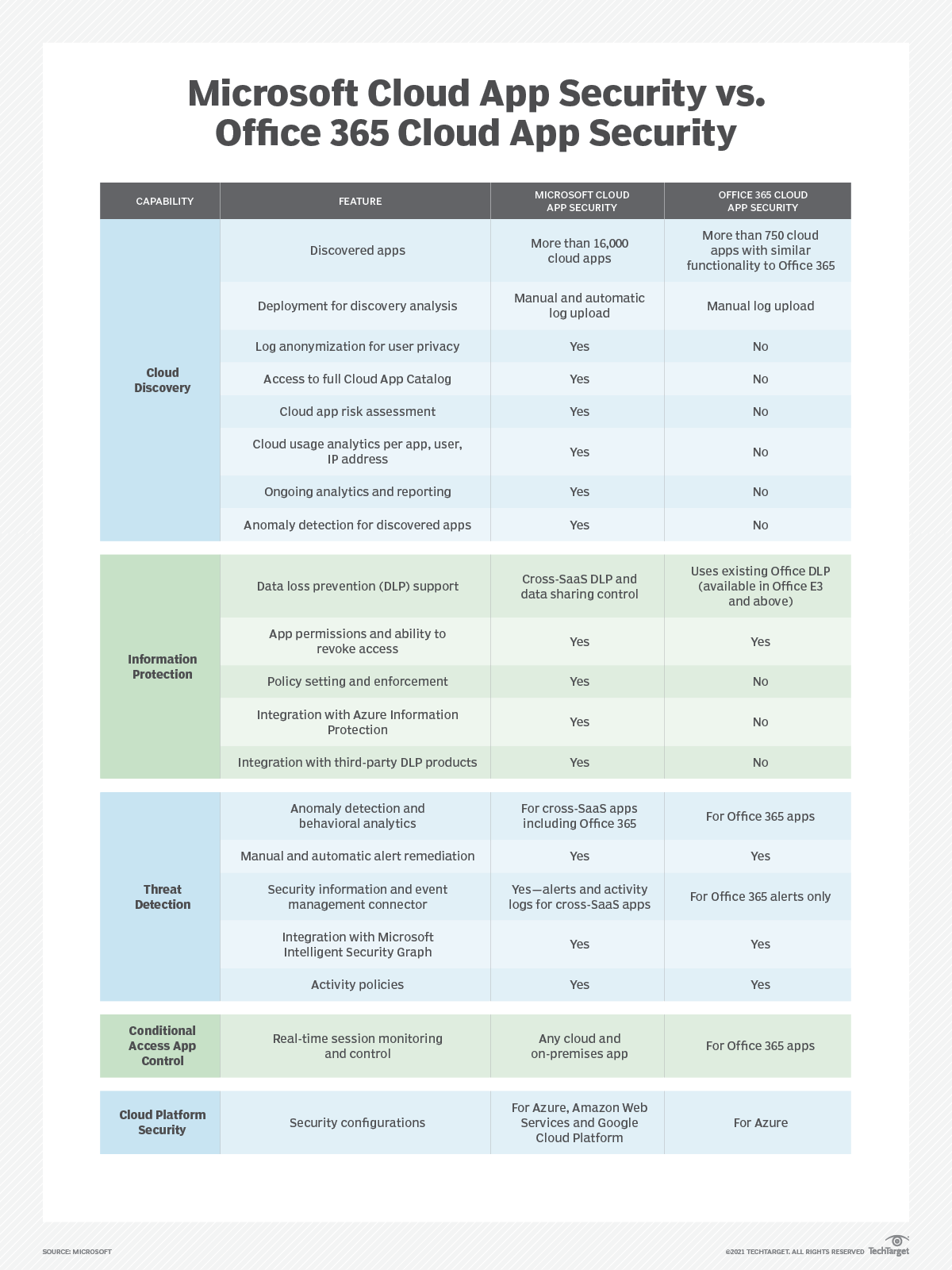
The integration offers distinct advantages compared to relying solely on native Google Workspace security tools. While Google provides robust logging, Microsoft aggregates these logs alongside data from other SaaS applications, creating a unified security posture.
| Feature | Google Workspace Native | Microsoft Defender for Cloud Apps |
|---|---|---|
| Visibility | Focused on Google apps only | Cross-cloud visibility |
| Shadow IT Discovery | Limited | Advanced traffic log analysis |
| Data Governance | Manual/Standard DLP | Automated cross-platform file policies |
| Threat Intelligence | Integrated | Global threat feeds + UEBA |
| Centralized SOC | Separate dashboard | Unified Microsoft 365 portal |
Addressing Operational Limitations
While the integration is powerful, it is not without limitations. API-based protection is inherently near-real-time rather than strictly real-time; there may be a slight delay between a user action in Google Drive and the detection by Microsoft. For environments requiring absolute, instantaneous prevention of file uploads, organizations often supplement this with Conditional Access App Control.
Conditional Access App Control acts as a reverse proxy. When a user navigates to G Suite, their traffic is routed through the Microsoft proxy. This allows for real-time monitoring and blocking of actions, such as preventing a user from downloading a file to an unmanaged personal device. Implementing this requires configuring SAML (Security Assertion Markup Language) and updating the authentication flow for your users.
Common Implementation Challenges
Administrators often encounter issues regarding API throttling. If your organization performs massive operations, such as scanning millions of files for sensitivity labels simultaneously, you may hit Google’s API rate limits. To avoid this, distribute your scanning policies across different time windows rather than running them all at once.
Another frequent challenge involves "false positives" in the alert system. If a user is traveling for business, their activity may be flagged as suspicious. To mitigate this, define "IP address ranges" or "Known IP tags" within the Microsoft portal to mark your corporate offices and VPN gateways as trusted locations. This ensures that legitimate business traffic is not flagged as malicious, allowing the security team to focus on genuine anomalies.
Frequently Asked Questions
1. Does connecting G Suite to Microsoft Defender for Cloud Apps require G Suite Enterprise?
No, the integration works with various tiers of Google Workspace, provided the APIs are available. However, some advanced features, such as specific audit log granularity, may depend on the specific Google Workspace edition you have purchased.
2. Can Microsoft delete files in my Google Drive?
Yes, if you configure a File Policy to do so. You can choose to "Quarantine" a file, which changes the owner and removes permissions, or "Delete" it entirely. These actions are performed through the API and are fully logged within the Google Workspace Admin console for audit purposes.
3. Does this integration replace the need for Google’s internal security settings?
No, the two platforms are complementary. You should continue to manage basic hygiene—such as MFA (Multi-Factor Authentication), password policies, and native sharing restrictions—within the Google Admin console. Microsoft provides an additional, high-level layer of governance and threat correlation.
4. Is the data stored by Microsoft secure?
Microsoft adheres to strict compliance standards. Data ingested into the Microsoft Defender for Cloud Apps environment is encrypted at rest and in transit. Your security data is isolated within your tenant, following the same data residency and privacy agreements as your Microsoft 365 services.
5. How does this affect user experience?
If you are only using API integration, there is zero impact on the end-user experience. If you implement the reverse proxy (Conditional Access App Control) for real-time monitoring, users may notice a slightly different URL structure or additional authentication prompts during the initial sign-in, which are standard for proxy-based security.
Recommended Next Steps
To successfully secure your G Suite environment, start by auditing your current Google Workspace permissions and ensuring your administrative accounts are protected by multi-factor authentication. Once the foundation is secure, begin by deploying the API connector in a pilot group to observe the types of alerts generated.
Prioritize the creation of policies that address your most significant risks, such as data exfiltration via public file sharing. Regularly review the "Alerts" dashboard in your Microsoft 365 Defender portal to fine-tune your thresholds and ensure that your security operations team is receiving actionable intelligence. As you grow comfortable with the visibility provided, consider layering on Conditional Access App Control to move from a reactive security posture to a proactive, real-time prevention strategy.
Image Gallery
Select an image to open it in a new tab.


Vivian Cho
Executive IT and Emerging Technologies Reporter
