
An AMD driver timeout occurs when the graphics driver stops responding to the operating system and attempts to reset itself, usually resulting in a game crash, black screen, or a notification stating that the AMD Software has detected a driver timeout. To fix this, you must systematically isolate software conflicts, adjust GPU clock speeds, clean-install stable display drivers, and ensure your system memory and power delivery operate within stable parameters.
Encountering an AMD driver timeout error can transform a gaming session or a productive rendering workflow into a frustrating experience. The error message—most commonly manifesting as "Default Radeon WattMan settings have been restored due to an unexpected system failure"—indicates that the Windows Timeout Detection and Recovery (TDR) feature has intervened. TDR steps in when the Graphics Processing Unit (GPU) fails to respond to a command within a predefined time limit, typically two seconds. While this mechanism prevents a total system freeze or a hard crash, it forcibly terminates the active 3D application or hardware acceleration task.
Resolving this issue requires a methodical diagnostic approach. Because driver timeouts stem from a wide variety of triggers—ranging from aggressive factory overclocks and unstable RAM XMP profiles to corrupted driver files and conflicting Windows updates—there is rarely a single "silver bullet" fix. This comprehensive guide details every proven troubleshooting method to restore stability to your AMD Radeon graphics card.
Understanding AMD Driver Timeouts
To fix an AMD driver timeout effectively, you must understand the underlying mechanics of why it happens. The graphics card does not operate in a vacuum; it relies on a delicate ecosystem comprising the motherboard BIOS, system memory (RAM), the power supply unit (PSU), the Windows operating system, and the graphics driver itself. When any of these components introduce latency, voltage drops, or corrupted data packets, the GPU may fail to execute a render command on time, triggering the TDR protocol.
Common root causes of AMD driver timeouts include:
- Corrupted Driver Installation: Leftover registry keys or conflicting files from previous driver versions interacting poorly with new Windows updates.
- Factory or User Overclocks: Aggressive clock speeds or insufficient voltage supplied to the GPU core or VRAM.
- Memory Instability: Unstable RAM profiles (such as XMP or EXPO) that cause data corruption during high-bandwidth transfers to the VRAM.
- Power Delivery Issues: Transient power spikes tripping the Over Current Protection (OCP) on the power supply or causing micro-stutters via aggressive power-saving states (Link State Power Management).
- Software Conflicts: Overlays (Discord, Steam, Xbox Game Bar), third-party monitoring utilities (MSI Afterburner, RivaTuner Statistics Server), or hardware-accelerated web browsers running concurrently with heavy 3D titles.
Step 1: Perform a Clean Installation of AMD Radeon Software
The most frequent culprit behind recurring driver timeouts is driver corruption. Simply installing a new driver over an old one often leaves behind legacy registry entries or conflicting module files. A clean installation using a dedicated cleanup utility ensures that all traces of previous software are completely erased.
Using AMD Cleanup Utility or DDU
- Download the official AMD Cleanup Utility from the official AMD support website, or download Display Driver Uninstaller (DDU) from a reputable source like Wagnardsoft.
- Boot your computer into Safe Mode (Hold the Shift key while clicking Restart in Windows, then navigate to Troubleshoot > Advanced options > Startup Settings > Restart, and press 4 or F4).
- Open the cleanup utility (AMD Cleanup Utility or DDU) and select AMD as the device type.
- Click Clean and Restart. This process removes all AMD driver files, display adapters, audio drivers, and registry keys while disconnecting the PC from the internet to prevent Windows Update from automatically installing a generic driver upon reboot.
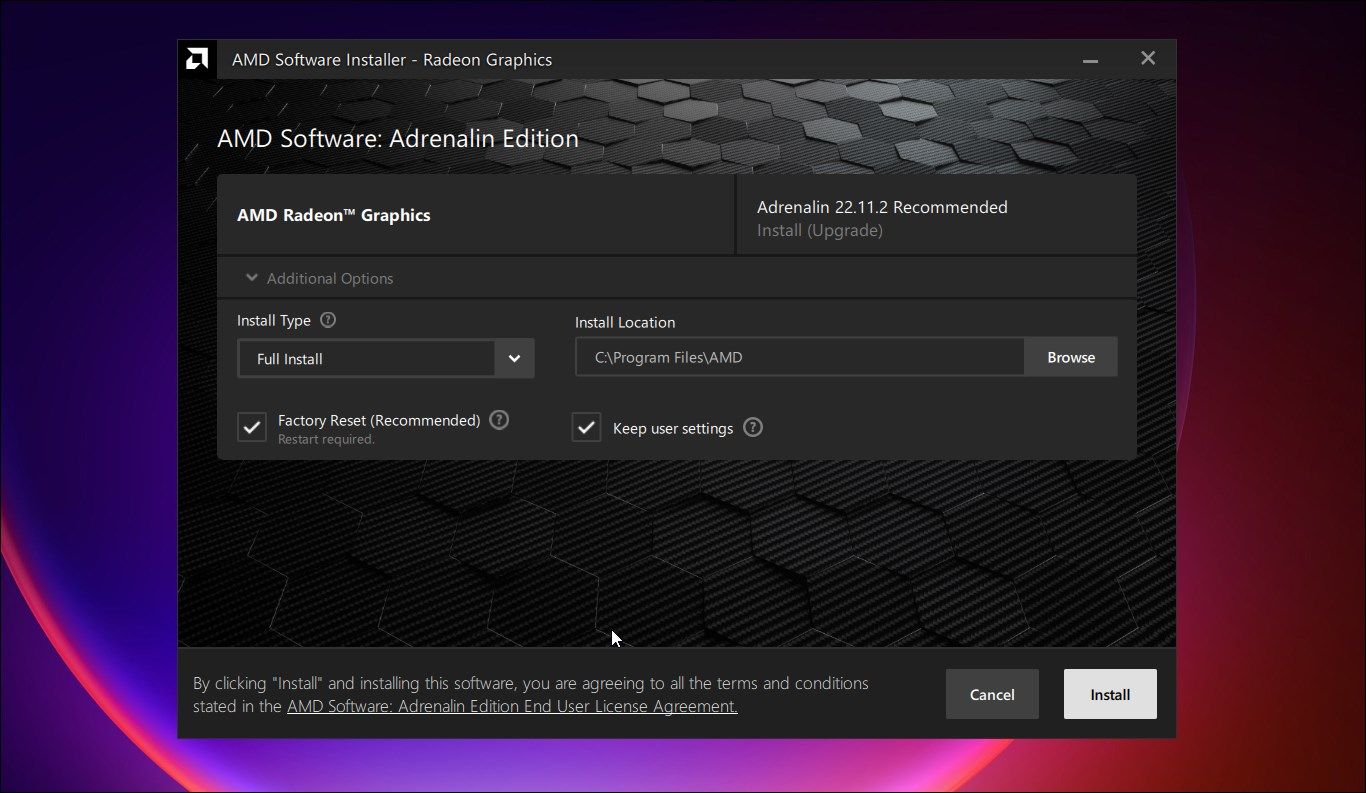
- Once rebooted into standard Windows, install the latest WHQL-certified (Windows Hardware Quality Labs) AMD Software: Adrenalin Edition package downloaded beforehand.

Step 2: Adjust GPU Performance and WattMan Settings
Many modern AMD Radeon graphics cards—both reference models and custom vendor boards (such as ASUS, Sapphire, PowerColor, or XFX)—come with aggressive factory overclocks. While these boost clock speeds look impressive on paper, they can push the silicon beyond its stable voltage threshold, resulting in a driver timeout.
Tuning Core Clocks and Voltage
- Open AMD Software: Adrenalin Edition.
- Navigate to the Performance tab and select Tuning.
- Change the Tuning Control setting from Default to Manual.
- Enable GPU Tuning and reduce the Maximum Frequency by 50MHz to 100MHz. Alternatively, slightly increase the voltage (Power Limit) or undervolt the card carefully depending on thermal headroom.
- Enable VRAM Tuning and ensure that Fast Timing is disabled if it was previously enabled, as aggressive memory timings frequently trigger TDR crashes in memory-intensive games.
- Click Apply Changes in the top right corner.
Step 3: Modify Windows Registry to Extend TDR Delay
By default, Windows gives a graphics card two seconds to respond to a command before declaring a timeout and resetting the driver. If your GPU is executing a complex, long-running compute shader or rendering a heavy scene, two seconds may not be enough, triggering a false-positive timeout. Extending this threshold can prevent unnecessary crashes.
| Registry Path | Key Name | Recommended Value |
|---|---|---|
HKEY_LOCAL_MACHINE\SYSTEM\CurrentControlSet\Control\GraphicsDrivers |
TdrDelay |
8 (Hexadecimal or Decimal) |
HKEY_LOCAL_MACHINE\SYSTEM\CurrentControlSet\Control\GraphicsDrivers |
TdrDdiDelay |
5 (Hexadecimal or Decimal) |
How to Apply the Registry Fix:
- Press
Windows Key + R, typeregedit, and press Enter. - Navigate to:
HKEY_LOCAL_MACHINE\SYSTEM\CurrentControlSet\Control\GraphicsDrivers - Right-click in the empty space on the right pane, select New > DWORD (32-bit) Value, and name it
TdrDelay. - Double-click
TdrDelay, select Decimal, and set the value data to8. - Create another DWORD (32-bit) Value named
TdrDdiDelay, select Decimal, and set its value data to5. - Close the Registry Editor and restart your computer for the changes to take effect.
Step 4: Address System Memory and BIOS Stability
An unstable system memory configuration is one of the most overlooked causes of AMD driver timeouts. Because the CPU constantly communicates with the GPU via system RAM and PCIe lanes, unstable memory timings will corrupt data payloads, leading directly to graphic pipeline failures.
- Test XMP/EXPO Stability: If you have Intel XMP or AMD EXPO memory profiles enabled in your motherboard BIOS, disable them temporarily to see if the timeouts stop. If disabling XMP resolves the issue, your RAM kit is running at an unstable voltage or speed for your memory controller (IMC).
- Update Motherboard BIOS: Motherboard manufacturers regularly release BIOS updates containing AGESA updates that improve PCIe stability, memory compatibility, and power management between the CPU and GPU. Check your motherboard manufacturer's support page for the latest stable BIOS version.
- Reseat the Graphics Card: Power down the PC, unplug it, and physically remove the graphics card from the PCIe slot. Inspect the PCIe contacts for dust or debris, blow out the slot gently, and firmly reseat the GPU until the retention clip clicks into place. Ensure all PCIe power cables from the power supply are securely connected.
Step 5: Disable Conflicting Software and Overlays
Background applications that hook into the graphics rendering pipeline can conflict directly with the AMD Adrenalin driver framework, causing sudden TDR events.
- Overlay Services: Disable overlays in Discord, Steam, GeForce Experience (if a secondary NVIDIA card or leftover software exists), and the Windows Xbox Game Bar.
- Third-Party Monitoring Tools: Software like MSI Afterburner, RivaTuner Statistics Server (RTSS), and Corsair iCUE often conflict with AMD's built-in monitoring and tuning tools. Run your system without these utilities active.
- Hardware Acceleration: Disable hardware acceleration in web browsers (Google Chrome, Mozilla Firefox, Microsoft Edge) and communication apps like Discord if you experience timeouts while browsing or idling on the desktop.
Step 6: Power Management and Driver Settings Adjustments
Windows power-saving features can inadvertently starve the GPU of power during low-load transitions, resulting in an unresponsive state.
- Open the Windows Control Panel and navigate to Power Options.
- Select High Performance or Ultimate Performance power plans.
- Open AMD Software: Adrenalin Edition, go to Gaming > Graphics, and select the Standard or Gaming profile. Ensure that features like Radeon Anti-Lag, Radeon Boost, or Radeon Image Sharpening are toggled off if you are troubleshooting stubborn instability.
- Verify that your Power Supply Unit (PSU) meets the minimum wattage requirements recommended by AMD for your specific GPU model. Low-quality power supplies or daisy-chained PCIe power cables can cause voltage drops under heavy load, triggering instant driver timeouts. Always use dedicated, separate PCIe power cables from the PSU to the GPU connectors.
Summary Troubleshooting Checklist
To ensure you have covered all necessary bases, review the sequential checklist below:
- Boot into Safe Mode and run AMD Cleanup Utility or DDU.
- Install the latest stable WHQL AMD Adrenalin driver.
- Lower GPU core clock speeds or adjust power limits in Adrenalin Tuning.
- Extend the Windows TDR delay registry keys (
TdrDelayto 8). - Verify RAM stability by testing without XMP/EXPO enabled.
- Update motherboard BIOS to the latest version.
- Disable background overlays and third-party monitoring apps.
- Set Windows Power Plan to High Performance and ensure dedicated power cables are used.
Frequently Asked Questions
Why do AMD driver timeouts happen more frequently in certain games?
Different games utilize DirectX 11, DirectX 12, or Vulkan APIs in unique ways, pushing specific workloads to the GPU compute units. Games with poorly optimized engine implementations, heavy ray-tracing workloads, or aggressive memory swapping can expose minor hardware instabilities or driver edge-cases that trigger a TDR event, even if other games run flawlessly.
Is an AMD driver timeout a sign of a dying graphics card?
Not necessarily. While a failing GPU core or failing VRAM modules can cause driver timeouts, the vast majority of TDR errors are software-related, caused by corrupted drivers, unstable RAM, aggressive overclocks, or BIOS bugs. Only if timeouts persist across clean Windows installations, stock hardware settings, and multiple driver versions should hardware degradation be suspected.
Should I use WHQL-certified drivers or optional driver releases?
For maximum stability, stick exclusively to WHQL-certified (Windows Hardware Quality Labs) drivers. Optional or preview drivers released by AMD often contain day-one optimizations for newly launched games but may introduce bugs and stability regressions that trigger driver timeouts on certain hardware configurations.
Can undervolting my GPU cause driver timeouts?
Yes. While undervolting reduces power consumption and temperatures, setting the core voltage too low for a given clock frequency causes the GPU to fail calculations under load. If you experience timeouts after undervolting, increase your voltage curve or dial back your clock offsets until stability is restored.
Next Actions
If you have exhausted all software-based troubleshooting steps, clean-installed your drivers, stabilized your system memory, and adjusted power delivery without success, conduct a hardware isolation test. Install the graphics card into a secondary PCIe slot (if available) or test the card in an entirely different, known-stable computer. If the driver timeouts follow the graphics card to another system, contact AMD Support or your board partner for a warranty repair or replacement evaluation.
Image Gallery
Select an image to open it in a new tab.




Simon Caldwell
Enterprise Technology and Systems Editor
