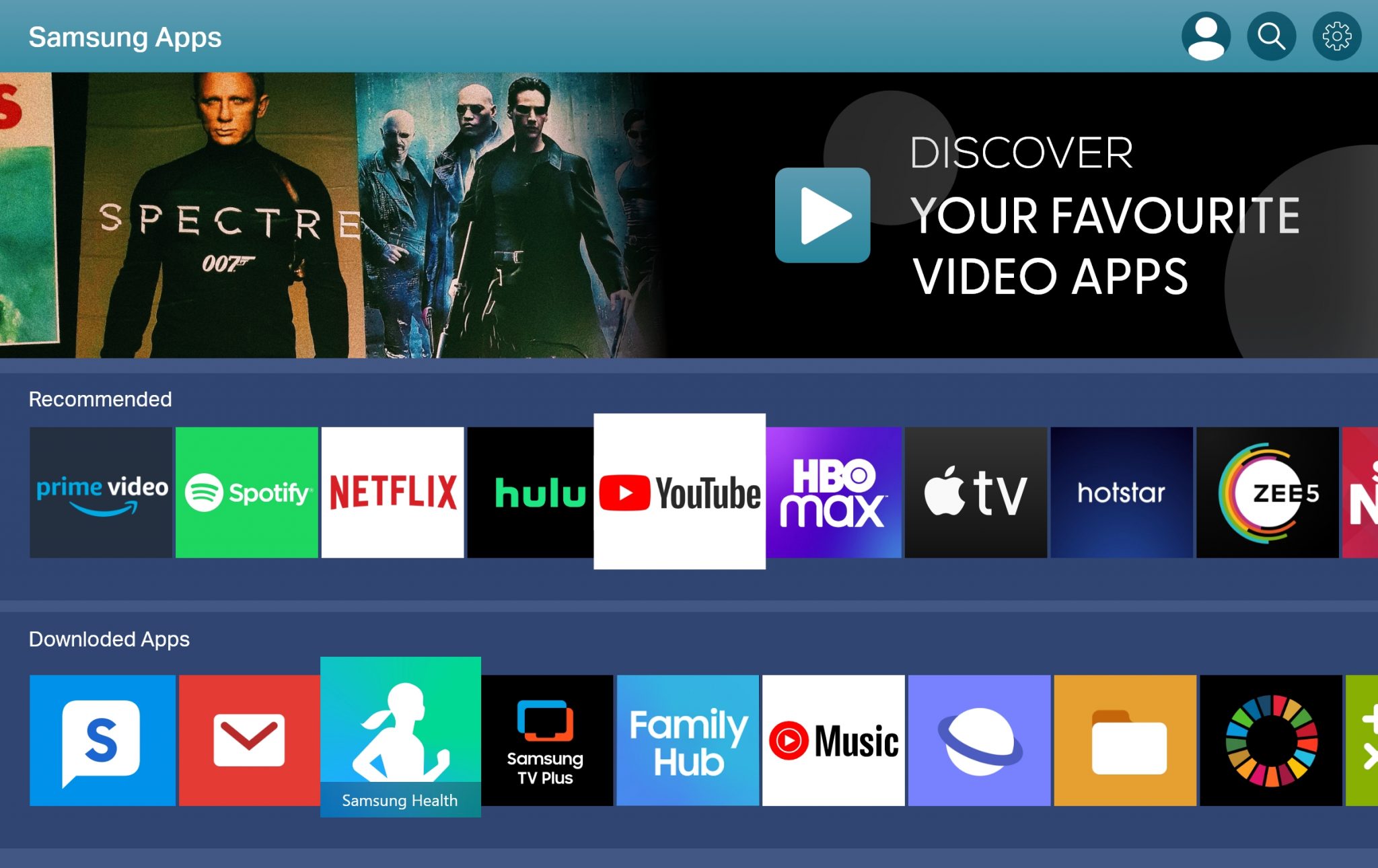
To get an app on your Samsung Smart TV, press the Home or Smart Hub button on your remote, navigate to the Apps icon, and select the Search (magnifying glass) icon. Type the name of the app you want, select Install, and once downloaded, click Add to Home for easy access. You must be signed into a verified Samsung Account and have an active internet connection to complete the download.
Samsung Smart TVs have dominated the global market for over a decade, largely due to their robust Tizen operating system and the vast library of applications available through the Samsung App Store. Whether you are looking to stream the latest 8K content, play cloud-based games via the Gaming Hub, or integrate your smart home devices through SmartThings, knowing how to efficiently find and manage applications is essential.
As we move through 2026, the interface has become more streamlined, utilizing AI-driven search and personalized recommendations, but the core mechanics of app installation remain consistent across most models produced since 2015. This guide provides an exhaustive walkthrough of the installation process, troubleshooting common hurdles, and managing your TV's storage for optimal performance.
Prerequisites for Installing Apps
Before attempting to download new software, ensure your hardware and account settings are prepared. Samsung’s ecosystem is secure and integrated, meaning you cannot simply download apps anonymously as you might have on older, "dumber" devices.
1. High-Speed Internet Connection
While the Smart Hub interface may load with a weak signal, app downloads—especially high-definition streaming services or gaming platforms—require a stable connection.
- Wired (Ethernet): Recommended for 4K and 8K streaming apps to avoid buffering.
- Wireless (Wi-Fi): Ensure your TV is on a 5GHz band if your router supports it, as the 2.4GHz band is often crowded in 2026 households with numerous IoT devices.
2. The Samsung Account Requirement
A Samsung Account is mandatory for downloading any third-party applications. This account syncs your preferences, watchlists, and subscription data across the Samsung ecosystem (including Galaxy phones and tablets).
- To Sign In: Go to Settings > General > System Manager > Samsung Account.
- To Create One: If you do not have an account, you can create one directly on the TV or via the official Samsung Account website. Using a smartphone to scan the QR code displayed on the TV screen is generally the fastest method in 2026.
3. Available Storage Space
Samsung Smart TVs typically come with limited onboard flash storage, often ranging from 4GB to 8GB. A significant portion of this is reserved for the OS. Before downloading a large app like a high-end game, check your available space in the Apps Settings menu.
Step-by-Step Guide to Installing Apps (2018–2026 Models)
Most Samsung TVs currently in use run on the Tizen OS. While the visual layout is updated annually, the workflow remains the same.
Step 1: Access the Smart Hub
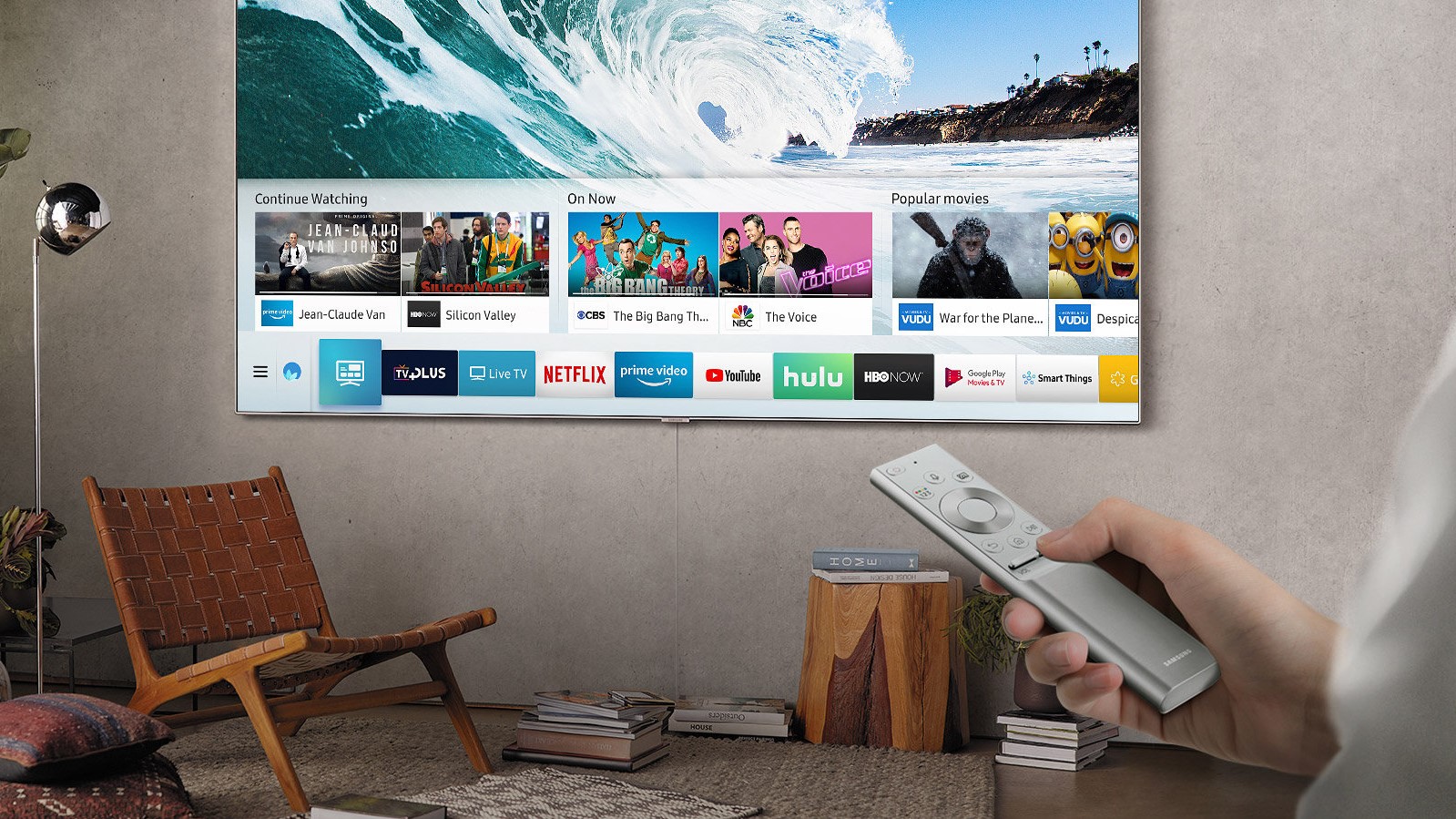
Press the Home button on your OneRemote or standard remote. This brings up the Smart Hub ribbon or full-screen menu at the bottom of the screen. In the latest 2026 models, this interface often defaults to a "Media" or "Home" screen featuring personalized content rows.
Step 2: Navigate to "Apps"
Locate the Apps icon. It is usually represented by a square grid of four small circles or squares. Use the directional pad (D-pad) on your remote to highlight it and press the center Select button.
Step 3: Use the Search Function
Once inside the App Store, you will see categories like "Editor’s Choice," "Most Popular," and "Video." If you know exactly what you want:
- Navigate to the top-right corner and select the Search icon (magnifying glass).
- Use the on-screen keyboard to type the app name (e.g., "Disney+", "Apple TV", "Spotify").
- Alternatively, use the Voice Command button on your remote and say, "Search for [App Name]."
Step 4: Download and Install
Select the app from the search results to open its detailed info page. Here you can see the app's version, size, and user ratings. Click the Install button. The TV will display a progress bar. Once finished, the button will change to Open.
Step 5: Add to Home Screen
To avoid digging through the App Store every time you want to watch something, select Add to Home immediately after installation. This places the app's icon in your main Smart Hub ribbon for quick access.
Managing Your App Library
Installing the app is only half the battle. To keep your Samsung Smart TV running smoothly in 2026, you must know how to organize, update, and delete software.
Organizing the Home Ribbon
You can change the order of apps on your Home screen to ensure your favorites are first.
- Navigate to the app you want to move.
- Press and hold the Select button until a sub-menu appears.
- Choose Move.
- Slide the app to its new location and press Select to drop it.
Enabling Auto-Updates
App developers frequently release patches for security and performance. To ensure you aren't manually updating twenty different apps:
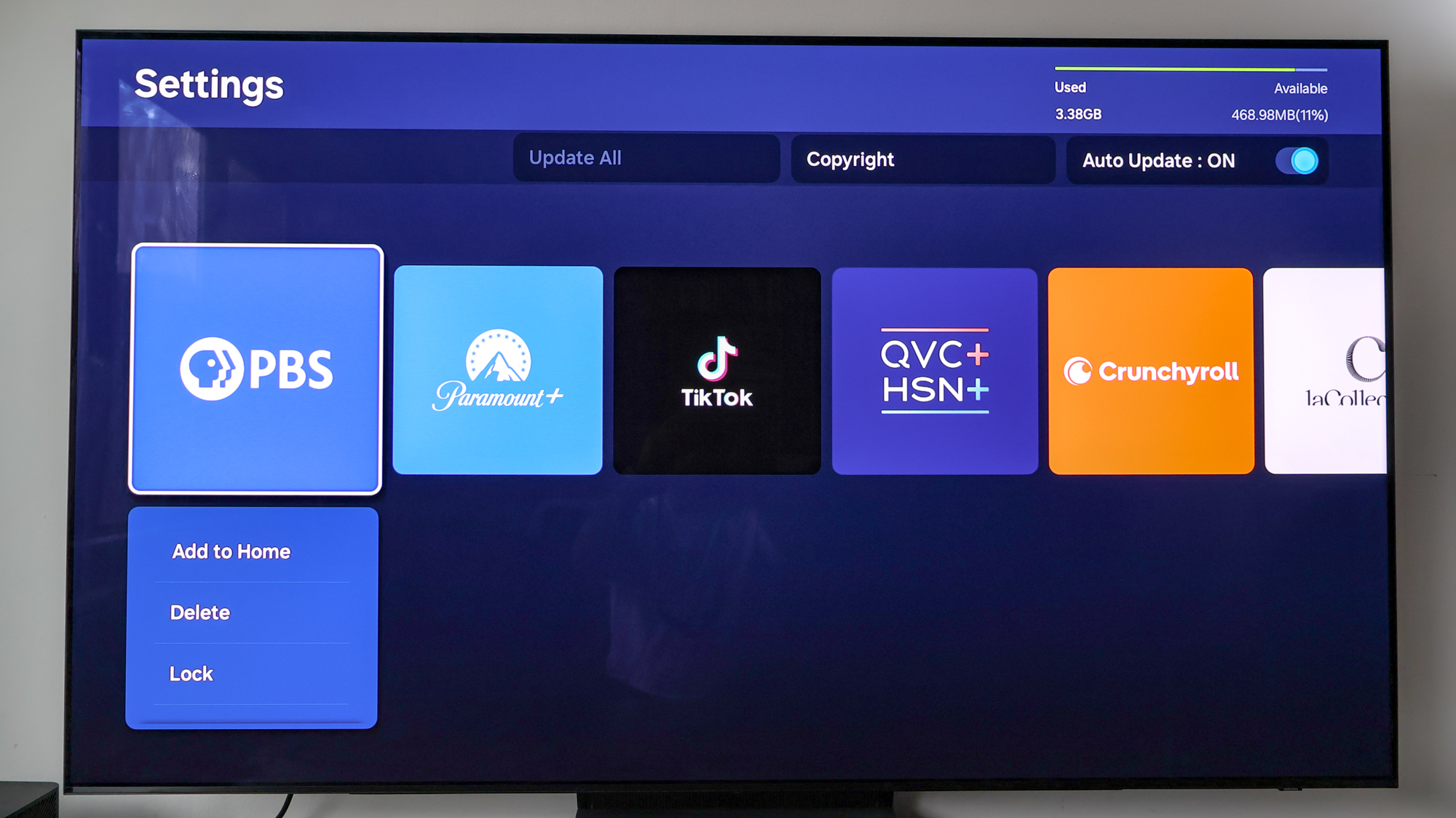
- Open the Apps menu.
- Select the Settings icon (gear) in the top right.
- Ensure Auto Update is toggled to On.
Deleting Apps to Free Up Space
If your TV becomes sluggish or you receive a "Memory Full" error, you must remove unused applications.
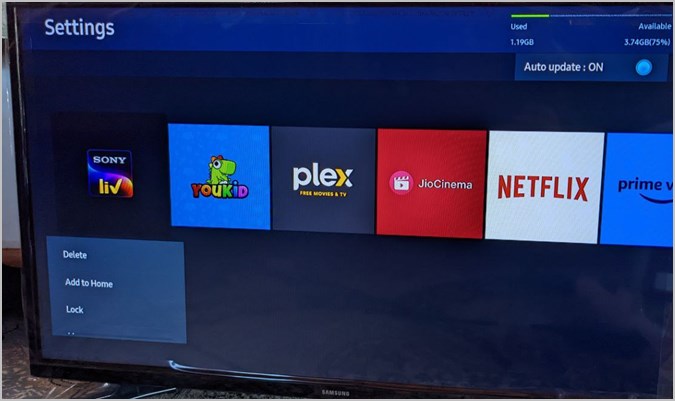
- Go to Apps > Settings.
- Find the app you no longer use.
- Select Delete. Note that "System Apps" (like Netflix or YouTube on some models) are hard-coded and cannot be deleted, though they can be "reinstalled" to clear their cache.
Troubleshooting Common Installation Issues
Even with the advancements of 2026 technology, users may encounter friction when trying to get new apps.
"App Not Found" in the Store
If a specific app does not appear in search results, it is likely due to one of three reasons:
- Model Incompatibility: Older Samsung TVs (pre-2015) use an older OS that no longer supports modern apps like HBO Max or specialized 2026 streaming services.
- Geographical Restrictions: The Samsung App Store is region-locked based on the TV's internal "Service Location" code. An app available in the US might not be available in the UK or EU.
- Developer Withdrawal: Sometimes developers pull their apps from the Tizen platform if they are no longer maintaining the code.
"Unable to Install" or "Error 102"
This is usually a network or server-side handshake issue.
- Cold Boot the TV: Hold the Power button on your remote for 5-10 seconds until the TV turns off and back on again, showing the "Samsung QLED" or "Neo G" logo. This clears the system cache.
- Reset Smart Hub: Go to Settings > Support > Self Diagnosis > Reset Smart Hub. Warning: This will sign you out of all apps.
Storage Full Errors
If you cannot install an app despite having few apps installed, it is likely the Cache causing the issue. Go to Settings > Support > Device Care > Manage Storage. From here, you can clear the cache of individual apps, which often frees up several hundred megabytes of space.
Comparison of App Features by Samsung TV Era
| Feature | Orsay OS (2011-2014) | Tizen OS (2015-2021) | Modern Tizen (2022-2026) |
|---|---|---|---|
| App Store Name | Samsung Apps | Smart Hub / Apps | Gaming & Media Hub |
| Samsung Account | Optional for some | Mandatory for most | Mandatory for all |
| Cloud Gaming | No | Limited | Full Support (Xbox, Nvidia) |
| Voice Search | Basic | Bixby/Alexa | AI-Integrated Neural Search |
| Background Updates | No | Yes | Yes (Low-power mode) |
Alternative Ways to Get Apps (Sideloading and Casting)
If an app is truly unavailable on the Samsung App Store, you have "Plan B" options.
1. Using External Streaming Devices
The most reliable way to get an app that Samsung doesn't support is to bypass the TV's OS entirely. Devices like the Roku Ultra, Apple TV 4K (2025/2026 models), or Amazon Fire Stick have their own app stores which are often more comprehensive than Tizen's. You simply plug these into an HDMI port.
2. Casting and AirPlay 2
Most Samsung TVs from 2018 onwards support Apple AirPlay 2 and Google Cast. If the app is on your phone but not your TV:
- Open the app on your smartphone.
- Tap the Cast or AirPlay icon.
- Select your Samsung TV from the list. The content will stream directly to the screen.
3. Developer Mode (Advanced)
For tech-savvy users, Tizen allows "Sideloading" of .wgt files. This requires setting the TV to Developer Mode within the App Store settings (by entering the code 12345) and using the Tizen Studio software on a PC to push apps to the TV. This is generally used for custom apps or regional testing and is not recommended for average users as it can void software warranties.
Frequently Asked Questions
Why can't I find the Netflix/YouTube app on my Samsung TV?
In almost all cases, major apps like Netflix and YouTube come pre-installed. If you cannot find them, look in the "My Apps" section or try a "Deep Link" by pressing the dedicated Netflix button on your remote. If it's missing from the store, check if your TV's firmware needs an update via Settings > Support > Software Update.
Is there a cost to download apps from the Samsung Store?
The Samsung App Store itself is free, and the majority of apps are free to download. However, streaming services (like Netflix, Paramount+, or Disney+) require their own separate paid subscriptions. Some "Premium" apps or specialized tools may require a one-time purchase, which will be charged to the credit card linked to your Samsung Account.
Can I get the Google Play Store on my Samsung Smart TV?
No. Samsung Smart TVs use the Tizen Operating System, while the Google Play Store is for Android TV / Google TV devices (like Sony or Philips). You cannot natively install Android APKs on a Samsung TV. To access Google Play apps, you would need to connect a Chromecast with Google TV to your Samsung TV's HDMI port.
How do I update the apps I already have?
By default, Samsung TVs are set to auto-update. If you want to force an update, go to the Apps menu, select Settings (gear icon), highlight the specific app, and select Update App. If the "Update" option is grayed out, you are already running the latest version.
My TV says it is out of storage, but I only have five apps. What do I do?
This is a common issue where the "System Data" and "Cache" occupy the majority of the internal flash memory. Go to Settings > Support > Device Care and run the "Start Device Care" utility. This will automatically close background apps and clear unnecessary memory fragments. You can also manually clear the cache for high-data apps like YouTube or web browsers within the "Manage Storage" sub-menu.
Final Recommendations for 2026
To get the most out of your Samsung Smart TV app experience, we recommend performing a Monthly Device Care check. As streaming technology moves toward higher bitrates and AI-enhanced upscaling, apps are becoming larger and more resource-intensive.
If you find that your TV's native Tizen interface is becoming sluggish—a common occurrence for hardware that is more than 4–5 years old—the most practical "next action" is to invest in an external 2026-era streaming puck. This allows you to keep Samsung's excellent display panel while benefiting from a faster, more frequently updated app ecosystem. Always ensure your Samsung Account is secured with two-factor authentication (2FA), as it now holds the keys to your subscriptions, gaming data, and smart home configurations.
Image Gallery
Select an image to open it in a new tab.


Ingrid Bjornson
Global Cyber Policy and Regulation Analyst
