How to Merge Two PDF Files on a Mac

Merging two PDF files on a Mac is a straightforward process that can be accomplished natively using the built-in Preview application or the Finder app, without requiring third-party software or online conversion tools. By utilizing macOS features like Thumbnail view or Quick Actions, users can combine multiple documents securely and efficiently while maintaining control over page order, document orientation, and file size.
Introduction to Managing PDFs on macOS
Managing documents on a Mac often involves combining separate files into a single, cohesive PDF. Whether you are assembling a multi-page report, compiling scanned financial statements, or organizing academic research papers, knowing how to merge documents natively saves time and protects your privacy. Unlike third-party web tools that require you to upload sensitive documents to external servers, macOS provides robust, built-in utilities that handle PDF manipulation entirely offline.
Apple's macOS ecosystem includes powerful native tools such as Preview and Finder. These applications allow for seamless document combination, page rearrangement, and deletion without altering the original source files unless explicitly saved. Understanding these native workflows ensures that you can manage your digital paperwork quickly, securely, and without recurring subscription fees or software bloat.
Prerequisites and Preparation
Before attempting to merge your PDF documents, it is important to verify a few prerequisites to ensure a smooth workflow and prevent unexpected errors.
- Operating System Compatibility: The native methods outlined below work across modern versions of macOS, including macOS Ventura, macOS Sonoma, and macOS Sequoia.
- File Permissions: Ensure that the PDF files you intend to merge are not locked, encrypted, or restricted by permissions. If a PDF has an owner password that restricts editing or assembly, macOS native tools may prevent you from modifying or appending pages to it.
- File Duplication: It is a best practice to keep backup copies of your original source files before making structural changes. While Preview allows you to save as a new document, duplicating your files in Finder first prevents accidental overwrites.
- Storage Space: Ensure your Mac has sufficient free storage space to accommodate the newly generated, larger combined PDF file, especially if you are merging high-resolution scanned documents containing complex vector graphics or raster images.

Method 1: Using the Native Preview Application
The Preview app is the default image and PDF viewer on macOS. It contains advanced editing suites that make combining files simple and precise. This method is ideal when you need to view the contents of the files, select specific pages, or rearrange the order before saving the final output.
Step-by-Step Instructions
- Open the First PDF: Double-click the primary PDF file you want to use as the base document. It will open automatically in the Preview application.
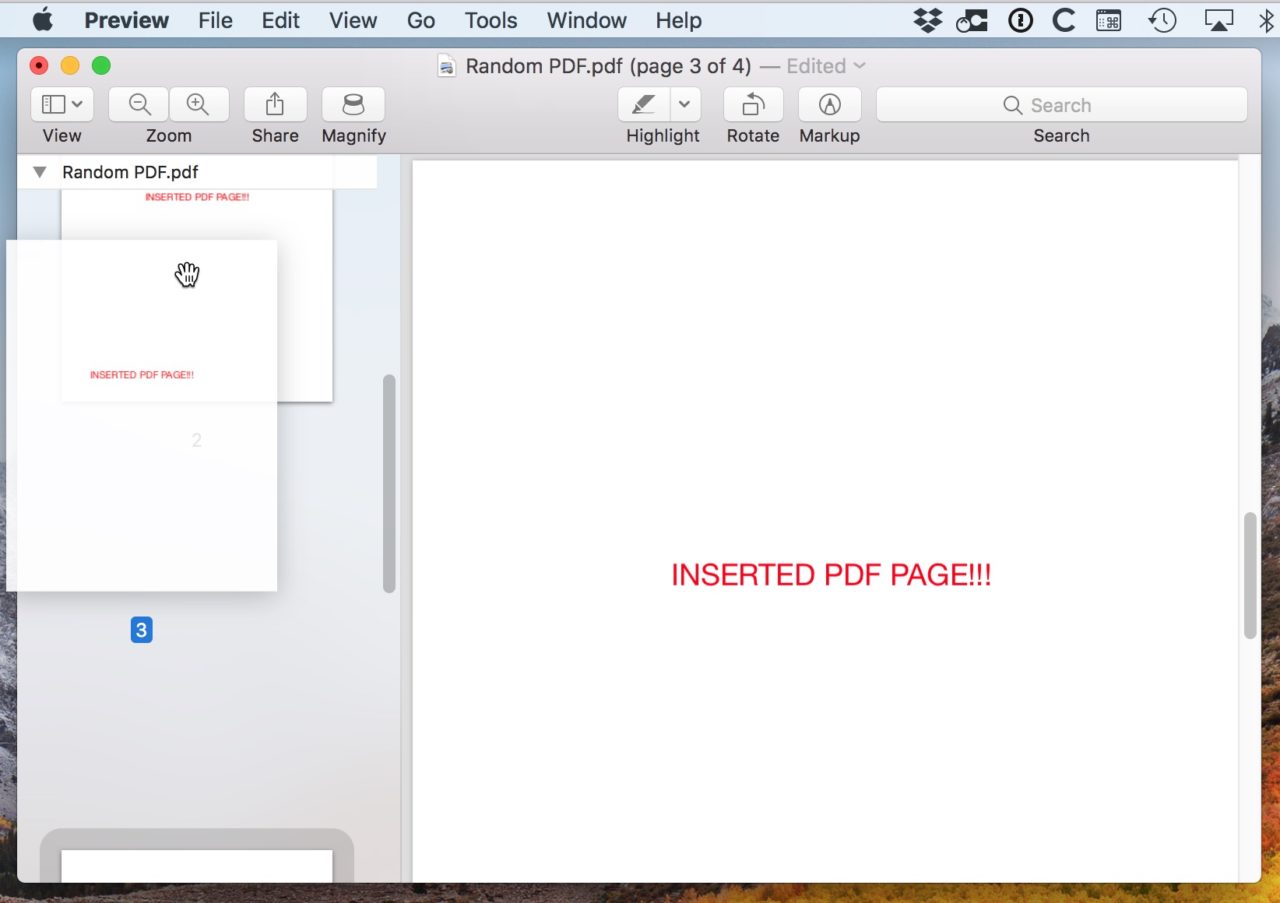
- Display the Sidebar: Navigate to the top menu bar, click on View, and select Thumbnails (or press the shortcut
Option + Command + 2). A sidebar will appear on the left side of the window displaying thumbnail images of every page in the document. - Insert the Second PDF: Drag and drop the second PDF file directly from your Finder window into the Preview sidebar.
- Placement matters: Drop the file either between existing thumbnails to insert the pages at a specific location, or drop it at the very bottom of the thumbnail list to append the new document to the end of the first file. Alternatively, you can go to Edit > Insert > Page from File, select your second PDF, and click Open.
- Rearrange and Verify: Click and drag any thumbnail in the sidebar to reorder the pages if necessary. You can also delete unwanted pages by selecting a thumbnail and pressing the
Deletekey on your keyboard. - Save the Combined Document: Go to File > Save to update the original document, or select File > Export as PDF... to create a completely new, combined file while keeping your original source documents intact.
Method 2: Using Finder Quick Actions
If you want a faster, streamlined approach without opening an application window, macOS allows you to combine files directly from the Finder interface using Quick Actions. This method is particularly useful when you need to merge multiple complete PDF documents rapidly.
Step-by-Step Instructions
- Select the Files: Open Finder and locate the PDF files you wish to combine. Hold down the
Commandkey while clicking each file to select them in the exact order you want them merged. - Access Quick Actions: Right-click (or Control-click) on the highlighted selection of files to open the contextual menu.
- Execute the Combine Command: Hover over Quick Actions in the menu, and then click on Create PDF.
- Locate the New File: macOS will instantly process the selected documents and generate a new file named something similar to
Decoded [Original Name].pdforUntitled.pdfin the same folder. - Rename the Output: Right-click the newly generated file, select Rename, and assign it a clear, descriptive title.
Limitation Note: Finder Quick Actions append the selected files strictly in alphabetical or selection order. If you need to interleave specific pages from different documents, you must use the Preview application method instead.
Comparison of Native Mac PDF Merging Methods
To help you decide which approach best fits your specific administrative task, review the comparative breakdown below.
| Feature / Consideration | Preview App Method | Finder Quick Actions Method |
|---|---|---|
| Speed | Moderate (Requires app launch and drag-and-drop) | Very Fast (Instantaneous background processing) |
| Page-Level Control | Full control (Rearrange, delete, or add specific pages) | None (Combines entire documents end-to-end) |
| Visual Verification | High (Thumbnails display page contents before saving) | Low (Blind combination based on file selection) |
| Best Used For | Complex documents, partial merges, custom layouts | Combining complete, sequential PDF files quickly |
| Software Requirement | Built-in macOS Preview | Built-in macOS Finder |
Common Mistakes and Troubleshooting
While merging PDFs on a Mac is generally reliable, users occasionally encounter formatting hiccups or operational blocks. Reviewing these common pitfalls helps ensure a smooth experience.
- Encrypted or Password-Protected Files: If you attempt to merge a PDF that is locked with an owner password restricting document assembly, Preview may gray out insertion options or throw an error. You must unlock or remove permissions from the restricted PDF using administrative credentials before combining it.
- Scanned Image Orientation Issues: When merging scanned documents, pages may occasionally appear sideways or upside down. Use Preview's rotation tool (
Command + R) on individual thumbnails in the sidebar before saving the final file to maintain consistent orientation. - Massive File Sizes: Merging high-resolution scanned documents creates very large PDF files that may be difficult to email or upload to web portals. To reduce file size in Preview, go to File > Export..., select Quartz Filter in the save dialog, and choose Reduce File Size. Note: This process compresses images and may slightly reduce visual clarity.
- Missing Pages After Drag-and-Drop: Ensure you drop the second PDF file directly onto the thumbnail sidebar rather than the main viewing canvas. Dropping a file onto the canvas often opens it as a separate document window instead of inserting it into the active file.
Frequently Asked Questions
Can I merge PDF files on a Mac without installing third-party software?
Yes. macOS includes built-in tools—specifically the Preview application and Finder Quick Actions—that allow you to combine, rearrange, and save PDF files natively without downloading external utilities or using online conversion websites.
How do I change the page order of the merged PDF?
If you are using the Preview app, open the thumbnail sidebar via View > Thumbnails. From there, you can click and drag individual page thumbnails up or down to your desired position before saving the document.
Why is the "Create PDF" Quick Action missing in Finder?
If the Quick Actions menu does not display the option to create a PDF, ensure that you have selected valid PDF files and that your Finder window view settings or macOS system settings have not disabled Quick Actions. You can re-enable Quick Actions in Finder by checking the Extensions settings under System Settings.
Does merging PDFs affect the quality of the original documents?
No, using the standard Save or Export functions in Preview preserves the native vector graphics, text clarity, and resolution of your original source files. Quality is only affected if you explicitly apply a compression filter, such as the "Reduce File Size" Quartz filter.
Can I merge a PDF with a Word document or image directly?
Finder Quick Actions and Preview require the source files to be in compatible formats. To merge an image (like a PNG or JPEG) into a PDF using Preview, open the image in Preview first, export it as a PDF, or drag its thumbnail directly into an open PDF's sidebar. For Microsoft Word documents (.docx), you must first save or export the Word file as a PDF from Microsoft Word or Pages before merging it.
Conclusion and Next Actions
Combining PDF documents on a Mac is a simple administrative task when utilizing native macOS tools. For complete control over page sequences and document arrangement, open your files in the Preview application and use the thumbnail sidebar. For rapid, automated combining of whole documents, highlight your files in Finder and utilize the Create PDF Quick Action. Take a moment to test these workflows on sample files to determine which method best aligns with your daily document management needs.
Image Gallery
Select an image to open it in a new tab.