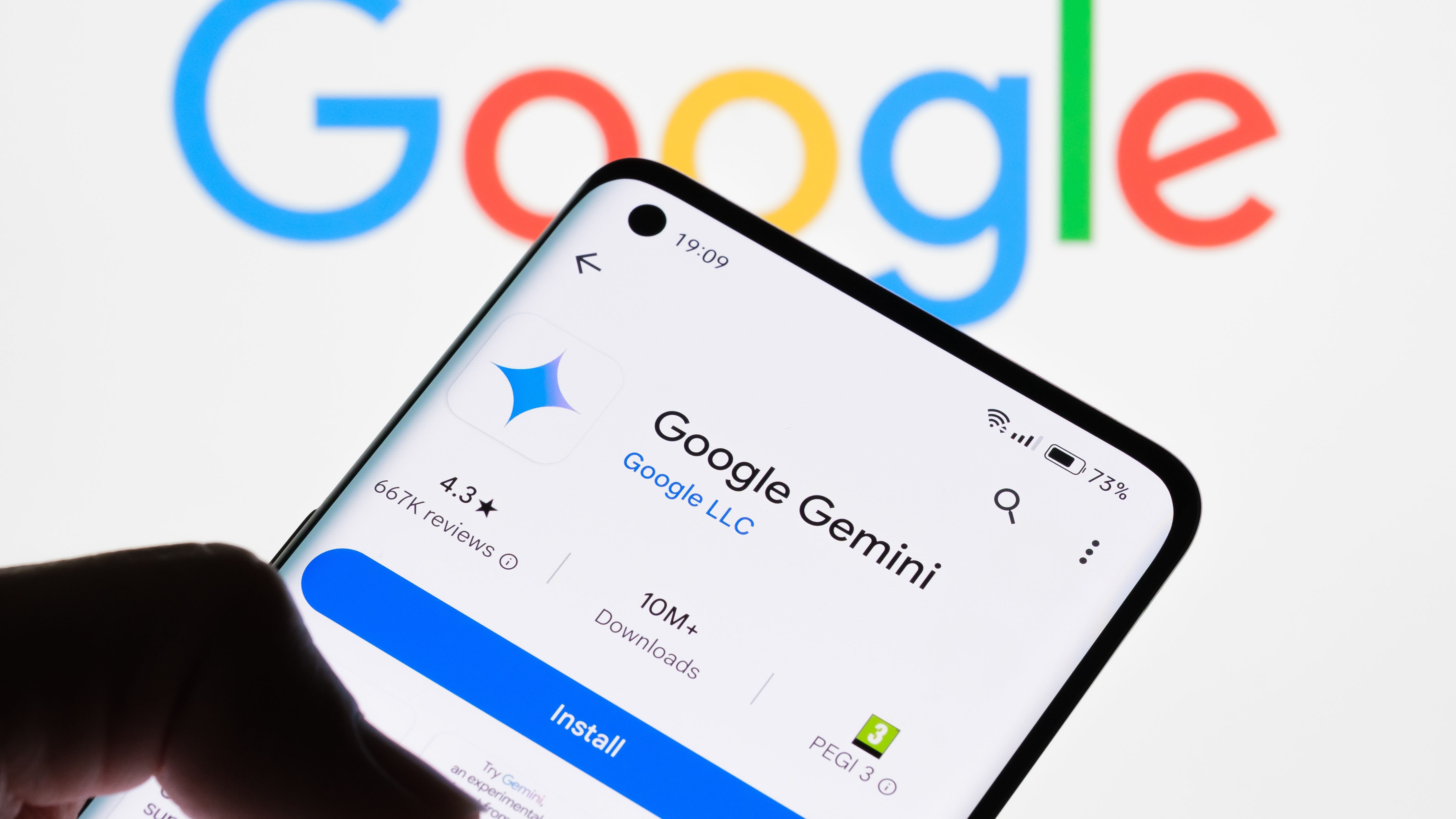
To Google an image on Android, you primarily use Google Lens or the Circle to Search gesture. You can long-press any image in the Chrome browser and select "Search image with Google," or open the Google app and tap the camera icon to upload a photo from your gallery or take a new one.
Visual search has evolved from a niche tool into a core component of the Android ecosystem. By 2026, the integration of artificial intelligence and system-wide gestures has made "Googling an image" nearly instantaneous, regardless of whether that image is in your physical environment, a social media feed, or your private gallery. Understanding the various pathways to perform a reverse image search ensures you can identify products, translate text in real-time, or find the original source of a photograph with minimal friction.
Understanding the Technology: Google Lens and Circle to Search
Before diving into the step-by-step processes, it is essential to distinguish between the two primary technologies powering visual search on Android. While they often yield similar results, their entry points differ.
Google Lens
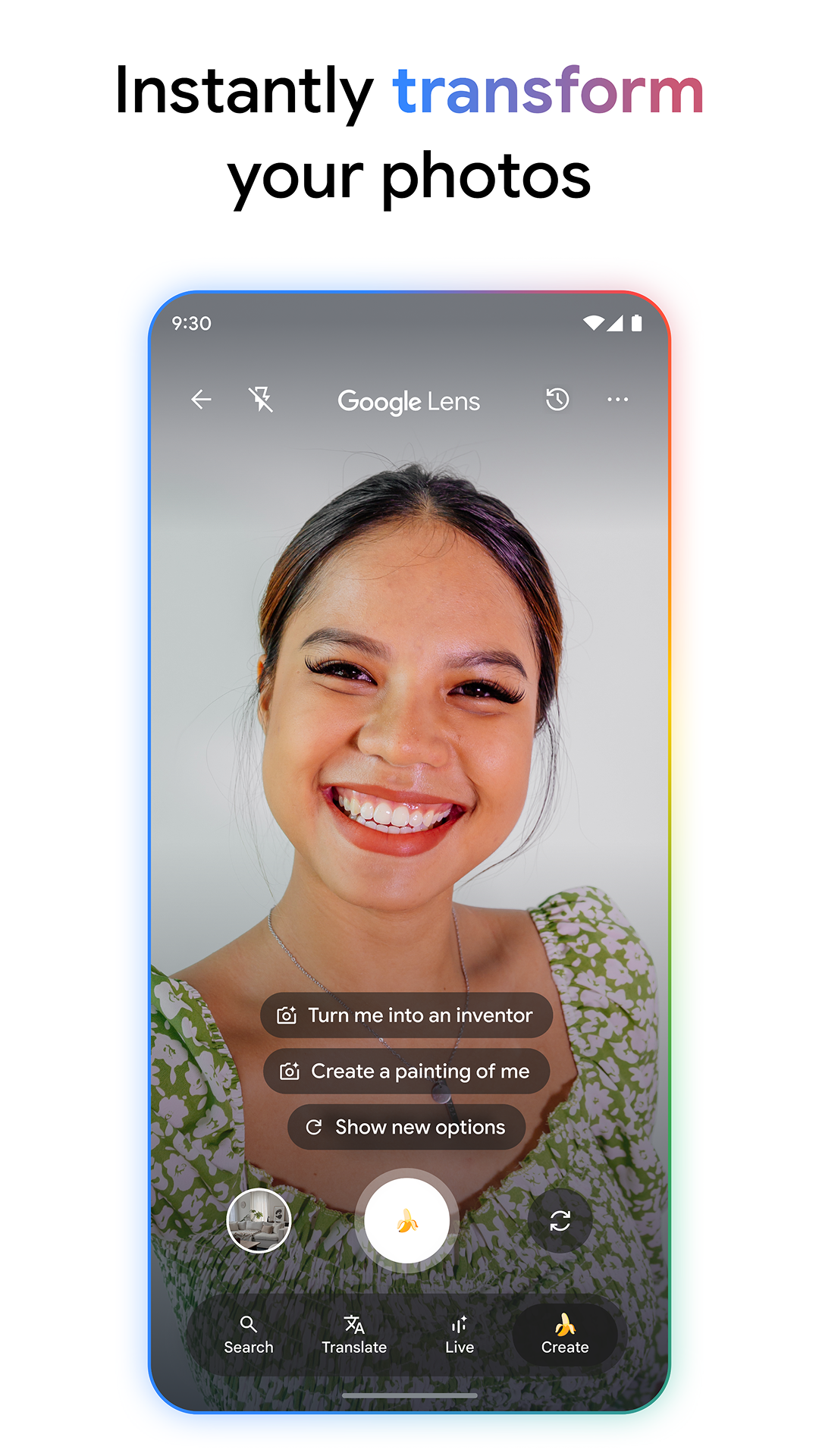
Google Lens is an AI-powered recognition technology designed to bring up relevant information related to objects it identifies using visual analysis. It is integrated into the Google Search app, Google Photos, and the Android Camera app on many devices. It excels at "active" searching—where you intentionally open a tool to scan something.
Circle to Search
Introduced as a more seamless way to interact with on-screen content, Circle to Search allows you to initiate a Google search without switching apps. By using a simple gesture (usually long-pressing the home button or navigation bar), you can highlight anything on your screen to trigger a visual lookup. This is particularly useful for images found in apps like Instagram or TikTok where traditional "save image" options may be restricted.
Method 1: Using Circle to Search (System-Wide)
In 2026, Circle to Search is the most efficient way to Google an image that is currently appearing on your screen. This method removes the need to take a screenshot and upload it manually.
- Activate the Gesture: Long-press the Home button or the navigation handle at the bottom of your screen. You will see a shimmering overlay appear, indicating the feature is active.
- Identify the Subject: Use your finger to circle, highlight, or simply tap the image or object you want to search for.
- Review Results: A results panel will slide up from the bottom of the screen. This panel provides visual matches, shopping links, and often an AI-generated summary (powered by Gemini) explaining what the object is.
- Refine with Multi-search: If the image search is too broad, you can tap the "Add to your search" bar to type text. For example, if you circled a pair of shoes, you can add the word "blue" to find the specific color variant.

Method 2: Searching from the Google Chrome Browser
If you are browsing the web and encounter an image you want to investigate, Google Chrome offers a direct context menu for reverse image searches.
- Locate the Image: Open Chrome and navigate to the webpage containing the image.
- Long-Press: Press and hold your finger on the image until a pop-up menu appears.
- Select Search Option: Tap on "Search image with Google."
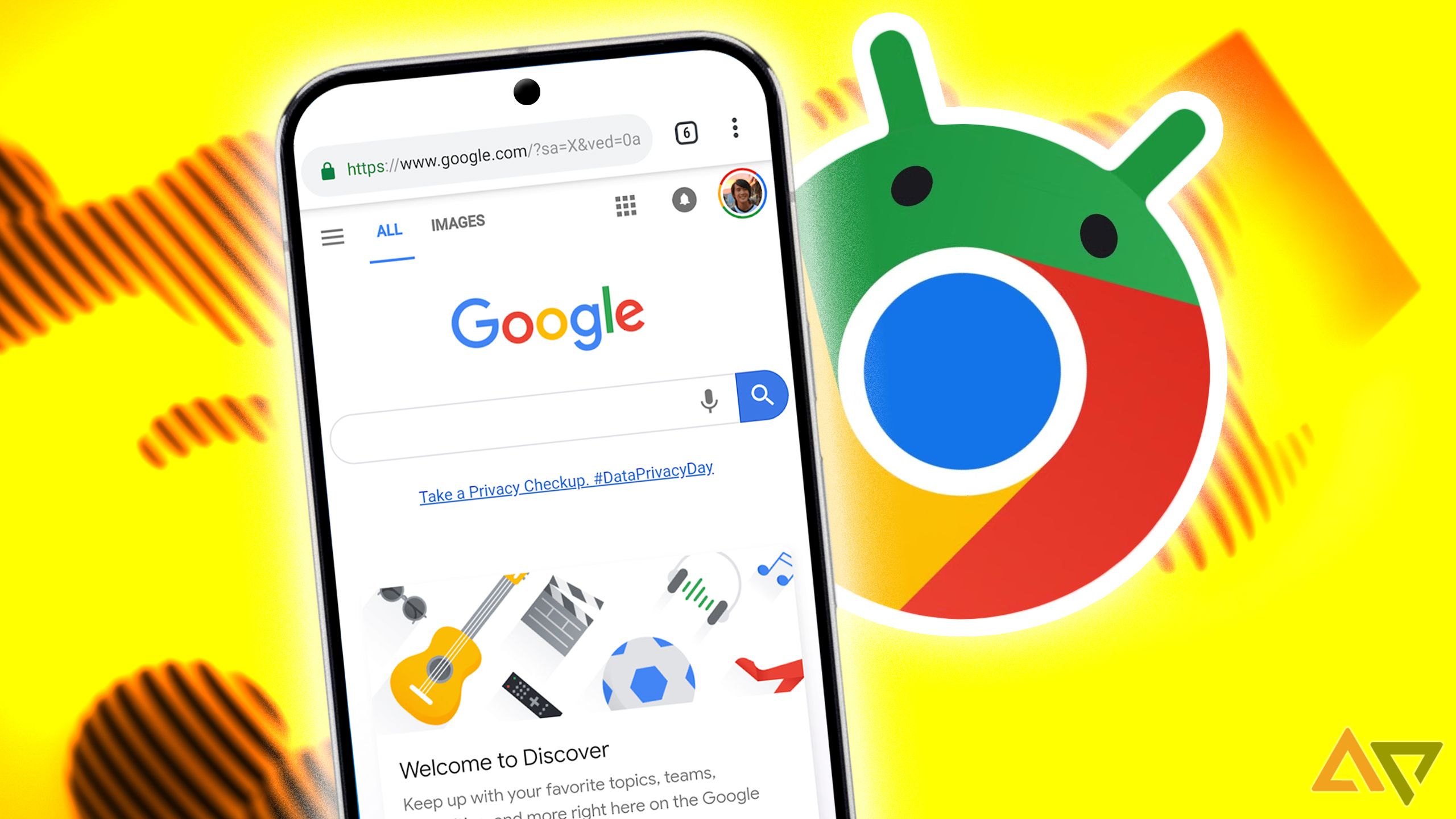
- Analyze the Side Panel: A visual search drawer will open. From here, you can select specific parts of the image to focus the search (using the corner handles) or tap "Find image source" to locate the highest-resolution version of the file or its original publisher.
This method is highly effective for fact-checking memes or identifying the creator of a piece of digital art.
Method 3: Using the Google App (Camera and Gallery)
The standard Google app serves as a gateway for searching things in the "real world" or photos you have already saved to your device.
Searching with Your Camera
- Open the Google app.
- Tap the Camera icon (the Google Lens logo) located on the right side of the search bar.
- Point your camera at the object and tap the shutter button (magnifying glass icon).
- The app will highlight "dots" on various objects it recognizes. Tap a dot to see specific results.
Searching an Existing Photo
- Open the Google app and tap the Camera icon.
- Instead of using the live viewfinder, look at the bottom gallery preview or tap the Photos icon to browse your entire library.
- Select the image you wish to search.
- Google Lens will automatically analyze the image and present relevant categories such as "Search," "Text" (to copy or translate), or "Shopping."
Method 4: Googling Images via Google Photos
Google Photos is not just a storage solution; it is deeply integrated with Google's visual recognition engine. This is the best method for searching photos you took days or months ago.
- Open the Google Photos app.
- Tap on the specific photo you want to analyze.
- Tap the Lens button located in the bottom toolbar.
- Wait for the analysis to complete. Google Photos will identify landmarks, plants, animal breeds, or text within the image.
| Method | Best For | Speed | Complexity |
|---|---|---|---|
| Circle to Search | Apps (Instagram, YouTube, etc.) | Fastest | Low |
| Chrome Long-press | Web browsing and fact-checking | Fast | Low |
| Google Lens App | Real-world objects and documents | Medium | Moderate |
| Google Photos | Personal library and screenshots | Medium | Low |
Advanced Techniques: Multi-search and Focus Tuning
By 2026, "Googling an image" is no longer a one-step interaction. Users can now engage in a dialogue with the search engine regarding the visual data.
Multi-search (Image + Text)
After performing any of the search methods above, look for the "+ Add to your search" button. This allows you to combine visual data with text queries. For instance, you can take a picture of a chair and type "near me" to find local furniture stores stocking that item, or "instruction manual" to find assembly guides.
Adjusting the Search Area
Sometimes an image contains multiple objects (e.g., a photo of a fully set dinner table). When the search results appear, you will see a framing box around the primary subject. You can drag the corners of this box to focus on a different object—like a specific wine glass or a centerpiece—to trigger a new search without restarting the process.
Essential Prerequisites and Settings
To ensure these features work correctly on your Android device, verify the following:
- Google App Updates: Ensure your Google app and Chrome browser are updated to the latest versions via the Google Play Store.
- Permissions: Google Lens requires "Camera" and "Photos/Media" permissions. You can check these in Settings > Apps > Google > Permissions.
- Default Assistant: For Circle to Search to function, Google must be set as your default digital assistant app. Check this in Settings > Apps > Default apps > Digital assistant app.
- Internet Connection: Visual search is a cloud-based process. A stable Wi-Fi or 5G connection is required to process the image data through Google’s servers.
Troubleshooting Common Issues
"Search image with Google" is missing in Chrome
If you don't see this option, you may be using an Incognito tab or the image might be protected by a script. Try taking a screenshot and using the Google Photos/Lens method instead.
Results are not accurate
Visual search relies on patterns and metadata. If the results are poor, try to:
- Improve lighting (if using the live camera).
- Crop the image to remove background clutter.
- Ensure the object is not obstructed or blurred.
Circle to Search won't activate
This feature is available on most modern Android devices (typically those released or updated after 2024). If it’s not working, ensure you haven't disabled "Hold Home to use Assistant" in your navigation settings.
Frequently Asked Questions
Can I Google an image from my camera roll without the Google app?
Yes, you can use the mobile version of the Google Images website. Open Chrome, go to images.google.com, and request the "Desktop site" via the three-dot menu. This will reveal the camera icon in the search bar, allowing you to upload a file directly from your local storage.
Is my visual search history saved?
By default, Google may save your Lens activity to your Google Account if "Web & App Activity" is turned on. You can view, delete, or turn off this history by visiting the My Activity page.
Can Google Lens translate text inside an image?
Yes. When you open an image in Google Lens, tap the "Translate" tab at the bottom. The AI will overlay the translated text directly over the original foreign text, preserving the visual context of the document or sign.
Does Googling an image work for identifying people?
Google intentionally limits facial recognition for private individuals to protect privacy. While it may identify celebrities, historical figures, or public personalities, it generally will not return social media profiles or personal data for private citizens.
Can I search for parts of a video?
Yes, using Circle to Search. You can pause a video on YouTube or any other streaming platform (that doesn't have DRM protections like Netflix) and use the Circle to Search gesture to identify clothing, locations, or products shown in the video frame.
Summary and Next Steps
Googling an image on Android has transitioned from a manual "upload and wait" process to an intuitive, gesture-based experience. For the most immediate results, master the Circle to Search gesture, as it functions across almost every application on your device. For more detailed research—such as extracting text or shopping for specific items—the dedicated Google Lens interface remains the superior tool.
To improve your visual search skills, try using the Multi-search feature next time you find a product you like but want it in a different style or color. This combination of visual and textual input represents the current gold standard of search technology in 2026.
Image Gallery
Select an image to open it in a new tab.



Simon Caldwell
Enterprise Technology and Systems Editor
