
To connect to SharePoint Online with PowerShell, install the official Microsoft.Online.SharePoint.PowerShell module, open an elevated PowerShell prompt, and run Connect-SPOService -Url "https://yourtenant-admin.sharepoint.com". Enter your tenant administrator credentials when prompted, complete your multi-factor authentication check, and verify your session using the Get-SPOSite cmdlet.
Connecting programmatically to SharePoint Online allows system administrators and Microsoft 365 engineers to automate tenant management, enforce governance policies, provision site collections, inspect permissions, and remediate compliance issues across hundreds of workspaces. However, PowerShell connectivity to SharePoint has evolved significantly over recent years. Legacy basic authentication has been completely retired, and Microsoft has introduced specialized modules targeting distinct administrative layers.
Understanding which module to select, how modern identity protocols function, and how to configure interactive versus automated service principal logins ensures your administrative scripts remain both functional and secure.
Choosing the Right PowerShell Module for SharePoint Online
Before running connection commands, you must identify the appropriate PowerShell module for your operational scope. Administrators frequently encounter confusion because Microsoft offers three distinct tools that interact with SharePoint environments:
- SharePoint Online Management Shell (
Microsoft.Online.SharePoint.PowerShell): This is the official, Microsoft-supported administrative module. It targets tenant-level management, site collection provisioning, tenant-wide sharing configurations, quota allocations, and hub site registrations. It is designed specifically for global administrators and SharePoint administrators. - PnP PowerShell (
PnP.PowerShell): Maintained by the Microsoft 365 community alongside Microsoft engineers, this open-source module operates at the web, list, item, and cross-workload levels. It excels at granular tasks such as copying documents, modifying site navigation, applying site designs, manipulating list items, and managing Microsoft Teams integrations. - Microsoft Graph PowerShell (
Microsoft.Graph): The unified API surface for Microsoft 365. While capable of managing SharePoint sites, drives, and file permissions, Graph interacts through REST endpoints and object representations rather than administrative cmdlets designed specifically for legacy SharePoint architectures.
The following comparison clarifies which module fits common administrative objectives:
| Feature / Capability | SharePoint Online Management Shell | PnP PowerShell | Microsoft Graph PowerShell |
|---|---|---|---|
| Primary Scope | Tenant settings, site collections, sharing | Granular site, list, library, and item operations | Broad cross-cloud Microsoft 365 resources |
| Module Name | Microsoft.Online.SharePoint.PowerShell |
PnP.PowerShell |
Microsoft.Graph |
| Authentication Target | Tenant Admin URL (-admin.sharepoint.com) |
Any Site URL or Tenant Admin URL | Graph REST API endpoint |
| App-Only / Unattended | Supported (App ID + Certificate thumbprint) | Supported (Entra ID App + Certificate) | Supported (Entra ID App + Certificate/Secret) |
| Cross-Platform Support | Windows PowerShell 5.1 & PowerShell 7+ | PowerShell 7+ recommended (Cross-platform) | PowerShell 7+ (Cross-platform) |
| Official Microsoft SLA | Full Enterprise Support | Community-driven (Open Source) | Full Enterprise Support |
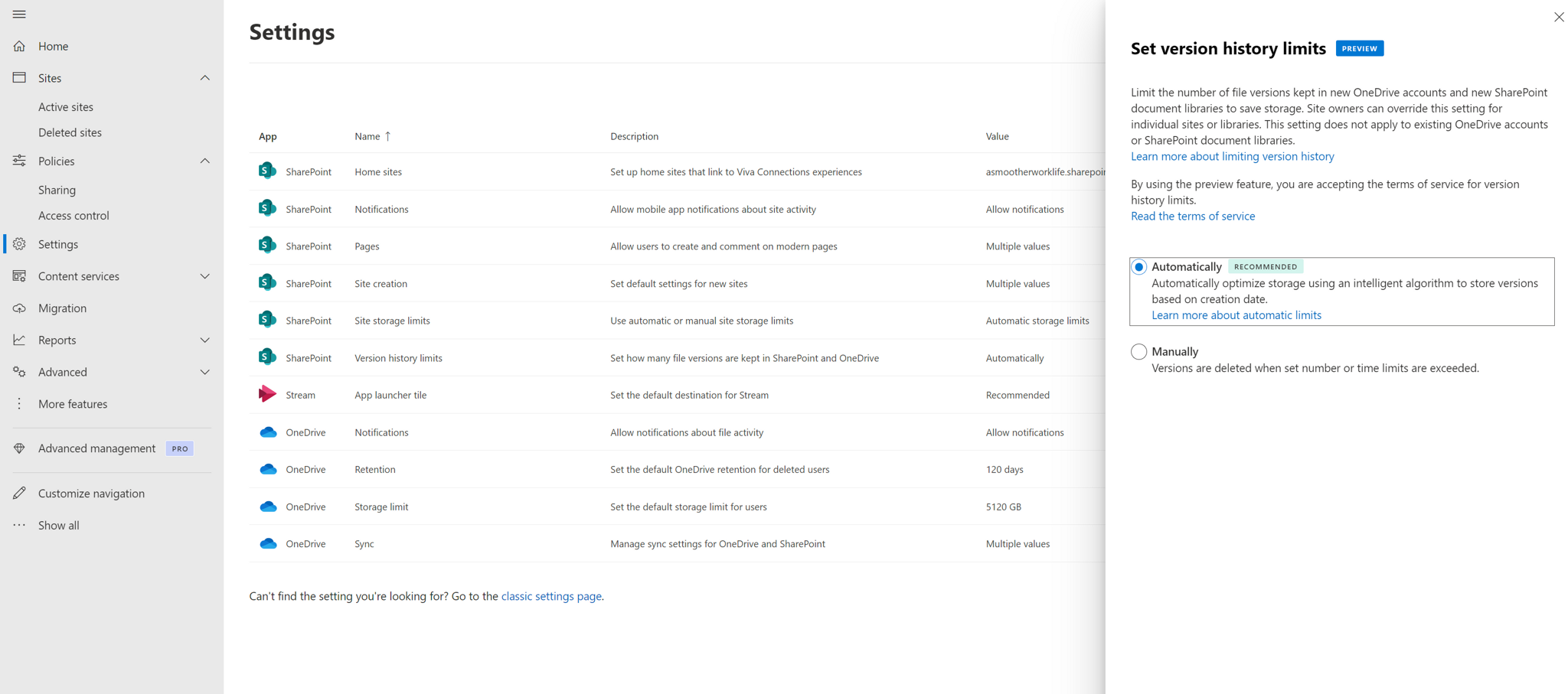
For comprehensive tenant governance, user quota adjustments, and tenant-level configurations, the SharePoint Online Management Shell remains the definitive starting point.
Prerequisites and System Requirements
Connecting to SharePoint Online requires specific environmental preparations, administrative rights, and software versions:
- PowerShell Version: Windows PowerShell 5.1 or modern PowerShell 7.x (Core). PowerShell 7 is strongly recommended for improved performance and cross-platform flexibility across Windows, macOS, and Linux.
- Administrative Privileges:
- Local machine administrative rights to install PowerShell modules.
- Microsoft Entra ID (formerly Azure AD) directory role of Global Administrator or SharePoint Administrator.
- Tenant Administrative URL: The dedicated administration endpoint for your Microsoft 365 tenant. The format is consistently
https://, where-admin.sharepoint.com - Network Access: Outbound HTTPS communication (TCP port 443) enabled to Microsoft 365 endpoints, including
*.sharepoint.com,login.microsoftonline.com, andgraph.microsoft.com.
Method 1: Connecting with the SharePoint Online Management Shell
The SharePoint Online Management Shell is the standard tool maintained by Microsoft for administrative tenant tasks.
Step 1: Install or Update the Module
Open a PowerShell terminal as an Administrator and install the module directly from the PowerShell Gallery:
Install-Module -Name Microsoft.Online.SharePoint.PowerShell -Scope CurrentUser -Repository PSGallery -Force
If you previously installed this module, update it to the latest release to ensure compatibility with modern API changes and authentication protocols:
Update-Module -Name Microsoft.Online.SharePoint.PowerShell
Verify that the module installed correctly by querying its version:
Get-Module -Name Microsoft.Online.SharePoint.PowerShell -ListAvailable | Select-Object Name, Version, Path
Step 2: Establish an Interactive Session
To connect interactively using your standard administrator account with Multi-Factor Authentication (MFA), run Connect-SPOService. You must specify the administration URL of your tenant, not a standard site collection URL:
$AdminUrl = "https://contoso-admin.sharepoint.com" Connect-SPOService -Url $AdminUrl
A modern authentication browser prompt will appear. Enter your administrator username and password, complete the secondary authentication challenge (such as a Microsoft Authenticator notification or FIDO2 hardware key), and grant consent if prompted.
Step 3: Verify the Connection
Once the prompt closes without throwing an error, verify the session by retrieving high-level details of your site collections:
Get-SPOSite -Limit 5 | Select-Object Url, Title, StorageQuota, Status
If this command outputs a list of site collections, the connection is active and authorized.
Step 4: Disconnect When Work Is Complete
Always terminate active administrative sessions when maintenance is complete to prevent credential caching or accidental modifications:
Disconnect-SPOService
Method 2: Connecting with PnP PowerShell
When administrative tasks require deep inspections of list items, taxonomy term stores, document library structures, or page layouts, PnP PowerShell provides cmdlets that simplify operations that would otherwise require dozens of lines of code.
Step 1: Install PnP PowerShell
The modern version of PnP PowerShell is distributed under the module name PnP.PowerShell. Install it in an elevated session:
Install-Module -Name PnP.PowerShell -Scope CurrentUser -Repository PSGallery
Step 2: Authenticate Interactively
Unlike the SPO Management Shell, PnP PowerShell allows you to connect directly to individual site collections or the central administration tenant:
# Connecting to an individual site Connect-PnPOnline -Url "https://contoso.sharepoint.com/sites/Finance" -Interactive # Connecting to the administration center Connect-PnPOnline -Url "https://contoso-admin.sharepoint.com" -Interactive
Using the -Interactive switch invokes the Microsoft Authentication Library (MSAL), launching a browser dialog supporting passwordless authentication, conditional access policies, and MFA prompts.
Step 3: Verify the PnP Session
Confirm that your session is bound to the target site by checking the site context:
Get-PnPSite Get-PnPWeb | Select-Object Title, Url, ServerRelativeUrl
To sever the active session:
Disconnect-PnPOnline
Method 3: Automated, App-Only Authentication (Certificate-Based)
Interactive logins cannot be used inside scheduled tasks, Azure Automation runbooks, CI/CD deployment pipelines, or unattended background services. Microsoft blocks traditional username-and-password automated logins when Multi-Factor Authentication is enforced and has disabled legacy basic authentication across all commercial clouds.
Unattended automation requires certificate-based app-only authentication registered in Microsoft Entra ID.
Architecture Overview
- An App Registration is created inside Microsoft Entra ID.
- An X.509 Digital Certificate (public key) is uploaded to the App Registration, while the private key is stored securely on the local execution machine, in Azure Key Vault, or within an encrypted certificate store.
- API permissions (such as
Sites.FullControl.Allor SharePointManage) are assigned to the application registration and granted admin consent. - The PowerShell script connects using the Application (Client) ID, the tenant domain name, and the certificate thumbprint or file.
Connecting via SPO Management Shell with a Certificate
Run the connection cmdlet using the registered App ID and local certificate thumbprint:
$AdminUrl = "https://contoso-admin.sharepoint.com" $ClientId = "11111111-2222-3333-4444-555555555555" # Entra App ID $Thumbprint = "A1B2C3D4E5F67890123456789ABCDEF012345678" Connect-SPOService -Url $AdminUrl -ClientId $ClientId -CertificateThumbprint $Thumbprint
Connecting via PnP PowerShell with a Certificate
PnP PowerShell natively supports certificate-based connections using either a thumbprint from your local machine certificate store or a direct path to a .pfx file:
# Using a certificate thumbprint installed in the Windows Certificate Store Connect-PnPOnline -Url "https://contoso.sharepoint.com/sites/Finance" ` -ClientId "11111111-2222-3333-4444-555555555555" ` -Tenant "contoso.onmicrosoft.com" ` -Thumbprint "A1B2C3D4E5F67890123456789ABCDEF012345678" # Using a PFX file directly Connect-PnPOnline -Url "https://contoso.sharepoint.com/sites/Finance" ` -ClientId "11111111-2222-3333-4444-555555555555" ` -Tenant "contoso.onmicrosoft.com" ` -CertificatePath "C:\Certs\SharePointAutomation.pfx" ` -CertificatePassword (ConvertTo-SecureString "SecureP@ssw0rd!" -AsPlainText -Force)
This model satisfies zero-trust security architecture: no passwords are saved in plain text within scripts, and administrative access can be revoked immediately in Entra ID by disabling the registered application or expiring the certificate.
Troubleshooting Common Connection Errors
When connecting to SharePoint Online via PowerShell, administrators frequently run into configuration issues related to identity, networking, or scope.
1. Error: "The current site is not a tenant administration site"
- The Cause: This error occurs when you run
Connect-SPOServicepointing to a regular site collection (e.g.,https://contoso.sharepoint.com/sites/team) instead of the administrative portal endpoint. - The Resolution: Verify the URL includes
-admin. You must supplyhttps://contoso-admin.sharepoint.com. If you need to manage items within a specific team site rather than global tenant settings, use PnP PowerShell (Connect-PnPOnline) instead ofConnect-SPOService.
2. Error: "Files cannot be loaded because running scripts is disabled on this system"
- The Cause: The PowerShell execution policy on your workstation prevents unsigned third-party scripts or downloaded modules from executing.
- The Resolution: Modify your execution policy to permit signed local scripts by executing:
Set-ExecutionPolicy -ExecutionPolicy RemoteSigned -Scope CurrentUser
3. Error: "AADSTS50076: Due to a configuration change made by your administrator, you must use multi-factor authentication"
- The Cause: Attempting to supply credentials via a hardcoded
$credential = Get-Credentialobject into automated scripts when Conditional Access or tenant-wide security defaults require MFA. - The Resolution: Discontinue using basic credential injection. Use
-Interactivefor manual administrative workflows, or migrate the script to certificate-based application authentication for unattended processes.
4. Error: "Access Denied" or "UnauthorizedOperationException"
- The Cause: The account authenticating the session does not possess the necessary directory roles in Microsoft Entra ID, or an application registration has not received tenant-wide administrative consent.
- The Resolution: Sign in to the Microsoft 365 Admin Center, verify that your account has the SharePoint Administrator or Global Administrator role, and wait up to 15 minutes for directory replication across Microsoft services. For app registrations, confirm that an administrator clicked Grant admin consent in the App Registrations blade in the Entra ID portal.
Security Best Practices for Administrative Sessions
Connecting to your organization's SharePoint environment grants access to sensitive business documents, confidential communication sites, and tenant-wide security parameters. Implement these administrative hygiene protocols:
- Enforce Least Privilege: Do not rely on the Global Administrator role for routine tasks. Assign the SharePoint Administrator role to IT staff responsible for site lifecycles.
- Utilize Privileged Identity Management (PIM): If your organization holds Microsoft Entra ID P2 or Microsoft 365 E5 licensing, require administrators to activate their SharePoint Administrator role via PIM just-in-time before establishing PowerShell sessions.
- Avoid Hardcoded Secrets: Never save client secrets, account passwords, or certificate private keys in scripts, code repositories, or unencrypted text files.
- Segregate Administrative Accounts: Require IT staff to manage SharePoint Online using dedicated administrative accounts (
admin.user@contoso.onmicrosoft.com) rather than standard user accounts used for email and general web browsing. - Adopt PowerShell 7+: Run modern PowerShell to leverage updated Transport Layer Security (TLS 1.3) protocols, isolated module paths, and improved memory handling.
Frequently Asked Questions
What is the exact difference between the SPO Management Shell and PnP PowerShell?
The SharePoint Online Management Shell (Microsoft.Online.SharePoint.PowerShell) is maintained exclusively by Microsoft to handle tenant-wide configurations, storage quotas, site creation, and administrative policies across the whole organization. PnP PowerShell is an open-source, community-led framework supported by Microsoft that targets the objects inside those sites, such as lists, libraries, permissions, document metadata, page components, and modern site layouts.
Can I connect to SharePoint Online using PowerShell on macOS or Linux?
Yes. Both PnP PowerShell and modern Microsoft Graph PowerShell run natively on PowerShell 7 Core across macOS, Ubuntu, Red Hat Enterprise Linux, and Windows. The official Microsoft.Online.SharePoint.PowerShell module also supports PowerShell 7. When running cross-platform, use browser-based authentication (-Interactive) or certificate-based application logins.
Can I still use a plain text username and password in automated scripts?
No. Microsoft has permanently deprecated legacy basic authentication across all Microsoft 365 services. Additionally, security defaults and modern Conditional Access policies require Multi-Factor Authentication. Any automated, background, or scheduled script must authenticate using Microsoft Entra ID App Registrations paired with X.509 digital certificates.
How do I locate my organization's SharePoint Admin URL?
Log in to the Microsoft 365 Admin Center (admin.microsoft.com) using an administrative account. Expand the navigation menu, select Show all, and open the SharePoint admin center. The URL displayed in your browser address bar is your admin endpoint, structured as https://.
Does connecting to SharePoint Online require a dedicated license?
The account used to connect via PowerShell requires an appropriate administrative directory role in Microsoft Entra ID (such as SharePoint Administrator), but it does not strictly require an assigned paid SharePoint or Microsoft 365 license if it is performing administrative functions rather than accessing document data for personal productivity. However, dedicated admin accounts should always be secured under applicable Conditional Access policies.
Next Steps
To begin managing your tenant, open your PowerShell console, install the Microsoft.Online.SharePoint.PowerShell module, and establish an interactive connection to your tenant's administration URL. Once connected, run Get-SPOSite to inspect your active site collections, audit your current sharing configurations, and verify storage limits. If your goal is automated reporting or scheduled provisioning, proceed by registering an application in Microsoft Entra ID and configuring certificate-based authentication.
Image Gallery
Select an image to open it in a new tab.





Zara El-Hashem
Sociocultural Dynamics and Academics Writer
