How to Find Photos on Android Phone: Complete Guide to Locating Missing Pictures
Finding photos on an Android phone is usually a straightforward process, but it can quickly become frustrating when images are stored across multiple local directories, hidden folders, or cloud-based backup services. Because various manufacturers like Samsung, Google, and Motorola customize their user interfaces and pre-install different gallery applications, locating a specific picture requires knowing where Android systems typically route media files.
Photos on an Android phone are primarily located through pre-installed gallery applications such as Google Photos or Samsung Gallery, as well as file management apps like Files by Google. If pictures are missing, users can typically find them by checking trash bins, cloud backups, application-specific folders, and hidden storage directories.
Navigating the various storage locations on an Android device requires an understanding of how the operating system handles media. Whether you are searching for a recently captured selfie, a downloaded meme, or a picture sent via a messaging app, this comprehensive guide covers the essential steps, technical configurations, and troubleshooting strategies to locate any photo on your Android device.
Understanding Android Storage Structure for Photos
Before looking for specific photos, it helps to understand how Android organizes files. Unlike desktop operating systems that rely heavily on deeply nested folder trees for everyday use, mobile operating systems abstract the file system behind user-friendly gallery applications. However, underneath the interface, Android utilizes a shared storage model accessible to both the user and installed applications.
When the camera app takes a picture, it saves the file directly to internal shared storage. By default, this path is usually located at /Internal storage/DCIM/Camera. "DCIM" stands for Digital Camera Images, a standardized directory name inherited from digital cameras. Other applications create their own directories under the primary storage volume or within the app-specific data directories.
Understanding this architecture prevents confusion when switching between a dedicated gallery app and a file manager. Gallery apps index media files by reading the metadata and storage directories, whereas file managers display the actual physical folders and files residing on the flash memory or a inserted MicroSD card.
Method 1: Using Default Gallery and Photo Management Apps
For most users, the fastest way to find photos on an Android phone is through the built-in gallery application. Depending on the manufacturer of your device, the default app will vary.
Google Photos
Google Photos comes pre-installed on most stock Android devices, including Google Pixel phones, and is available on the Google Play Store for others. It serves as both a local gallery viewer and a cloud backup client.
- Open the Google Photos app.
- Tap the Photos tab at the bottom to view your pictures in chronological order.
- Tap the Collections or Library tab to view specific device folders, such as screenshots, downloads, and WhatsApp images.
- Use the search bar at the top to search by keywords, locations, or people, as Google Photos automatically indexes images using on-device machine learning.
Samsung Gallery
Samsung is the largest Android smartphone manufacturer globally, and its devices utilize the proprietary Samsung Gallery application.
- Open the Gallery app.
- Tap the Pictures tab to see a continuous stream of all images.
- Tap the Albums tab to view categorized folders like Camera, Screenshots, Screen recordings, and downloaded media.
- Utilize the magnifying glass icon to search by date, category, or file type.
Method 2: Locating Files Manually Using a File Manager
If a photo does not appear in your gallery app, it may be because the folder containing the image lacks the necessary configuration file to tell the gallery to scan it, or because the file is located in a hidden directory. Using a file manager allows you to browse the physical storage of your Android phone directly.
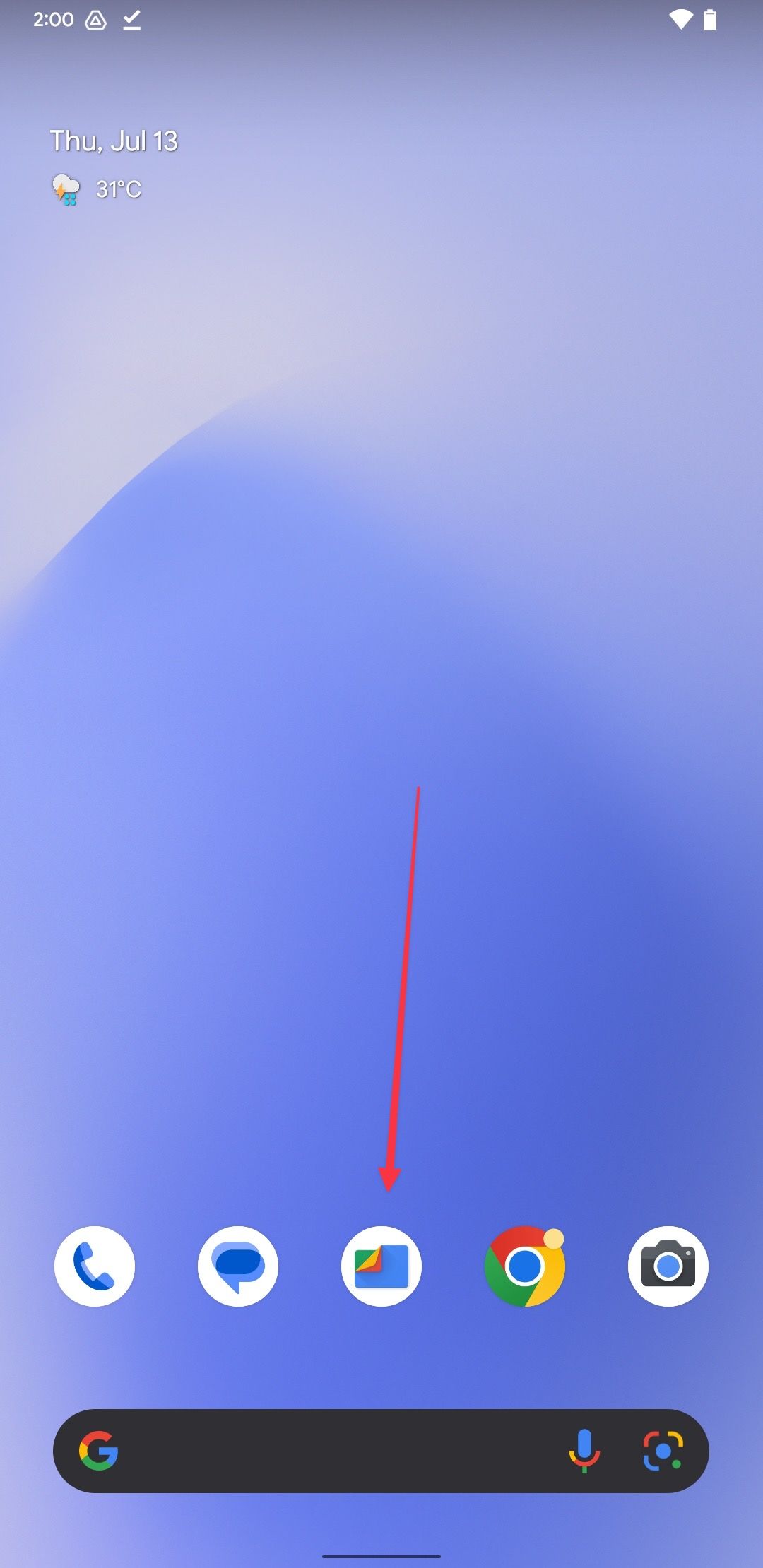
Most Android phones come with a pre-installed file manager, such as Files by Google or My Files (on Samsung devices).
- Open your device's File Manager application.
- Select Internal storage (and SD card if you use expandable storage).
- Navigate to the DCIM folder to find your primary camera roll.
- Navigate to the Pictures folder for screenshots and edited images.
- Navigate to the Download folder for web downloads and email attachments.
- Check application-specific folders, such as WhatsApp > Media > WhatsApp Images, for media received through messaging platforms.
Revealing Hidden Files and Folders
Some folders on Android are hidden by default to prevent accidental deletion of system files. App developers sometimes place a period (.) at the beginning of a folder name (e.g., .nomedia or .hiddenfolder) to hide media from gallery applications.
- Open your file manager app.
- Tap the menu icon (usually three vertical dots in the upper right corner).
- Select Settings or Preferences.
- Toggle on Show hidden files or Show hidden system files.
- Return to your storage directories to look for folders starting with a dot that may contain missing photos.
Comparison of Android Photo Location Methods
| Method | Best Used For | Pros | Cons |
|---|---|---|---|
| Gallery Apps (Google/Samsung) | Everyday browsing, chronological viewing, and search. | Fast, visual, automatically categorizes faces and places. | May hide downloaded or app-specific images if folders lack indexing. |
| File Managers (Files by Google, My Files) | Locating stray downloads, manual file moving, and deep searches. | Direct access to raw storage, finds hidden or unindexed files. | Less visual, requires manual navigation through folder hierarchies. |
| Cloud Storage Clients (Google Photos, OneDrive) | Recovering deleted photos or accessing cross-device backups. | Restores photos from remote servers; preserves original quality if synced. | Requires an active internet connection and prior cloud backup setup. |
Troubleshooting: What to Do If Your Photos Are Missing
If you cannot find your photos using gallery apps or file managers, the files may have been deleted, moved, or misplaced. Systematic troubleshooting can help recover or locate them.
1. Check the Trash or Bin
Modern Android gallery applications feature a temporary holding bin for deleted items. Photos are typically stored here for 30 to 60 days before permanent deletion.
- In Google Photos: Tap Collections or Library > Trash. Select any photos you wish to recover and tap Restore.
- In Samsung Gallery: Tap the menu icon (three lines) > Trash. Select the images and tap Restore.
- In Files by Google: Tap the menu icon > Trash. Review deleted files and restore them as needed.
2. Inspect Cloud Backups
If you recently reset your phone, switched devices, or cleared your local storage, your photos might still exist in the cloud.
- Log into Google Photos via a web browser or on a secondary device using your Google account credentials to see if automatic backup was enabled.
- Check alternative cloud services you may have used, such as Microsoft OneDrive, Dropbox, Amazon Photos, or iCloud (if using an iOS-to-Android transition).
3. Clear Cache and Data of the Gallery App
Corrupted cache data can prevent gallery applications from displaying newly added or existing images properly.
- Open your Android Settings.
- Tap Apps or Apps & Notifications.
- Locate and select your gallery app (e.g., Google Photos or Gallery).
- Tap Storage & cache.
- Tap Clear cache (avoid tapping "Clear storage" unless you are certain it will not delete local configurations, though cloud-backed apps will resync).
- Restart your phone and reopen the gallery app to force a fresh index of your storage.
Frequently Asked Questions
Where do deleted photos go on an Android phone?
Deleted photos are sent to a temporary trash or bin folder inside your gallery or file manager app. They remain there for 30 days by default, allowing you to restore them before they are permanently wiped from the device storage.
Why are my downloaded pictures not showing up in the gallery?
Downloaded pictures often fail to appear in gallery apps if the download folder contains a .nomedia file. This file tells media scanners to ignore the directory. You can use a file manager to look for a file named .nomedia in the download folder and delete it to make the images visible in your gallery.
How do I find hidden photo albums on Android?
To find hidden albums, open your file manager, go to settings, and enable Show hidden files. Additionally, check your gallery app's settings under "Hide albums" or "Blocked albums" to ensure you haven't manually concealed specific directories from view.
Can I recover permanently deleted photos from an Android phone?
Once photos are cleared from the trash bin, recovery becomes difficult without third-party data recovery software or active cloud backups. Data recovery software often requires root access and is not guaranteed to work due to modern Android file encryption standards (File-Based Encryption).
Why are my photos disappearing from my Android phone?
Photos usually disappear due to automatic clean-up tools (such as "Free up space" features in Google Photos that delete local copies once backed up to the cloud), accidental deletion, synchronization errors, or failing hardware storage (such as a corrupt MicroSD card).
Next Actions and Best Practices
To prevent losing track of your photos in the future, establish a reliable backup and organization routine. Enable automatic backup in cloud services like Google Photos or Microsoft OneDrive so that every captured image is safely mirrored off-device. Regularly organize your downloaded images into specific albums, and periodically check your cloud storage settings to ensure you are not accidentally deleting local files when executing storage optimization procedures.
Image Gallery
Select an image to open it in a new tab.



Vivian Cho
Executive IT and Emerging Technologies Reporter
