
Integrating Streamlabs widgets, alerts, and overlays into Open Broadcaster Software (OBS) Studio allows streamers to maintain the professional production value of Streamlabs while leveraging the performance stability of the open-source OBS framework. By using Browser Source integration, you can import dynamic content—such as donation alerts, subscriber goals, and chat boxes—directly into your scenes without running the resource-heavy Streamlabs Desktop application.
Understanding the Integration Mechanism
The primary method for adding Streamlabs functionality to OBS Studio is the Browser Source feature. This feature essentially functions as an embedded web browser that renders web-based interfaces. Because Streamlabs widgets are hosted on their servers and accessed via unique URLs, OBS can display these interactive elements directly on top of your game capture, camera feed, or media sources.
By separating your broadcast software from your alert management, you gain a significant technical advantage: if the Streamlabs dashboard experiences a temporary lag or service fluctuation, your primary stream encoder (OBS) remains unaffected. This modular approach is considered a best practice for high-performance streaming setups, as it minimizes the CPU overhead compared to running an all-in-one streaming software suite.
Prerequisites for a Successful Setup
Before attempting to bridge Streamlabs and OBS, ensure your technical environment is configured for stability. You will need:
- A Streamlabs Account: A verified account with your primary streaming destination (e.g., Twitch, YouTube, or Kick) linked.
- OBS Studio Installed: Ensure you are running a current, stable version of OBS Studio. Updates are released periodically to ensure compatibility with modern browser source rendering engines.
- Stable Internet Connection: Since the browser source fetches data in real-time, high-latency connections may result in delayed alert triggers.
- Widget URLs: You must have the unique overlay URLs provided by your Streamlabs dashboard. Never share these URLs publicly, as they contain your private account identification.
Step-by-Step: Adding Streamlabs Alerts to OBS
Follow these steps to integrate your alert system into your streaming scenes.
- Retrieve the Widget URL:
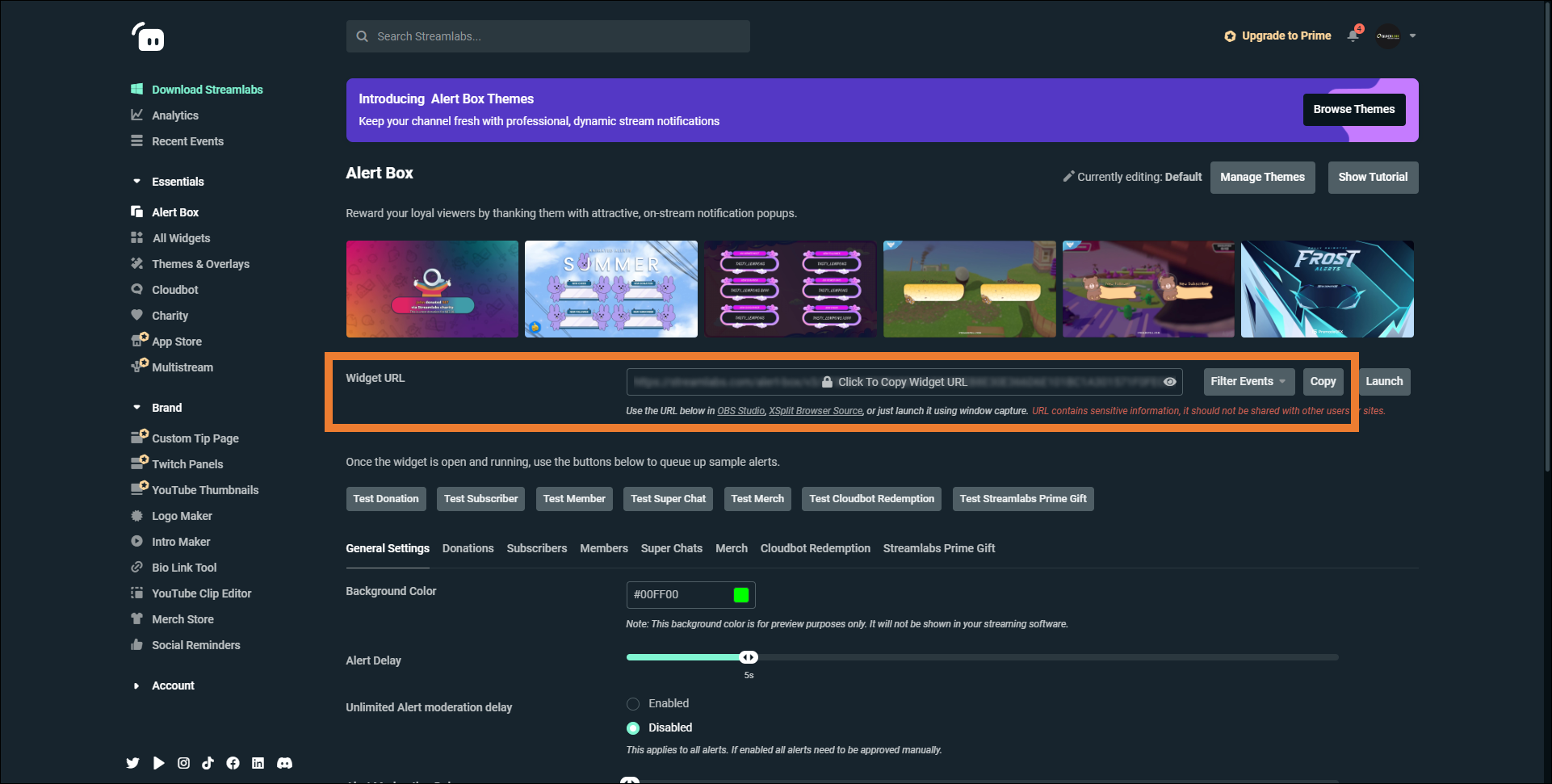
- Log in to your Streamlabs dashboard via a web browser.
- Navigate to the Alert Box section in the left-hand sidebar.
- Locate the field labeled "Widget URL." Click "Click to copy" to save the URL to your clipboard.
- Open OBS Studio:
- Navigate to the "Sources" box at the bottom of your OBS interface.
- Click the "+" (Add) button.
- Select Browser from the menu.
- Assign a descriptive name, such as "Streamlabs Alerts," and click OK.
- Configure the Browser Source:
- A properties window will appear. Paste your copied widget URL into the URL field.
- Set the Width and Height to match your canvas size (typically 1920x1080 for 1080p streams).
- Check the "Shutdown source when not visible" box if you want to save system resources, or leave it unchecked if you prefer the browser source to remain active at all times.
- Click OK.
- Test the Integration:
- Return to your Streamlabs browser dashboard.
- Under the "Alert Box" settings, click the Test button for the specific alert you want to check (e.g., "Test Follow").
- Observe OBS to ensure the alert appears correctly over your other sources.
Advanced Customization and Layer Management
Once your browser source is active, you must manage its position within your source list. In OBS, the order of sources matters; items at the top of the list appear "in front" of items below them. Ensure your Browser Source is positioned above your "Game Capture" or "Video Capture Device" sources. If the alerts are hidden, click and drag the Browser Source to the top of your list.
For professional polish, use the Transform tool. Right-click your Streamlabs Browser Source, select "Transform," and use "Edit Transform" to fine-tune the positioning. You can also press the Alt key while dragging the red handles in the preview window to crop the browser source, which is particularly useful for chat boxes or goal bars where you want to remove unnecessary transparent padding.
Comparison of Integration Methods
While the Browser Source is the industry standard for combining these tools, users often weigh the pros and cons of using Streamlabs Desktop versus OBS Studio with external browser sources.
| Feature | Streamlabs Desktop | OBS Studio + Browser Source |
|---|---|---|
| Performance Impact | Moderate to High | Low (Highly Optimized) |
| Customization | Native, Integrated | Requires Web/URL Management |
| Plugin Ecosystem | Streamlabs-specific | Universal (OBS Plugin Support) |
| Stability | Variable based on updates | Highly stable/Reliable |
| Learning Curve | Easier for beginners | Moderate |
Troubleshooting Common Issues
If your Streamlabs alerts fail to trigger, follow this systematic approach to identify the bottleneck.
- The "Invisible Alert" Problem: If the alert sounds but does not display, check if your browser source is hidden or covered by an opaque image or background. Additionally, ensure the widget URL is current. Sometimes, regenerating the URL in the Streamlabs dashboard and re-pasting it into OBS clears cache-related display errors.
- Hardware Acceleration Conflicts: If you see a "black box" instead of your alert, right-click the Browser Source, go to Properties, and toggle the "Hardware Acceleration" setting. Some GPU drivers conflict with the CEF (Chromium Embedded Framework) used by OBS.
- Audio Issues: By default, browser sources may not output audio. Open the Advanced Audio Properties in OBS (via the Audio Mixer menu) and ensure the "Monitor and Output" setting is enabled for your Browser Source if you need to hear alert sounds through your headphones.
Managing Multiple Widgets
You do not need to create a new browser source for every single widget. If you are using multiple widgets from the same Streamlabs account, such as a follower goal and a donation ticker, you have two choices. You can create separate Browser Sources for each to have independent control over their positioning, or you can use "Streamlabs Overlay" themes which combine all elements into one URL. Using separate sources is generally recommended for streamers who frequently rearrange their scenes, as it offers granular control over layout placement.
FAQ: Frequently Asked Questions
1. Is there a cost to using Streamlabs with OBS? No. The core functionality of integrating Streamlabs widgets into OBS via browser sources is free. Streamlabs does offer "Ultra" or "Prime" subscriptions that provide access to premium overlays and advanced analytics, but the ability to connect your alerts to OBS remains a standard, free feature for all users.
2. Why are my browser sources consuming so much RAM? Browser sources in OBS run on a Chromium engine. Each source you add essentially acts as a separate browser tab. If you have too many active sources, system memory usage will rise. To mitigate this, enable "Shutdown source when not visible" in the source properties for any widgets you aren't actively using in every scene.
3. Do I need to be logged into Streamlabs inside OBS? No. When you use the browser source method, the authentication happens in your primary web browser (Chrome, Firefox, etc.). You are simply copying a public-facing URL generated by your account. This is a secure method that prevents you from needing to enter sensitive login credentials into the broadcast software itself.
4. How can I ensure my alerts don't block gameplay? Strategic layout design is essential. Most professional streamers place alerts in the upper-left or lower-right corners of the screen. When you add your browser source, resize the source box to match the exact area where you want the alert to appear, rather than using the full screen. This ensures the transparent background of the alert doesn't accidentally intercept mouse clicks or capture unexpected elements.
5. Can I use other notification services with OBS? Yes. While this guide focuses on Streamlabs, the "Browser Source" method works for any service that provides a stream-overlay URL, including StreamElements, Muxy, or custom HTML/CSS overlays created manually. The process for adding these is identical to the steps outlined for Streamlabs.
Final Next Steps
To complete your integration, perform a "dry run" broadcast. Record a local video file (rather than going live immediately) to verify that your alerts trigger in the correct location and that the audio levels are balanced against your game and microphone. Once you are satisfied with the positioning and the appearance of the alerts, save your OBS profile and Scene Collection to an external drive. This acts as a backup, ensuring that if you ever need to reinstall your streaming software, your complex layout of widgets and sources can be restored in seconds.

Image Gallery
Select an image to open it in a new tab.


Celine Dubois
Contemporary Living and Global Arts Columnist
