To receive a fax in Gmail, you must subscribe to a third-party online fax service, as Google does not provide a native faxing feature. These services assign you a dedicated fax number; when a document is sent to that number, the provider converts the transmission into a PDF and delivers it directly to your Gmail inbox as an email attachment.
While the world has moved predominantly toward instant messaging and cloud-based collaboration tools, the fax remains a critical component of secure communication in 2026. Industries such as healthcare, law, and government continue to rely on faxing due to its established legal standing and perceived security. However, the days of the bulky, thermal-paper fax machine are largely over. Integrating fax functionality directly into your Gmail account streamlines your workflow, allowing you to manage all your documents in one centralized location.
Understanding the Technology: Why Gmail Requires a Bridge
Gmail is built on modern internet protocols like SMTP (Simple Mail Transfer Protocol) and IMAP (Internet Message Access Protocol). These protocols are designed for packet-switched networks, where data is broken into small pieces and sent across the web. In contrast, traditional faxing relies on the Public Switched Telephone Network (PSTN), which is a circuit-switched network designed for continuous analog signals.
Because Gmail cannot "speak" the language of traditional phone lines, a bridge is required. This bridge is the online fax service. In 2026, these services utilize T.38 (Fax over IP) technology to intercept analog or digital signals from a sender’s fax machine and translate them into digital files (usually PDFs or TIFFs) that an email server can process. When someone dials your assigned fax number, the service’s servers answer the call, receive the data, and immediately forward it to your specified Gmail address.
Prerequisites for Receiving Faxes via Gmail
Before you can start receiving faxes in your inbox, you need to have a few components in place. Setting these up correctly ensures that your documents are handled securely and that you do not encounter delivery failures.
- A Valid Google Account: This can be a personal
@gmail.comaccount or a professional Google Workspace account (@yourcompany.com). - An Online Fax Service Subscription: Several reputable providers exist in 2026, including eFax, iFax, and RingCentral. Most offer a range of plans based on volume.
- A Dedicated Fax Number: During the signup process for a fax service, you will be asked to choose a number. You can typically select a local number, a toll-free number, or even port an existing landline fax number to the digital service.
- Stable Internet Access: While the service handles the "receiving" part on their servers 24/7, you need internet access to log into Gmail and view the documents.

Step-by-Step Guide to Setting Up Gmail Fax Reception
The process of connecting your fax number to your Gmail account is straightforward, but it requires attention to detail regarding notification settings and security filters.
Step 1: Select and Sign Up for a Service
Research providers that specifically offer "Email-to-Fax" and "Fax-to-Email" capabilities. In 2026, the market is competitive, so look for features like OCR (Optical Character Recognition), which allows you to search the text within a received fax directly from your Gmail search bar.
Step 2: Choose Your Virtual Fax Number
Most services allow you to search for numbers by area code. If your business operates internationally, many providers offer numbers in over 50 countries. Once selected, this number is yours for as long as you maintain the subscription.
Step 3: Link Your Gmail Address
Inside the dashboard of your chosen fax provider, navigate to the "Settings" or "Email Integration" section. You will need to enter the Gmail address where you want to receive faxes. Some services allow you to add multiple "authorized" email addresses, which is useful for teams where several people need to view incoming documents.
Step 4: Configure Attachment Formats
While PDF is the industry standard in 2026, some older systems might still prefer TIFF or even high-resolution JPEG. Set your default reception format to PDF/A (the archival version of PDF) to ensure long-term readability and compatibility with Google Drive.
Step 5: Whitelist the Fax Service in Gmail
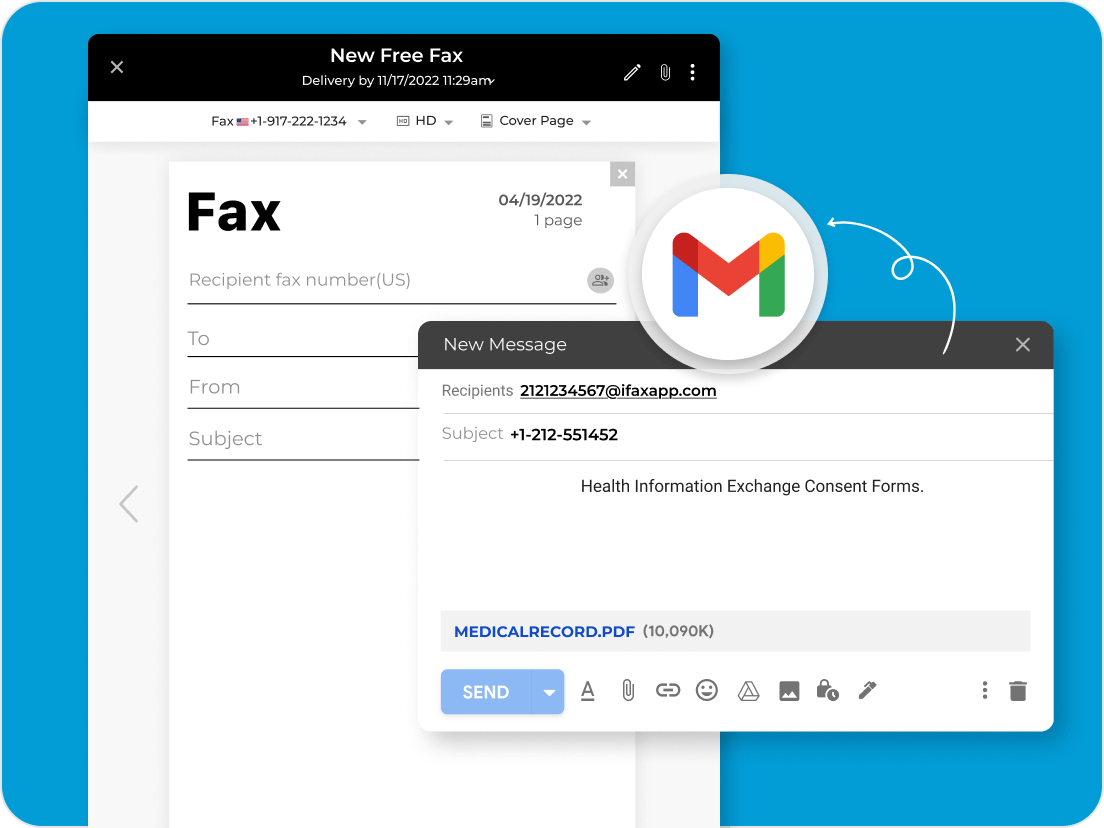
To prevent important faxes from being rerouted to your "Spam" or "Promotions" folders, add the service's sending domain (e.g., @efaxsend.com or @ifaxapp.com) to your Gmail contacts. Furthermore, you can create a specific filter in Gmail settings to ensure any email from that domain is "Never sent to Spam" and is automatically labeled as "Fax."
Comparing Top Online Fax Services for 2026
Choosing the right provider depends on your monthly volume and the level of security required. Below is a comparison of the leading services currently available.
| Service Provider | Typical Monthly Cost (2026) | Monthly Page Limit | Security Certifications | Best For |
|---|---|---|---|---|
| eFax | $18.95 - $25.00 | 200 - 400 pages | HIPAA, HITRUST | Enterprises & Healthcare |
| iFax | $15.00 - $30.00 | 500+ pages | HIPAA, GLBA, SOC 2 | High-volume users |
| RingCentral | $20.00 (as add-on) | Unlimited (within limits) | SOC 2, HIPAA | Unified Communications |
| Dropbox Fax | $10.00 - $15.00 | 100 - 300 pages | Basic Encryption | Occasional/Home use |
The Security Factor: Is Receiving Faxes in Gmail Safe?
One of the primary reasons organizations still use faxing in 2026 is the perceived security of a point-to-point transmission. When you bring Gmail into the mix, you introduce new security variables.
Encryption in Transit
Reputable online fax services use TLS (Transport Layer Security) encryption when sending the converted fax from their servers to Google’s servers. Since Google also uses TLS for Gmail, the document is encrypted while it travels across the internet.
HIPAA and Legal Compliance
For users in the medical or legal fields, standard email reception may not be enough. If you handle Protected Health Information (PHI), you must ensure your fax provider is willing to sign a Business Associate Agreement (BAA). Furthermore, you should utilize Google Workspace’s advanced security features, such as S/MIME encryption, to ensure that the document remains secure once it reaches your inbox.
Data Residency
In 2026, data sovereignty laws (like GDPR in Europe or CCPA in California) are strictly enforced. Check where your fax provider stores their data. If you are in the EU, you likely need a provider that guarantees data storage on European servers before the document is forwarded to your Gmail.
Troubleshooting Common Issues
Even with a robust setup, you may occasionally encounter issues receiving faxes. Here are the most common problems and their technical solutions.
- Faxes Not Appearing in Inbox: Check your "Spam" and "Trash" folders first. If the fax is missing, log into the web portal of your fax service. If the fax is visible there but not in Gmail, the issue lies with the email relay. Ensure the sender's domain is whitelisted.
- Poor Image Quality: If the received PDF is grainy or unreadable, the issue usually stems from the sender's machine or the resolution settings of your fax provider. Ask the sender to change their fax mode from "Standard" to "Fine" or "Photo."
- Busy Signals for Senders: This happens if your online fax service is experiencing high traffic or if there is a regional outage in the PSTN-to-VoIP gateway. Most 2026 services have redundant gateways to prevent this, so persistent busy signals should be reported to the provider's support team.
- Partial Faxes: If a 10-page fax arrives with only 3 pages, it usually indicates a "handshake" error or a timeout during transmission. This is common when sending from very old analog machines to digital services. Increasing the "ECM" (Error Correction Mode) on the sending machine often solves this.
Advantages of Using Gmail Over Physical Fax Machines
The transition to a Gmail-based fax system offers several objective improvements over traditional hardware:
- Searchability: Because Gmail indexes the content of your emails, and many fax services provide OCR, you can search for a specific invoice number or name within your faxes as easily as searching a standard email.
- Organization: You can use Gmail labels to categorize faxes by client, project, or date. This eliminates the need for physical filing cabinets.
- Cost Efficiency: You no longer need to pay for a dedicated analog phone line, which can cost $30-$60 per month, nor do you need to purchase paper, toner, or maintain a mechanical device.
- Mobility: You can receive and view faxes on any device with the Gmail app. This is essential for the hybrid and remote work environments that dominate 2026.
Advanced Configuration: Using Google Apps Script
For power users and IT administrators, Google Workspace offers the ability to automate fax processing using Google Apps Script. You can write a simple script that monitors your "Fax" label and automatically saves any incoming fax attachments to a specific folder in Google Drive or even logs the reception details in a Google Sheet for auditing purposes.
This level of automation ensures that faxes are not just received, but are immediately integrated into the company's broader document management system without manual intervention.
Frequently Asked Questions
Can I receive a fax to Gmail for free?
While a few services offer a "free trial" or a very limited free tier (e.g., 5 pages per month), truly free, permanent fax-to-email services are rare in 2026 due to the costs associated with maintaining phone numbers and telecom gateways. Most reliable solutions require a monthly or annual subscription.
Do I need a phone line to receive faxes in Gmail?
No. The online fax provider hosts the phone line on their servers. You only need a standard internet connection to access your Gmail account. This is one of the primary benefits of the service, as it removes the need for physical copper-wire infrastructure.
How do I know if a fax was successfully received?
When a fax is successfully delivered to your virtual number, the service sends an email to your Gmail account with the document attached. Most services also provide a "Log" or "Activity" dashboard on their website where you can see the status of every incoming transmission, including the sender’s number and the time of arrival.
Is there a limit to how many faxes I can receive?
Limits depend entirely on your subscription plan. Some basic plans might limit you to 100 pages per month, while enterprise plans offer thousands of pages or even unlimited reception. It is important to monitor your usage, as "overage" charges per page can be significantly higher than the base rate.
Can I receive faxes on my Gmail mobile app?
Yes. Since the fax arrives as a standard email with a PDF attachment, you can open it using the Gmail app on Android or iOS. You can then use your mobile device's native PDF viewer to read, sign, or forward the document.
Final Recommendation
For most individual professionals and small businesses in 2026, iFax or eFax represents the best balance of cost and feature depth for receiving faxes via Gmail. If you are already using a VoIP system like RingCentral or 8x8 for your office phones, check your current plan first; fax-to-email is often included as a standard feature, and you may simply need to activate it in your admin console. Regardless of the provider you choose, ensure you enable two-factor authentication (2FA) on both your fax service account and your Gmail account to maintain the highest level of document security.
Image Gallery
Select an image to open it in a new tab.


Lars Thomsen
Global Labor Markets and Economic Strategy Editor
