
To enable two-factor authentication on your iPhone, open Settings, tap your Apple Account name at the top, and select Sign-In & Security. Tap Turn On Two-Factor Authentication, enter your trusted phone number to receive verification codes via SMS or call, and enter the code sent to your device to complete setup.
Understanding Security on iOS: Two-Factor Authentication vs. Two-Step Verification
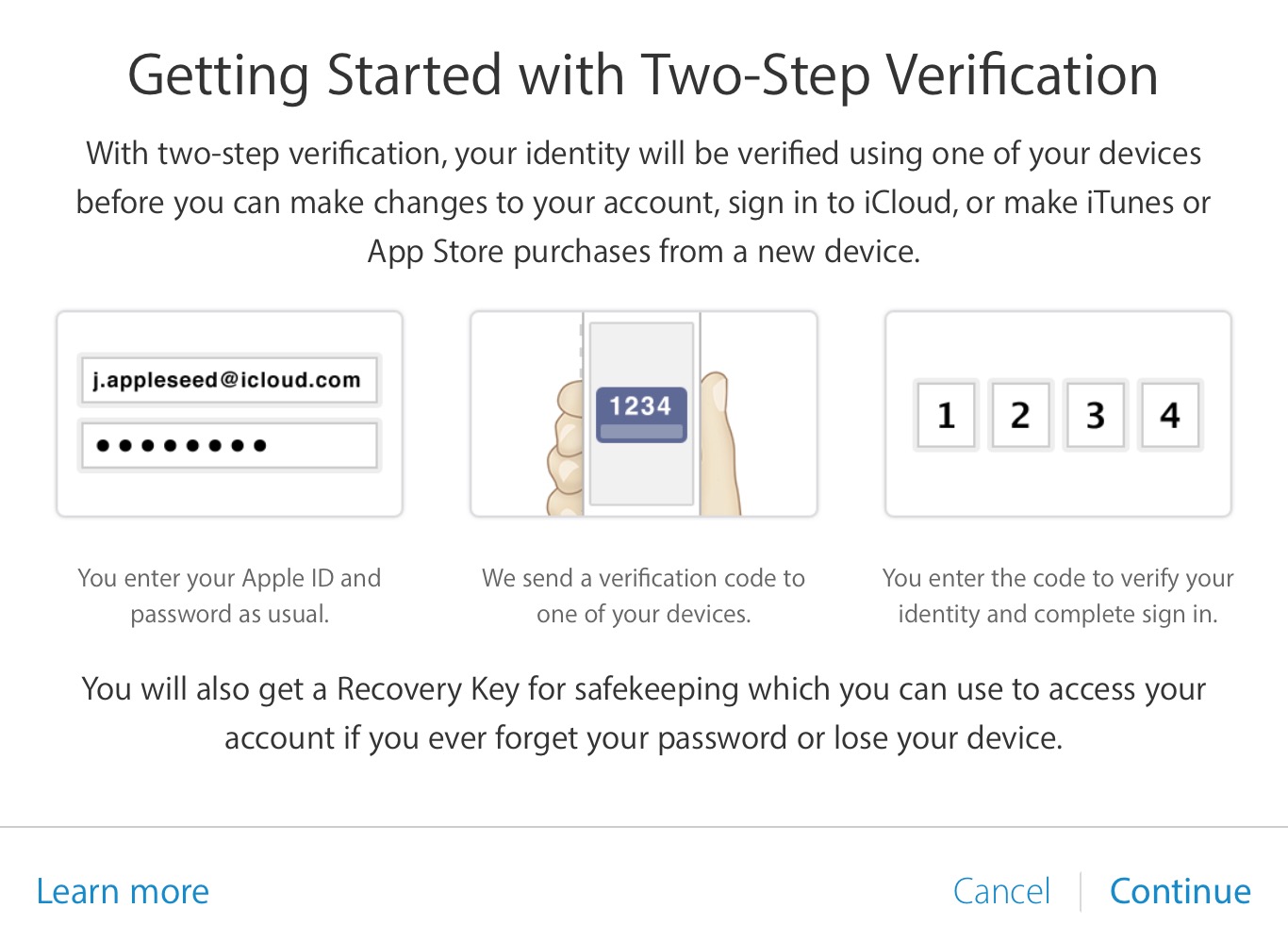
When securing an iPhone and its linked accounts, terminology can create confusion. Historically, Apple offered a system known as Two-Step Verification, which relied primarily on SMS text messages or Find My iPhone notifications to deliver four-digit verification codes. That older system was designed for earlier versions of iOS and OS X.
Apple replaced legacy two-step verification with Two-Factor Authentication (2FA). Built directly into iOS, iPadOS, and macOS, modern two-factor authentication uses stronger cryptographic methods, displays six-digit verification codes automatically on trusted Apple devices, and shows an interactive location map whenever a sign-in attempt occurs from an unrecognized device or browser.
Although many users still search for "2-step verification on iPhone," modern iOS devices use Two-Factor Authentication for the primary Apple Account (formerly called Apple ID). Additionally, iOS includes built-in tools to generate two-step verification codes for third-party websites and services such as Google, Microsoft, and social media platforms. Securing your device requires understanding both your native Apple Account security and how to protect external accounts accessed through your iPhone.
Prerequisites for Setting Up Authentication on iPhone
Before enabling two-factor authentication or setting up verification systems on an iPhone, review the essential requirements to ensure a smooth configuration:
- Supported Operating System: Ensure your iPhone is running an updated version of iOS. Modern security features, including advanced verification options and Stolen Device Protection, require iOS 17 or iOS 18.
- Active Passcode or Touch ID / Face ID: Your iPhone must have a device passcode enabled. Hardware security elements rely on your device passcode to authorize encryption keys.
- Accessible Phone Number: You need a primary mobile phone number capable of receiving SMS messages or automated phone calls. This number serves as a trusted fallback when trusted devices are unavailable.
- Apple Account Credentials: You must know your current Apple Account email address or phone number and the associated password.
- Stable Network Connection: Connect your iPhone to a reliable Wi-Fi network or cellular data connection during the initial setup process to allow Apple servers to register the device.
How to Enable Two-Factor Authentication for Apple Account
For most accounts created on modern iOS versions, Two-Factor Authentication is enabled by default. However, if you upgraded an older account or haven't configured security features yet, follow these explicit steps to activate protection directly on your iPhone.
Settings App -> [Your Name / Apple Account] -> Sign-In & Security -> Turn On Two-Factor Authentication
Step 1: Access Apple Account Settings
Unlock your iPhone and launch the Settings app. At the very top of the main settings list, tap your Apple Account profile banner (which displays your name and profile picture).
Step 2: Open Sign-In & Security
Within your Apple Account control panel, locate and tap Sign-In & Security. This menu consolidates your registered login emails, phone numbers, password change controls, and primary authentication protocols.
Step 3: Initiate Two-Factor Authentication Setup
Look for the option labeled Two-Factor Authentication. If it indicates "Off," tap Turn On Two-Factor Authentication, then tap Continue on the informational screen that appears.
Step 4: Add and Verify Your Trusted Phone Number
Enter the mobile phone number where you want to receive security verification codes when signing in on untrusted devices. Choose whether you prefer to receive verification codes via Text Message (SMS) or Automated Phone Call. Tap Next.
Step 5: Complete Verification
Apple will immediately send a six-digit verification code to the phone number provided. Enter this code on your iPhone screen. Once verified, Two-Factor Authentication becomes permanently active on your Apple Account, protecting your iCloud data, iMessage, FaceTime, and App Store purchases.
Managing Trusted Phone Numbers and Account Recovery
Relying on a single trusted phone number creates a single point of failure. If your iPhone is lost, stolen, or damaged, receiving an SMS verification code on that same physical device becomes impossible. Adding secondary security layers is vital for continuous account access.
Adding Secondary Trusted Phone Numbers
To prevent lockout scenarios, configure additional phone numbers belonging to family members, trusted colleagues, or landlines:
- Navigate to Settings > [Your Name] > Sign-In & Security.
- Tap Two-Factor Authentication or Two-Step Verification.
- Select Edit next to Trusted Phone Number, then tap Add a Trusted Phone Number.
- Authenticate using your iPhone passcode or Face ID / Touch ID.
- Enter the secondary phone number, select text or phone call verification, and enter the code sent to that number.
Setting Up Recovery Contacts and Recovery Keys
Apple provides account recovery frameworks for users who lose access to all trusted devices and phone numbers:
- Account Recovery Contact: Assign a trusted friend or family member who owns an Apple device. If you get locked out, your recovery contact can generate a short code on their device to help you reset your password. They never gain access to your private data or account credentials.
- Recovery Key: A 28-character generated code that gives you total control over account recovery. Enabling a Recovery Key turns off standard Apple account recovery; you must keep this key stored in a physical safe or secure password manager, as losing both your key and trusted devices permanently locks the account.
Using Physical Hardware Security Keys
For elevated security against targeted phishing attacks, iOS allows users to pair physical security keys (such as FIDO2-certified YubiKeys) with their Apple Account.
To set up hardware keys:
- Open Settings > [Your Name] > Sign-In & Security.
- Tap Security Keys, then select Add Security Keys.
- Follow the on-screen prompts to register at least two physical NFC or Lightning/USB-C security keys.
Enabling 2-Step Verification for Third-Party Apps Using Built-in iOS Authenticator
Securing your Apple Account protects your device, but individual third-party services (such as Google, WhatsApp, Facebook, or banking apps) require independent two-step verification. iOS features a built-in verification code generator within the native password management system, eliminating the need for standalone authenticator apps in many cases.
Using the Integrated iOS Password Authenticator
You can store time-based one-time password (TOTP) seeds directly in your iPhone password vault:
- Open Settings on your iPhone and scroll down to Passwords (or launch the standalone Passwords app on supported iOS versions).
- Authenticate with Face ID, Touch ID, or your passcode.
- Tap an existing account entry or tap the + icon in the top-right corner to add a new account.
- On the account details page, tap Set Up Verification Code....
- Select Enter Setup Key (to paste a text key provided by the website) or Scan QR Code (to scan the setup code displayed on a computer screen).
- Once configured, your iPhone automatically generates a rolling 30-second six-digit verification code. When logging into that service via Safari or supported apps, iOS auto-fills the verification code above the keyboard automatically.
Using Dedicated Authenticator Apps on iOS
If you prefer not to store TOTP codes inside your main password vault, third-party authenticator applications are widely available in the iOS App Store. Popular options include:
- Google Authenticator: Offers cloud synchronization with Google accounts for quick backup across devices.
- Microsoft Authenticator: Provides push notification approvals for Microsoft services alongside standard TOTP code support.
- 1Password / Bitwarden: Enterprise-grade password managers with integrated multi-factor token storage and cross-platform synchronization.
Technical Comparison of Authentication Methods on iOS
Selecting the correct security protocol depends on your threat model, convenience preferences, and account architecture.
| Security Method | Primary Mechanism | Best Used For | Pros | Cons / Limitations |
|---|---|---|---|---|
| Apple Account 2FA | Device notification & 6-digit code | Apple Account, iCloud, Device Sign-ins | Built directly into iOS kernel; interactive location alerts | Requires at least one Apple device or accessible trusted number |
| iOS Built-in Authenticator (TOTP) | Time-based 30-second codes | Third-party websites (Google, Social Media, Financial apps) | Auto-fills in Safari; syncs across devices via Encrypted iCloud Keychain | Tied to iCloud ecosystem; setup requires website QR code scanning |
| SMS-Based 2-Step Verification | Text message code | Third-party legacy services | Works on any mobile handset without special software | Vulnerable to SIM swapping attacks and cellular interception |
| Hardware Security Keys (FIDO2) | Physical NFC or Lightning/USB-C token | High-risk profiles, journalists, enterprise accounts | Immune to remote phishing attacks; standard-setting security | Requires buying physical tokens; losing tokens risks total lock-out |
Troubleshooting Authentication Problems on iPhone
Even with careful configuration, login issues and code delivery failures can occur. Here is how to resolve standard authentication roadblocks on iOS.
1. Not Receiving SMS Verification Codes
If text-based verification codes do not arrive:
- Confirm your phone has active cellular reception and can receive standard SMS text messages.
- Check Settings > Messages > Blocked Contacts to verify the sender short-code was not accidentally blocked.
- Disable Filter Unknown Senders temporarily under Settings > Messages.
- Toggle Airplane Mode on for 10 seconds, then turn it off to re-register on your carrier network.
2. Locked Out of Apple Account Without a Trusted Device
If your iPhone is lost and you do not have access to another trusted Apple device:
- Go to iforgot.apple.com on any web browser.
- Enter your Apple Account address.
- If prompted for a verification code, select Didn't get a verification code? and choose your secondary trusted phone number.
- If you have no access to trusted numbers or devices, initiate Account Recovery. This automated security process takes several days to protect against unauthorized takeover attempts.
3. Verification Code Prompt Appears Unexpectedly
If a two-factor authentication pop-up appears on your iPhone showing a map location you do not recognize:
- Tap Do Not Allow immediately. This blocks the sign-in attempt.
- Change your Apple Account password right away by navigating to Settings > [Your Name] > Sign-In & Security > Change Password.
- Review your authorized device list at the bottom of your Apple Account menu and remove any unrecognized hardware.
4. Navigating iOS Stolen Device Protection
Introduced in iOS 17.3, Stolen Device Protection adds an extra layer of security when your iPhone is away from familiar locations (like home or work). Biometric authentication (Face ID or Touch ID) is strictly required to change security settings—passcodes alone will not suffice. Additionally, critical actions like turning off Two-Factor Authentication, changing your Apple Account password, or altering trusted numbers enforce a one-hour security delay.
Essential Best Practices for iPhone Account Security
Activating two-factor verification is a vital step, but overall device security relies on defensive measures across your whole setup:
- Keep Multiple Trusted Numbers: Maintain at least two verified phone numbers on your Apple Account.
- Enable Stolen Device Protection: Go to Settings > Face ID & Passcode > Stolen Device Protection and turn it on to safeguard your security settings if your device passcode is compromised.
- Use Strong, Unique Passwords: Ensure your Apple Account password is not reused across external websites. Use the built-in iOS Password Generator to create complex passwords.
- Regularly Audit Account Devices: Go to Settings > [Your Name] and scroll to the bottom. Review all signed-in devices, tapping any device you no longer own to select Remove from Account.
- Avoid SMS When TOTP Is Available: For third-party apps, prefer authenticator apps or the iOS built-in code generator over SMS text messages to protect against SIM swap fraud.
Frequently Asked Questions
Can I turn off two-factor authentication on my iPhone once it is enabled?
For most Apple Accounts created or updated on modern iOS versions, Two-Factor Authentication cannot be turned off. Apple mandates 2FA to safeguard personal data, payment methods, and device backups. If you recently enabled 2FA on an older account, Apple provides a 14-day window in the enrollment confirmation email to restore your previous security settings.
What is the difference between two-step verification and two-factor authentication?
Legacy two-step verification relied on SMS codes or Find My notifications sent across unencrypted cellular networks or basic web prompts. Two-factor authentication is built directly into iOS, utilizing end-to-end encryption, automatic hardware verification, interactive maps, and six-digit dynamic codes displayed natively on trusted devices.
How do I get an Apple Account verification code if my iPhone is offline?
If your iPhone lacks Wi-Fi or cellular service, you can generate a verification code locally from the device system settings. Go to Settings > [Your Name] > Sign-In & Security, then tap Get Verification Code. A six-digit code will appear on the screen immediately without needing an internet connection.
What happens if I lose my iPhone and cannot receive verification codes?
You can put your SIM card into a secondary phone to receive SMS codes at your trusted number, or log into icloud.com/find to locate or erase your device without needing a 2FA code. If you configured secondary trusted numbers or an Account Recovery Contact, you can use those channels to regain access without undergoing a prolonged manual account recovery process.
Can I use third-party authenticator apps like Google Authenticator for my Apple Account sign-in?
No. Apple Accounts require native Apple Two-Factor Authentication or hardware Security Keys (FIDO2 standard). Third-party TOTP authenticator apps cannot generate codes for Apple Account logins, though you can use third-party authenticator apps on your iPhone to secure non-Apple services like Google, Microsoft, and social networks.
Practical Recommendation
To secure your iPhone effectively, verify your Apple Account security status immediately. Open Settings > [Your Name] > Sign-In & Security, ensure Two-Factor Authentication is active, and add at least one trusted secondary phone number. Next, enable Stolen Device Protection under Settings > Face ID & Passcode. Finally, audit your critical third-party web accounts (email, banking, social media) and move their 2-step verification mechanisms from standard SMS to the integrated iOS Password Verification Authenticator for optimal protection.
Image Gallery
Select an image to open it in a new tab.


Zara El-Hashem
Sociocultural Dynamics and Academics Writer
